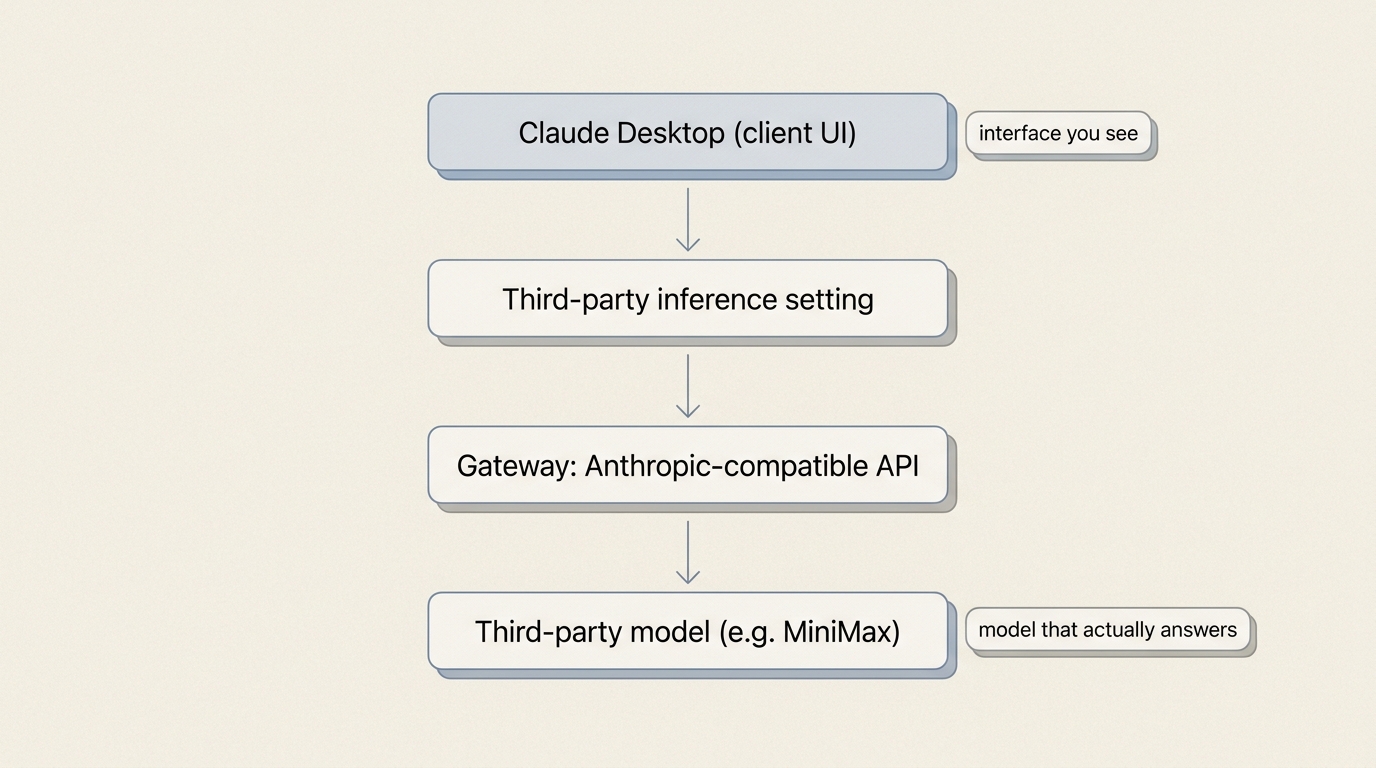
The newer Claude Desktop has a feature called Third-party inference. What it does is simple: the interface is still the Claude client, but the step that actually generates the answer is handled by a third-party API you connect yourself.
🎯 The one-line version: this is not “use Claude Opus for free.” It is “Anthropic’s client plus someone else’s model.” The interface comes from Anthropic, and the answer quality depends on who you plugged in.
Its real value is this. You do not have to buy Claude Pro or Max, and you do not have to route requests through Anthropic’s own models. If you already have API credit with MiniMax, GLM, Kimi or a similar provider, you can point Claude Desktop straight at it. This article uses a MiniMax token plan as the example. The approach is the same for any service compatible with the Anthropic interface.
1. What you need before you start
Only two things:
- The newer Claude Desktop, with Developer Mode turned on. The path is
Developer → Configure third-party inference. - A Base URL and API key for a third-party model service. The Base URL is the entry address of the interface, and every request Claude Desktop makes afterwards goes there. MiniMax’s example address is
https://api.minimax.cn/anthropic, and the key generally starts withsk-cp-.
The interface here has to be an Anthropic-compatible API, meaning a service that imitates the request and response format of Anthropic’s official interface. Only if the format matches can Claude Desktop talk to it directly.
2. First step: configure Connection
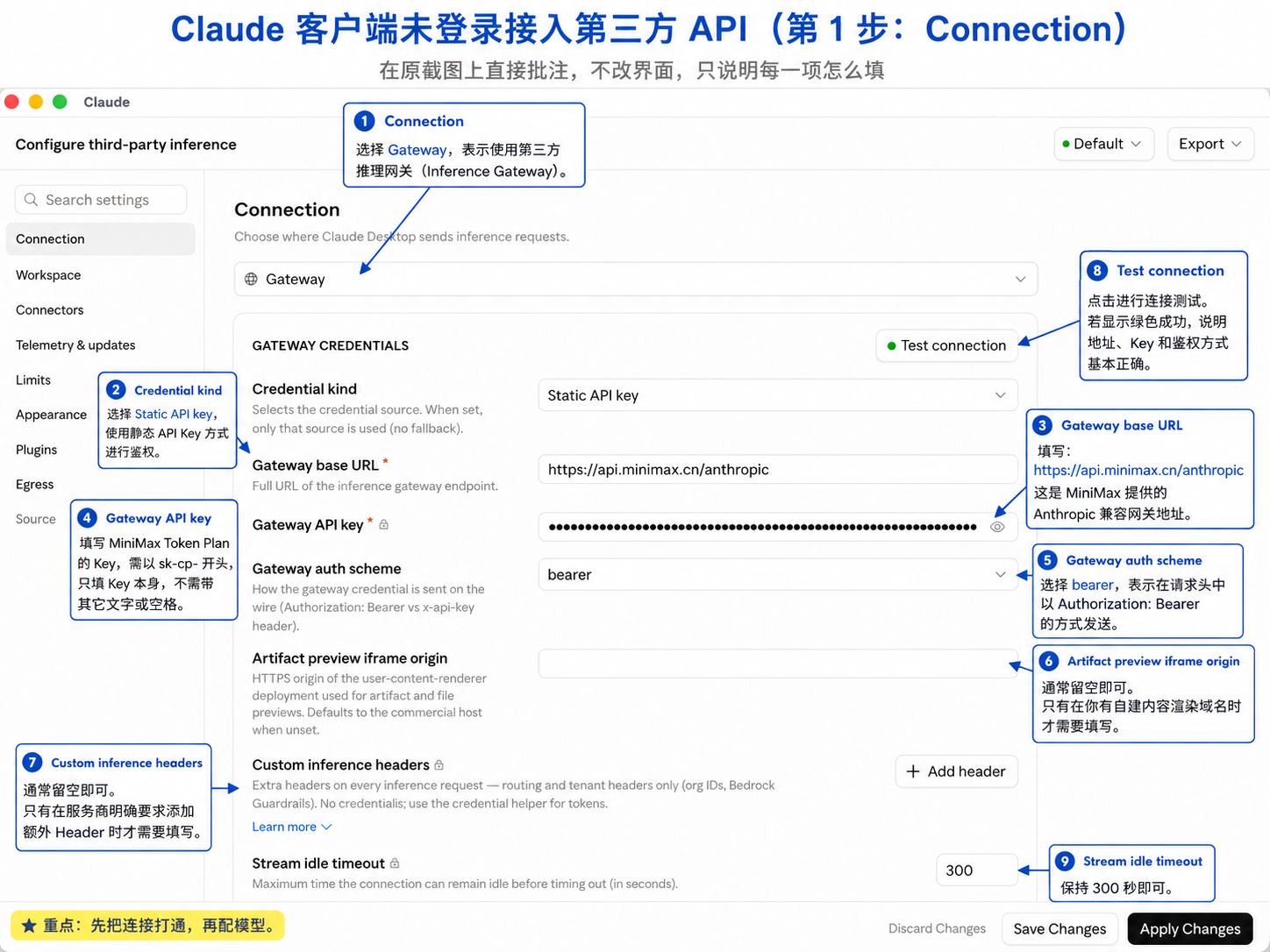
The Connection page decides exactly one thing: where Claude Desktop sends model requests, and under what identity it sends them.
With MiniMax or another compatible service, set Connection to Gateway, which is a middle address that forwards your requests for you, then fill in the fields one at a time.
1. What goes in each field
| Field | MiniMax example | What it does |
|---|---|---|
| Connection | Gateway | Tells the client to route requests through a third-party inference gateway |
| Credential kind | Static API key | Uses a fixed API key for authentication |
| Gateway base URL | https://api.minimax.cn/anthropic | The Anthropic-compatible interface address of the third-party service |
| Gateway API key | sk-cp-xxxxxx | Your token plan key |
| Gateway auth scheme | bearer | Sends the key as Authorization: Bearer |
| Artifact preview iframe origin | Leave empty | Custom domain for Artifact / file previews. Regular users never need this |
| Custom inference headers | Leave empty | Only fill this if the provider requires extra request headers |
| Stream idle timeout | 300 | How long a streaming response may sit idle, in seconds |
2. The API key field takes the key only
The most common mistake here is pasting the authentication prefix along with it. The correct form is:
sk-cp-xxxxxxxxxxxxxxxx⚠️ Do not write
Bearer sk-cp-xxxxxxxx. You already selectedbearerinGateway auth scheme, so the client buildsAuthorization: Bearer sk-cp-xxxxxxxxitself. Write the prefix twice and authentication fails.
3. Click Test connection once you have filled it in
There is a Test connection control at the top right of the Connection page. Click it. If you get a green line like this:
Inference — 1-token completion in 4323 ms · via static keythen three things are working: the Base URL is reachable, the API key passes authentication, and the client can get a single inference response through this gateway.
💡 The easily misunderstood part: a successful Test connection does not mean the setup is complete. It only proved the road is open. The model list is still a separate job.
Step two: configure Models
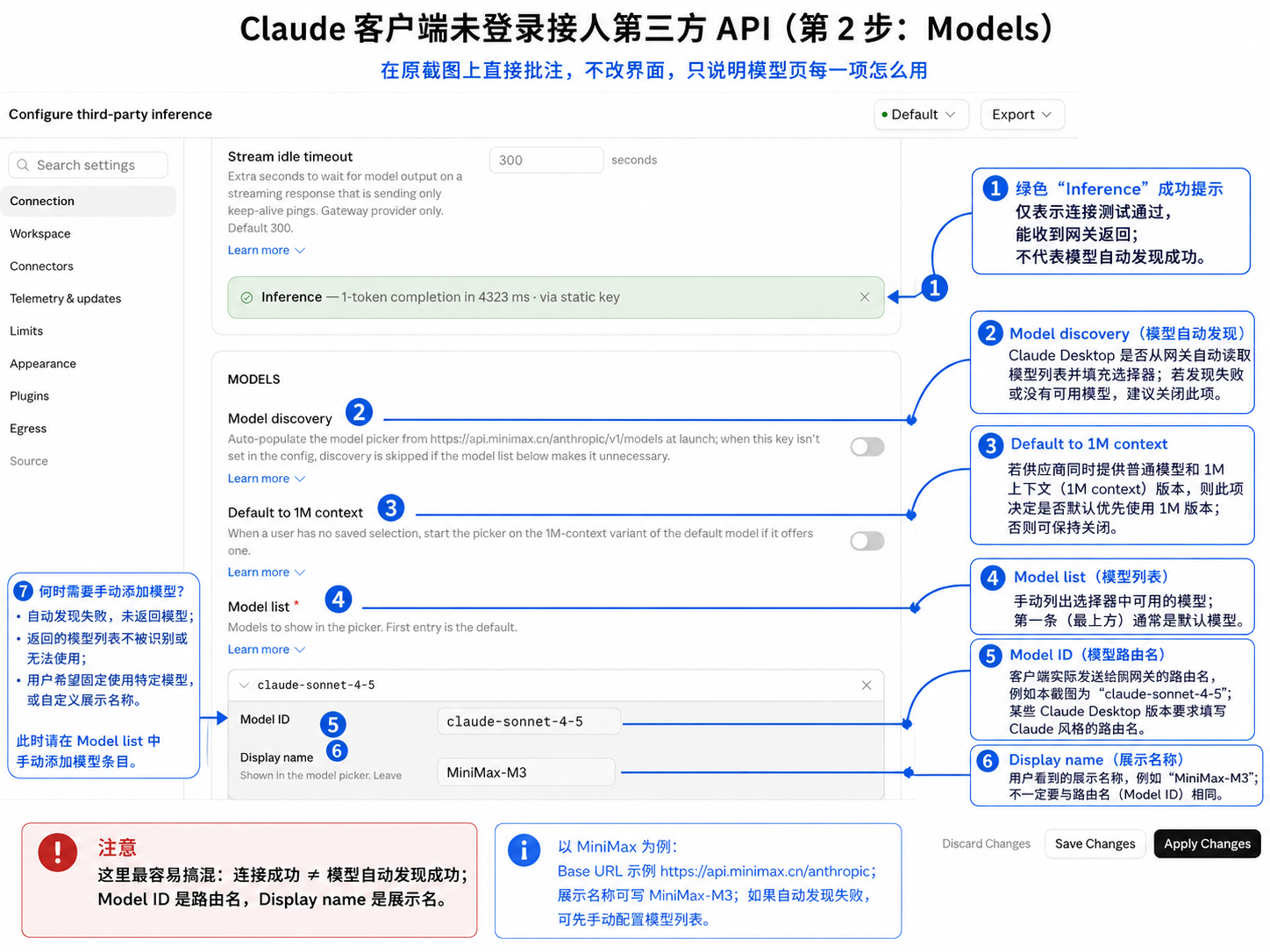
Models decides a different thing: which models appear in the client, and which model name gets handed to the gateway when a request goes out.
1. Model discovery: use it if it works, turn it off if it errors
With Model discovery on, Claude Desktop goes and calls the gateway’s model list endpoint itself, for example:
https://api.minimax.cn/anthropic/v1/modelsIn theory this is the least work. But a third-party interface does not always return a format the client fully expects, so you might see:
Gateway returned no usable modelsThat line does not mean the API is down. It only means the client could not parse the response into usable models. When you hit it, just turn off automatic discovery and fill the list in by hand instead of fighting it.
2. Model list: where the client’s model picker gets its entries
Models you add by hand show up directly in Claude Desktop’s model picker, and the first one is usually the default. Only two fields matter here: Model ID and Display name. They are not the same thing at all.
3. The difference between Model ID and Display name
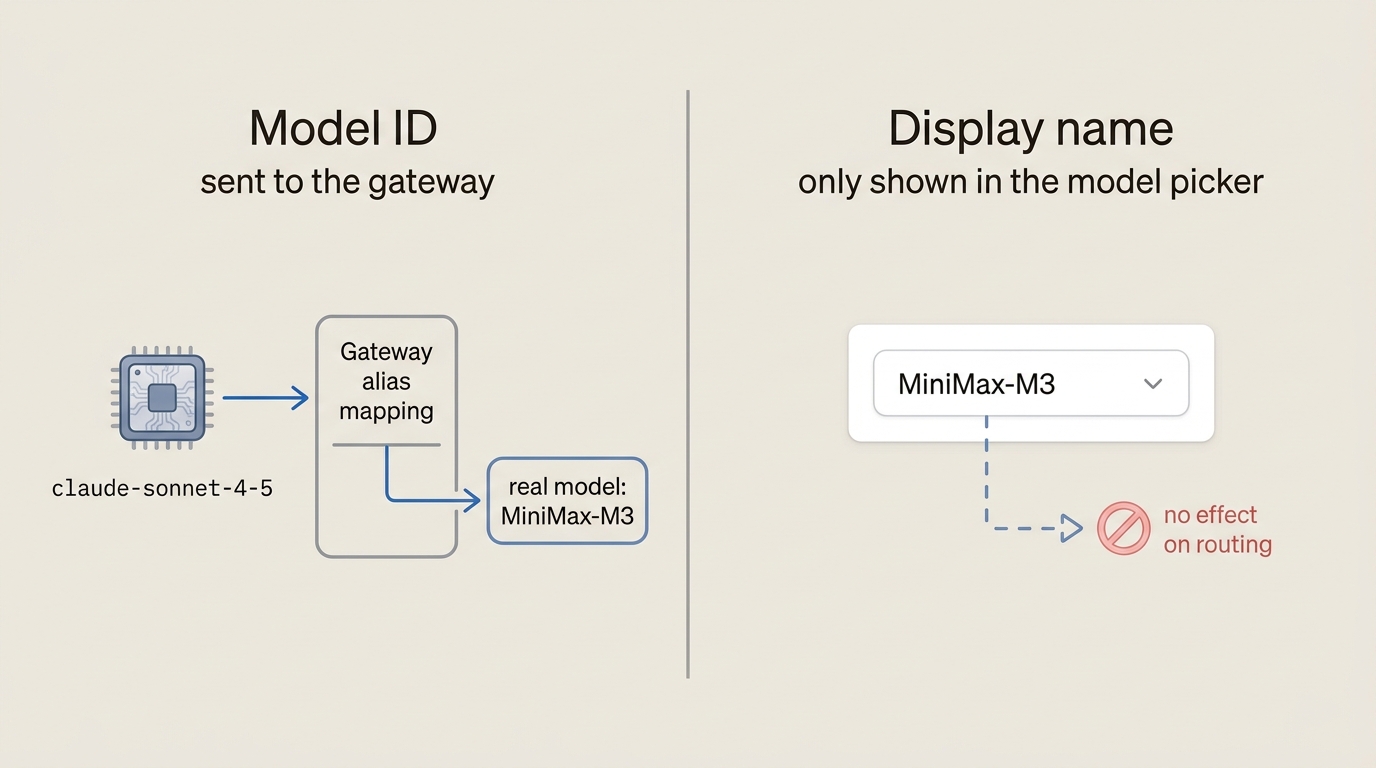
1) Model ID is the real routing name
This is what goes into the body when the client sends a request:
{
  "model": "some-model-id"
}
Some Claude Desktop versions validate the format here and expect it to look like a Claude model route, such as claude-sonnet-4-5.
That creates a possible mismatch. Your third-party API only knows MiniMax-M3, but the client will only let you type claude-sonnet-4-5. Something has to translate between the two names:
claude-sonnet-4-5
        ↓
     Gateway(does the alias mapping)
        ↓
MiniMax-M3
So do not just check whether the client shows a red field. You also have to confirm that the provider accepts that route name, or offers model alias mapping. Without a mapping, the request fails anyway.
2) Display name is only for humans
It takes part in no request. It only changes what appears in the model picker. Write MiniMax-M3 if that is clearest to you.
Model ID = the route a request actually uses
Display name = the name people see
4. The tempting-looking toggles, leave them off for now
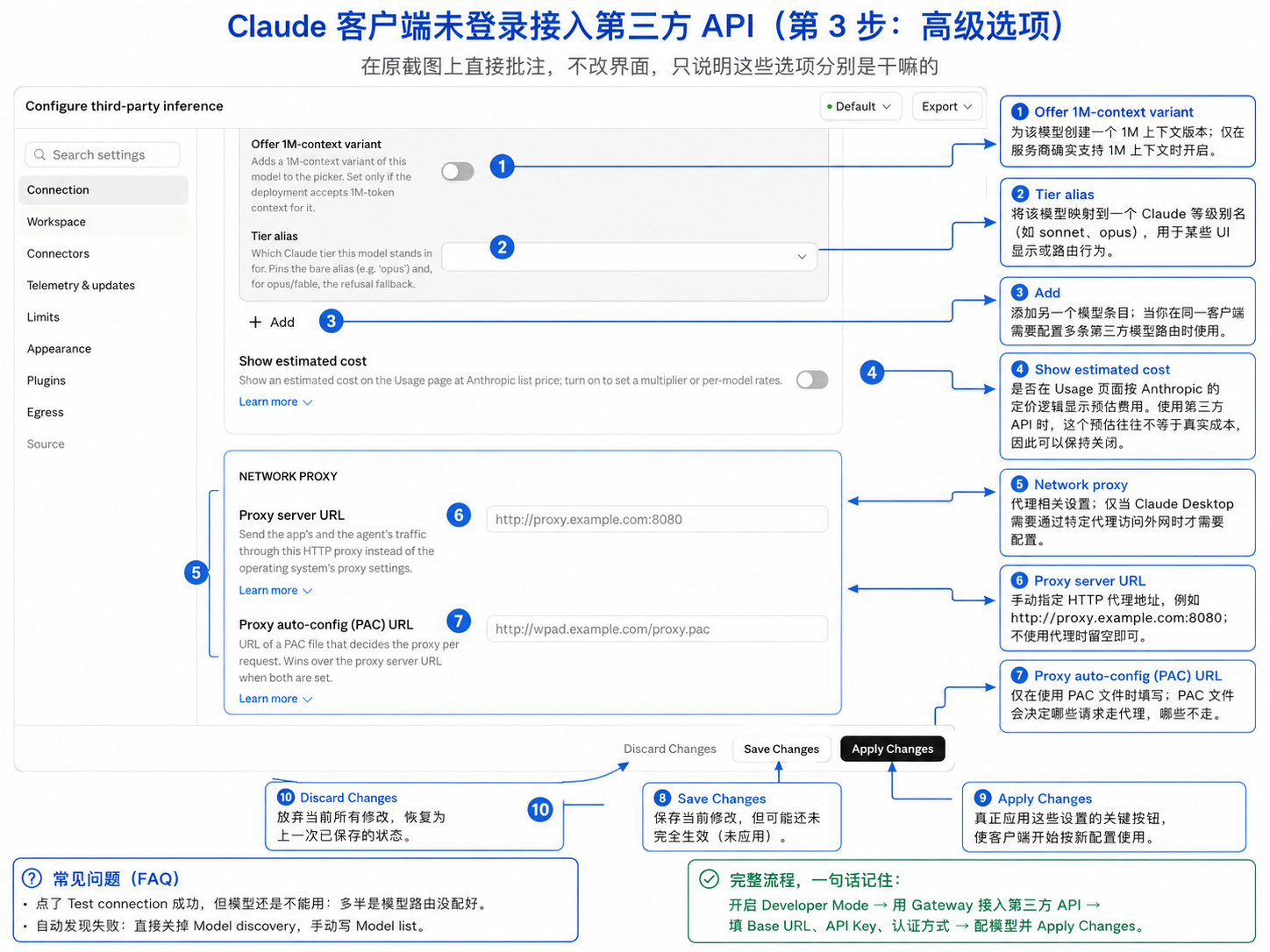
Most people never need to touch the remaining advanced settings.
| Field | What it does | How to set it generally |
|---|---|---|
| Default to 1M context | Whether to pick the 1M version by default when a model has both a normal and a 1M version | Leave off for now |
| Offer 1M-context variant | Adds an extra 1M context entry for the current model | Only turn it on if the provider explicitly supports it |
| Tier alias | Maps a third-party model onto Claude tiers like sonnet or opus | Leave empty unless you need it |
| Show estimated cost | Shows an estimated cost on the Usage page | Recommended: off |
| Network proxy / Proxy server URL / PAC URL | Routes the client through a proxy | Leave empty if you need no proxy |
| Save Changes / Apply Changes / Discard Changes | Save, apply, or discard the current configuration | Always Apply after editing |
1. The two 1M context toggles cannot conjure extra context
Default to 1M context means that if the same model exists in both a normal context version and a 1M context version, whether the client should prefer the latter by default. Offer 1M-context variant instead adds a 1M entry into the picker.
Both are only display and selection logic on the client side. They cannot give the backend more context. Unless the provider explicitly tells you this deployment accepts 1 million tokens of context, leave both off.
2. Tier alias: leave it empty if you have no need for it
Its job is to attach a Claude tier label to your model, such as sonnet or opus. Some client features may decide which tier a model belongs to based on that label.
If you connect MiniMax but want certain behaviors treated at the Sonnet tier, in theory you can type sonnet. But with no clear requirement, leaving it empty is safer. Do not fill something in just because it looks more advanced.
3. Show estimated cost: the number is probably wrong
Claude Desktop estimates spending using Anthropic’s pricing. But you are using MiniMax, and its plans, token prices, caching and credit rules all differ from Anthropic’s.
The result is: the amount looks very precise but is not the same thing as what you actually spend. Unless you have configured the correct price multiplier yourself, turning it off is less trouble.
4. Network Proxy: leave everything empty if you can already reach the API
If your computer can reach the third-party API as it is, leave these fields empty. Only fill in Proxy server URL on a company network, in a special proxy environment, or when you deliberately need Claude Desktop to go through an HTTP proxy, such as http://127.0.0.1:7890 or http://proxy.example.com:8080.
PAC URL (Proxy Auto-Config, a script file that automatically decides which requests go through a proxy) is mainly for corporate networks, and looks like http://example.com/proxy.pac. If you do not know what PAC is, you basically do not need it.
5. Always click Apply Changes when you are done
There are three buttons at the bottom: Discard Changes, Save Changes and Apply Changes.
Save Changes is more like storing the configuration. Apply Changes is what actually makes Claude Desktop run under this third-party inference configuration. Editing and only saving without applying is the reason many people think “my setup did not take effect.”
6. The three most common problems
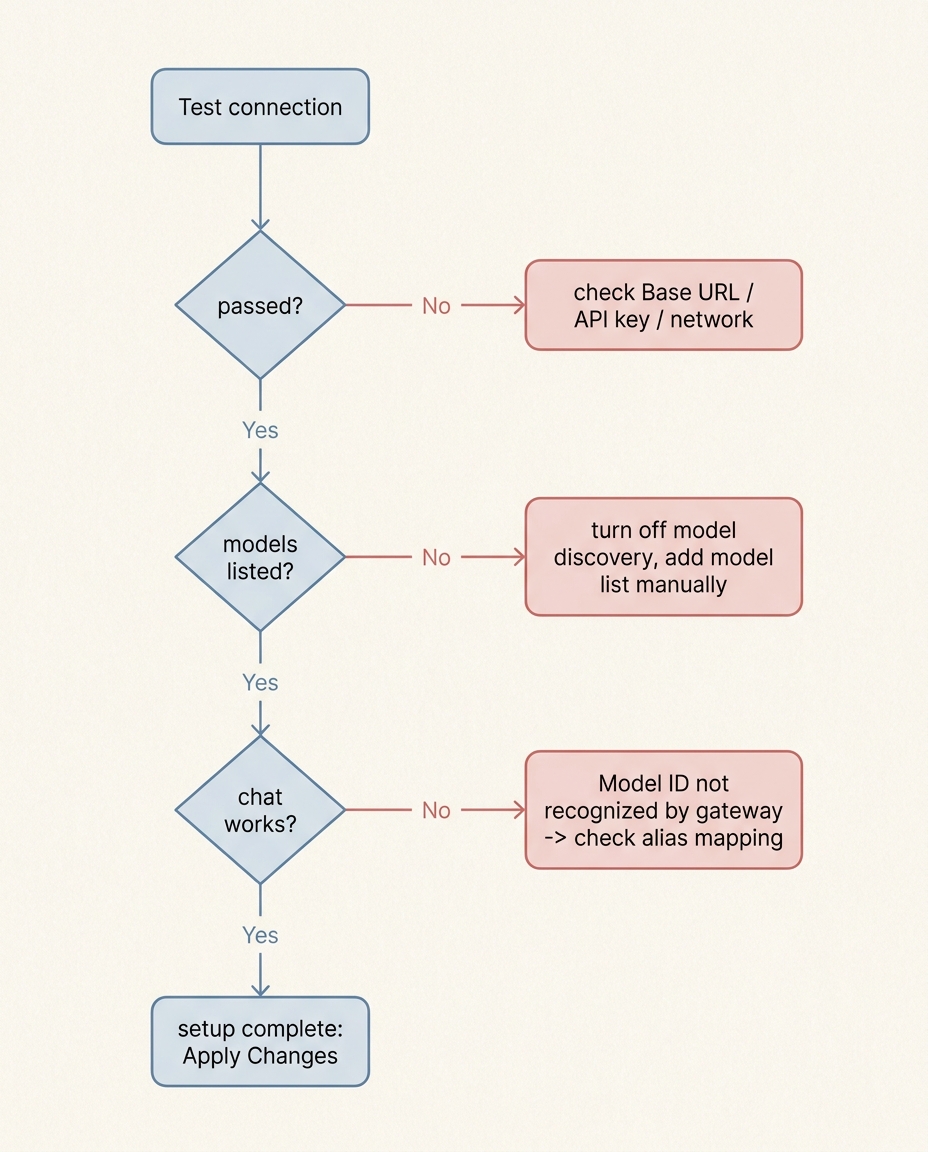
You can follow the diagram below for troubleshooting order: confirm connectivity first, then the model list, then the route name.
1. Test connection succeeds but you cannot chat
Check Model ID first. A successful connection only proves the interface is usable. Actually chatting adds another layer of judgment: does the third-party API recognize the model name the client sends? If the two sides disagree, it fails the same way.
2. Gateway returned no usable models
Very common. Turn off Model discovery and fill in Model list by hand.
3. MiniMax-M3 gives an invalid Model ID format error
That means your version of the client validates the Model ID in Claude style. It accepts claude-sonnet-4-5 and rejects MiniMax-M3.
Note that changing Display name to MiniMax-M3 only changes the display name. The backend model does not follow. What actually has to be guaranteed is a correct mapping along this chain:
Claude Desktop Model ID
        ↓
third-party gateway
        ↓
the real MiniMax model
If the platform itself does not provide alias mapping, you need an additional compatibility gateway to convert the model names.
7. Who this method is for
If you like the Claude Desktop interface but do not want to buy Claude Max, and you already have API credit with MiniMax, GLM, Kimi or similar, then third-party inference is worth configuring once. After that you can treat Claude Desktop as a client for third-party AI models. When you switch providers later, what changes is mostly the Base URL, the API key, the authentication scheme and the model routing. You do not have to replace the client itself.
The whole flow in one line: Developer Mode → Third-party inference → Gateway → fill in the Base URL and API key → Test connection → configure the Model list → Apply Changes.
✅ Only two spots really go wrong, so verify each one after configuring:
Can it reach the interface at all? Check whether
Test connectionreturns the green 1-token response.Does the gateway recognize the Model ID? Check whether a real conversation returns normally.