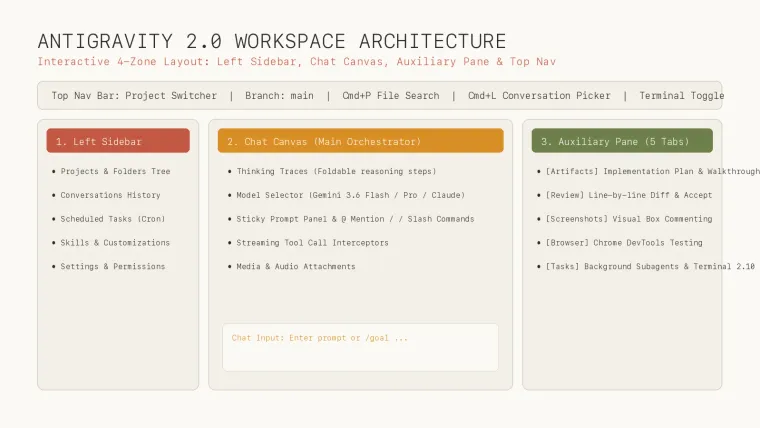
🎯 Short version: Antigravity 2.0 is Google’s standalone desktop app for running AI agents. It is not a code editor. Everything happens in three areas: the left sidebar (projects, conversations, Automations, terminal, Git), the conversation with its message box, and the side pane, where plans, diffs, files, and previews open. Learn five shortcuts first:
Cmd/Ctrl + K,Cmd/Ctrl + P,Cmd/Ctrl + L,Cmd/Ctrl + N, andCmd/Ctrl + backtick. Every other shortcut is listed, and can be remapped, in Settings → Shortcuts.
This guide starts with the interface: what each area does, which shortcuts are worth learning, and how permission settings decide how much the agent does on its own. The second half covers the workflows that make the app worth opening every day: saving methods with /learn, planning with /grill-me, connecting business tools, publishing dashboards, and keeping agents running while you’re away.
Checked against Antigravity 2.0 v2.21.1 (October 7, 2026) using the official docs and changelog. Updates roll out gradually, so your app may be a release or two behind.
1. What Antigravity 2.0 is
Antigravity 2.0 replaced the old Agent Manager. It runs on its own, outside any IDE (integrated development environment, the editor where developers usually write code). Think of it as a control room for AI agents, not a place to type code yourself.
From that window, agents can run terminal commands, read and write files, search the web, control Chrome, and hand parts of a job to subagents, which are helper agents that each take one piece of the task. They can also call skills and MCP servers. MCP (Model Context Protocol) is a standard way to plug outside tools and data into an agent. Results come back as artifacts: documents such as implementation plans that you can read and comment on (official overview).
1.1 The window at a glance
The layout has three working areas plus the message box:
+-------------------+-----------------------------------+--------------------------+
| Left sidebar      | Conversation                      | Side pane                |
| - Projects        | Agent replies + grouped actions   | Artifacts / plans        |
| - Conversations   | Subagent cards (live status)      | Review changes (diffs)   |
| - Automations     | Permission prompts                | File viewer / Documents  |
| - Terminal / Git  |                                   | Previews & recordings    |
| - Settings        | [Message box:  @   /   model  🎤] |                          |
+-------------------+-----------------------------------+--------------------------+
The diagram is simplified. Exact labels and positions shift between releases.
1.2 What it fixes compared with a chat sidebar
If you’ve used AI through a chat panel inside an editor, these problems will sound familiar:
| The problem | How Antigravity 2.0 handles it |
|---|---|
| Terminal, chat, and diffs live in separate windows | The conversation, embedded terminal, and Review pane share one window |
| Pasted code goes stale and eats up context | @ mentions attach files and folders by reference |
| Agents change files you never reviewed | A Git-native Review pane shows uncommitted, branch, and agent-only diffs, and you can stage, unstage, or discard each file |
| You can’t see what background work is doing | Subagents appear as live cards with a Stop control, and recurring jobs live in Automations |
| Agents get more access than they need | Each project has its own permission preset, and the default runs commands in a sandbox (an isolated space that can’t touch the rest of your system) |
2. A tour of the interface
2.1 Left sidebar: projects, conversations, and tools
- Projects: a project is the set of folders an agent is allowed to access. It can span several repos, and each project keeps its own settings and permissions (Getting started).
- Conversations: pin, archive, group by project or status, and sort. Standalone conversations run outside any project, in a scratch folder.
- Automations: scheduled or recurring agent jobs, called Scheduled Tasks before v2.21.1. Run Now triggers one immediately, and Create with Prompt has the agent set one up for you.
- Embedded terminal: opens with
Cmd/Ctrl + backtickand supports side-by-side splits. - Version control (Git): view diffs, stage and unstage files, commit with an auto-generated message, and push (Features).
- Documents: Google Drive links, PDFs, and Office files get their own section.
- Settings: at the bottom of the sidebar. The gear icon next to a project opens that project’s settings directly.
2.2 Conversation: where the agent reports back
Since v2.21.1, the file edits, terminal commands, and file reads between two replies collapse into a single row with a short summary. Long runs stay readable instead of turning into a wall of logs.
Subagents show up as cards with a live status: running, waiting, or completed. Hover over a card to stop that subagent, or message it directly from the message box.
When the agent needs your approval, the command is syntax-highlighted so you can actually read it before you click. Steps you deny stay visible with a Rejected label. If the agent took a wrong turn, the Confirm Undo dialog can revert both the files and the conversation, or only the conversation.
2.3 Side pane: where the deliverables open
- Artifacts: implementation plans, walkthroughs, diagrams, images, and browser recordings. You can comment on them directly, and rendered Markdown can be exported as a PDF (Artifacts).
- Review changes: line-by-line diffs, with a Hide Whitespace Changes option. Comment on specific lines, then stage or discard file by file.
Cmd/Ctrl + Fsearches every open file in the pane. - File viewer: code, images, and large data files. Drag across part of an image to leave a comment on that region. The agent’s own working files are listed separately under Scratch Files.
- Previews: local dev servers and Google Docs, Sheets, Slides, and Drive links open inside the app. Browser sessions can be recorded as WebM videos and replayed.
2.4 Message box: telling the agent what to do
1) @ mentions add context
Type @ to open the mention menu. Results are grouped by category and narrow as you type. File search tolerates typos, and typing @file: jumps straight to file suggestions. Rules marked manual load only when you @-mention them (Rules).
Mentions save you from pasting code, but the referenced content is still sent to the model and still uses up context. The token usage breakdown shows what’s taking up the space.
2) / slash commands start built-in workflows
| Command | What it does | Plan |
|---|---|---|
/plan | Researches the code, asks about your requirements, and drafts a plan you can edit and approve | All |
/grill-me | Asks clarifying questions before any code is written | All |
/goal | Keeps working until the goal is done, without stopping for input | All |
/boost | Multi-agent deep reasoning for hard bugs and algorithms | Paid |
/teamwork-preview | Agent teams for repo-scale migrations and research | Paid |
/learn | Turns what worked in a session into persistent rules or skills | All |
/schedule | Sets a one-time timer or a recurring job | All |
/browser | Launches a sandboxed Chrome browser subagent | All |
/btw | Asks a side question without pausing the main agent | All |
/plugin | Manages Marketplace plugins | All |
Source: Slash commands overview. Skills can be run as /<skill-name>, and commands added by plugins show the plugin’s name in the / menu.
3) The model selector chooses who does the work
The model selector sits under the message box, and its options depend on your plan: Gemini 3.8 / 3.7 / 3.6 Flash (Low, Medium, or High effort), Gemini 3.1 Pro (Low or High), and some Claude and GPT-OSS models (Models). If you switch models mid-turn, the change applies once the current turn finishes.
Claude Sonnet/Opus 4.6 and GPT-OSS-120b are scheduled for removal on November 2, 2026, so don’t build workflows that depend on them.
4) Attachments and voice
You can drag images, audio (up to 20 MB), and Word, Excel, or PowerPoint files into the box. Click the microphone or press Ctrl + M for live transcription. It also strips out filler words and self-corrections, which makes it handy for long prompts.
3. Keyboard shortcuts
3.1 The five worth learning on day one
| Shortcut | What it does |
|---|---|
Cmd/Ctrl + K | Searches conversations by their contents, so you can jump back to any past thread |
Cmd/Ctrl + P | Searches files |
Cmd/Ctrl + L | Puts the cursor back in the message box. With text selected in a reply, it quotes that text instead |
Cmd/Ctrl + N | Starts a new conversation |
Cmd/Ctrl + backtick | Opens the embedded terminal for a quick build or test |
The keyboard is faster for moving around. The mouse is usually better for reviewing diffs, commenting on images, watching browser recordings, and setting up projects, such as adding folders or choosing Local or Worktree mode. Worktree mode gives the agent a separate working copy of your repo, so its edits don’t land in the files you’re working on.
3.2 Full cheat sheet (verified)
This list includes only shortcuts that appear in the official docs or changelog. For anything else, check Settings → Shortcuts.
1) Navigation
| Action | macOS | Windows / Linux |
|---|---|---|
| Search / pick conversations | Cmd + K | Ctrl + K |
| File search | Cmd + P | Ctrl + P |
| Focus message box (or quote selected text) | Cmd + L | Ctrl + L |
| Add selected text to chat | Cmd + I | Ctrl + I |
| New conversation | Cmd + N | Ctrl + N |
| Next / previous conversation | Option + Up/Down | Alt + Up/Down |
| Pin / unpin conversation | Option + Cmd + P | Alt + Shift + P |
| Open Settings | Cmd + , | Ctrl + , |
| Scroll conversation | Page Up/Down, Home, End | Page Up/Down, Home, End |
| Leave the message box | Esc | Esc |
2) Panels and tools
| Action | macOS | Windows / Linux |
|---|---|---|
| Toggle embedded terminal | Cmd + backtick | Ctrl + backtick |
| Split terminal side by side | Cmd + \ | Ctrl + Shift + 5 |
| Toggle sidebar / side pane | Cmd + B | Ctrl + B |
| Find in Review pane (all open files) | Cmd + F | Ctrl + F |
| Start / stop voice transcription | Ctrl + M | Ctrl + M |
| Cancel an interactive question prompt | Ctrl + C | Ctrl + D |
⚠️
Escdoes not stop the agent in the desktop app. Since v2.15.0, it only moves focus out of the message box. To halt a run, click the Stop button, or the stop control on a subagent card. In the Antigravity CLI,escdoes interrupt the turn.
Some builds also bind Cmd + / to the model selector and Cmd + Shift + O to a new conversation, which can also drop you into an empty workspace. Neither appears in the official shortcut tables yet, so confirm them in Settings → Shortcuts before relying on them.
3.3 Customizing shortcuts: desktop vs. CLI
The desktop app and the CLI (the command-line version of Antigravity) store keybindings in different places.
In the desktop app, open Settings → Shortcuts, find the action, and assign new keys (Settings).
In the CLI, edit ~/.gemini/antigravity-cli/keybindings.json or run /keybindings. Mapping an action to [] disables it, and deleting the file restores the defaults (CLI settings):
{
  "cli.clear_screen": ["ctrl+l"],
  "prompt.insert_newline": ["shift+enter", "ctrl+j"],
  "edit.open_editor": ["ctrl+g"]
}
This JSON works only in the CLI. Copying it into the desktop app does nothing.
4. Permissions: how much the agent does without asking
On macOS and Linux, every project uses a permission preset. Any allow, deny, or ask rules you add on top always take precedence over the preset (Permissions).
4.1 The three presets compared
| Preset | Sandbox | Terminal commands | File access | MCP & web | Good for |
|---|---|---|---|---|---|
| Default | On | Run inside the sandbox; ask outside it | Workspace + temp folders | Ask | Everyday work (start here) |
| Request Review | Off | Always ask | Workspace only | Ask | Customer data, production systems, anything sent externally |
| Turbo | Off | Run without restriction | Full filesystem | Allowed | Trusted, well-scoped tasks in a project you can roll back |
The Default sandbox has no network access, so a command like npm install will ask to run outside it. New projects start on Inherit Global, meaning they follow your global setting. Windows works differently: you set a terminal execution policy, a policy for file access outside the project folder, and a sandbox toggle.
4.2 Picking a preset
If an agent runs a long task without asking you anything, it’s usually on Turbo. Some developers are comfortable letting agents push straight to production. Don’t copy that habit by default. Deleting files, changing customer records, sending email, or touching a production database can do real damage with a single mistake.
A safer middle ground is to loosen low-risk actions with specific allow rules, such as command(npm run test) for running tests, and keep data edits, deletions, and releases on Ask (Permissions).
4.3 Safety checks before you rely on it
- Update to at least v2.18.1. Earlier versions had a bug that let the agent modify files in
.git,.env, and.vscodewithout asking, even under the Default and Request Review presets. - Read the target before you click Allow. A permission request can be edited to cover more, for example widened from one file to its parent folder. Approvals can also become permanent project permissions.
- Use Worktree mode for risky or parallel tasks. Folders without Git silently fall back to Local mode.
- Turn off telemetry if you want to. If you don’t want your interactions used to improve models, switch off Enable Telemetry under Settings → Account.
5. Teach it once: /learn, skills, and rules
The first time you ask the agent to do something new, it usually takes some back-and-forth. Querying your CRM, for example, may mean installing a CLI tool, authorizing your account, picking the right environment, and working out the query. Once it finally works, you don’t want to explain it all again next week.
/learn handles that. It reviews what worked in the current conversation and turns it into something the agent can reuse.
5.1 How to use /learn
- Finish a real task first. For example, install the Salesforce CLI, authorize it, and pull your top 10 opportunities.
- Type
/learnin the same conversation. The agent looks back over the session and proposes what to keep. - Review, then save. Keep only what you’ll reuse, as a skill or a rule.
It pays off most after long iteration. Say you spend hours refining a client presentation until it’s right. Saving the method means the next deck starts from that standard instead of from zero.
A prompt to use after a complex task:
/learn Review what actually worked in this task. Separate what should become a Skill (repeatable steps) from what should become a Rule (constraints to always follow). Remove one-off details, temporary paths, and anything sensitive, and don't duplicate existing rules. Show me the plan before saving anything.5.2 Skill or rule?
| Skill | Rule | |
|---|---|---|
| Answers | How to do something | What must always be true |
| Examples | ”How to query Salesforce”, “How to deploy to Apps Script” | Output style, file-naming habits, design constraints |
| How it’s used | Loaded when relevant, or run with /<skill-name> | Added to context automatically (or only when @-mentioned, if marked manual) |
The official rule of thumb: write a rule for constraints that should never change, and a skill for multi-step workflows (Rules, Skills).
5.3 What /learn doesn’t do
/learn saves reusable methods. It doesn’t make the agent remember everything you’ve said. Only the skills and rules it writes are kept, so check them under Customizations. A few details trip people up:
- The save location isn’t consistent. The official docs give different locations, so open Customizations → Rules afterward to confirm where your rule went.
- Rules have their own budget. Rules share a separate 20,000-token budget. A rule over budget is listed by its path only, so a long rule may never be read in full.
- Config files have moved. Per-repo customization now loads from
.gemini/config.json, and.agents/settings.jsonis no longer read. Skills live in.agents/skills/; the older.agent/skills/still works.
6. Plan before you build: /grill-me, /plan, and forks
6.1 /grill-me: let the agent ask the questions
/grill-me flips the conversation. Instead of starting work right away, the agent first asks you what it needs to know.
Suppose a customer keeps hitting API rate limits. Instead of typing “fix it,” you type:
Let's solve this issue /grill-meThe agent comes back with decisions you may not have thought about: how far the fix should go, whether to email the customer an explanation, whether to schedule a review meeting in Google Calendar, and whether to update the sales opportunity.
Each question comes with recommended options. Most of the time you’ll pick the recommendation and only type your own answer when you have a special requirement. Double-clicking an option selects and submits it in one step.
It works especially well for vague projects. If you know you want a fast, good-looking site that ranks on Google but haven’t picked a stack or page structure, try:
I want to build a website for international users that gets most of its traffic from SEO. /grill-me Confirm the key requirements first. Prioritize questions that affect the tech stack, site structure, and workload. Don't ask about things I've already decided. Give recommended options so I can decide quickly.6.2 /grill-me, /plan, or neither?
/grill-me is just the interview. /plan also asks questions when something is unclear, but then writes an Implementation Plan artifact that you edit and approve before any code changes. Use /grill-me to get your own thinking straight, and /plan when you also want a written plan to sign off on.
For small, clear tasks, skip both. Changing a font size, fixing a known bug, or moving a button is faster to just ask for.
6.3 Fork a conversation to try two directions
Forking copies a conversation at its current point. Both copies keep everything discussed so far, then continue separately:
Main conversation: product website (requirements, stack, page structure agreed)
        ├── Branch A: keep refining SEO and content
        └── Branch B: try a different UI and tech approach
This lets you compare two approaches without one muddying the other’s context. In the Antigravity CLI, type /fork (alias /branch) to copy the conversation into a new session, and /resume to return to the original (Managing conversations).
A fork copies the conversation, not your files. If both branches will edit code, give each its own Git branch or worktree.
7. Connect your work tools
The usual way to use AI on business data is to export a CSV or PDF and upload it. The snapshot goes stale, and the AI can’t act on what it finds. The alternative is to give the agent direct, authorized access to the systems where the data lives.
7.1 What’s worth connecting
| Tool | What’s in it | What the agent can do |
|---|---|---|
| Salesforce | Accounts, opportunities, contracts | Look up customers, update deal records |
| BigQuery | Large business datasets, system logs | Analyze usage, spot anomalies |
| Jira | Dev tasks, bugs, incident history | Find tickets, update status |
7.2 Example: read, then write
- Ask the agent to install the Salesforce CLI and complete authorization.
- Ask for data:
Get my top 10 opportunities in Salesforce.- Ask for a change, such as moving one opportunity’s expected close date to November 11, 2026.
- Open Salesforce and confirm the change actually landed.
Once permissions are in place, the agent can change data, not just read it. Treat write access with the same care you’d give a new team member.
7.3 Example: one question, three systems
A single question can kick off a full investigation:
Hyperion is having some issues. Can you check out what's going on?The agent checks the account in Salesforce, analyzes usage data in BigQuery (tens of thousands of rows is fine), and reads the related Jira tickets. Together, the three point to the real cause, for example API rate limiting. From there it can update the Jira ticket and set up a follow-up meeting.
Don’t let the agent look at only one source. If inbound leads drop, the cause could sit in your CRM, your web analytics, your inbox, or your support logs. The more relevant systems the agent can see, the more complete its diagnosis.
7.4 Let the agent set up the connections
You don’t have to configure each integration by hand. Tell the agent what to connect:
Install the Jira MCP and BigQuery CLI. Read the official documentation, configure them, and verify the connections.Then run /learn to save the working setup as a skill.
Keep in mind that installing a connector doesn’t grant data access. Sign-in, OAuth scopes (the specific permissions an app asks your account for), API permissions, and data access ranges all still have to be set correctly. These connections aren’t built in, either: you, or a plugin you install, provide them. Under the Default preset, MCP calls and networked commands ask for approval first, which is exactly what you want for anything that writes to a live system.
8. Turn reports into a shareable Apps Script dashboard
An HTML report saved to your desktop goes stale the next day. You have to regenerate it and resend it, and you can’t control who sees what. A better setup is a web app on Google Apps Script connected to your data, so the whole team opens the same link and sees current numbers.
8.1 What you’re building
An example layout, with sample data:
| Metric | Value |
|---|---|
| Customers monitored | 24 |
| High-risk customers | 3 |
| Open issues | 7 |
| Customer | Status | Suggested action |
|---|---|---|
| Hyperion | API rate limiting | Prioritize |
| Customer B | Healthy | Keep monitoring |
| Customer C | Usage declining | Reach out |
8.2 Step by step
- Define the dashboard. For example: customer spend, service usage, recent issues, and who needs attention first.
- Have the agent check the real data first. Connect Salesforce, BigQuery, and Jira, then confirm fields, data quality, permissions, and refresh frequency. If the data is wrong, the dashboard will be too.
- Have the agent write the app. It needs an HTML front end plus Apps Script server code, including any logic that depends on who’s viewing.
- Push with clasp. Google’s clasp is a command-line tool for managing Apps Script projects locally:
clasp login,clasp cloneorclasp create, thenclasp push. Save this routine as a skill so the agent can repeat it. - Deploy as a web app. In script.google.com, open the project, choose Deploy → New deployment → Web app, and copy the URL. Deploy → Test deployments gives a
/devURL that only editors can open. - Test with different users. Make sure each person sees the right data, and that someone without access can’t reach sensitive records.
8.3 Copy-ready prompt
Build a team-shareable data dashboard deployed on Google Apps Script.

1. First check available data sources, fields, permissions, and refresh options. Don't invent data.
2. Design a clean, modern admin UI: white background, clear cards, sensible type sizes and spacing. No cyberpunk styling.
3. Support filters, customer detail views, anomaly alerts, and a "last updated" timestamp.
4. Keep the front-end HTML and Apps Script server code clearly organized.
5. Push with the clasp CLI and deploy as a Web App.
6. Verify access for different users. The front end must never bypass permissions to read sensitive data.
7. After deploying, open the page, check functionality and visuals, and fix any issues.
8. Give me the URL, how data refreshes, and anything left unfinished.

Ask for my approval before writing to any real business system or sending anything externally.
🔐 Settle two things before you share the link
Who the app runs as. A web app can run as you, so every visitor uses your access, or as the user accessing the web app, so each visitor uses their own (Apps Script web apps). This choice decides what data each person can see. Whether the app can read a visitor’s email also depends on the deployment setting and your account or domain setup. Never send OAuth tokens to the browser.
Scheduled refresh or live query. A script that updates the data every morning is a scheduled refresh. Querying the data each time someone opens the page is a live query. Decide which you need, and test it separately from sign-in and data permissions.
9. Keep agents working while you’re away
9.1 Remote Control: run tasks on an always-on machine
Remote Control lets you drive Antigravity sessions on another machine from any browser (Remote Control). A common setup is to run Antigravity on a cloud VM (a virtual computer rented from a cloud provider) and send it tasks from your laptop or phone. Your own computer can be off while the agent keeps working.
- Prepare a machine that can stay on, such as a desktop workstation or a cloud VM.
- In Antigravity on that machine, open Settings → App, turn on Enable Remote Control, and optionally give it a nickname such as
server-machine. - On any device, open the Remote Control dashboard and sign in with the same Google account.
- Pick the machine in the instance switcher. Offline machines, like a closed laptop, show as unavailable; an always-on VM stays ready.
- Start tasks, review plans, and approve actions. On a phone, add the web app to your home screen to get push notifications.
Tasks only keep running while the host machine stays awake and online. A cloud VM costs money for as long as it runs, and how long a task can run also depends on your plan’s limits.
9.2 Automations: run on a schedule or when something happens
1) On a schedule
Use /schedule with a cron expression, or open Automations and choose Create with Prompt. A cron expression is a compact way to write a schedule; 0 9 * * 1-5 means 9:00 a.m. every weekday:
/schedule "0 9 * * 1-5" Check yesterday's new sales records and write a short report: new customers, important opportunities, data anomalies, and items needing follow-up. If fields are missing, report them. Do not modify real business data.2) When something happens
To react to an event, for example a new calendar event that should trigger pulling meeting notes and drafting a summary, use a sidecar. A sidecar is a background process that Antigravity launches and restarts for you (Sidecars):
- Create
~/.gemini/config/sidecars/<name>/sidecar.jsonwith acommand(your watcher script) or theschedulebuiltin. - Enable it in
~/.gemini/config/config.json, adding aprojectIdif it will create conversations. - In your script, call
agentapi new-conversation "<prompt>"oragentapi send-message <id> "<prompt>"when the event fires. - Check the logs in
~/.gemini/antigravity/sidecar_data/<name>/logs/.
Detecting the event is your script’s job, not Antigravity’s. Test the trigger, and the permissions of whatever it connects to, before you trust it.
9.3 Teamwork Preview: split big jobs across a team of agents
/teamwork-preview runs a coordinated team of agents on long jobs. You can start it in the evening and review the result the next morning. It begins with a short interview to scope the work, then runs on its own. The official roles are (Teamwork):
- Sentinel: takes your request, routes the work, and posts progress.
- Project Orchestrator: breaks the brief into milestones and hands them out.
- Explorers: research the repo without changing anything.
- Workers: build, refactor, and write tests in separate tracks.
- Critic, Challenger, Auditor, and Success Auditor: review the code, stress-test it, and confirm the results are real before handoff.
It’s built for jobs like creating a full site from scratch, auditing and changing a large codebase, or long research-and-build projects. For small edits it’s overkill: one agent can change a button, and a team only adds cost. Teamwork is available on paid plans, uses a lot of quota, and needs the host machine to stay awake, which makes a Remote Control VM a natural fit. For lighter tasks, add “keep it small” to your request to use the lighter iterative path.
10. More capabilities worth knowing
10.1 Plugins, generated UI, and media
- Plugin marketplace: in Customizations, browse and install plugins such as Chrome DevTools, Gemini API, Google Maps Platform, Android CLI, Dart & Flutter, and workspace integrations.
- Generative UI: the agent can render interactive HTML widgets right in the chat, including Chart.js and Plotly charts and KaTeX math. Some environments may not display them, so check yours.
- Images, music, and video: image generation is built in (Nano Banana 2). Music, voice cloning, and video generation or editing come from custom skills that call external models.
- Slide decks: the agent can build presentations and drop in generated videos and animations. This works best once the method is saved as a skill.
Many of the eye-catching demos you’ll see depend on skills, CLIs, plugins, or external services that someone set up first. A fresh install won’t include them.
10.2 Advanced: phone in a code change with the Antigravity SDK
You can also build on Antigravity outside the desktop app. One example is a pipeline that lets you request a code change by phone call, which helps when you’re away from your computer:
Call a Twilio number → Gemini Live API (understands speech, confirms the request)
      → Antigravity SDK on a cloud server (reads the repo, edits, runs checks)
      → GitHub (text message asks you to approve before pushing)
Picture a basketball quiz app built with React and Tailwind and hosted on Cloud Run. You call and say: “The quiz is too harsh on Duke. Make one answer friendlier, and change only one answer.” The voice agent confirms the constraint, the SDK agent makes the edit, and you get a text asking you to approve or reject it before anything ships.
This is a custom build, not a built-in button. It needs Twilio, a voice model, a cloud execution service, repo permissions, and an approval step. The Antigravity SDK supplies the agent harness, hooks, and safety policies. Keep the approval step: spoken instructions are easy to misunderstand.
11. Where to start
11.1 Three practice projects
- Turn an SEO audit into a skill. Have the agent audit one page and refine the process until you like the output. Then use
/learnto save the steps, output format, and pass/fail criteria. Goal: audit any page with one sentence. - Build an SEO dashboard. Feed in Google Search Console exports, Semrush reports, or other data you already have. Show clicks, impressions, ranking changes, and which pages need attention first, then deploy it with Apps Script. Goal: open one link and see what’s broken.
- Schedule a weekly check. Every week, report new issues, traffic changes, and recommended actions. At first, let it read and report only, with no edits to the site. Goal: less manual reporting, full control over changes.
11.2 Four habits that matter most
✅ 1. Teach once, then save it. After refining a workflow, run
/learnto keep the reusable part.
When requirements are fuzzy, let the agent ask. Run
/grill-mebefore big tasks.Check more than one source. A customer problem shows up across sales records, usage data, and tickets.
Done isn’t delivered. The page has to load, the data has to refresh, permissions have to be right, and code changes have to be verified.
12. FAQ
Can I split the layout? Yes. Terminals split side by side, conversations support split-pane layouts, and Settings → Appearance covers panel layouts.
Does the desktop app have a Vim mode? The official docs describe Vim editor mode only for the Antigravity CLI. They don’t document one for the desktop app.
I can’t find “Scheduled Tasks.” Where did it go? It was renamed Automations in v2.21.1. If you still see the old name, the update probably hasn’t reached you yet.
Can I control a session from my phone? Yes. Remote Control lets you monitor and approve desktop sessions from any browser, with push notifications. Setup is covered in section 9.1.
13. Official resources
- Antigravity 2.0 Overview
- Getting Started (shortcuts & slash commands)
- Feature Overview
- Settings and Permissions
- Slash Commands
- Models
- Rules and Skills
- Remote Control, Sidecars, and Teamwork
- Apps Script Web Apps and clasp
- Changelog
14. What’s next in the series
You now know your way around the interface and its shortcuts. The next guide covers how Antigravity keeps work isolated across projects and worktrees.
👉 Next in Series: 03 · Antigravity 2.0 Project & Worktree Isolation: Multi-Repo Management & Conflict-Free Coding