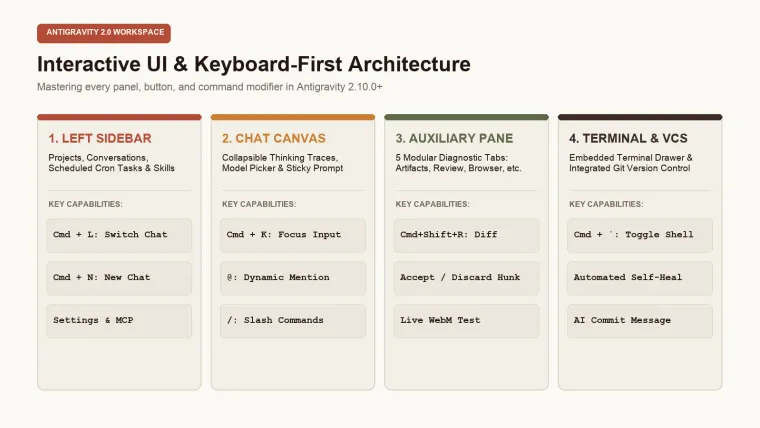
Use this quick reference for the Antigravity desktop app. Mac shortcuts use Command; Windows and Linux use Control. Installed versions and custom bindings can differ, so check Settings → Shortcuts when a key does not behave as expected. The AGY command-line client has its own bindings.
Master Keyboard Shortcuts Cheat Sheet
These are desktop-app shortcuts. For other actions, use the binding shown in Settings → Shortcuts.
Swipe sideways to see the full table.
| Action | macOS | Windows / Linux |
|---|---|---|
| Focus the prompt box | Command + L | Control + L |
| Switch conversations | Command + K | Control + K |
| Toggle the embedded terminal (2.10.0+) | Command + ` | Control + ` |
Check the official navigation reference and your installed app before changing a binding.
Related: Claude Code terminal shortcuts · Antigravity desktop walkthrough
Core Definition: The Antigravity 2.0 Command Surface
In Google Antigravity 2.0, the user interface is designed as an autonomous software engineering mission control center.
Unlike traditional text editors where the file buffer occupies 90% of screen real estate, Antigravity 2.0 balances four high-density operational surfaces:
- Left Sidebar: Manages macro workspaces, project structures, and background task schedules;
- Top Navigation Bar: Tracks Git branches, global search indexes, and system toggles;
- Chat Canvas (Main Orchestrator): Visualizes the agent’s step-by-step reasoning traces and tool invocations;
- Auxiliary Pane (5 Diagnostic Tabs): Houses dedicated deep-dive tools including Implementation Plans, code Diffs, visual UI screenshots, live browser automation, and subagent fleet management.
+------------------------------------------------------------------------------------+
| [Top Bar]  Project: SaaS-Backend  |  Branch: feature/auth  |  [Terminal] [VCS]     |
+-------------------+------------------------------------+---------------------------+
| [Left Sidebar]    | [Chat Canvas]                      | [Auxiliary Pane]          |
| - Projects        |                                    | [Artifacts] [Review]      |
| - Conversations   | Agent: "I have analyzed your repo" | [Screenshots] [Browser]   |
| - Scheduled Tasks | Tool Call: list_dir -> 12 files    | [Tasks]                   |
| - Skills & MCP    |                                    |                           |
| - Settings        | [Sticky Prompt Bar: @file /cmd]    | Line-by-Line Visual Diff  |
+-------------------+------------------------------------+---------------------------+
Problems It Solves: Mouse Fatigue & Lost Context
When managing multi-file AI coding workflows in legacy IDEs, developers face severe friction:
Swipe sideways to see the full table.
| Legacy IDE Friction | Antigravity 2.0 UI Solution |
|---|---|
| Context Window Juggling: Switching between terminal tabs, chat sidebars, and file buffers causes cognitive overload. | Unified 3-column command center keeps conversation, terminal, and live diffs visible concurrently. |
| Manual File Copy-Pasting: Pasting snippets into chat sidebars consumes tokens and leads to outdated references. | Dynamic @ mention syntax indexes files, folders, and historical conversations on the fly. |
| Blind Commit Risk: AI assistants modifying files in the background without clear visual diff verification. | Dedicated Review Tab with hunk-level accept/discard controls and instant rollback. |
| Invisible Background Processes: No way to track background cron jobs or subagent worker threads. | Integrated Tasks & Scheduled Jobs tabs provide real-time process logs and kill switches. |
When to Use Keyboard-First vs. Visual UI Flows
✅ Best Used with Keyboard Shortcuts
- Rapid Navigation: Jumping between active conversation threads (
Cmd/Ctrl + K) and file search (the shortcut assigned in Settings → Shortcuts); - Agent Interruption: Halting a runaway prompt immediately (the shortcut assigned in Settings → Shortcuts or
Escape); - Terminal Execution: Revealing the integrated shell for build verifications (
Cmd/Ctrl + backtick); - Diff Staging: Batch-accepting reviewed code changes (the shortcut assigned in Settings → Shortcuts).
✅ Best Used with Visual UI Panels
- Browser Automation QA: Watching real-time WebM screen recordings of browser agents clicking web flows;
- Interactive Box Commenting: Dragging a selection box over a UI screenshot to instruct the agent on layout fixes;
- Multi-Repo Workspace Setup: Configuring directory mounts in the New Project modal.
Architectural Deep Dive: The 4 Core UI Zones
Zone 1: The Left Sidebar
The left sidebar anchors your operational hierarchy:
- Projects: Switch between mounted codebases with isolated Git environments;
- Conversations: Search and filter past task threads;
- Scheduled Tasks: Monitor autonomous cron jobs (e.g., nightly dependency audits or health checkers);
- Skills & MCP: Inspect connected tools, APIs, and custom agent plugins;
- Settings: Adjust model parameters, terminal permission whitelists, and keymap preferences.
Zone 2: The Top Navigation Bar
- Breadcrumbs: Displays
Project Name > Active Git Branch; - Search Bar: Quick-access modal for files (the shortcut assigned in Settings → Shortcuts) and symbols;
- Global Actions: Quick-toggle buttons for the 2.10.0+ Embedded Terminal and Git VCS drawer.
Zone 3: The Chat Canvas
- Thinking Traces: Collapsible cards showing the model’s internal step-by-step reasoning, tool arguments, and stdout outputs;
- Tool Execution Cards: Interactive cards displaying file diffs, command executions, and web search summaries;
- Sticky Prompt Panel: Anchored at the viewport bottom, featuring multiline editing, media attachment dropzones, and model toggles.
Zone 4: The Auxiliary Pane (Right Side)
The power center of Antigravity 2.0, providing five modular diagnostic panels.
The 5 Modular Tabs of the Auxiliary Pane
Swipe sideways to see the full table.
| Tab Name | Hotkey (macOS) | Hotkey (Win/Linux) | Primary Purpose & Key Capabilities |
|---|---|---|---|
| Artifacts | the shortcut assigned in Settings → Shortcuts | the shortcut assigned in Settings → Shortcuts | Inspects structured markdown implementation plans, design documents, and post-task walkthroughs. |
| Review | the shortcut assigned in Settings → Shortcuts | the shortcut assigned in Settings → Shortcuts | Visualizes line-by-line green/red code diffs across all modified files with granular Accept Hunk and Discard buttons. |
| Screenshots | the shortcut assigned in Settings → Shortcuts | the shortcut assigned in Settings → Shortcuts | Displays visual UI renders and component mockups with support for clickable bounding-box feedback annotations. |
| Browser | the shortcut assigned in Settings → Shortcuts | the shortcut assigned in Settings → Shortcuts | Live view into headless/headed Chrome browser automation sessions, console logs, and WebM replay files. |
| Tasks | the shortcut assigned in Settings → Shortcuts | the shortcut assigned in Settings → Shortcuts | Fleet monitor for background subagents, recurring cron jobs, and long-running terminal daemons. |
Anatomy of the Sticky Prompt Panel
The bottom Prompt Panel is not a plain textarea—it is a full-featured prompt engineering workbench:
The @ Dynamic Reference System
Type @ inside the prompt box to open the contextual auto-complete menu:
@src/lib/auth.ts: Mounts the exact file content into the agent’s immediate attention window;@folder:packages/ui: Supplies the complete directory layout and filenames without dumping raw code;@conversation:auth-refactor: Pulls historical decisions and summaries from a previous session;@task:build-backend: Ingests stdout logs and error traces from a running background job.
The / Slash Command Modifiers
Type / to invoke specialized high-level agent workflows:
/goal: Launches an unconstrained, goal-driven session where the agent iterates autonomously until full test verification;/schedule: Schedules one-shot reminders or recurring cron jobs;/browser: Instructs the agent to open a real browser session for web navigation or UI scraping;/learn: Captures human architectural rules and persists them into.antigravity/rules.
Model Selector & Media Dropzone
- Model Dropdown: Toggle on the fly between Gemini 2.0 Flash (for rapid file edits) and Gemini 2.0 Pro (for deep multi-repo architecture);
- Drag-and-Drop Dropzone: Drag UI wireframes, Figma screenshots, or error logs directly into the prompt box.
Customizing & Migrating Keybindings (VS Code & IntelliJ)
Antigravity 2.0 supports fully customizable JSON keymaps.
How to Access Keybindings Configuration
- Open
Settingsfrom the left sidebar (or pressCmd/Ctrl + ,); - Navigate to the Keybindings tab;
- Click Open keybindings.json to define custom overrides.
Sample keybindings.json Preset (VS Code Compatibility Mode)
Open Settings → Shortcuts, find the action, and assign your preferred keys in the application. Use the command names shown by your installed version; desktop shortcuts and AGY CLI keybindings are separate.
5 Critical UI & Shortcut Mistakes to Avoid
[!WARNING]
Avoid these 5 common interface pitfalls to maintain maximum coding throughput:
- Clicking the Mouse to Review Diffs: Tapping the shortcut assigned in Settings → Shortcuts opens the Review Pane instantly; use the shortcut assigned in Settings → Shortcuts to jump between modified hunks rather than manual scrolling.
- Copying Long File Contents Manually: Never paste 500 lines of code into the prompt box. Type
@path/to/file.tsto attach files with zero token overhead. - Closing the Auxiliary Pane Unnecessarily: Keep the Auxiliary Pane open on wide screens (
1440px+) to monitor the agent’s real-time file updates side-by-side. - Neglecting the Embedded Terminal Hotkey: Press
Cmd/Ctrl + backtickto check test output immediately after the agent finishes writing code. - Forgetting the Emergency Interrupt (the shortcut assigned in Settings → Shortcuts): If the agent misinterprets your prompt or runs into a loop, hit the shortcut assigned in Settings → Shortcuts immediately instead of waiting for token timeout.
Frequently Asked Questions (FAQ)
**Q1: Can I split the Chat Canvas and Review Pane horizontally?**A: Yes. In Settings -> UI Layout, you can choose between vertical 3-column layout and horizontal split layouts.
**Q2: How do I zoom in/out on the interface?**A: Use standard desktop scaling hotkeys Cmd/Ctrl + = (zoom in), Cmd/Ctrl + - (zoom out), and Cmd/Ctrl + 0 (reset zoom).
**Q3: Does Antigravity support Vim keybindings?**A: Yes. Enable the Vim Keymap Plugin in Settings -> Plugins for full Vim modal navigation inside prompt and editor areas.
Official Resources & Documentation Index
- Official UI Guide: Google Antigravity Interface Overview
- Keybindings Reference: Official Antigravity Shortcuts Documentation
- Interactive Walkthrough: Google Developers Codelab
- Latest Updates: Antigravity Release Notes (2.10.0+)
What’s Next in the Series?
Now that you have mastered the keyboard-first interface and all five auxiliary inspection tabs, it is time to master the core isolation engine of Antigravity:
👉 Next in Series:03 · Antigravity 2.0 Project & Worktree Isolation: Multi-Repo Management & Conflict-Free Coding