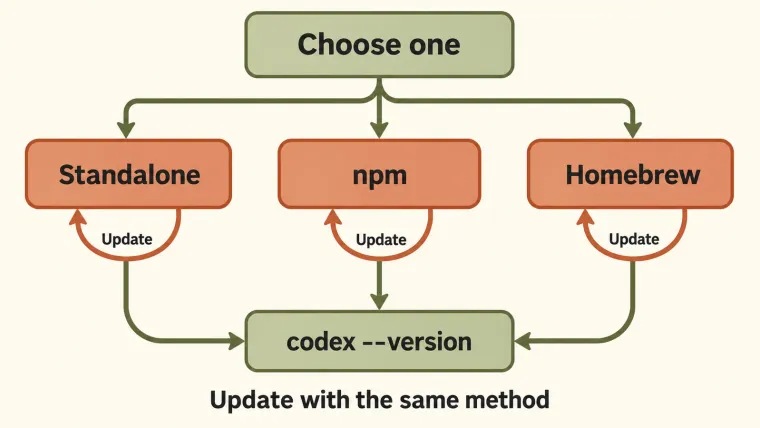
You can install Codex CLI with OpenAI’s standalone installer or a supported package manager, then verify the installation by running codex --version in a new terminal. Choose one installation method and use the same method for updates. This guide covers macOS, Windows, Linux, and the separate Linux environment inside WSL2. Installing the command is only the first check: you must also start it in your project and complete an available sign-in method. The commands below follow the current official CLI installation instructions; they install the terminal tool rather than the desktop application.
Choose one installation method
| Your setup | A suitable starting point | What must already be available |
|---|---|---|
| macOS | Standalone installer; Homebrew if you already use it | A terminal and the tool used by that method |
| Linux | Standalone installer; npm if you already manage Node.js | A shell with curl, or a working npm installation |
| Native Windows | Standalone Windows installer | PowerShell |
| WSL2 | Linux installer inside the WSL shell | An existing WSL2 environment |
| Existing Node.js workflow | npm package | Working node and npm commands |
Do not run every method in the table. Multiple installations can leave your terminal launching a different copy from the one you just updated.
Install on macOS or Linux
Open a terminal and run the official standalone installer:
curl -fsSL https://chatgpt.com/codex/install.sh | shThis command downloads and runs OpenAI’s installer. Use the official address and follow any terminal instructions it prints. Then open a new terminal and check:
codex --versionIf you prefer an existing npm setup, first confirm that npm works, then install the official package:
node --version
npm --version
npm install -g @openai/codex
codex --version
On macOS with Homebrew, the documented cask command is:
brew install --cask codex
codex --version
The available methods are documented in the CLI guide. Pick the method that fits your existing tools instead of installing a second toolchain solely to follow an old tutorial.
Install on native Windows
Open a new PowerShell window and run:
powershell -ExecutionPolicy ByPass -c "irm https://chatgpt.com/codex/install.ps1 | iex"After the installer finishes, open another PowerShell window and check:
codex --versionThe command above is the one published in OpenAI’s Windows installation instructions. If a managed device blocks it, use your organization’s approved installation process; changing machine-wide security settings is not part of installing Codex.
If your Windows development environment already uses Node.js and npm, the npm method is another documented option. Avoid installing both methods while troubleshooting the same command.
Use WSL2 only when the project belongs there
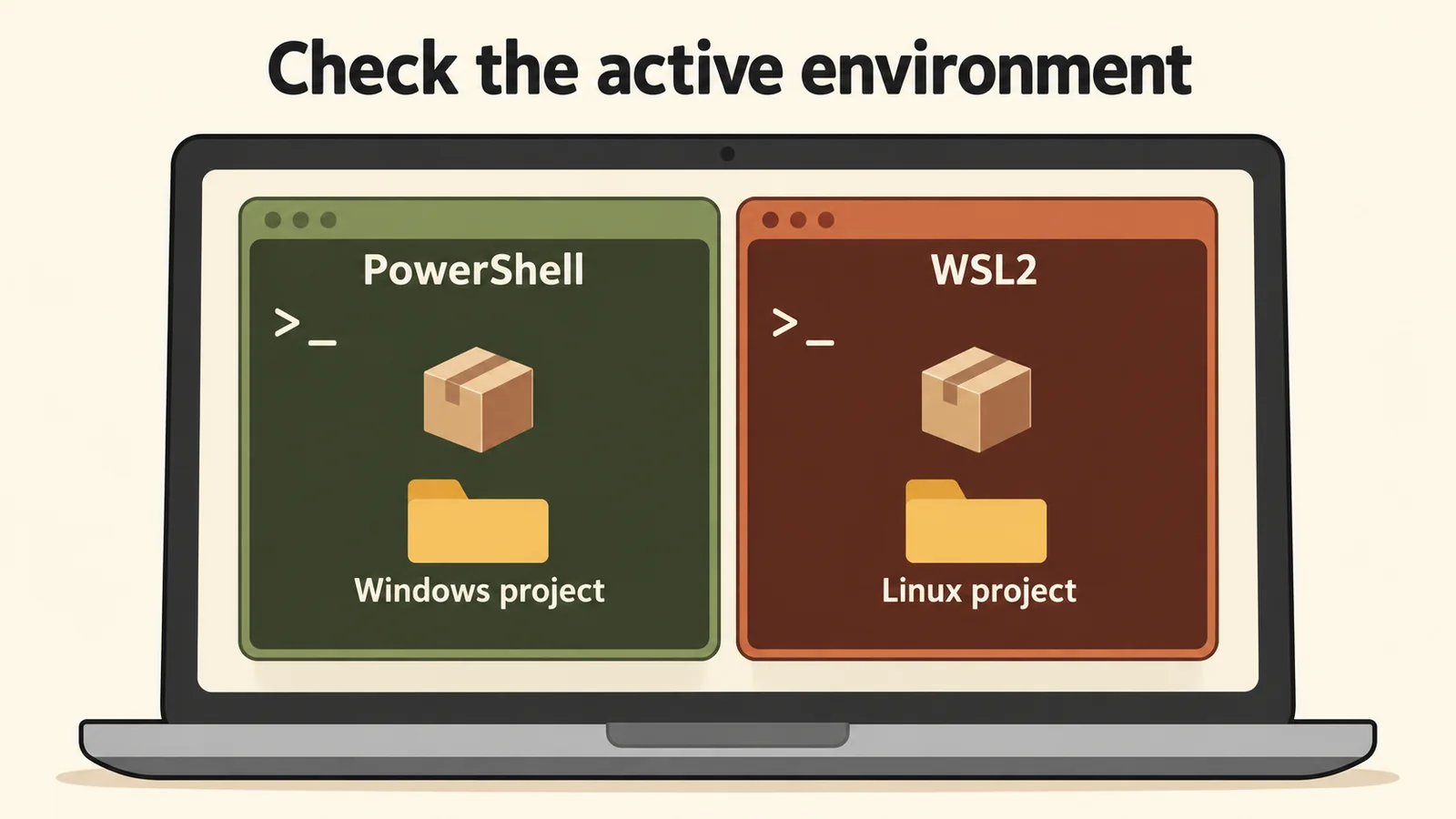
Check the Codex installation inside the environment that runs your project.
Native Windows and WSL2 are separate execution environments. A Codex installation available in PowerShell does not establish that the command is installed inside your Linux shell.
If your repository and development tools live in WSL2, open that Linux shell and use the Linux installer there:
curl -fsSL https://chatgpt.com/codex/install.sh | sh
codex --version
Keep the repository under the Linux home directory when following OpenAI’s WSL workflow. Its documentation recommends this for file performance and to reduce permission and symlink problems. It also states that WSL1 is no longer supported from Codex 0.115 onward. See the official WSL guide.
You do not need to add WSL solely because an older tutorial says Windows requires it. Choose the environment that can run the project’s existing tools.
Verify the command and sign in
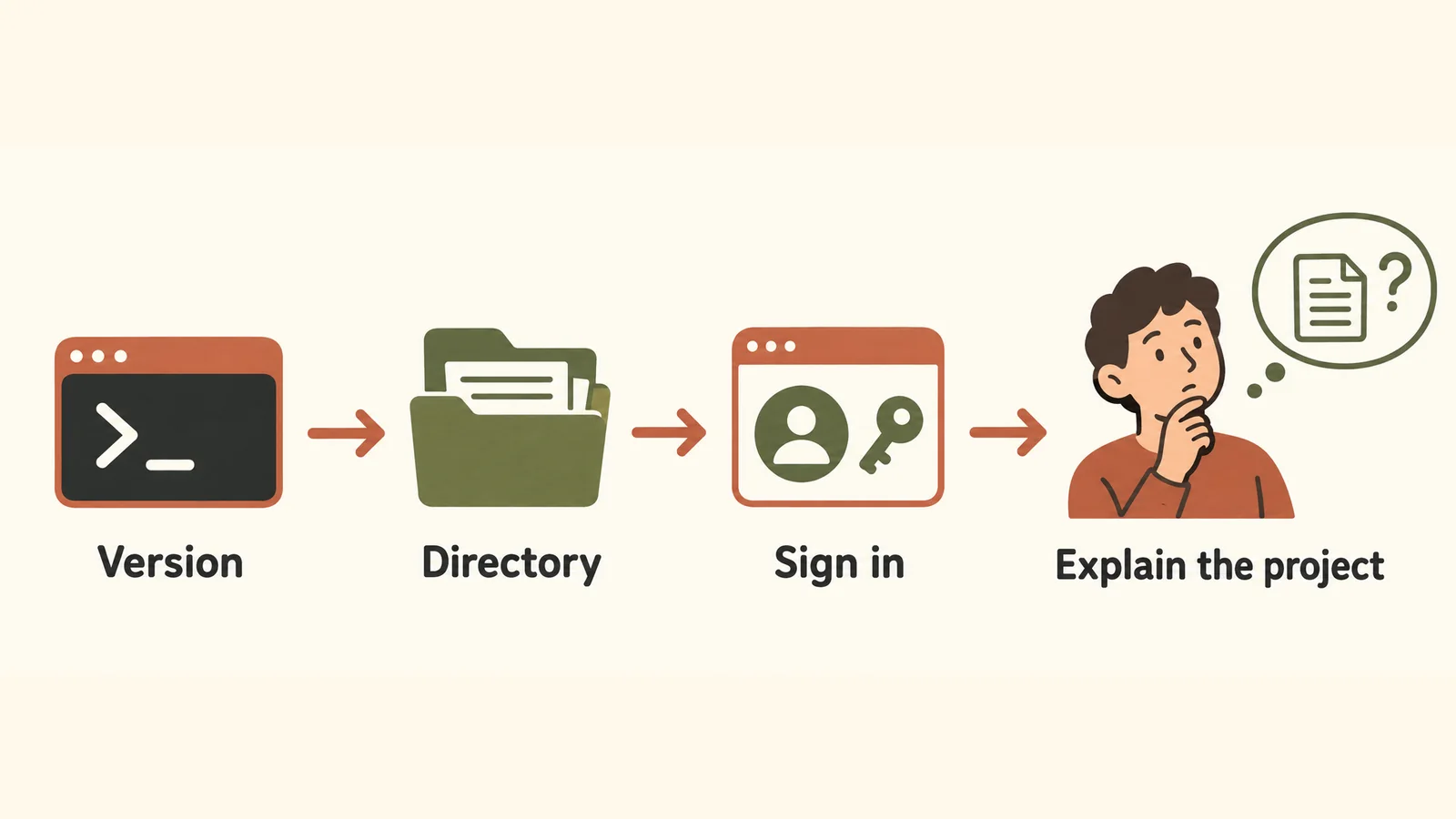
Verify the command, open the correct project, and complete sign-in as separate checks.
Use three checks, in order:
- Command available:
codex --versionprints a version rather than “command not found.” - Correct directory: open your intended project directory before running
codex. - Account ready: finish an available sign-in flow and return to the client.
For a first check, ask Codex to explain the project without editing files. This confirms that you have reached the working client without mixing installation problems with a code change.
Local Codex clients support ChatGPT sign-in and API-key authentication. API-key usage is billed through the OpenAI Platform rather than included ChatGPT plan credits. Cloud access has different sign-in requirements. Use the authentication documentation if the command works but account access does not.
Update with the method you used to install
| Original method | Update command |
|---|---|
| macOS/Linux standalone | curl -fsSL https://chatgpt.com/codex/install.sh | sh |
| Windows standalone | Rerun the PowerShell installer shown above. |
| npm | npm install -g @openai/codex |
| Homebrew | brew upgrade --cask codex |
These are the update methods shown in the official CLI guide. Close the current Codex session, update, open a new terminal, and run codex --version again. Do not use a version shown in a screenshot as a permanent target; documentation examples and current releases can differ.
If the version appears unchanged, check which executable the shell resolves before running another installer.
Fix command lookup before reinstalling
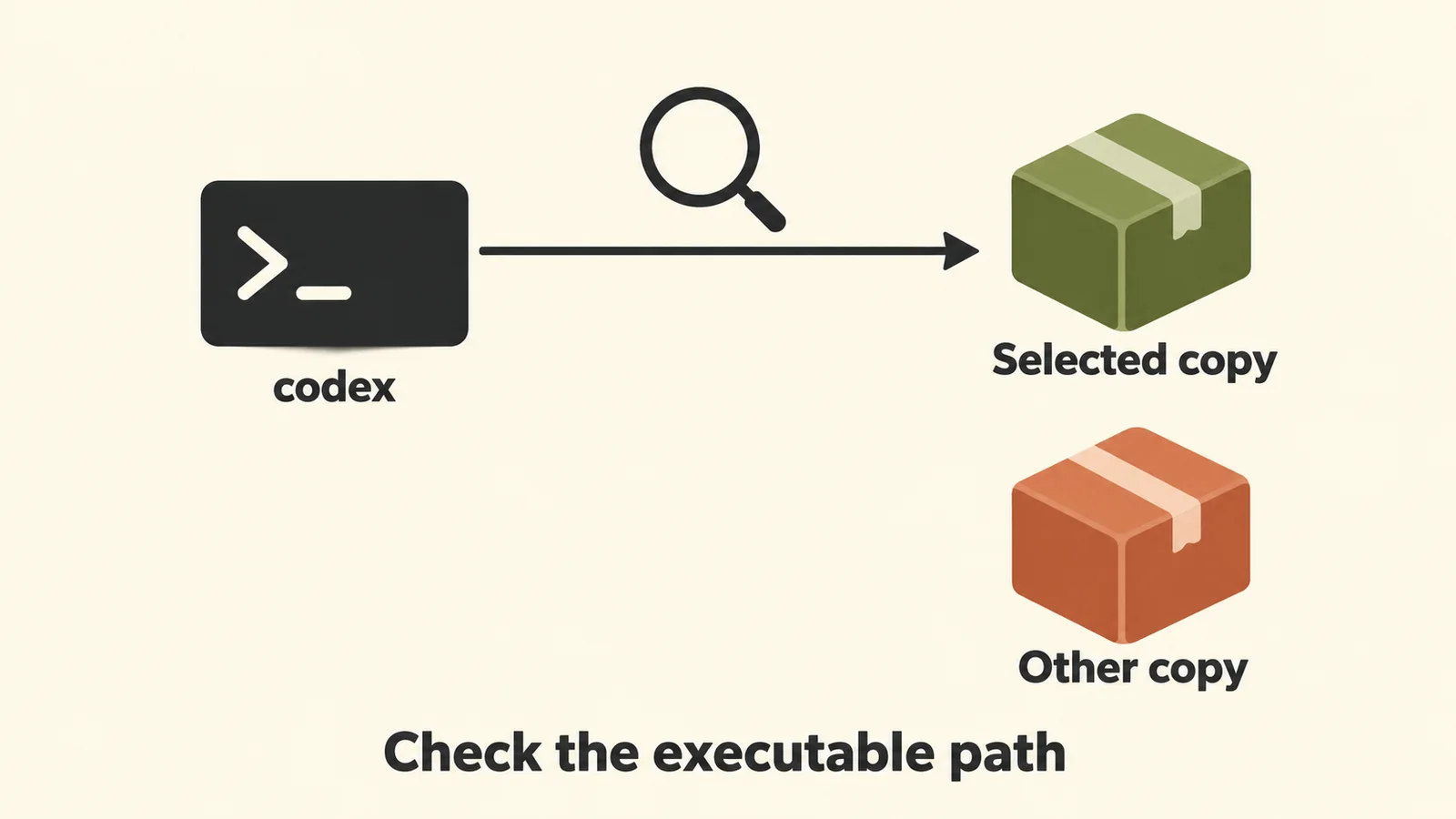
The terminal launches the selected executable, even when another copy exists.
On macOS or Linux:
command -v codex
type -a codex
On PowerShell:
Get-Command codex -AllThese shell commands help locate the executable. Compare the path with the installation method you intended to use.
| Symptom | Check next |
|---|---|
| Installer finished, but the command is missing | Open a new terminal and check whether the installer’s directory is on PATH. |
| Updating did not change the running version | Look for multiple codex executables and identify the one the shell selects. |
| It works in PowerShell but not WSL | Check the installation separately inside WSL. |
| npm reports a permission error | Check your Node.js/npm installation and prefix permissions before adding administrator privileges. |
| The version prints, but sign-in fails | Follow authentication troubleshooting; reinstalling the binary does not establish account access. |
For npm, npm prefix -g reports the global installation prefix. Do not paste a guessed path into your shell configuration. Use the path from your own installation and the instructions for your shell.
Reinstall without deleting account or project data
For a package-manager installation, remove the package with the same manager, then repeat its install command:
# npm installation
npm uninstall -g @openai/codex
npm install -g @openai/codex
# Homebrew cask installation
brew uninstall --cask codex
brew install --cask codexPackage-removal syntax is documented by npm and Homebrew.
For a standalone installation, rerunning the documented installer is the supported update path. Before manually removing a standalone executable, identify its actual path and follow the installer’s current instructions. Do not delete your project or the entire .codex directory as a routine reinstall step; configuration and sign-in state are separate from the program itself.
When the version check works and sign-in is complete, move to the first-task tutorial. Later configuration questions belong in the CLI settings guide, while practical Codex tips cover working habits. The agent-versus-chatbot explanation provides background if this is your first tool that can act on project files.
Explore the Codex guides for the next step.