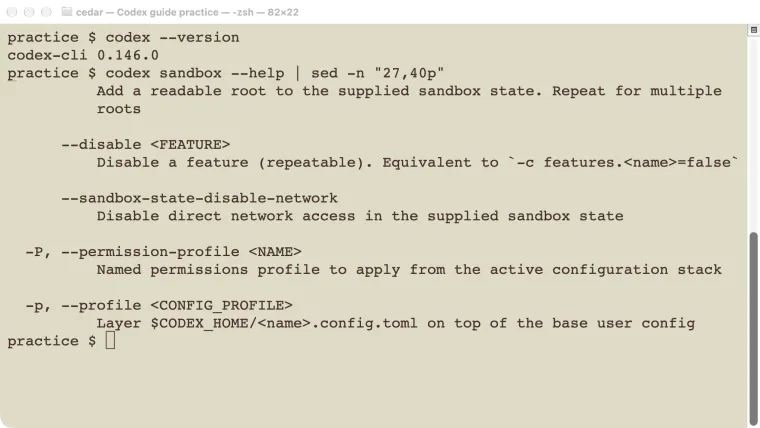
A Codex approval policy decides when the agent asks before an action. Its sandbox decides what a local command can actually access. Choose both for the task: reading a project needs different access from editing and testing it. Turning off approval prompts does not make a restricted folder writable. In our Mac test, the read-only profile blocked a file write, the workspace profile allowed the same write inside the project, and that profile still blocked a write just outside it. Start with a small harmless check like this before trusting a setting’s name or changing your usual configuration.
Tested October 25, 2026: Codex CLI 0.146.0 on macOS. We tested the local command sandbox directly with a disposable text file. The results are not a test of cloud containers, Windows enforcement, browser tools, or every connected service.
Separate the question from the boundary
An approval prompt is a request for a decision. A sandbox is a restriction enforced around an operation. Those are related, but they solve different problems.
For example, Codex may ask to run a test command. You can approve the request, yet the command can still fail because its output folder is not writable. Conversely, a command may be allowed to run without another prompt while remaining limited to the project folder.
The current official security guide documents on-request for interactive approval decisions and never for runs that cannot ask. It also states that untrusted is no longer a supported approval policy. Our older installed CLI still listed untrusted in help, so we do not recommend copying an old command list without checking your client version.
A project’s trust setting is a separate issue. It affects whether project configuration is loaded; it is not the same as an approval-policy value. Keep those two uses of “trust” separate when diagnosing configuration.
Choose access for the work you are doing
| Task | A useful starting boundary | What to verify |
|---|---|---|
| Explain code or inspect a change | Read-only local access | A write is blocked, and the needed files can be read. |
| Edit and test one project | Workspace write access | Writes work inside the project; required output folders are included. |
| Unattended checks | A suitable restricted sandbox with no interactive approvals | A blocked operation fails visibly instead of waiting for a person. |
| Access outside the usual project | A specific additional directory or permission | Only the directory needed for the task becomes available. |
On a phone, swipe sideways to see the last column.
“Never ask” is not a synonym for “can do anything.” Full machine access is a separate, much broader choice. Do not use it as the first fix for a single output folder or one command that needs attention.
For an interactive session, the tested CLI accepts a conservative launch such as:
codex --sandbox read-only --ask-for-approval on-requestCheck codex --help on your installation before adapting examples. A managed workplace may impose limits you cannot loosen with local flags.
Test a read-only boundary with a disposable file
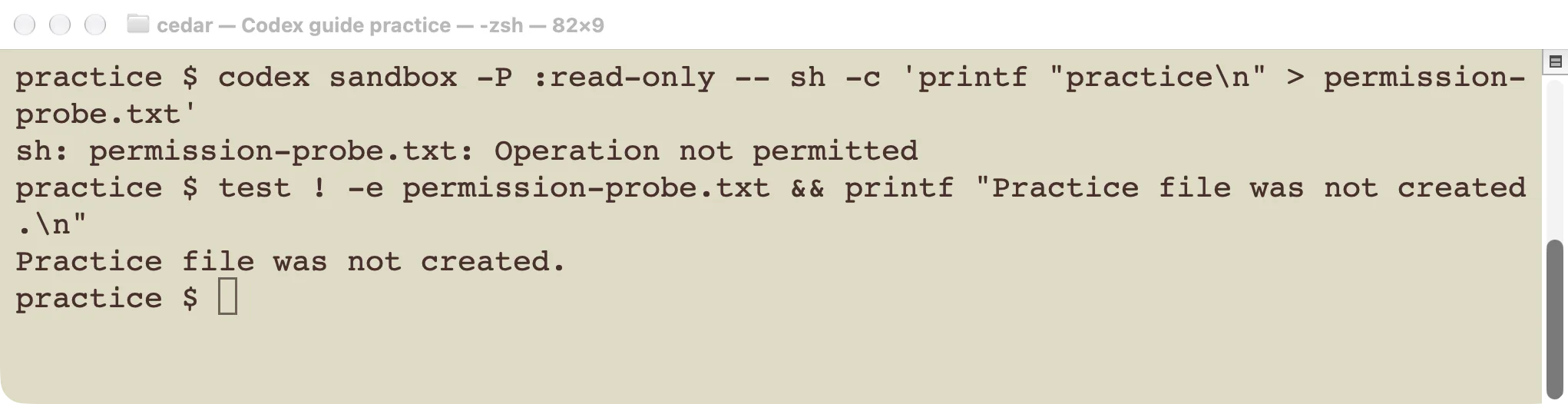
The write was denied, and the practice file was not created.
Make a small empty practice folder, enter it, and check your version:
mkdir codex-permission-practice
cd codex-permission-practice
codex --version
codex sandbox --help
Our installed version supports named permission profiles for the sandbox command. On that version, this command attempts to create a harmless file inside the current folder:
codex sandbox -P :read-only -- sh -c 'printf "practice\n" > permission-probe.txt'The command returned a nonzero exit status and “Operation not permitted.” The file did not exist afterward. We checked the file as well as the error; an agent saying “I could not write it” would not be enough by itself.
If your installed command has different options, stop at its help output and use the matching documentation. This example is a macOS shell command, not a PowerShell command to paste unchanged.
Check the allowed write and the outside boundary
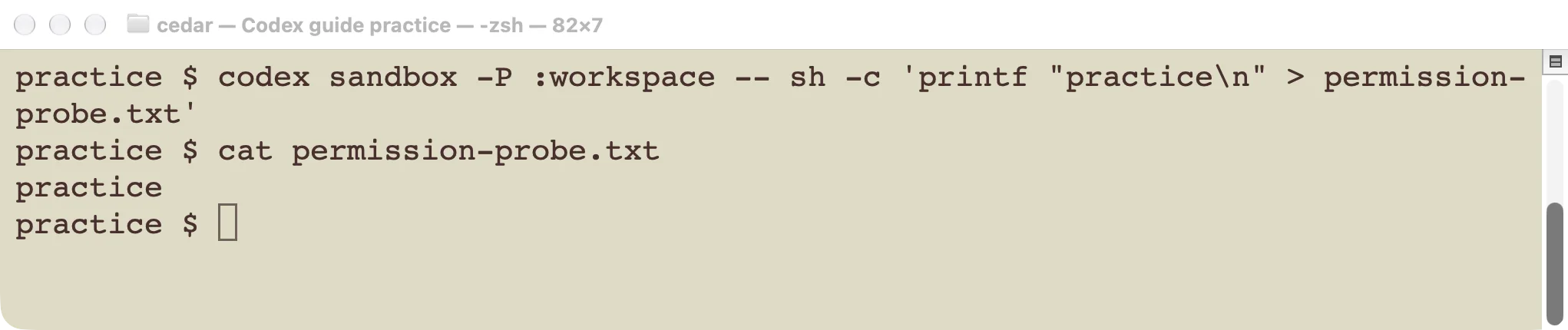
The same local write succeeds under the workspace profile.
In the same disposable folder, run:
codex sandbox -P :workspace -- sh -c 'printf "practice\n" > permission-probe.txt'
cat permission-probe.txt
Our command exited successfully and the file contained the expected line. We then tested a different destination, one directory above the workspace:
codex sandbox -P :workspace -- sh -c 'printf "practice\n" > ../outside-probe.txt'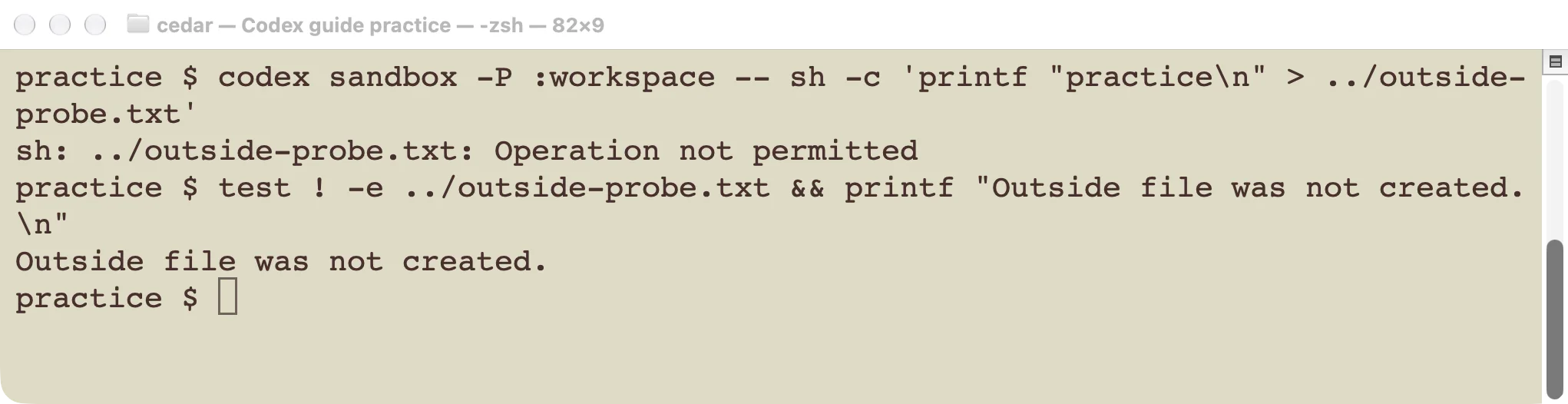
Workspace access did not make the parent folder writable.
That attempt was denied, and the outside file did not appear. We removed the successfully created practice file after checking it.
This is a narrow test with a useful result: the chosen local boundary distinguished two file locations. It does not establish that every tool is confined by the same boundary. Connected tools, network requests, and cloud tasks can have their own permissions and authorization.
Avoid mixing two configuration systems
Current Codex documentation describes both older sandbox settings and newer, beta permission profiles. The permission-profile guide warns against mixing default_permissions and [permissions] with sandbox_mode and its related settings. An older sandbox setting in a loaded layer can affect which system is used.
For a small interactive task, a launch flag is easier to check and undo than changing several configuration files. When you need a lasting setup, use the configuration guide and record which configuration system you chose.
Network access needs its own check. A writable project folder does not imply internet access. A profile’s domain rules also depend on the documented network-proxy setup; writing a domain list alone is not proof that traffic is restricted.
Find out why Codex keeps asking
Repeated prompts often concern different actions. Read the requested command, directory, destination, and scope before assuming the agent is asking the same question again.
- Identify the blocked operation. Is it writing a build folder, installing a package, reaching a network service, or using a connected tool?
- Check the working directory. A test run from the wrong folder may need access outside the workspace you intended.
- Check the active configuration. A project file, selected profile, launch flag, or administrator requirement can change the result.
- Grant only the access needed for the task. For a separate output directory, consider a specific directory grant rather than broad machine access.
- Repeat the harmless probe. Confirm the intended operation works and an unrelated outside write remains blocked.
If you want to return to conservative local behavior, end the experiment and start a fresh session with explicit read-only settings. Remove only the temporary configuration you added for the test; do not replace your entire configuration file with a small example.
Use AGENTS.md to describe project working agreements, and permissions to enforce supported access boundaries. The two complement each other. Check the actual result before treating either as correctly configured.
For the surrounding terminal workflow, the Codex CLI guide explains how to start a session, inspect a change, and leave it.