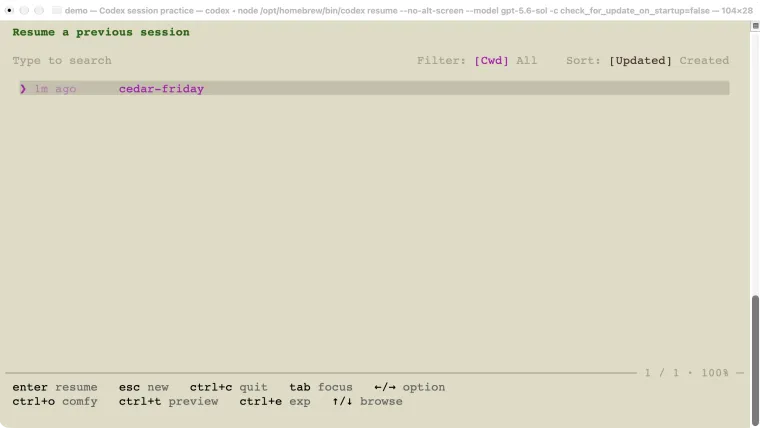
The codex resume session picker brings back a saved chat so you can continue where you left off. Open your project folder in the terminal, run codex resume, and choose the conversation. Use a fork when you want to try another idea while keeping the original conversation separate. Start a new chat when the next task does not need that history. These choices affect the conversation; they do not automatically undo edits or make another copy of your project. This guide walks through a small example so you can see exactly what is kept and what changes.
Tested on October 25, 2026: Codex CLI 0.146.0 on macOS. The example uses a practice folder and made-up delivery dates. Newer versions may show different menus. The screenshots show the version we used, not a promise that your screen will look identical.
Choose: resume, fork, or a new chat
A session is one Codex conversation with its saved history. Think about whether you want to continue the same discussion, try an alternative, or begin a different task.
| What you want | Use this | What carries over |
|---|---|---|
| Finish yesterday’s task | codex resume in the terminal | The selected conversation’s history. |
| Try another approach to the same task | /fork inside Codex | The conversation so far, copied into a separate chat. |
| Begin a different task | /new inside Codex | A fresh conversation. Project instructions and configured memory can still apply. |
On a phone, swipe the table sideways to read all three columns.
A separate chat is not necessarily a separate folder. In our test, the original and fork used the same practice directory. If either chat had edited a file there, the other chat would have encountered that changed file too.
If you have not used the terminal version yet, start with the Codex terminal tutorial. For the wider command list, use the command reference.
Find and resume a saved session
You do not need to remember a long ID to find a recent chat. Start in the same project folder you used before.
- Open your terminal.
- Use
cdto enter the project folder.cdmeans “change directory.” Replace the example path below with your real folder. - Run
codex resume. - Choose the chat in the list and press Enter.
- Read the restored conversation and check the project folder before asking for more work.
cd "/path/to/your/project"
codex resume
The header image shows our picker with cedar-friday, the name we gave the practice chat. The picker lets you search rather than guess which chat was the right one.
For a shortcut, run:
codex resume --lastThis continues the most recent matching session without the picker. The current project folder matters. If you have just made a fork, the most recent chat may be that fork, not the original one you meant to open.
To choose a specific chat, use its name or session ID:
codex resume cedar-fridayThat name belongs to our example. Replace it with your own chat’s name. A session ID is the long identifier Codex uses to distinguish chats; it is useful when names are similar. The local help we checked also accepts:
codex resume SESSION_IDReplace SESSION_ID with the actual identifier, without angle brackets. You can check the syntax for your installation with codex resume --help. The official CLI reference documents the current resume options and folder filtering.
Give the chat a useful name
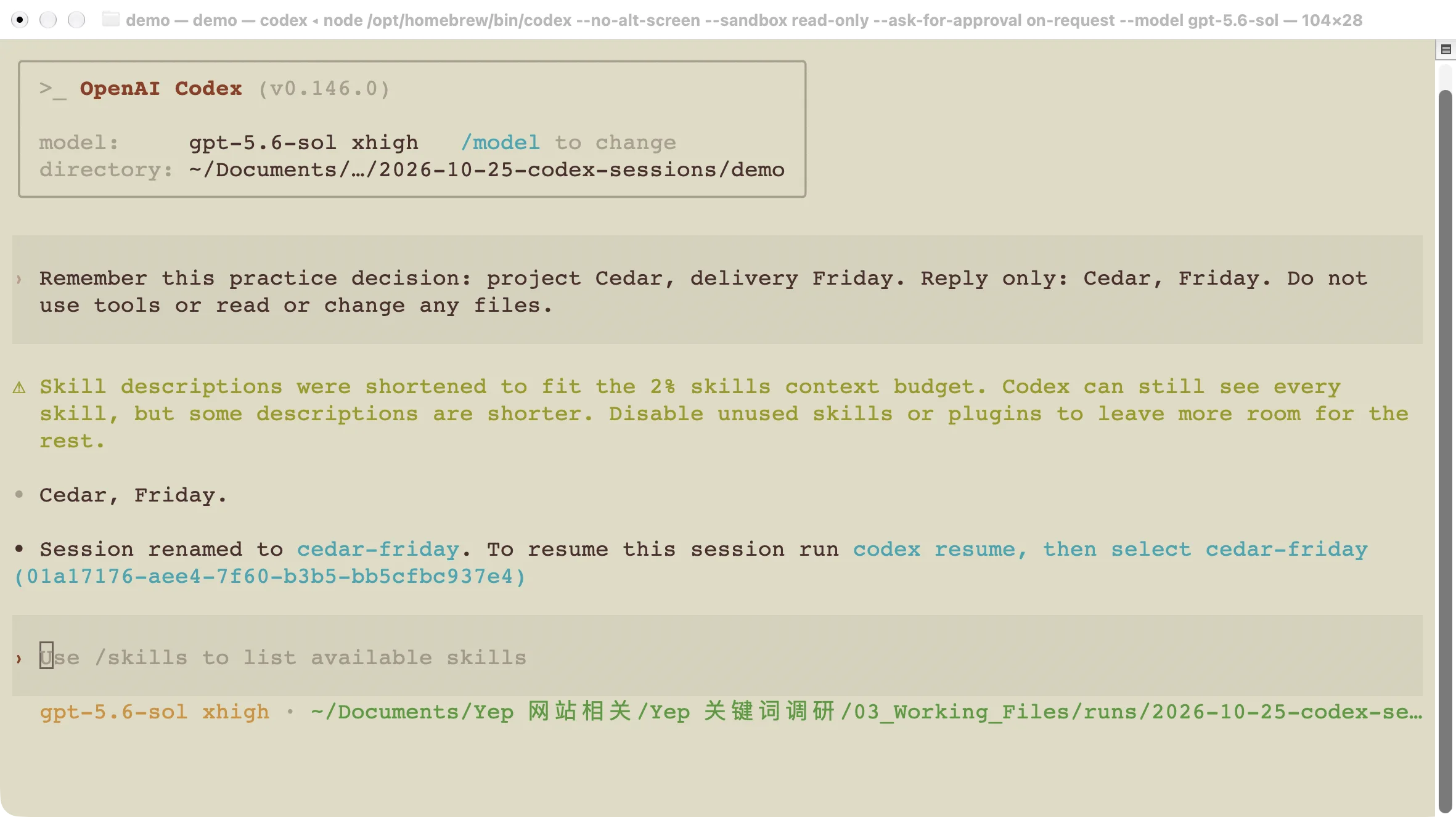
A short name makes the saved chat easier to recognize later.
Inside Codex, use a name that tells you what the conversation is about:
/rename cedar-fridayUse names such as checkout-tax-bug or homepage-copy for real work. “Test” becomes hard to recognize after you have several chats called Test.
In our practice chat, we asked Codex to remember two facts: the project was Cedar, and delivery was Friday. It replied “Cedar, Friday.” We renamed the chat, left Codex with /exit, then reopened it from codex resume. When asked for the two facts again, it still answered “Cedar, Friday.”
We did not run a separate “save chat” command. The normal interactive session was saved and could be reopened. We also confirmed that a local conversation record existed for this test. That is a record of the chat, not a backup of the project files.
Try another idea with a fork
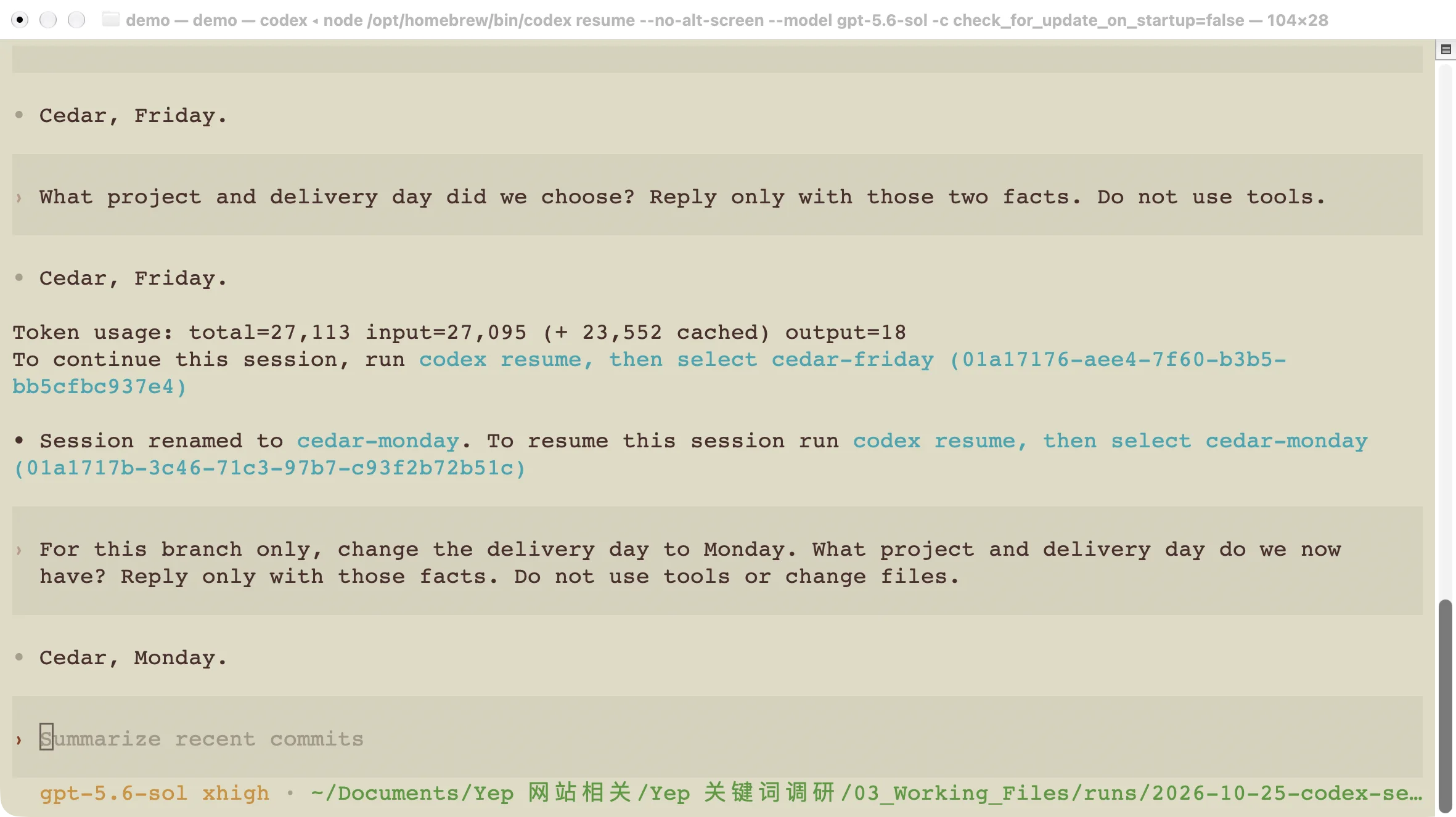
The new branch can continue in a different direction while the original conversation keeps its own history.
A fork starts a separate conversation from the history you already have. It is useful when you want to explore a different plan without turning the original chat into a mix of two approaches.
- Resume the conversation you want to branch from.
- Type
/forkinside Codex and press Enter. - If your version offers a folder or checkout choice, read it before continuing. A worktree is a separate working copy of a Git project; it is different from simply making another chat.
- Give the fork its own name with
/rename. - State what you want to change in this branch.
For our test, we named the fork cedar-monday and asked it to change the delivery day to Monday. Its answer was “Cedar, Monday.” We then reopened cedar-friday by name and asked for the original decision.
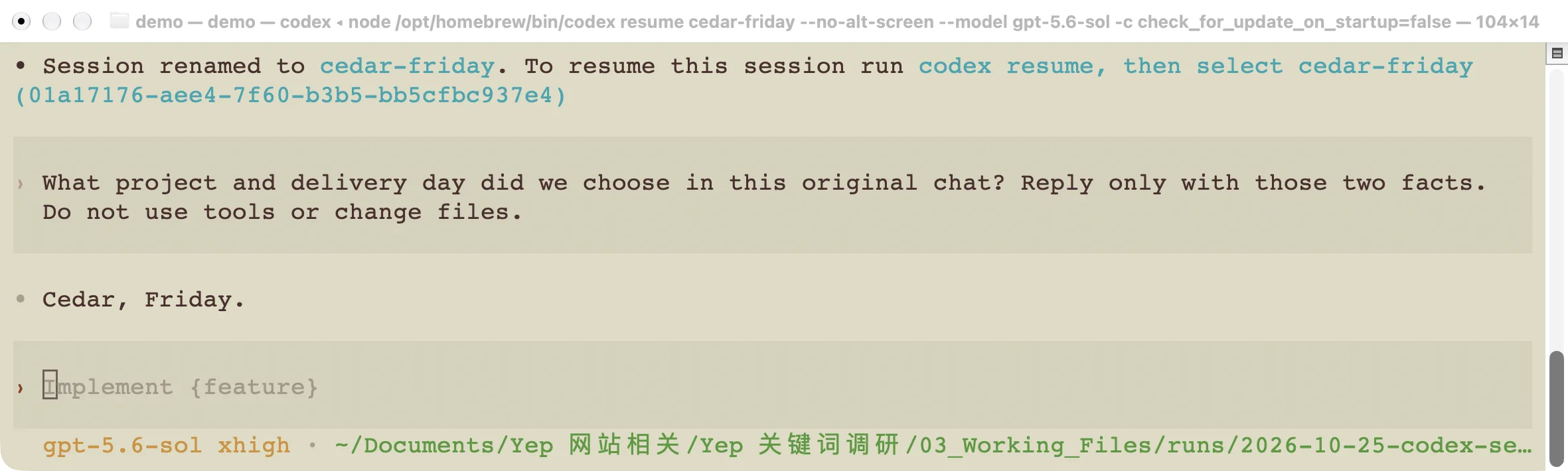
Back in the original conversation, the answer was still “Cedar, Friday.”
The two chats had different session IDs and the same project directory. Our requests did not edit project files. The README stayed unchanged. This test shows the conversation histories separating; it does not demonstrate isolated code changes.
You can also start a fork from the normal terminal:
codex forkChoose the saved conversation from the picker. To target a particular saved chat, use codex fork SESSION_ID, replacing the placeholder with its identifier. Use codex fork --help to check the options supported by your version.
Keep a readable record
Saved history is useful when you want Codex to continue the chat. Sometimes you also want a file you can read, share, or attach to a project note.
The current official slash-command guide documents /export for exporting a conversation as Markdown—a plain text document with simple formatting. Our tested CLI 0.146.0 returned “Unrecognized command” for /export; we did not produce an export with that version. Check your own / menu first, because support varies by version.
If your version offers it, wait until Codex has finished working, then use:
/export session-notes.mdRead the resulting file before sharing it. A conversation may contain local paths, pasted information, or tool output. An exported document is a readable record; it is not automatically a replacement for a resumable Codex session.
For work you need to pick up later, leave a short message in the chat before stopping. For example:
We chose Friday delivery. The next step is to check the shipping rules.
No code has been changed yet.
For coding work, describe which files changed and which checks actually ran. Do not write “all tests passed” when you only reviewed the code. A clear stopping note gives the next turn something concrete to check.
When your old chat is missing
The picker is empty
Check your project folder first. codex resume normally filters by the current directory. To include sessions from other directories, run:
codex resume --allRead the selected chat’s folder before continuing. The current official documentation describes a directory choice when the current folder differs from the saved one; an explicit -C folder override also affects where Codex works. Restoring a transcript does not mean the correct project files are present in the current folder.
You are on another computer or in another terminal environment
Return to the environment where you ran the original session. A local terminal, a remote server, and Windows WSL can have different files and session storage. The --all flag widens the directory search; it does not mean “search every computer I use.”
Our test checked local CLI sessions on one Mac. It did not test moving chats between machines or automatic synchronization. If you need to move work, preserve the project files and a clear handoff note as well as the conversation record.
The chat came back, but the files look different
That can happen because the chat history and files are separate. Another chat, an editor, or a Git command may have changed the project since your last message. Ask Codex to inspect the current files before continuing. Use /diff to examine Git changes where available; do not assume the old conversation describes the files exactly as they are now.
You want to undo a change
Neither /new, /fork, nor /exit is a file-undo command. Review the actual change in your editor or Git, then decide what to restore. If you only want to try another conversation, fork the chat. If you need two independent versions of the code, use separate working copies as well.
For your next session, choose one recognizable name, leave a short stopping note, and reopen that exact chat. The Codex guide directory has the related installation, login, and command guides when you need them.