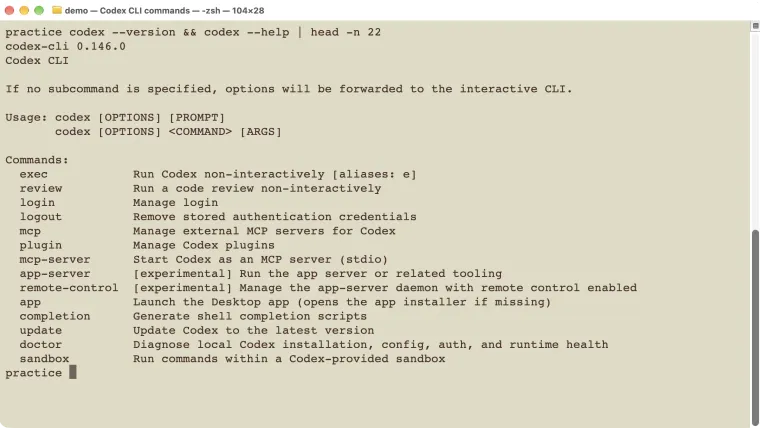
Codex CLI commands belong in two places: type codex commands in your normal terminal, and type / commands inside an open Codex chat. Start with codex --help if you need a launch option, or type / in Codex to see its chat commands. The tables below group common choices by what you want to do: open a project, continue a chat, change the model, check permissions, or review work. Each example explains what happens next. You can look up a command without giving Codex a coding task. Start there if you are unsure what an option does.
Checked on October 25, 2026: the terminal screenshots and local help checks use Codex CLI 0.146.0 on macOS. A newer version was offered during the check; this is a record of the tested version, not a claim that it is the latest. Menu choices can differ with your version, account, and settings.
First, check where you are typing
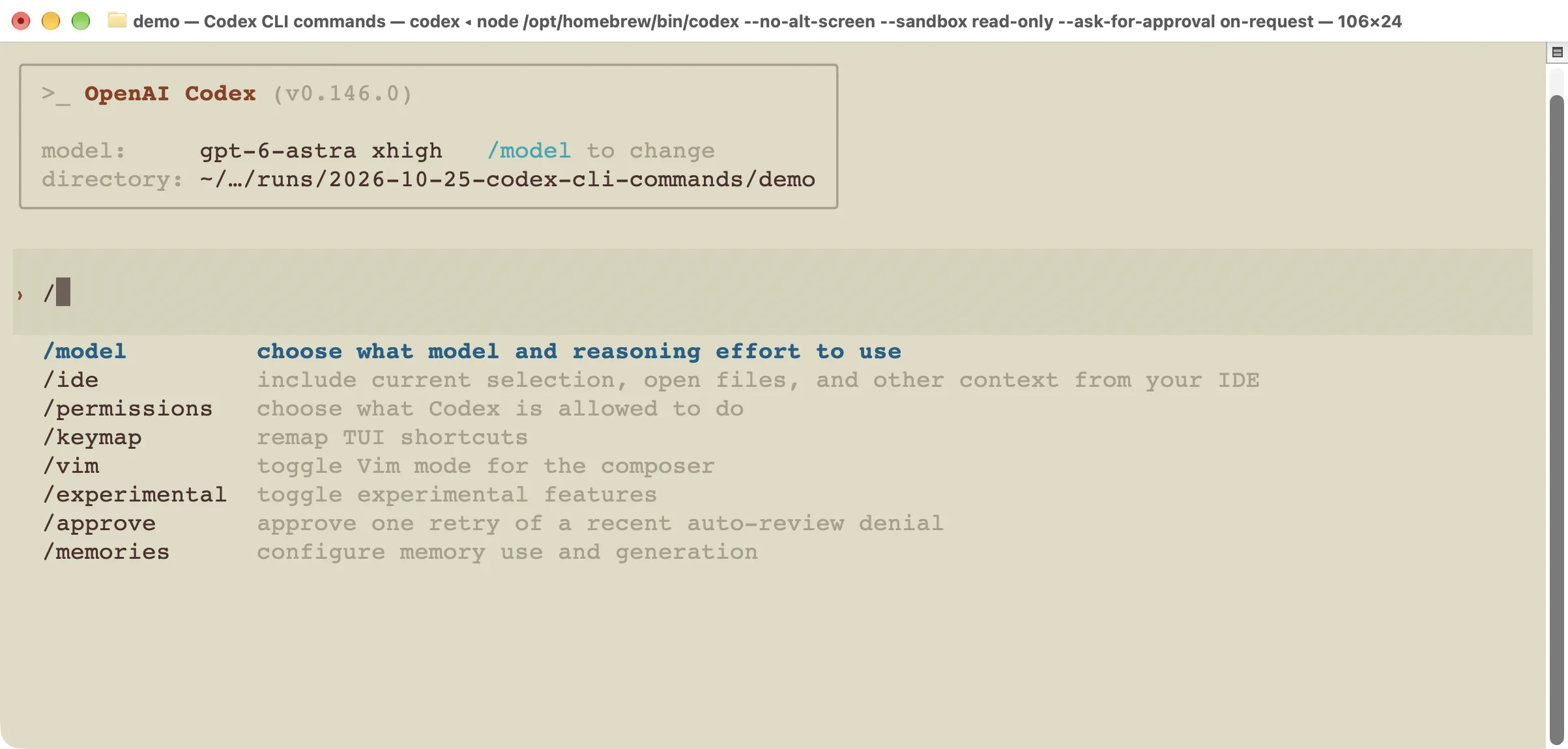
This is the Codex input box. Typing / opens its command menu; typing more letters narrows the list.
A terminal is the window where you type commands to run programs. Once you run codex, that same window shows the Codex chat. The window looks similar, but it is now listening for a different kind of input.
| Where you are | What to type | What happens |
|---|---|---|
| Normal terminal, before Codex starts | codex --help | Prints the command list and launch options. |
| Inside the Codex chat | / | Opens the slash-command menu. |
| Inside the Codex chat | /exit | Leaves Codex and returns to the terminal. |
If you type /model at a normal shell prompt, the shell may look for a file named /model and report that it does not exist. Start codex first. If you paste a terminal command into the Codex chat, it may treat that text as a request instead of running the launch option you intended.
For a complete exercise, use the Codex terminal tutorial. This page is for finding a command when you already know what you want to do.
Start Codex and choose the project folder
Run these in your normal terminal. A flag is an extra option beginning with a dash, such as --help.
| You want to… | Type this | What it does |
|---|---|---|
| Open a chat in the current folder | codex | Starts the interactive chat. Check the folder shown before asking for changes. |
| Check your installed version | codex --version | Prints the local version number. |
| See available commands and flags | codex --help | Prints help without starting a coding task. |
| Open a particular folder | codex -C "/path/to/project" | Uses the folder you name. Replace the example path with yours. |
| Start with a request | codex "Explain this project. Do not edit files." | Opens Codex with that request. It can begin work immediately. |
| Check whether you are signed in | codex login status | Reports the current login status. |
Put quotation marks around a path that contains spaces. The -C is an uppercase letter. The longer spelling is --cd.
The header image shows an excerpt of real help output. The extra head -n 22 in that screenshot only shortens what is displayed; you can simply run codex --help to read the whole list.
If your terminal says codex: command not found, follow the installation guide. If Codex opens but asks you to sign in, use the login guide.
Continue a chat or start a separate one
A session means one saved Codex conversation. Continuing a session brings back its conversation history; it does not restore old copies of your project files.
| You want to… | Type this | Where and what to expect |
|---|---|---|
| Choose an earlier chat | codex resume | Normal terminal: opens the saved-session picker. |
| Continue the most recent matching chat | codex resume --last | Normal terminal: skips the picker. Check that you are in the intended project. |
| Find a chat from another folder | codex resume --all | Normal terminal: removes the current-folder filter from the picker. |
| Branch from a saved conversation | codex fork | Normal terminal: choose a conversation to continue as a separate chat. |
| See the resume options | codex resume --help | Normal terminal: explains the flags your version supports. |
Inside Codex, /resume opens the session list, /new starts a fresh chat, and /fork branches the current conversation. Forking a chat does not create a separate copy of your code. Two chats can still work on the same files.
For the full steps and a tested example, follow the guide to resuming and forking Codex sessions.
Do not use --last just because it is shorter if you have several tasks open. The picker makes it easier to choose the right conversation. Read the folder and session title before continuing.
Check the model before changing it
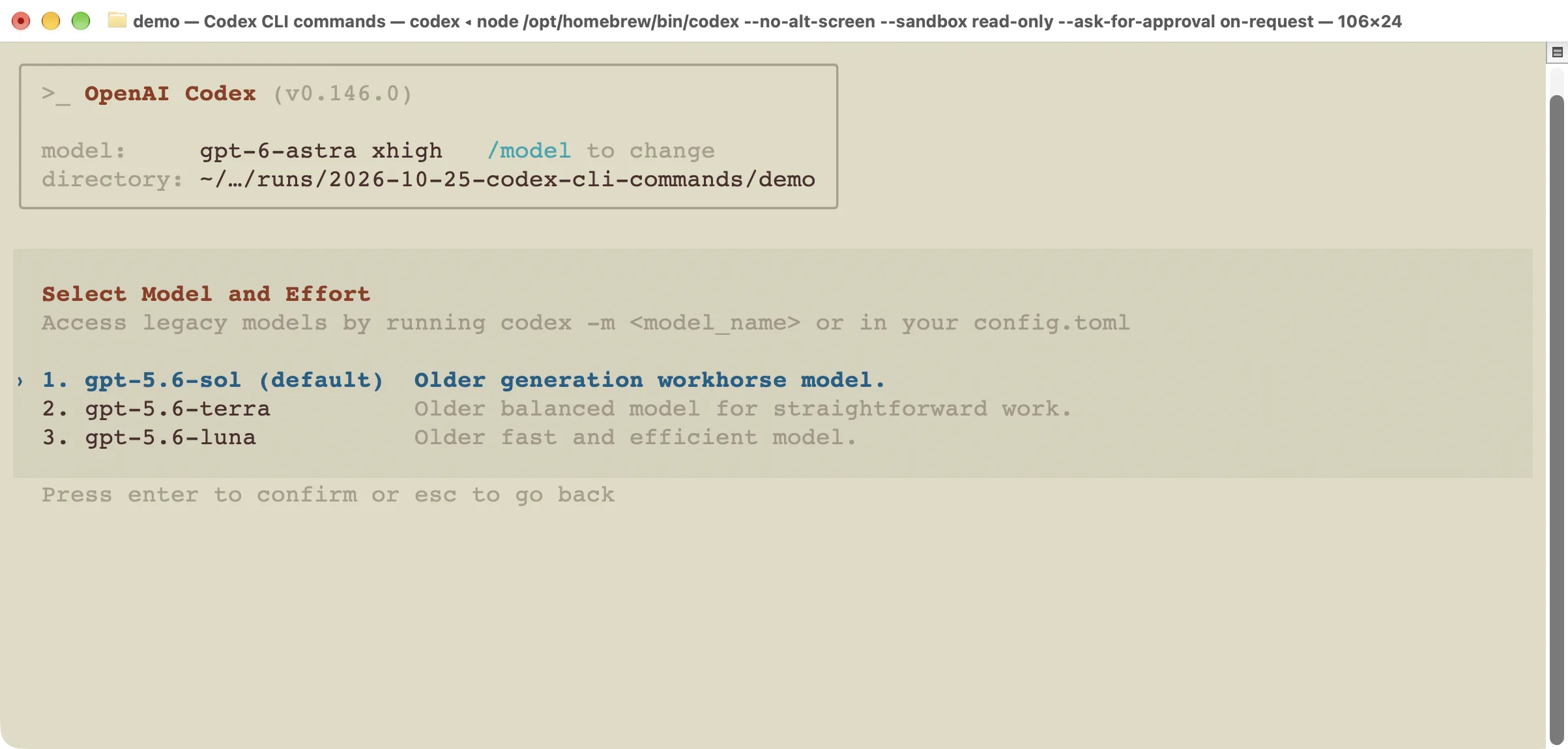
Use the choices shown in your own menu. The names in this screenshot are specific to the tested account and version.
Inside Codex, type /model and press Enter. The menu lets you choose the AI model that handles your requests. Some models also offer a reasoning-effort setting: how much thinking work to spend on a task.
Choose a listed option if you want to change it. Press Esc to leave the menu without selecting one. /status shows information about the current session, including its model and settings.
For a launch-time choice, the terminal accepts codex --model MODEL_NAME. Replace MODEL_NAME with a model that is available to your account. Do not copy an unfamiliar model name from an old article and assume it will work.
If your question is about how much a choice costs, check the Codex pricing guide. A command being valid does not mean a particular model or service tier is included in your plan.
Check what Codex is allowed to do
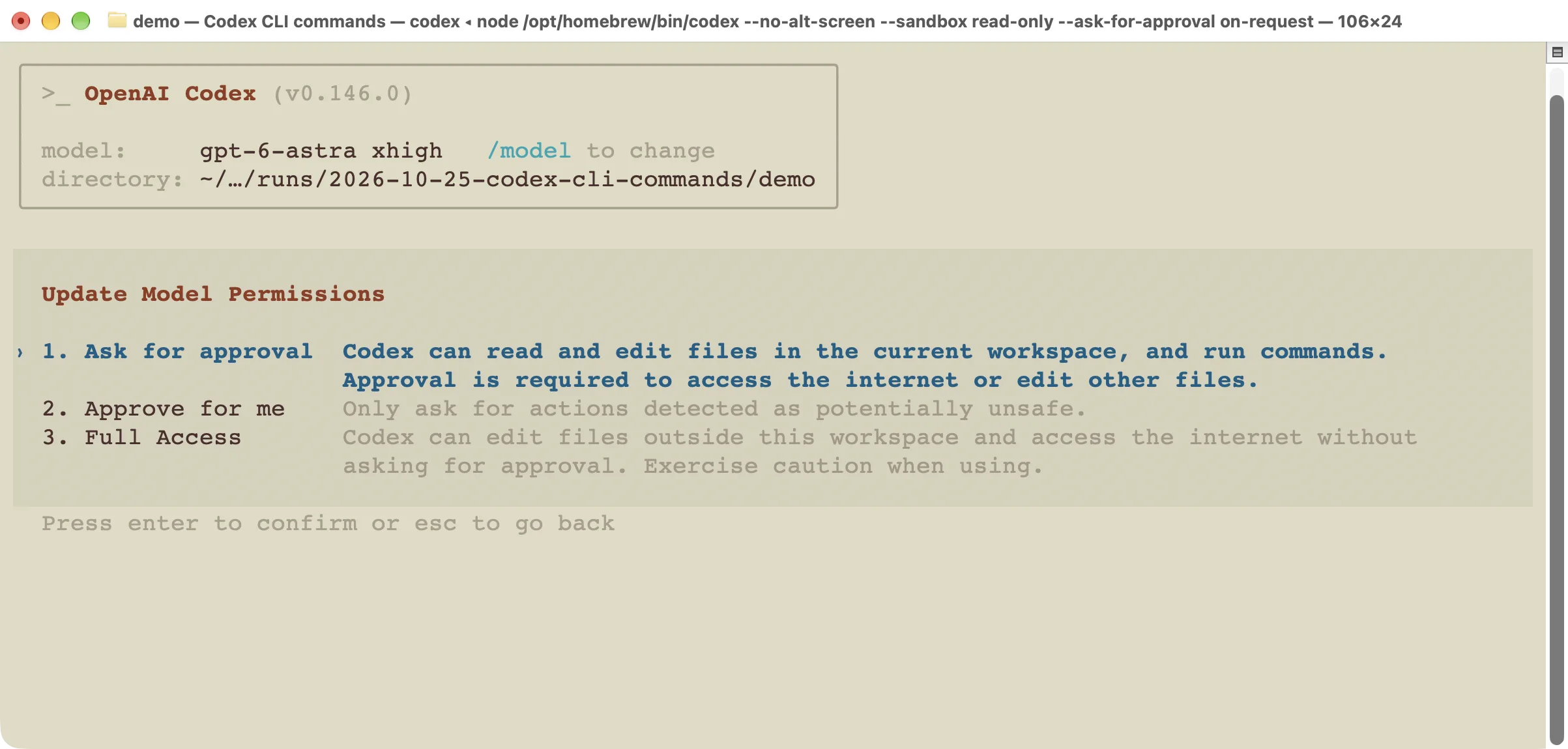
Opening the permission menu lets you inspect the choices. A broader option changes what future work may do.
Inside Codex, type /permissions. Read the description of each choice before selecting it. For a session that starts with restricted access, you can use this in the normal terminal:
codex --sandbox read-only --ask-for-approval on-requestThese two flags answer different questions:
--sandbox read-onlysets a boundary on commands run inside the sandbox. A sandbox is a restricted place where commands execute; this mode does not normally allow them to write project files.--ask-for-approval on-requestlets Codex ask when it needs approval for an action outside the usual boundary. Read any request before agreeing to it.
This combination is a starting policy, not a promise that every tool or future approval is read-only. Connected services and actions you approve need their own care. For ordinary file-editing tasks, --sandbox workspace-write allows writes in the workspace while keeping a sandbox boundary.
--ask-for-approval never means do not ask, not grant full access. It does not by itself remove sandbox restrictions. The flag --dangerously-bypass-approvals-and-sandbox removes both checks; it is not a routine fix for an error.
Our screenshots only inspect the menus. We did not select broader access or send a coding request during this check.
Inspect changes, request a review, or run one task
Start with /diff inside Codex when you want to see edits. A diff is the comparison between the old and new file contents. Reading it is different from asking the AI to judge whether the changes are correct.
| You want to… | Type this | What happens |
|---|---|---|
| See file changes | /diff | Inside Codex: displays the Git changes, including untracked files supported by the CLI view. |
| Ask Codex to examine code | /review | Inside Codex: opens the review workflow. This starts AI work when you proceed. |
| Review uncommitted changes | codex review --uncommitted | Normal terminal: starts an AI review of changes not yet committed to Git. |
| Check one-task options | codex exec --help | Normal terminal: prints help for running without an interactive chat. |
Here is an example of the one-task form, not a task run as part of this article’s checks:
codex exec --sandbox read-only "Summarize the README. Do not edit files."Run it from a Git project you trust that contains a README. exec starts real AI work and can use your allowance or API balance. Its permissions and your configured tools still matter. Checking codex exec --help first does not start that work.
A review can miss a bug. After making a change, read the diff and run the project’s own checks. The shipping-fee practice project shows how to compare a real edit with a test result.
When a command does not work
Why is a slash command missing?
Check that you are inside Codex, then type / and a few letters. The menu reflects your installed version and enabled features. A command in the desktop app or ChatGPT’s web page is not automatically a terminal command.
The official slash-command reference describes the current documented set. Compare it with your own menu before relying on a newly added command.
Why does a flag say “unexpected argument”?
Run codex --version, then the help command for the exact action, such as codex resume --help. Flags can change across versions or belong to a different subcommand. The official CLI reference is the place to check the documented syntax.
Does starting a new chat undo the edits?
No. A fresh chat changes the conversation, not the files already saved on disk. Check the changes with Git or your editor before continuing. Neither /new nor /exit is an undo command.
Which commands should I learn first?
Start with codex, codex --help, /status, /diff, and /exit. Add a new command when it solves a problem you actually have. The Codex guide directory links to the next step when you need a full walkthrough.
For lasting project rules, use the AGENTS.md guide. To check access or choose a setting, see permissions and approvals and models and reasoning effort.
For an end-to-end scripted run, see Codex exec. Use the SDK examples to manage threads from a program, or Hooks to react to an agent event.
For a complete code review, inspect a defined change and verify each finding. Use worktrees for a separate checkout, and the configuration guide when a setting is ignored.
For a failed command, start with the troubleshooting guide. For a programmatic integration, compare the API routes. Vulnerability scanning is a separate workflow: see the Codex Security guide.
For a complete website exercise, follow the brief, first build, and browser checks. Use the practical tips to write a task you can verify, or the custom API guide when configuring a gateway.
To choose a working interface, compare app and CLI or the editor support matrix. If you are considering another tool, check the free alternatives and their limits.
For editor setup, use VS Code or Cursor integration. For hosted or recurring work, see Cloud and automation. For delegation, use subagents. Compare Claude Code or Cursor using the stated verification limits.