Codex worktrees give a task its own checkout of a Git repository, so its file edits do not immediately change your main working folder. Create the worktree from a known starting point, run the task and tests there, inspect the result, and bring back only the work you want. This guide tests that cycle with a small shipping project. We also reproduce a branch-in-use error, a refused removal of uncommitted work, and a merge conflict that we safely abort. The command-line exercise explains the Git behavior underneath the desktop app; the app’s managed-worktree controls are described separately from our hands-on test.
Understand what is separate and what is shared
A worktree is another working folder linked to the same Git repository. Its files and current checkout are separate, while commit history and branch references are shared. It is not a separate computer or a security sandbox.
| Item | Relationship | Practical consequence |
|---|---|---|
| Working files | Separate copies | A file edit stays in that checkout |
| Commits and branches | Shared repository metadata | A new commit is available to the other checkout |
| Dependencies and build files | May need separate setup | Install or configure them in the task folder |
| Services, credentials, ports | Depend on your setup | Worktrees do not automatically isolate them |
On a phone, swipe sideways to read the last column.
See Git’s worktree reference for the underlying commands. For the agent’s actual file and network boundaries, use the permissions guide.
Create a practice checkout and second worktree
Download the small shipping practice project and extract it. The archive contains three source files and no Git history or credentials. Open a terminal in its cedar-store folder, then create an initial commit using your normal Git author identity:
git init -b main
git add README.md shipping.py test_shipping.py
git commit -m "Add shipping practice project"
python3 -B -m unittest -v
The four tests should pass. If Git asks for your name and email, configure the author identity you normally use for this local repository before repeating the commit.
Create a second checkout on a new branch:
git worktree add -b shipping-review ../shipping-check main
git worktree list
Open ../shipping-check in your editor or start Codex there. Check the folder and branch before giving it a task:
cd ../shipping-check
pwd
git branch --show-current
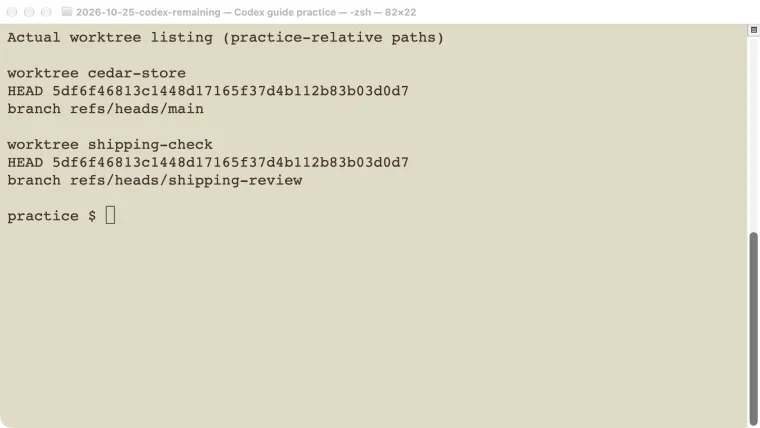
Our actual listing showed two different folders: the original checkout on main and the second on shipping-review. No remote repository, push, or cloud environment was involved.
Verify that edits stay in the intended folder
For a harmless demonstration, change the comparison in the second checkout’s shipping.py from >= 50 to > 50. Run its tests again:
python3 -B -m unittest -v
git diff -- shipping.py
The exact-$50 test should fail. Now run the original folder’s tests without copying any files back:
git -C ../cedar-store status --short
cd ../cedar-store
python3 -B -m unittest -v
In our test, the original checkout stayed clean and passed all four tests. The second checkout had one changed file and failed the boundary test. That directly demonstrates file isolation.
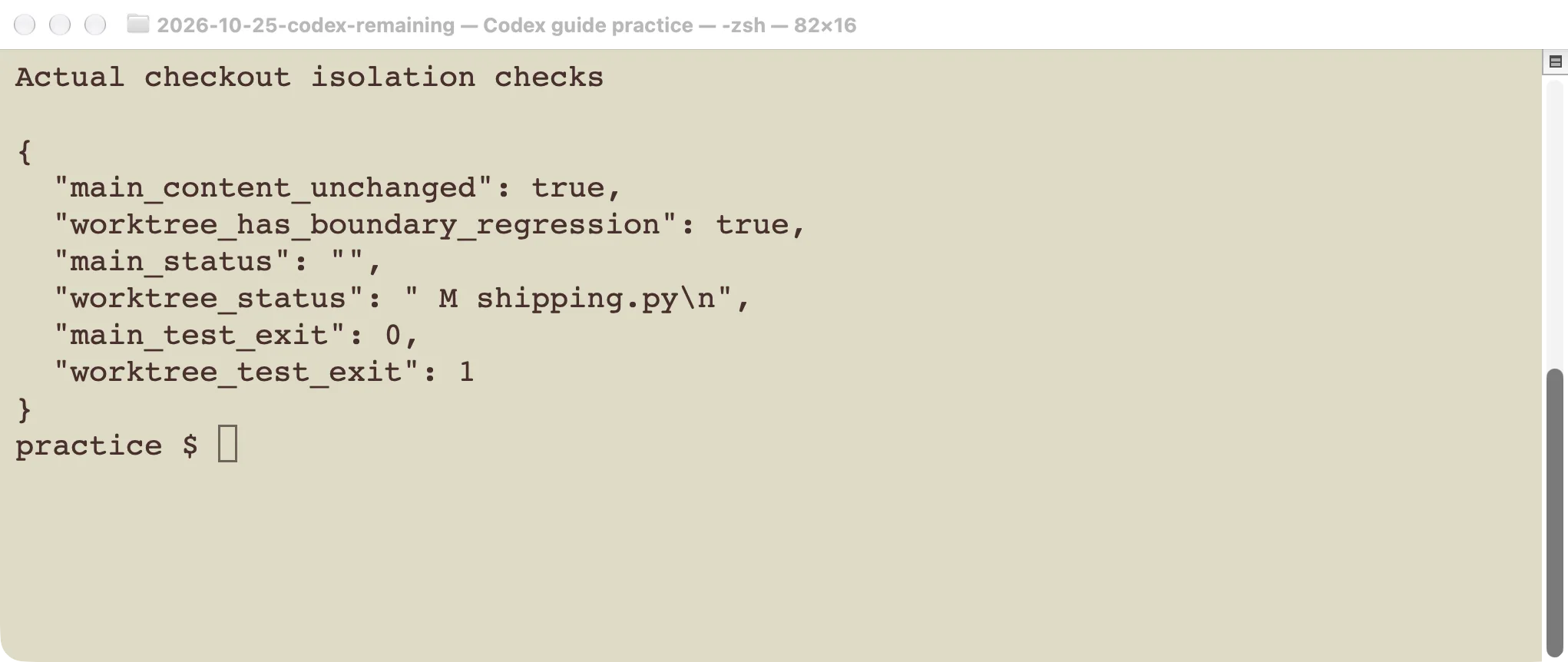
The two folders had different working-file contents at the same time.
Our code review example used this changed checkout. Codex identified the regression without editing it. An ordinary task can work there too, but the conversation’s current folder must point to the worktree you intend to change.
Test and bring back a finished change
Return to shipping-check, restore the correct >= 50 comparison, and add a short useful example to its README. Inspect the changes and rerun the tests:
cd ../shipping-check
python3 -B -m unittest -v
git diff
git status --short
git add README.md
git commit -m "Document the shipping boundary examples"
Then return to the original checkout and inspect the committed difference before merging:
cd ../cedar-store
git diff main..shipping-review --stat
git diff main..shipping-review
git merge --ff-only shipping-review
python3 -B -m unittest -v
Our merge was a fast-forward: the main branch could move directly to the tested commit. Only the documentation improvement remained; we had removed the deliberate shipping regression. All four tests passed afterward.
--ff-only refuses to invent a merge when the branches have diverged. That refusal is a useful checkpoint, not permission to force the operation. Choose your team’s normal merge or rebase process after inspecting both sides.
Handle a branch conflict or merge conflict
Git normally prevents the same branch from being checked out in two worktrees at once. We created a separate docs-review checkout and tried switching the original checkout to that branch. Git refused with exit code 128, naming the checkout already using it.
Do not delete that folder to bypass the message. Work in the checkout already holding the branch, switch that checkout to another appropriate branch, or use the desktop app’s Handoff workflow when moving a managed task.
We also made two conflicting edits to the same README line on different branches. A merge failed and git status --short showed UU README.md, meaning the file still needed conflict resolution.
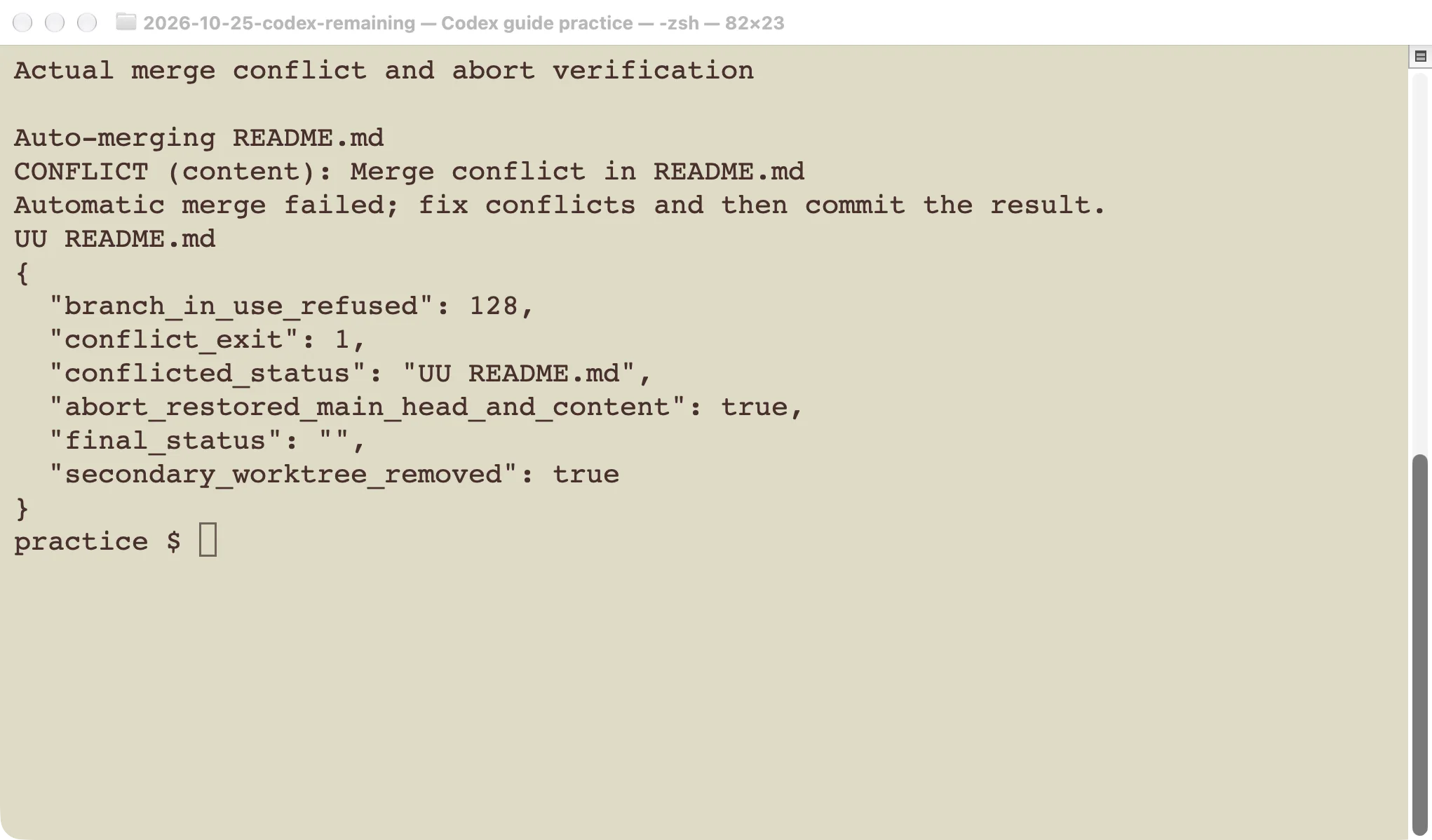
The conflict was created in a disposable example, then aborted rather than forced.
If you intend to finish a merge, inspect both versions, edit the file to the desired combined result, remove conflict markers, test, and complete the merge. If you do not intend to continue that merge, git merge --abort attempts to restore the pre-merge state. The Git merge documentation explains its limits, especially when unrelated uncommitted changes existed beforehand.
Our checkout was clean before merging. After aborting, we verified that its commit and README contents matched the pre-merge state. Do not assume that result guarantees recovery for every dirty repository.
Remove only a worktree you have checked
Before cleanup, inspect the task checkout:
git -C ../shipping-check status --short
git -C ../shipping-check log -1 --oneline
Confirm that wanted changes are committed and retained in the intended branch or main checkout. Then, from outside the folder being removed:
git worktree remove ../shipping-check
git worktree list
Our first removal attempt, while the deliberate edit was uncommitted, was refused. After the correction, commit, and merge, normal removal succeeded. The main checkout stayed clean.
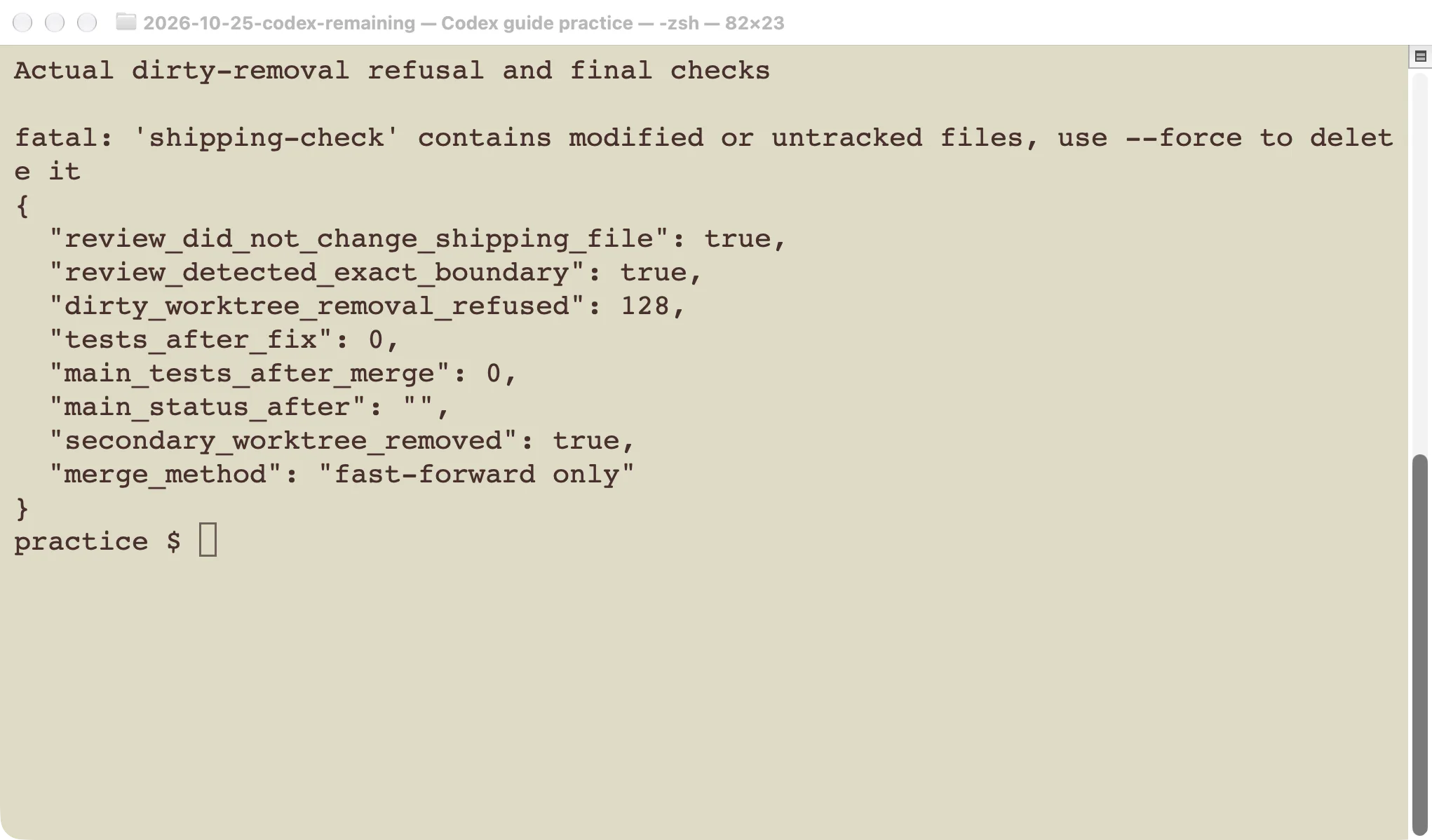
We did not use force removal to discard the uncommitted change.
Removing a worktree is separate from deleting its branch. Keep a branch if you still need its history. Do not use a filesystem delete as your normal worktree cleanup command; Git maintains metadata linking these folders.
Use the desktop app’s managed workflow
The official Codex worktree guide describes choosing Worktree under the new-chat composer, selecting a starting branch, and submitting a task. App-created worktrees can begin with a detached HEAD, so do not assume they already have a named feature branch like this command-line example.
For managed tasks, use Hand off to move the chat and code between Local and Worktree. Follow the app’s archive and restore workflow for its managed checkouts. The app’s saved snapshots and ignored-file copying behavior do not automatically apply to worktrees you create yourself with Git commands.
We tested the Git exercise, branch restriction, conflict abort, and cleanup on macOS. We did not exercise those desktop controls in this test. Start with a small project and confirm both the conversation’s location and the actual file paths before using a worktree for a larger task.