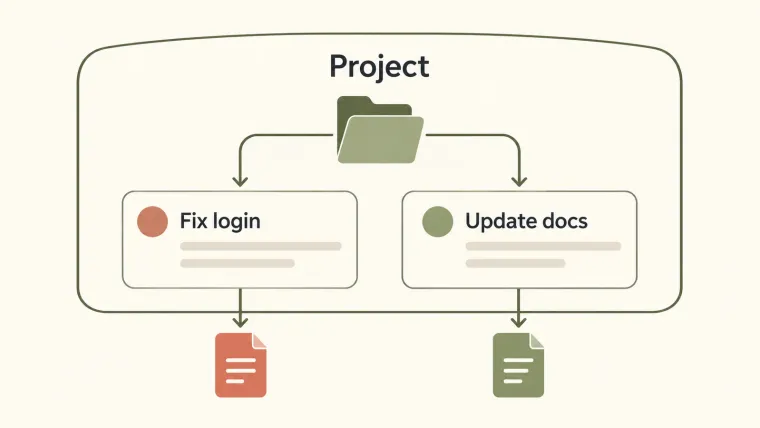
Looking for the Codex app? OpenAI’s current documentation puts Codex inside the ChatGPT desktop app. Download the app through OpenAI, sign in, then choose Codex from the ChatGPT dropdown. The desktop workflow gives you a place to organize projects, continue chats, and inspect changes alongside the conversation. The most useful setup decision is which files the task should use and where it should run. This guide walks through those decisions without repeating the CLI installation steps or the first coding task tutorial.
Find the official desktop download
Use OpenAI’s desktop download page for macOS or Windows. For Linux, follow the official Linux installation guide. Check the requirements and available downloads on those pages before installing; a search result titled “Codex download” may describe an older app release or a different entry point.
The current desktop documentation describes the starting sequence: install the app, open it, sign in with your ChatGPT account, and choose where to work. For coding work, select Codex. Older tutorials and screenshots may use different names or place controls elsewhere. Use the current labels shown by your installed version.
You do not need to download an installer from a tutorial site. If you already have the desktop app, first look for the Codex surface before installing another copy. If you are still deciding what the product does, read what Codex is.
Choose the project and check its folders
A project holds related work. A chat is the conversation for a particular outcome. For a codebase, select the local project connected to that codebase; a similarly named project is not enough to establish that the correct folder is attached.
Open the project’s menu and select Edit project to inspect or change its folders. Add folder attaches another directory. Point to a folder and select Make primary when it should become the default working directory. These controls are documented in Projects and chats.
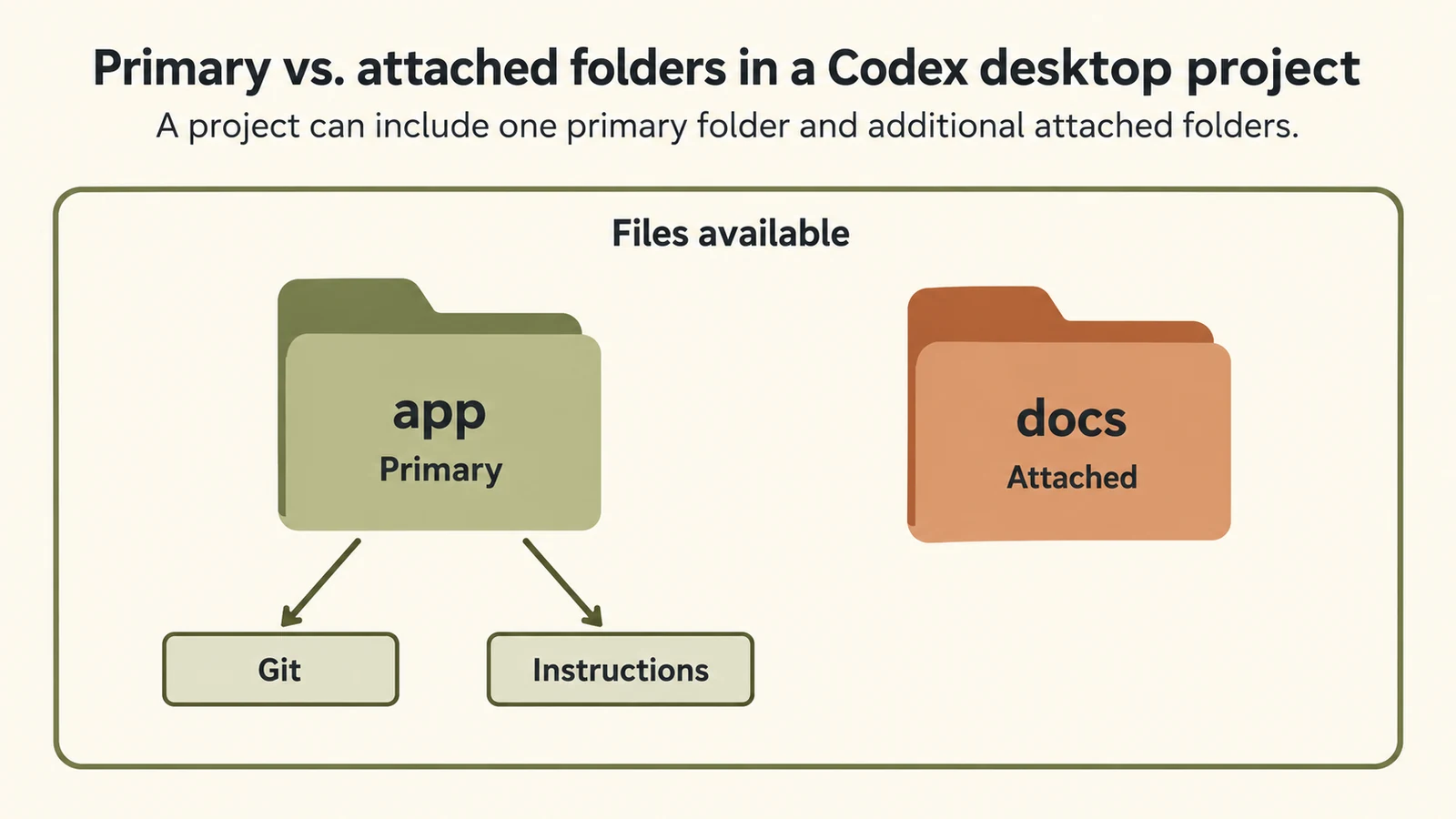
The primary folder sets the default location; attached folders remain available.
Consider a website with source code in app/ and reference material in docs/. Make app/ primary if that is where the coding task and Git operations belong. Attach docs/ when the task needs it. Codex can read and edit attached folders, but automatic discovery of project instructions such as AGENTS.md uses the primary folder. Do not assume that attaching a second repository makes its instructions the default for the chat.
Before sending a change request, check these three things:
| Check | What a correct setup looks like |
|---|---|
| Project folder | The folder contains the application or files you intend to change. |
| Primary folder | The starting directory matches the repository that owns the task. |
| Additional folders | Each attached folder has a clear purpose, such as documentation needed by this task. |
This is a practical check for avoiding work in the wrong place. It is not a substitute for the app’s permission controls.
Keep chats focused on one outcome
Use one chat for “fix the expired-session login error” and another for “update the setup instructions.” Both can belong to the same website project. Each then has a clear request, its own follow-up discussion, and a result you can evaluate.
Continue the existing chat when you are correcting or extending the same result. Start a new one when the desired outcome changes enough that the earlier discussion would obscure the new task. Name the outcome concretely so you can find it again: “Login error on expired sessions” is easier to recognize than “Website work.”
A separate chat does not by itself isolate the files it changes. Two local chats pointed at the same directory can affect the same working files. That is why the next choice matters when you want to run independent coding tasks at the same time.
Choose where the work runs
The desktop app’s Work in control lets you choose This computer or Cloud. For a local Git project, the separate Worktree control creates an isolated working tree. Local and Worktree tasks both run on your computer. The environment documentation explains the distinction.
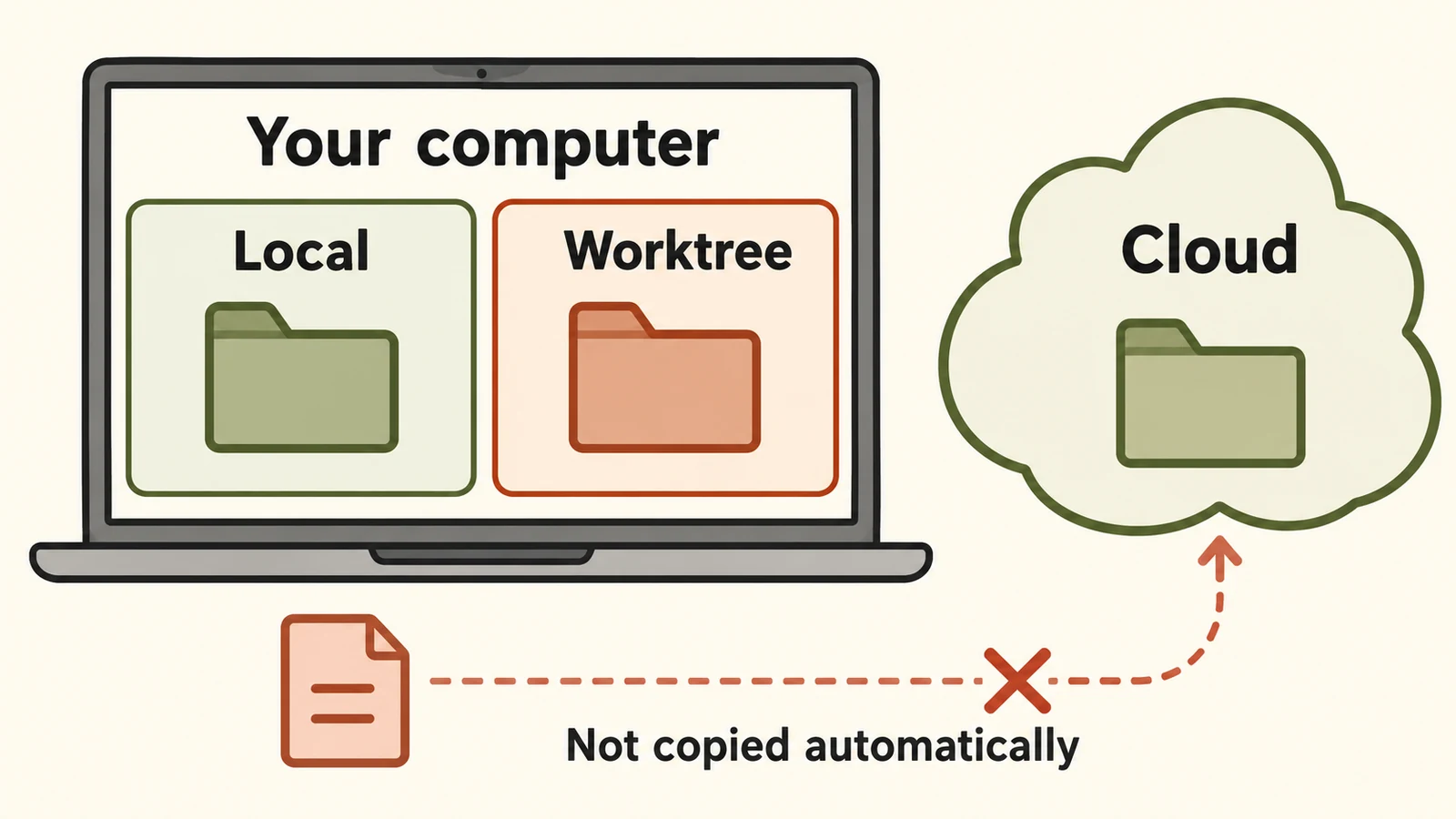
Local and Worktree run on your computer; Cloud uses a separate environment.
| Choice | Use it when | Check before starting |
|---|---|---|
| Local | The task should work in your current project directory. | Existing edits and running tools are part of the working context. |
| Worktree | A Git task needs a separate place for its changes. | You know which branch or starting revision the task should use. |
| Cloud | The task should run in a prepared remote environment. | An accessible, published environment has the needed repository and tools. |
Selecting Cloud does not copy your laptop’s open files, running development server, browser sign-ins, or VPN access into the task. If the task needs something that exists only on your computer, resolve that dependency before expecting the remote task to use it.
For a first desktop task, a small change in a known local project is usually easier to inspect. Choose a worktree when isolation solves a real problem, such as two independent edits to the same repository. This page covers the choice; the detailed setup belongs in the dedicated environment guides.
Review the actual changes
The final chat message is a useful summary. Open the review pane to see which files changed and what the diff contains. The review pane requires a project inside a Git repository; a missing pane can reflect the project setup, not a failed task.
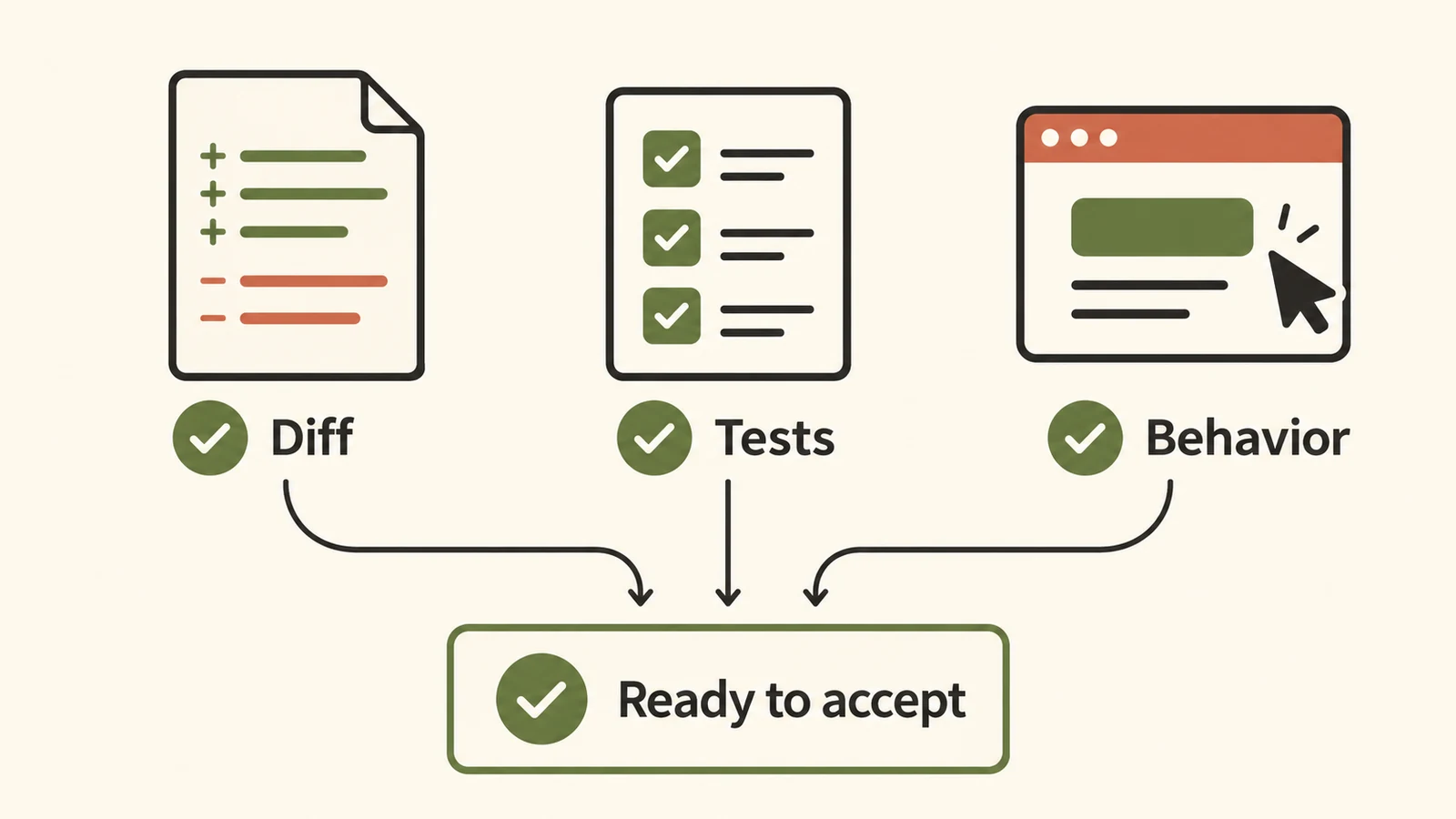
A useful review checks the diff, test results, and the behavior the user requested.
For an additional code review, enter /review in the composer and choose Review uncommitted changes or Review against a base branch. OpenAI documents this as a review that reports findings without changing the working tree. See the local review instructions.
Use the result as another input to your decision. Check the requested behavior yourself where you can. A test result needs enough context to be useful: what command ran, what it checked, and whether it passed. If the task changed a screen, open that screen as well; a passing unit test does not show whether text overlaps on a phone.
Give follow-up feedback against the specific result: “The validation works, but the existing error message changed. Restore that message and rerun the affected test.” After the correction, inspect the new diff and test output before committing, pushing, or sharing it.
Continue from your phone
OpenAI’s remote connection guide describes using Codex in the ChatGPT iOS app to reach work on a connected Mac or Windows computer. Some app versions show Remote instead. Follow that guide to pair the devices and confirm that both use the appropriate account and workspace.
The connected computer provides the files and local tools for that workflow. Keep it awake, online, and running the desktop app while it works. Viewing a chat on your phone does not make the phone a replacement development machine, and conversation sync alone does not transfer the full project folder.
Before you leave a task
Use this short handoff check when you switch projects or return later:
- The project and run location are the ones you intended.
- The chat names a specific outcome you can recognize.
- You have inspected the changed files, not only the summary.
- The relevant tests or manual checks have a recorded result.
- The next action is clear: another correction, a commit, a review, or no further work.
Once the workspace is set up, continue with the first-task exercise or return to the Codex guides to choose another topic.