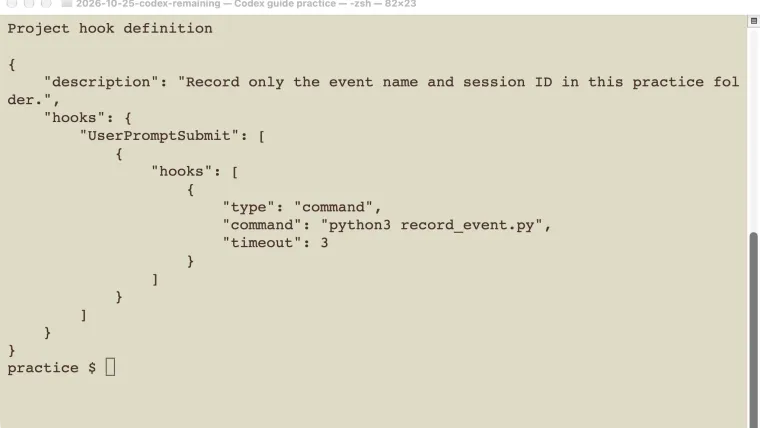
OpenAI Codex hooks run commands when specified agent events happen. Start with one local event, review the exact command, trust its definition, and check the resulting file. This guide records a prompt submission without saving the prompt itself. In our macOS test, submitting one prompt produced one event record. Changing the hook’s timeout then caused the changed definition to be skipped until reviewed again. That gives you two concrete checks: the action runs when trusted, and an edited definition does not silently inherit its earlier approval. The example also shows how to avoid duplicate records and diagnose a wrong working directory.
Choose the event before the action
An event is a particular moment in a Codex session. A hook attaches a command to that moment. Decide what should trigger your action before writing a script.
| Intended trigger | Example event | First check |
|---|---|---|
| User submits a prompt | UserPromptSubmit | Append a small local record |
| A tool is about to run | PreToolUse | Inspect the event and tool match |
| A tool finishes | PostToolUse | Verify which result the script receives |
| A turn stops | Stop | Confirm the stop behavior for your handler |
| A session starts or ends | SessionStart, SessionEnd | Keep startup and cleanup short |
On a phone, swipe sideways to read the last column.
This tutorial tests only UserPromptSubmit, using CLI 0.146.0 on macOS. Other events have different inputs and response rules. Consult the official hook reference before adapting a handler to block a tool or change a permission decision. A successful append-only recorder does not verify enforcement behavior.
Hooks respond to events. For a shell job that starts on demand, use Codex exec. For a reusable instruction workflow, use a skill. Neither requires a hook merely because the work repeats.
Create a small local recorder
Use a disposable practice repository with Python 3 available. Run these commands from its root:
mkdir cedar-hooks
cd cedar-hooks
git init
mkdir .codex
Save the following as record_event.py:
import json
import sys
from pathlib import Path
import fcntl

event = json.load(sys.stdin)
row = {
    "event": event.get("hook_event_name"),
    "session_id": event.get("session_id"),
}
with (Path(__file__).parent / "events.jsonl").open("a") as log:
    fcntl.flock(log, fcntl.LOCK_EX)
    log.write(json.dumps(row) + "\n")
The script reads the event from standard input and saves two fields. It does not save prompt text, run another agent, or contact a service. Its output path is anchored to the script file, so the record lands beside the script.
The file lock prevents overlapping writes from interleaving their text. It does not deduplicate repeated events. This example uses fcntl, available on macOS and Linux; a Windows version needs a suitable file-locking replacement.
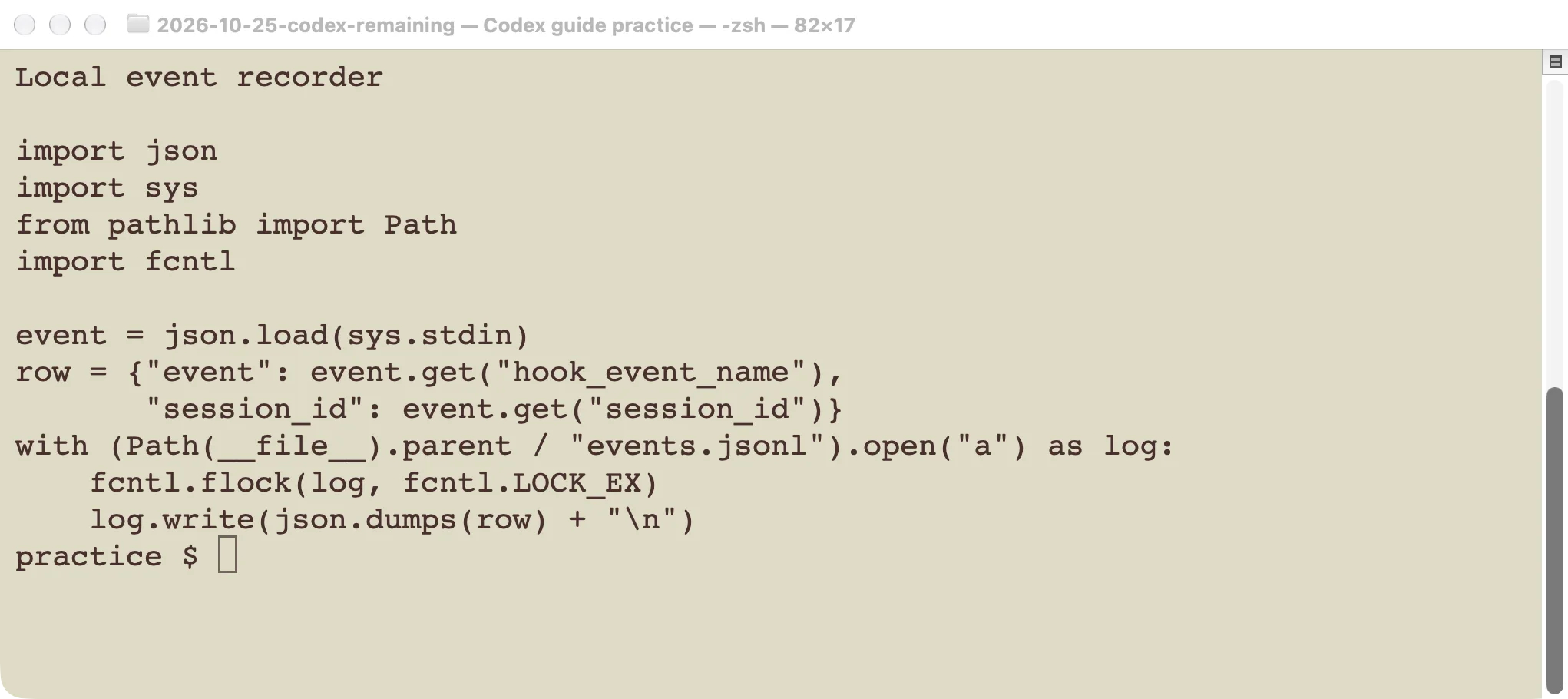
The recorder stores the event name and session ID, not the full input payload.
Save this as .codex/hooks.json:
{
  "description": "Record a practice prompt submission locally.",
  "hooks": {
    "UserPromptSubmit": [
      {
        "hooks": [
          {
            "type": "command",
            "command": "python3 record_event.py",
            "timeout": 3
          }
        ]
      }
    ]
  }
}
Start Codex from this repository root. The command contains a relative script path, so launching from a subdirectory can make it fail. For a shared project, resolve the script from the repository root or provide an appropriate absolute path. Test that variation from the directories your team actually uses.
Review the definition and submit one prompt
Open the interactive CLI in the practice folder:
codex -s read-onlyReview any project-trust prompt for this folder you created. Open /hooks, select the new hook, and inspect its command, source, and timeout. Trust only the definition you have checked. In our version, the startup review screen led to the same hook browser.
Then submit:
Reply exactly HOOK_READY. Do not call tools or modify files.Check events.jsonl outside the conversation:
cat events.jsonlOur response was HOOK_READY, and the file contained one JSON record whose event was UserPromptSubmit. The stored session ID identified the test conversation. This verifies the event recorder independently of the assistant’s claim that it ran.
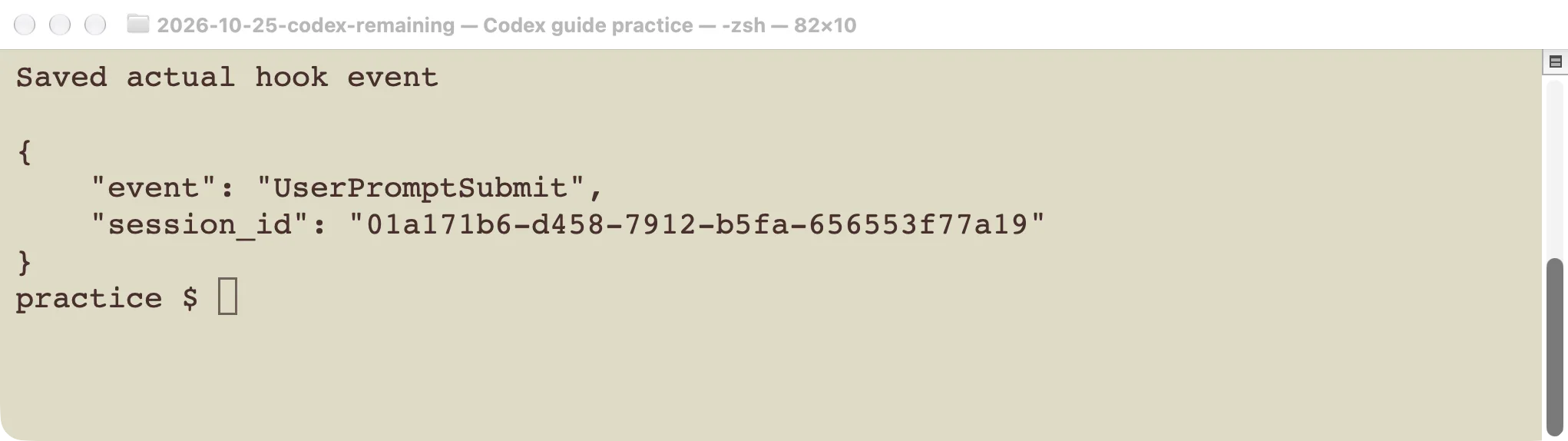
One submission in the reviewed test session produced one record.
The read-only flag applies to agent tool access. Trusted hooks can run outside that sandbox. Our recorder deliberately wrote its file while the agent itself was instructed not to write. Review the script’s real behavior, including any commands it calls; do not treat the session’s file permissions as protection against a harmful hook. The permissions guide explains the separate agent boundary.
Verify what happens after a change
We changed only the definition’s timeout from 3 to 4, then started a fresh non-interactive session using the existing user configuration. The model returned the requested test response, but the event count stayed at one. The changed definition was skipped because its current definition had not been reviewed.
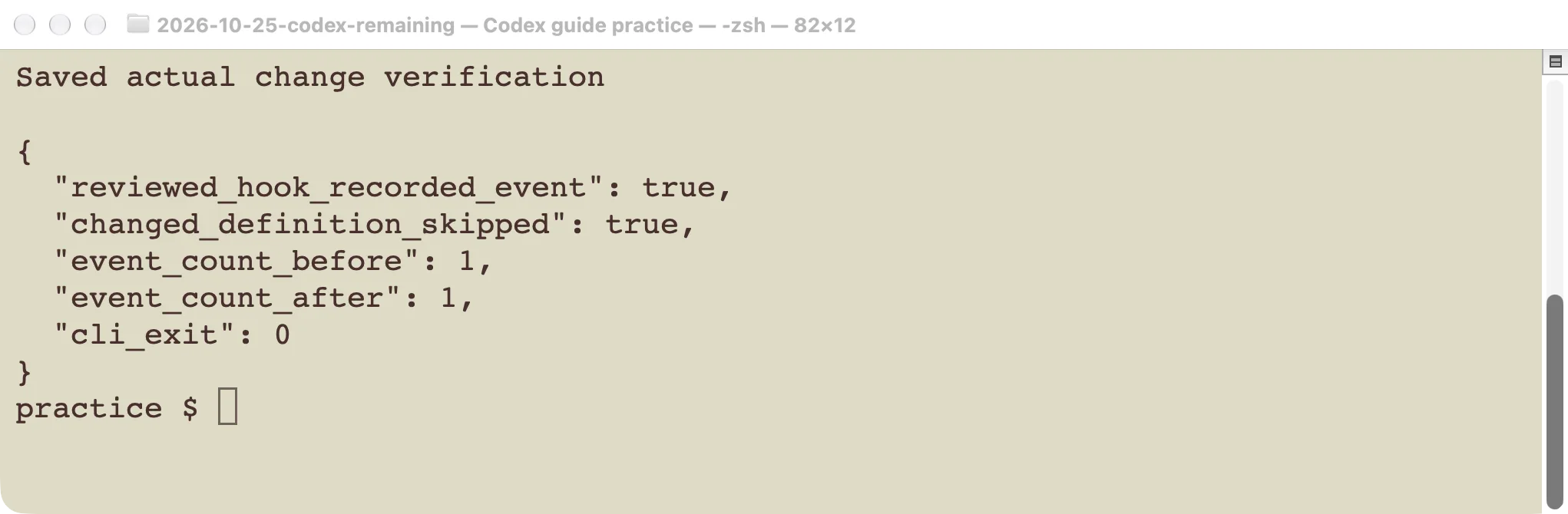
The second model response succeeded while the changed hook did not run.
Open /hooks and review the edited definition before relying on it. This test changed the JSON definition; it does not establish that every edit to a script referenced by an unchanged command changes the hook’s trust hash. Continue reviewing the script itself when its contents change.
After the test, we removed the temporary project’s trust entries and restored its original example definition. The existing user configuration remained semantically unchanged. In your own project, use the hook browser to disable the test hook and remove the practice files when they are no longer useful.
Diagnose missing or repeated actions
If there is no record, check four things in order: the loaded source, project trust, the current definition’s review status, and the command’s working directory. Then run the script manually with a small valid JSON input to separate a Python error from an event-loading problem. A script started with no input may simply wait for standard input.
If an action runs twice, inspect both project and user hook sources. Matching hooks from multiple active sources can all run; a project definition does not automatically replace a user definition. Keeping one representation per configuration layer makes accidental duplication easier to spot. See the configuration guide for locating those layers.
If two handlers touch the same output, assume they may overlap. The file lock here protects record formatting, while an action such as sending a notification needs its own duplicate-prevention design. Do not use the session ID alone as a once-only key when you intend to handle multiple prompts in one session.
If a command hangs, check that it consumes the supplied input, does not wait for a separate interactive login, and finishes within the configured timeout. Keep the first handler small. Add a real action only after you can explain when it runs, what it writes, and how you will verify its result.