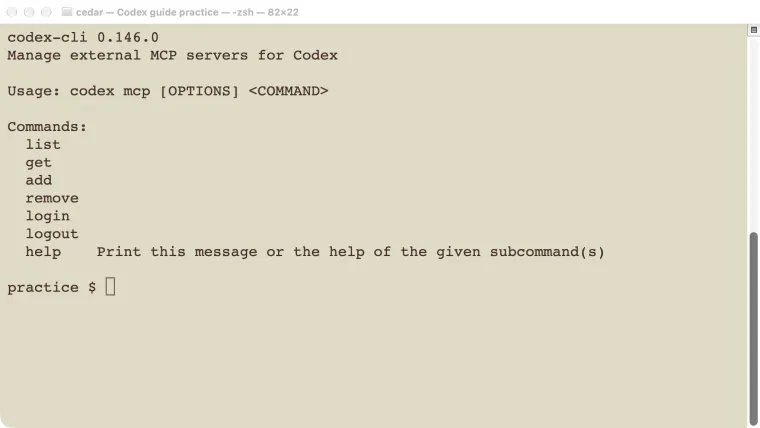
Use codex mcp add to register a tool server, then start a new session and ask Codex to call one specific tool. Registration alone does not prove the connection works. Check the tool’s returned data or error, not just the agent’s final sentence. This guide uses two small, read-only practice services: a local shipping calculator and an HTTP product lookup. Both were called through Codex, including invalid-input cases. You can reproduce them without an external account. For a real remote service, its authentication, account permissions, and supported transport must also match the connection you configure.
Choose the connection type
MCP is a standard way for an agent to call tools supplied by another program. The server might calculate a value, read a document, or change an external record. What matters is the individual tool’s behavior and permissions.
| Connection | Who starts the service? | What Codex needs |
|---|---|---|
| Standard input/output, or stdio | Codex launches a local process | Executable, arguments, required environment |
| Streamable HTTP | You or a service operator runs it | MCP endpoint URL and any authentication |
On a phone, swipe sideways to read the last column.
An ordinary website address is not automatically an MCP endpoint. Likewise, pasting a Python script path into the URL field will not launch it. The official Codex MCP guide describes the supported connection fields and client surfaces.
Use a skill when you need a procedure; use MCP when the procedure needs tools. A plugin can package both for distribution.
Prepare two small practice services
Use a fresh practice folder with Python available. Our test used macOS, Codex CLI 0.146.0, Python 3.13, and the official MCP Python SDK 1.27.1. The following shell setup is for macOS or Linux:
python3 -m venv .venv
.venv/bin/python -m pip install 'mcp==1.27.1'
This creates a separate Python environment for the example. On Windows, use the environment’s Scripts\python.exe path instead. We did not run the Windows version of this test.
Save this as shipping_server.py:
from mcp.server.fastmcp import FastMCP
from mcp.types import ToolAnnotations

mcp = FastMCP("Cedar Shipping")

@mcp.tool(annotations=ToolAnnotations(
    readOnlyHint=True, destructiveHint=False))
def shipping_quote(subtotal: float) -> dict:
    """Return a shipping fee in USD; do not place an order."""
    if subtotal < 0:
        raise ValueError("subtotal must be zero or greater")
    return {
        "subtotal": subtotal,
        "shipping": 0 if subtotal >= 50 else 5,
        "currency": "USD",
    }

if __name__ == "__main__":
    mcp.run(transport="stdio")
Now save catalog_server.py:
from mcp.server.fastmcp import FastMCP
from mcp.types import ToolAnnotations

mcp = FastMCP("Cedar Catalog", host="127.0.0.1", port=9478,
             stateless_http=True, json_response=True)

@mcp.tool(annotations=ToolAnnotations(
    readOnlyHint=True, destructiveHint=False))
def product_lookup(sku: str) -> dict:
    """Look up a demonstration product without changing anything."""
    catalog = {
        "CEDAR-MUG": {
            "name": "Cedar mug", "price": 12,
            "currency": "USD", "in_stock": True,
        }
    }
    if sku not in catalog:
        raise ValueError("unknown demo SKU")
    return {"sku": sku, **catalog[sku]}

if __name__ == "__main__":
    mcp.run(transport="streamable-http")
These are fictional values. Neither service reads business data or places orders. The annotations describe that behavior; they are not an access-control system. The official Python SDK supplies the protocol handling.
Add the servers to Codex
Find the absolute paths to your Python environment and script. Replace the two practice paths below with yours:
codex mcp add cedar_shipping -- \
  /absolute/practice/.venv/bin/python \
  /absolute/practice/shipping_server.py
Codex starts this stdio service when it needs the connection. Keep diagnostic prints out of the server’s standard output; that channel carries protocol messages. Send ordinary debugging logs to standard error.
For the HTTP service, first run this in a separate terminal and leave it running:
.venv/bin/python catalog_server.pyThen register its endpoint:
codex mcp add cedar_catalog --url http://127.0.0.1:9478/mcp
codex mcp list
codex mcp get cedar_shipping
codex mcp get cedar_catalog
The address is restricted to this computer. A cloud task or another device cannot use your computer’s 127.0.0.1 endpoint as though it were the same machine. Do not expose the unauthenticated practice server publicly.
Start a new Codex session and use /mcp to inspect active connections. Our experiment supplied these same executable/argument and URL settings as per-run configuration overrides, so it did not leave permanent server entries in the user’s configuration. The add commands above are the persistent setup route verified against the installed CLI help.
Prove that both tools work
Enter a request that names the tools and test cases:
Call cedar_shipping shipping_quote for 49, 50, and -1.
Call cedar_catalog product_lookup for CEDAR-MUG and UNKNOWN.
Use only those MCP tools. Report actual results, including errors.
Do not place orders or change files.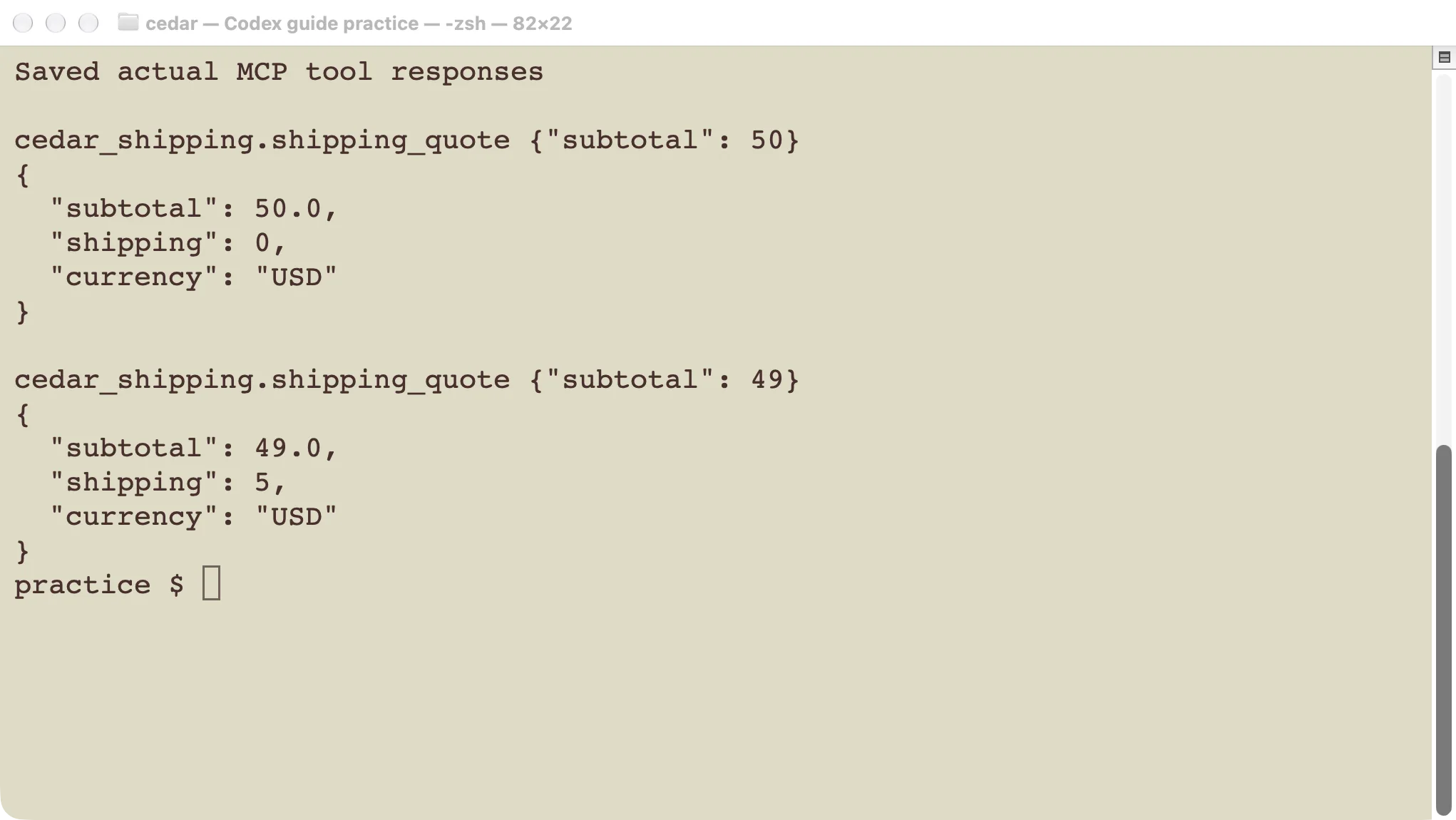
The request at the free-shipping threshold returned zero.
The Codex execution log contained five completed MCP tool-call records. Three calls succeeded; two returned the intended validation errors:
| Tool input | Observed result | What it checks |
|---|---|---|
| Shipping subtotal 49 | Shipping 5 USD | Below the threshold |
| Shipping subtotal 50 | Shipping 0 USD | Exactly at the threshold |
| Shipping subtotal -1 | Nonnegative-input error | Invalid numeric input |
| Product CEDAR-MUG | Cedar mug, 12 USD, in stock | Known catalog key |
| Product UNKNOWN | Unknown demo SKU error | Missing catalog key |
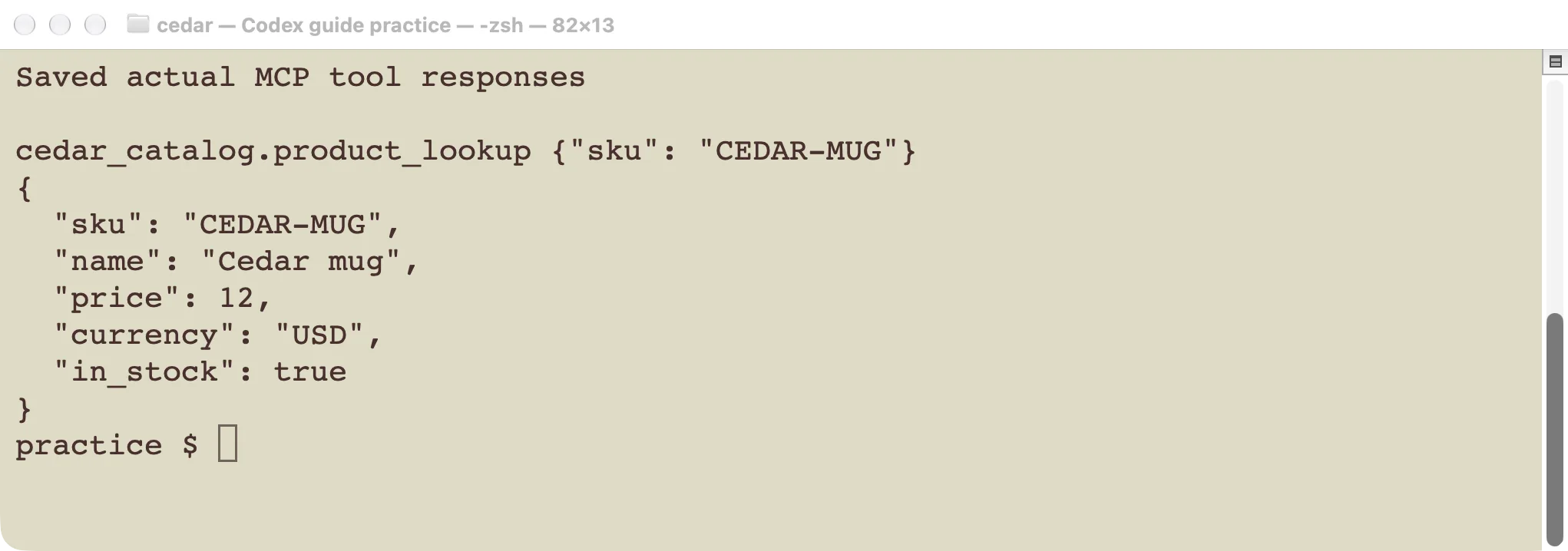
This response came through the HTTP connection, not a shell read of the Python file.
We checked the named server, tool, arguments, returned content, and success or failure status in the execution records. A final answer quoting the expected price without an actual tool-call record would not pass this test.
The two intentional failures show that a reachable server can reject an input. They do not mean the connection is broken. Conversely, an empty tool list or a startup timeout needs connection troubleshooting before testing business behavior.
Authenticate a remote service
A remote service may use OAuth, a bearer token, or another supported arrangement. Follow the service’s own setup instructions. For an OAuth-enabled server, the CLI supports:
codex mcp login server_nameComplete the login for the intended account. Then request a record that account can read and check the actual tool response. Signing in successfully does not prove access to every workspace or record.
For a bearer-token service, codex mcp add --help documents --bearer-token-env-var. It takes the name of an environment variable, not the token itself. The variable must be available where Codex runs. Avoid putting tokens in prompts, screenshots, or shared project files.
Our two local examples require no authentication. We did not test a third-party OAuth account or claim that a remote vendor’s login works based on these results. Local process permissions and external account access are separate checks; see the permissions guide.
Diagnose and remove a connection
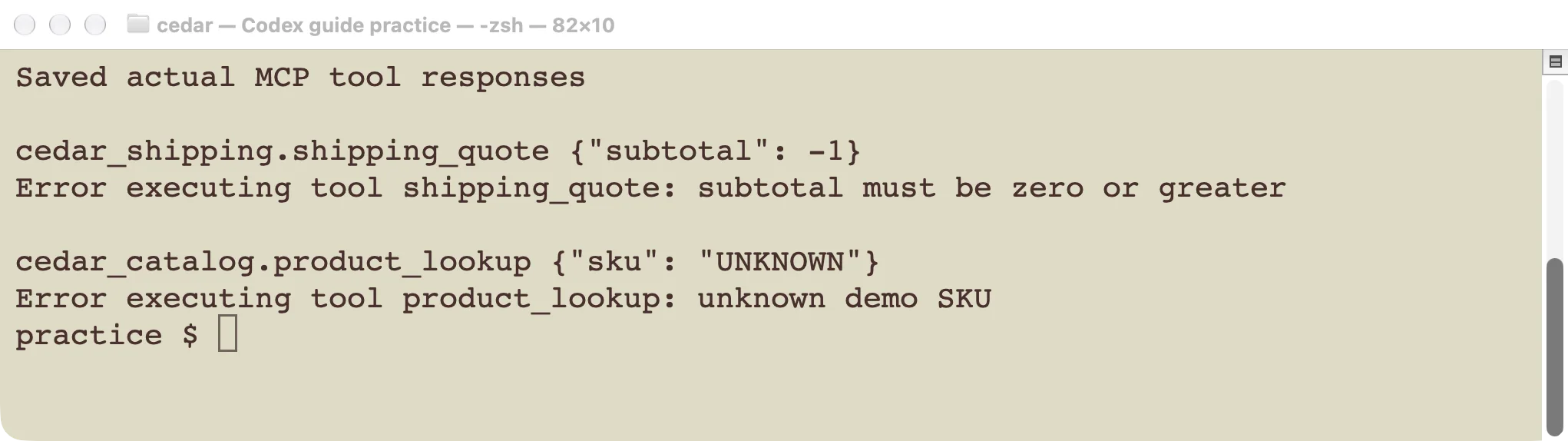
Read the error at the layer that produced it before changing the connection.
If a stdio server will not start, run its executable with the configured arguments manually. Check absolute paths, the Python environment, dependencies, and the working directory. A package installed into another Python environment will not help this executable.
If HTTP cannot connect, confirm the server is running, the port matches, and the endpoint includes /mcp. If port 9478 is already occupied, choose another free port in both the script and the registered URL. Restart the practice service after changing its code.
If tools appear but calls fail, check inputs, account access, and the server error. If a server works in one client but not another, compare their configuration and execution locations. A local setup does not automatically transfer to a hosted task.
Remove a persistent entry when you finish:
codex mcp remove cedar_shipping
codex mcp remove cedar_catalog
codex mcp list
Stop the HTTP practice server with Ctrl+C in its terminal. Removing a Codex connection does not necessarily stop an independently running server or revoke a third-party account grant.
Next step: reproduce one successful lookup and one deliberate validation error. Once those pass, replace the practice service with the real tool you need, keeping the same evidence-based check.