Codex usage limits tell you how much work your account can do before you need to wait or use another eligible payment option. Check your account’s usage dashboard for the amount left and the reset time. In an active Codex CLI session, type /status for a quick check. Do not assume that every message uses the same amount, or that every plan resets after five hours. The model, size of the task, and plan all matter. If work stops, first read which limit you reached, then choose the next step that fits it.
Checked against OpenAI’s documentation on October 23, 2026. Your account’s live usage screen is the place to check current limits and times.
Where to check your remaining usage
Open the Codex usage dashboard and sign in with the account you use for Codex. If the page asks you to sign in again, complete that step before reading any account figures.
In an active CLI session, type:
/statusThis goes inside Codex’s conversation prompt. It is different from typing a command at your computer’s ordinary shell prompt. OpenAI documents both the dashboard and /status as ways to inspect current usage. Source: where to see limits.
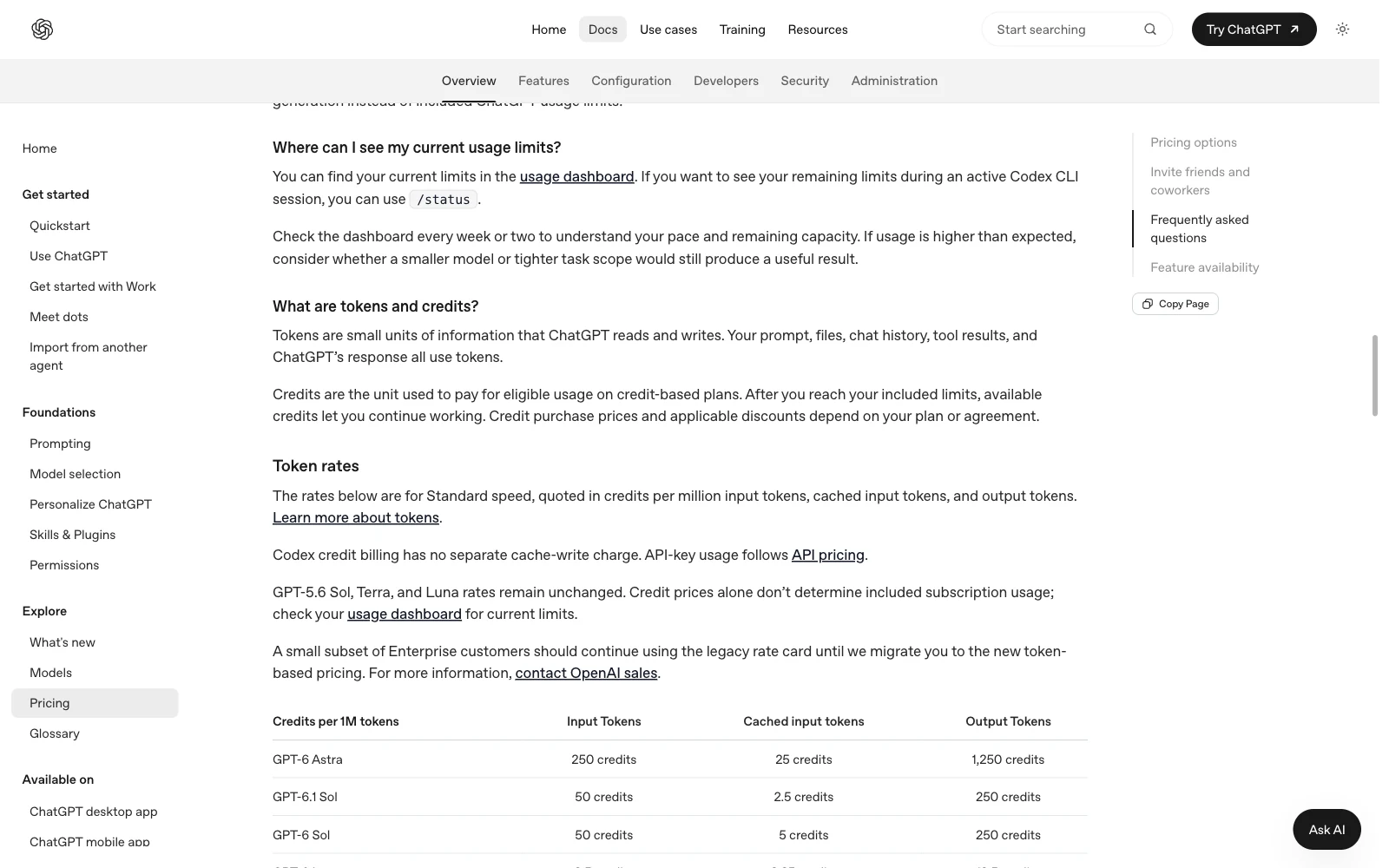
This is the official instructions page. Follow its dashboard link or use /status inside the CLI.
Read the labels beside the numbers. “Used” means the amount already spent. “Remaining” means the amount still available. Also note the reset time for each limit shown. If there is more than one line, keep each line’s amount and reset together.
If the dashboard and the app seem to disagree, first confirm that both use the same account and workspace. The login guide explains how to check the CLI sign-in and switch accounts.
Does the limit reset every five hours?
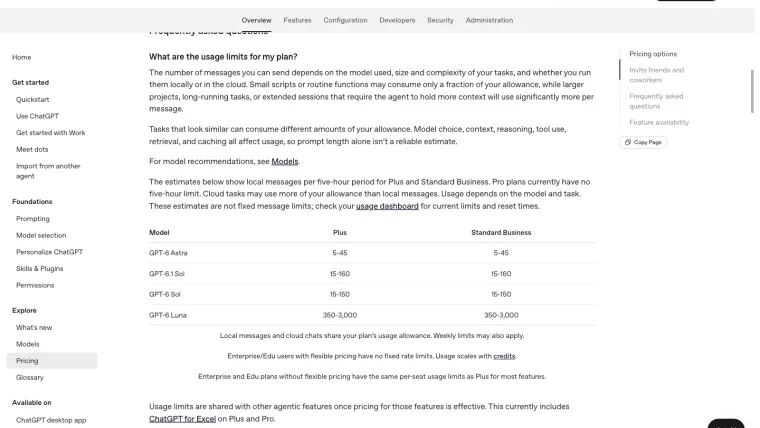
That depends on your plan. Current OpenAI documentation gives local-message estimates per five-hour period for Plus and Standard Business. It says Pro plans currently have no five-hour limit. Weekly limits may also apply, and other arrangements can work differently. Source: plan limits.
A “window” is simply the time period used to count a particular allowance. A five-hour window and a weekly window are two separate checks. If your account shows both, one can still have room while the other has reached its limit.
For example, imagine a dashboard shows plenty left in one window but no allowance left in another. Waiting for the first window to reset would not solve the second one. Use the reset time attached to the limit you actually reached. This example explains how to read separate limits; it is not a screenshot of a particular account.
Avoid calculating a reset from midnight or from the moment you last opened the app. Read the time shown by your account.
Why can a few tasks use so much?
Codex can do several rounds of work after one message. It may inspect files, try a change, run a test, investigate the failure, and try again. Each round can add work even though you only sent one short request.
The model also matters. OpenAI’s published message ranges are estimates, and they vary widely by model and task. They are not guaranteed message counts. Local messages and cloud chats share your plan’s allowance. ChatGPT Work and Codex also share usage. Source: current pricing and usage rules.
Here are common reasons the allowance can fall faster:
| What you are doing | Why it can use more | A practical adjustment |
|---|---|---|
| Asking Codex to inspect a large project | It has more files and background material to process. | Name the part of the project involved in the task. |
| Keeping a task open through many attempts | More investigation and repeated checks can accumulate. | Give the exact failure and what a successful result should look like. |
| Using a more demanding model or faster mode | Different choices use the allowance at different rates. | Choose a model and speed that fit the difficulty. |
| Generating images | Image work uses the shared allowance too. | Ask for images when the task actually needs them. |
OpenAI notes that speed modes affect included subscription usage and paid credits at different rates. Check the current speed documentation before assuming “faster” has the same cost. Image size and quality also affect usage. Source: image generation and limits.
What can you do when you reach the limit?
Start by saving the task’s useful state: what is already done, what still fails, and the next step. That makes it easier to continue later without repeating the investigation.
Then choose among the options actually available to your account:
- Wait for the relevant reset. Use the time shown for the limit you reached.
- Use additional credits if eligible. OpenAI says Plus and Pro users can buy more credits after hitting their limit. Read the purchase screen before paying.
- Use separately billed API access if you intend to. This is an additional billing route. Check the cost guide before switching.
OpenAI also says an active turn can continue after the limit is reached, subject to fair-use limits. A “turn” is the work being carried out in response to the current message. That does not promise unlimited new tasks after the allowance runs out. Source: what happens at the limit.
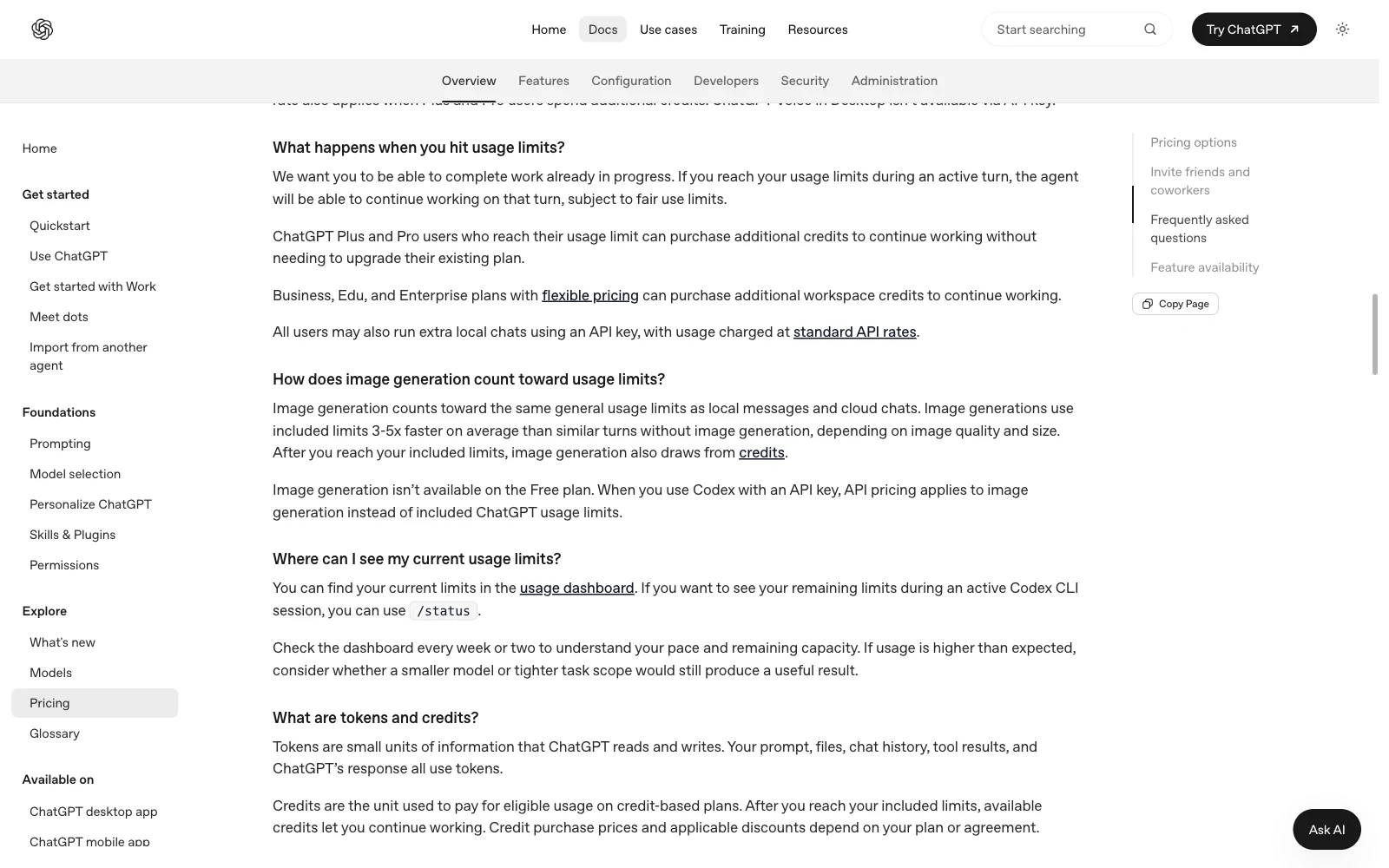
Read the options for your own plan. The screenshot shows OpenAI’s published options after the limit is reached.
Make the allowance last by making the task clearer
You can reduce wasted work without stripping away information Codex needs.
Compare these requests:
Improve my website. Check everything and make it better.
On the contact page, the Send button is hidden on a phone. Find the cause, fix that page, and check it at 390 pixels wide. Keep the other pages as they are.
The second request names the problem, location, and success check. Codex has a clearer place to start and less reason to investigate unrelated parts of the site. These are illustrative prompts, not measured cost savings.
For a task you will continue tomorrow, ask for a short handoff:
Write a short note with:
1. What is already finished.
2. The exact problem still remaining.
3. The files involved and the next useful check.
Keep necessary errors, file names, and requirements. Removing them can cause extra questions or failed attempts. OpenAI recommends narrowing source material, matching the requested output to the need, and limiting unnecessary instructions and connected tools. Source: making usage last.
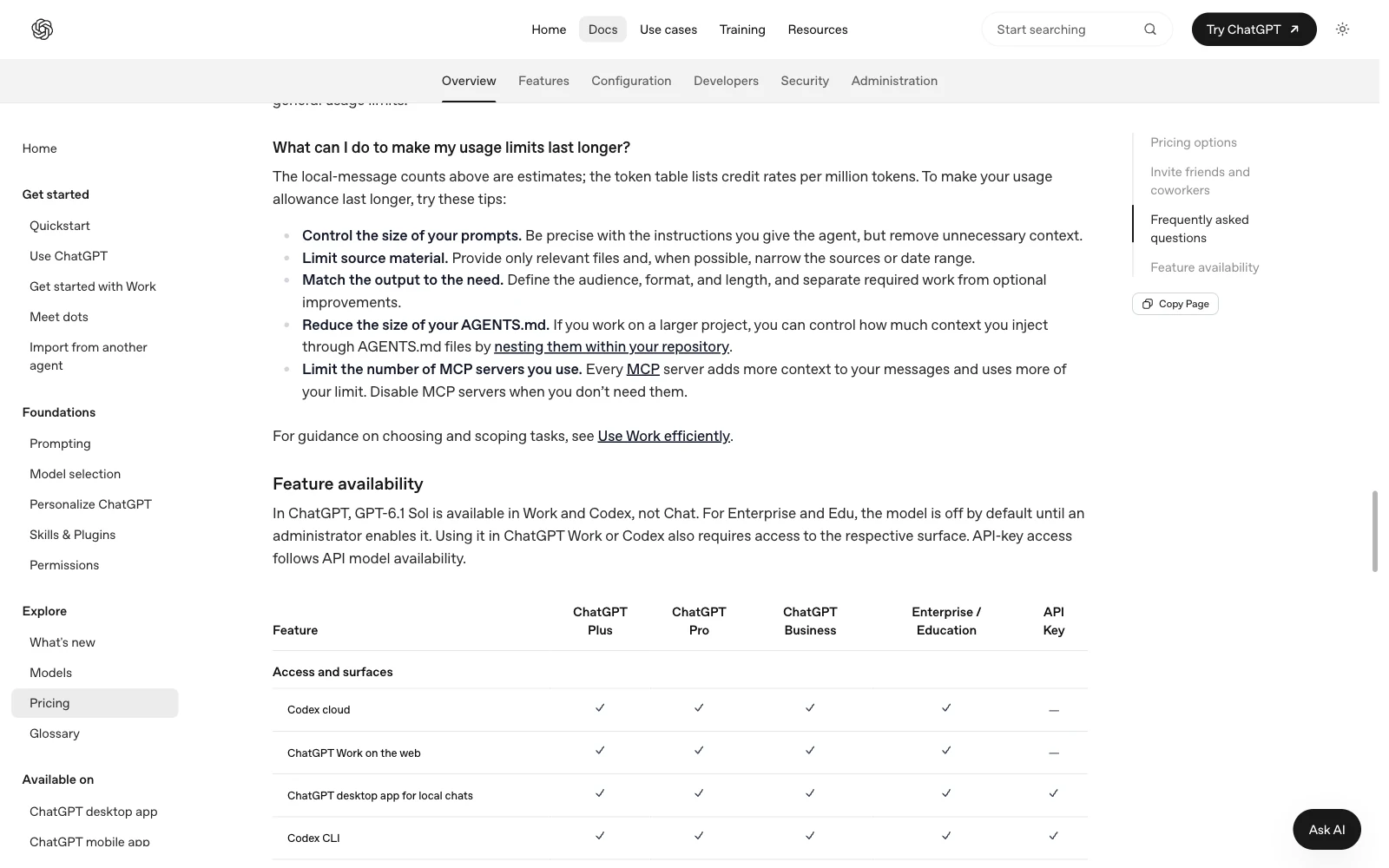
The useful habit is to give Codex the information needed for this job. You can keep a task clear without reducing it to a vague one-line request.
Does opening a new chat give you more usage?
Do not expect a new chat to reset an account allowance. Starting fresh can help organize a different task, but current limits are tied to the plan’s usage. Check the dashboard before deciding that the limit has changed. For a small exercise you can resume later, use the first-task tutorial.
Before your next substantial task, check the remaining amount and reset time once. Then write one clear request with a specific result to verify. That gives you a better starting point than repeatedly retrying a task while unsure which limit is blocking it.