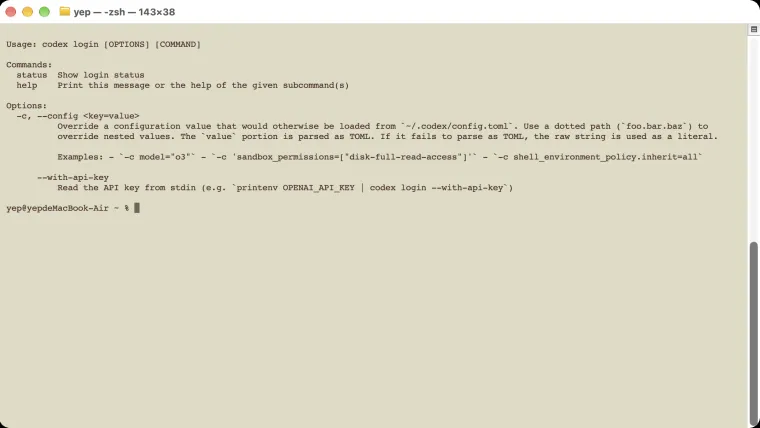
Codex login usually means signing in with the same ChatGPT account you already use. In the desktop app or editor, choose Sign in with ChatGPT and finish the steps in your browser. In the terminal, run codex login. If you use an API key instead, the work is charged to your OpenAI developer account. An API key is a secret code that lets an app use that account. Start with ChatGPT sign-in unless you have a reason to use separate billing. After signing in, check that Codex is using the account and plan you intended.
Choose how you want to sign in
Think about where you want the bill to go. With ChatGPT sign-in, eligible work uses the access included with your ChatGPT plan. With an API key, work uses your separate OpenAI API account and its billing settings.
OpenAI supports both methods for local work in the desktop app, CLI, and editor extension. “Local” means Codex is working with files on your computer. Codex cloud requires ChatGPT sign-in. Source: OpenAI authentication guide.
| Your situation | Start here | Check afterward |
|---|---|---|
| You want to use your ChatGPT plan | Sign in with ChatGPT | The correct account and workspace are selected. |
| You deliberately want separate, pay-as-you-go billing | Use an API key | The key belongs to the intended developer account. |
| Your employer manages Codex | Follow your organization’s sign-in instructions | Your account has permission to use the required feature. |
“Workspace” means the personal or company area you are signed into. A personal subscription and an employer’s workspace can have different access rules.
If you have not installed Codex yet, follow the installation guide. If you are deciding what to pay for, see the pricing guide.
Sign in with your ChatGPT account
For the desktop app or editor extension, select Sign in with ChatGPT. When the browser opens, check the account shown before continuing. Finish the sign-in, then return to the app.
For the CLI, which is the version you use by typing commands in a terminal:
codex loginFollow the browser steps, return to the terminal, and check:
codex login statusOpenAI documents this as the command for checking the active sign-in method. A successful browser page alone is not the final check: confirm that the terminal received the sign-in. Source: check authentication.
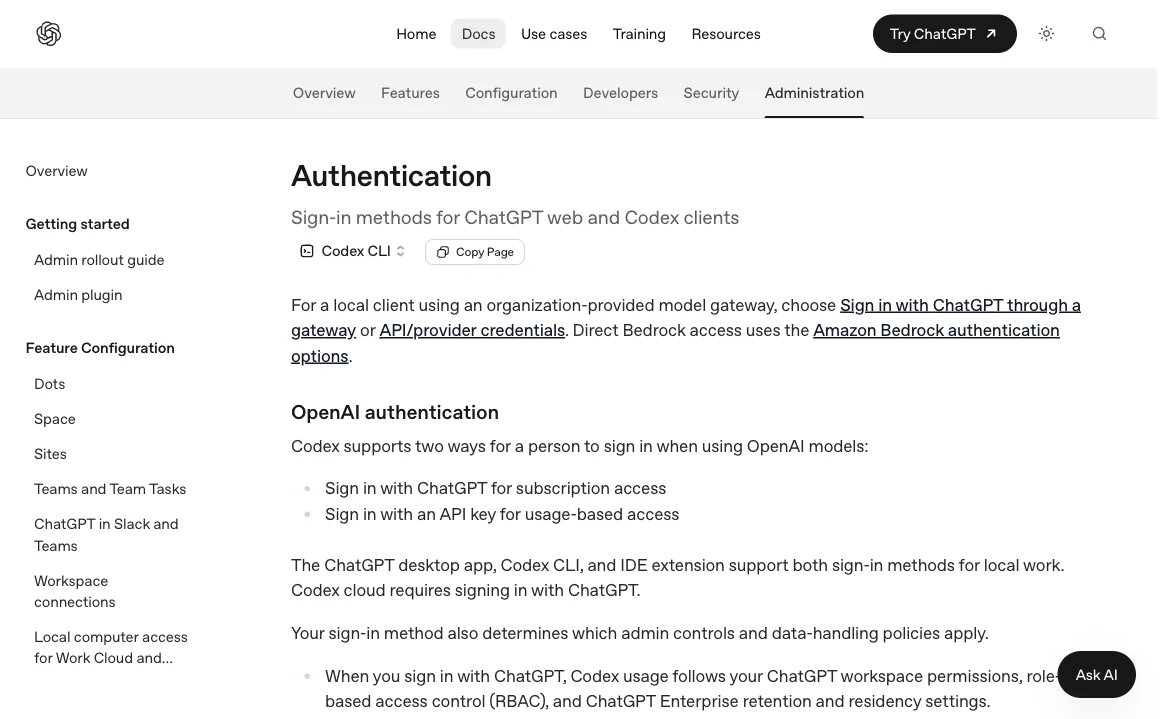
This is the official instructions page, captured on October 23, 2026. The CLI option is selected, so the page shows the terminal instructions.
Switch to a different account
If Codex has signed into the wrong account, finish any work you need to save. In the CLI, run these commands one at a time:
codex logout
codex login
codex login status
During the new browser sign-in, select the account you actually want. If the browser keeps choosing a different account, check its account selector before approving access.
For example, you might pay for Plus on your personal email but accidentally sign in with a work email. The installation can be correct while the selected account has different access. Reinstalling Codex will not move the subscription between those accounts.
In a managed company workspace, an administrator can require a particular sign-in method or workspace. If switching keeps failing, ask the administrator which account to use. Source: login restrictions.
Use an API key only when you intend to use API billing
You do not need an API key just because you installed the CLI. ChatGPT sign-in is the usual starting point for someone using a ChatGPT subscription.
If you intentionally use API billing, OpenAI’s documented CLI command reads the key from an environment variable. That is a named value made available to the running program. With OPENAI_API_KEY already set in your terminal, the macOS/Linux command is:
printenv OPENAI_API_KEY | codex login --with-api-keyDo not replace the variable name with your actual key in a shared guide, screenshot, or support message. The key is a secret, similar to a password. The resulting usage is billed through OpenAI Platform at API rates. Source: API-key sign-in.
The pricing guide explains how that bill differs from your monthly ChatGPT subscription. If the account is correct but work has stopped because of usage, go to usage limits.
When the browser is on a different computer
On a remote machine, the login page may open on your laptop while Codex is waiting elsewhere. The normal browser return step can then fail.
OpenAI offers device-code login, currently marked beta:
codex login --device-auth- Check that device-code login is enabled in your ChatGPT security settings, or ask your workspace administrator.
- Run the command on the machine where Codex needs to sign in.
- Open the link it gives you in your browser.
- Sign in and enter the one-time code from that terminal.
- Return to the original terminal and run
codex login status.
Use only the code from the login you just started. Availability depends on your account and environment. Source: device-code login.
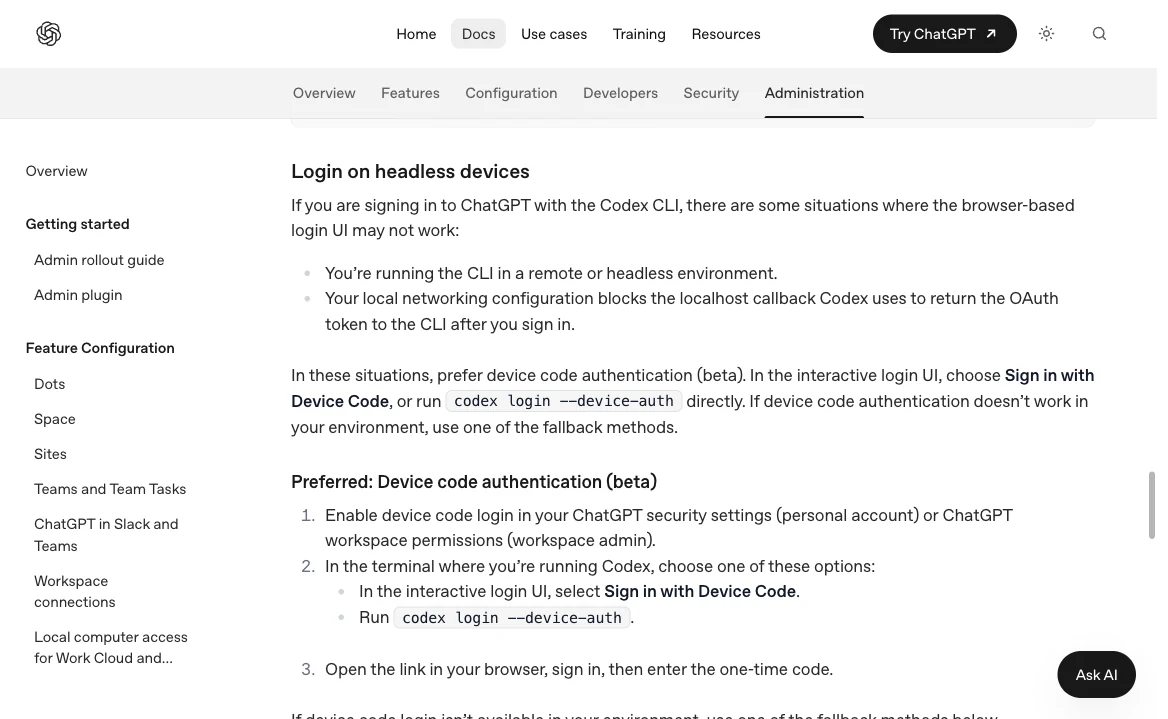
Device-code login lets you finish the browser step on another machine. The screenshot shows OpenAI’s instructions, including the beta label.
If login still does not work
Match the next check to what you actually see:
| What happened | What to check next |
|---|---|
| The terminal says the command does not exist | Run codex --version. If that fails too, fix the installation first. |
| The browser says you signed in, but the terminal keeps waiting | Check whether the browser and CLI are on the same machine. For a remote machine, try the documented device-code method. |
| Codex opens, but your paid features are missing | Check the account and workspace, then check the plan’s current availability. |
| Login succeeds, but you are immediately signed out | Check whether your organization requires a different account or sign-in method. |
| The error mentions a company certificate | Ask your IT team for its approved certificate setup. OpenAI documents CODEX_CA_CERTIFICATE for this situation. |
For CLI login failures, current documentation describes a dedicated codex-login.log in the configured log directory. Review it privately before sharing any excerpt. Keep passwords, keys, and login tokens out of support screenshots. Source: login diagnostics.
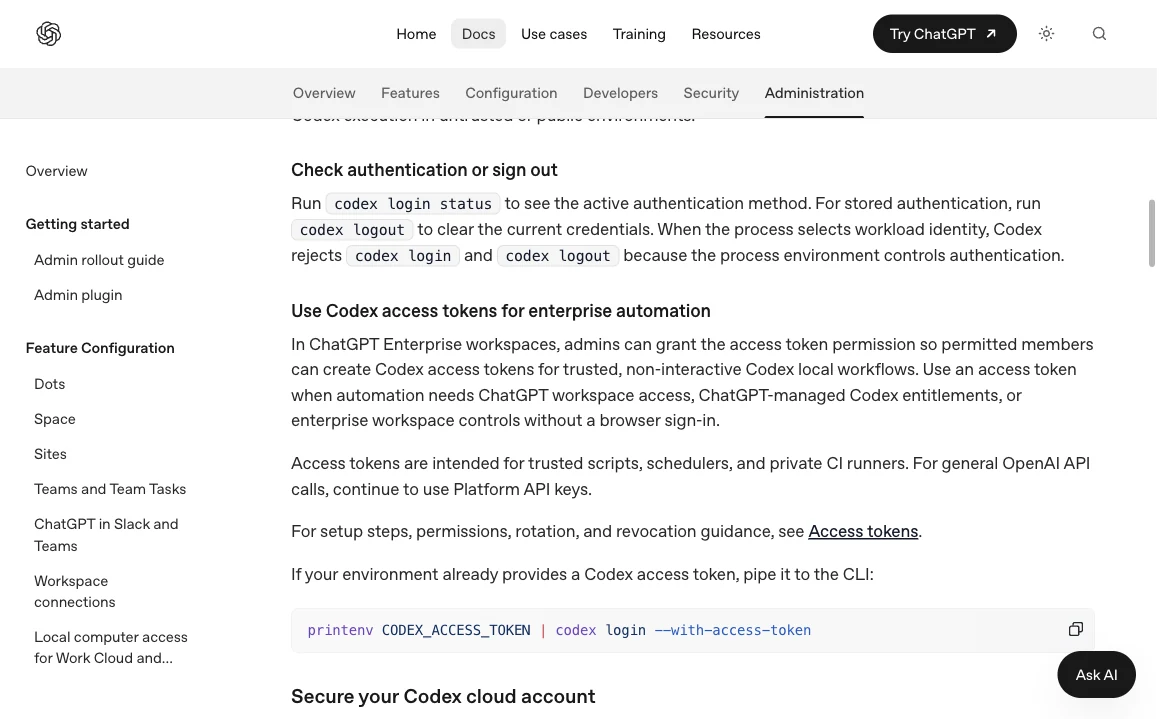
Use codex login status to check the CLI. This section of the official guide shows the check and sign-out commands.
Do I need to sign in every time?
Usually, no. Codex stores sign-in information so it can use it again. Storage depends on your configuration and operating system. Treat any auth.json file as private because it can contain access tokens. Source: credential storage.
Once the sign-in works, try the first coding task. That checks the useful outcome: Codex can open the intended project and help you complete a small, reviewable change.