For a YouTube live stream, decide how captions will reach viewers before the event. YouTube’s automatic live captions have different eligibility and latency limits from automatic captions on uploaded videos. A professional caption feed is another route.
The replay also needs checking: YouTube says live automatic captions are replaced by newly processed video-on-demand captions, which may differ from what viewers saw live.
1. Find the live setup entry
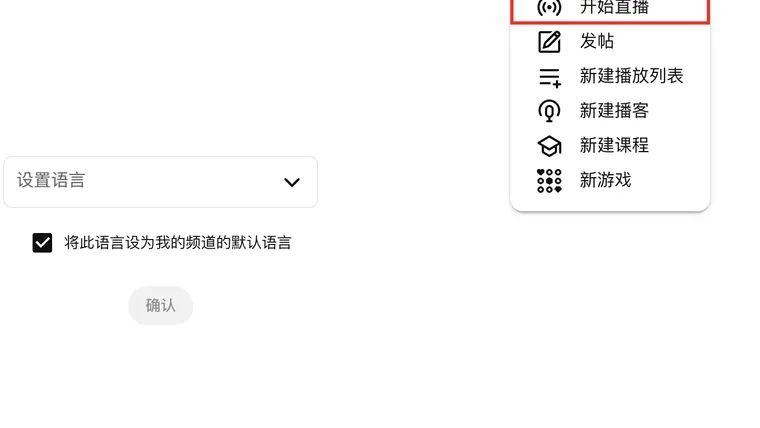
In YouTube or Studio on a computer, open Create → Go live. In the Chinese menu, these controls are 创建 → 开始直播.
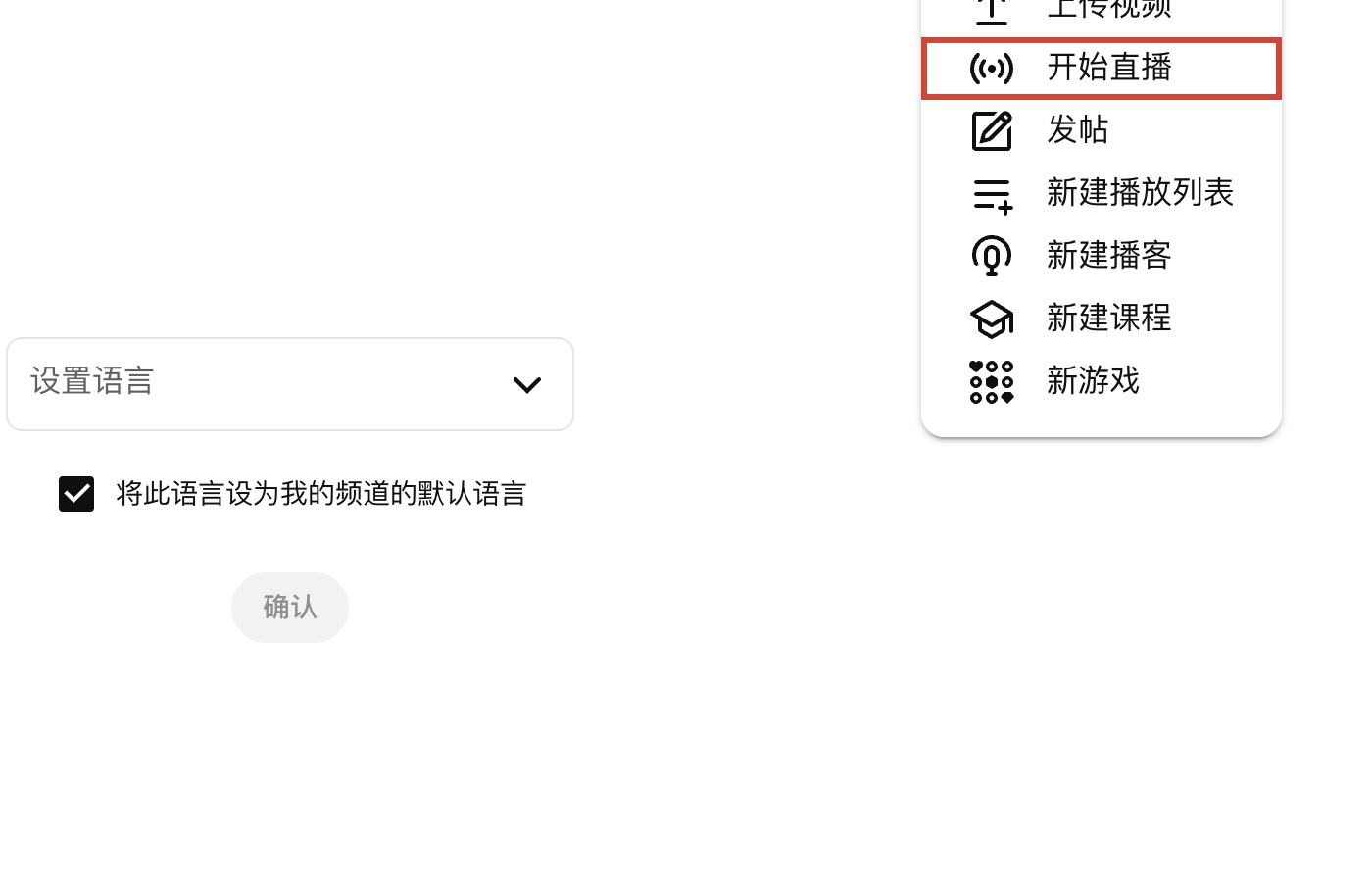
From the live workflow, open the relevant stream’s settings. The available controls depend on the channel’s eligibility and setup. Creating or scheduling an event is a separate action from opening this menu.
2. Choose an available caption source
| Source | Where the words come from | What to verify |
|---|---|---|
| YouTube automatic live captions | YouTube speech recognition | Whether the channel offers the feature, spoken language, normal latency, and audio quality |
| Embedded captions | Caption data sent with the encoder’s video feed | Supported 608/708 settings and an actual caption feed |
| Captioning software | A caption provider sends text through the supported ingestion workflow | Provider setup, timing, and a single working feed |
Do not assume that captions available on an uploaded video are also available while that channel is live.
💡 Enabling a caption setting does not create a professional caption feed. The encoder or caption provider still has to send correctly timed text.
3. Check automatic live-caption eligibility
YouTube’s current automatic-caption instructions describe live automatic captions as English only, with normal latency required. They also describe a gradual rollout and channel eligibility limits, so reaching a subscriber count is not a guarantee that the option will appear.
The documented setup is to open the stream, enable Closed captions, choose Automatic captions as the source, and select English as the video language. Check those controls for each stream rather than assuming a previous event’s caption setting applies.
If the option is unavailable, check the channel’s actual live settings and YouTube’s current requirements. Changing a recording’s caption language cannot unlock an unsupported live feature.
4. Arrange a professional feed when needed
YouTube documents embedded 608/708 captions and supported software that sends captions through an ingestion URL in its live-caption requirements.
For embedded captions, both YouTube’s caption-source setting and the encoder must match. For a software feed, follow the provider’s supported YouTube setup. The ingestion URL is an event credential; give it only to the caption provider handling that event.
The official documentation also includes older event-layout instructions, including broadcast-delay settings for its HTTP workflow. Confirm the delay available in your current control room and with the provider rather than expecting every old tab name to match your account.
Use one caption feed per stream entry point and check the system clock and connection if captions drift or drop. Work with the provider on specific software problems rather than disabling security software broadly.
5. Test before the real event
Run an appropriately restricted test using the actual microphones, encoder, and caption source. Have a viewer open the playback side and check whether captions appear, follow the speech, identify speakers, and survive a short pause.
| Symptom | What to check |
|---|---|
| No automatic-caption option | Eligibility and current feature availability |
| Automatic captions absent despite a setting | Language, latency, audio, and whether the stream is actually receiving speech |
| Professional captions absent | Whether a real feed is being sent and the source matches |
| Captions arrive late or disappear | Provider timing, connection, stream delay, and competing feeds |
Check playback from a viewer’s device before using the same setup for the event.
6. Review the replay as a separate captioned video
After the stream, wait for processing and inspect the replay’s available tracks. YouTube says its live automatic captions do not remain as the same track; new automatic captions can be generated through video-on-demand processing.
⚠️ That automatic-caption rule does not prove what happens to every professional caption feed. Confirm replay preservation and export with the provider, and keep a caption file if you need an exact event record.
Review the replay’s names, numbers, timing, and speaker changes. If necessary, upload a checked caption file or edit its captions. A transcript service may also need to wait for a completed recording; live access support varies by tool.
For caption content that viewers can rely on, use the accessibility guide.