Useful captions carry more than the dialogue. They identify speakers when needed, include sounds that explain what is happening, and stay on screen long enough to read. Review automatic captions against the audio before treating them as finished.
A viewer’s font settings can improve readability. They cannot restore words or sound cues missing from the caption track.
1. Include the information a hearing viewer receives
Write the spoken words and add non-speech information when it affects understanding. An off-screen alarm, laughter, or a sudden door slam may explain a reaction.
YouTube’s caption-creation instructions and transcript-file tips describe sound labels and speaker markers. For example:
>> ALICE: We can start when John arrives.
[door opens]
>> JOHN: Sorry I'm late.
This is an illustration of caption content. The speaker-marker convention is not a requirement that every subtitle format use the same markup.
| Information | Include it when |
|---|---|
| A speaker’s identity | The picture does not make the speaker clear. |
| An off-screen sound | It explains an action, reaction, or change of scene. |
| Music or vocal expression | Its character changes the meaning or mood. |
| Ordinary background noise | It is relevant, rather than constant clutter. |
Do not label a sound more specifically than the audio supports. For example, [phone rings] is more useful than guessing who is calling.
2. Review errors that change meaning
Check negatives, numbers, names, technical terms, and speaker changes. Also compare fast or overlapping passages with the audio.
Automatic captions may misrecognize speech or omit useful sounds. A fluent-looking line can still be wrong. YouTube recommends reviewing automatic output in its automatic-caption help.
For a channel you manage, open Studio → Languages / 语言, or Subtitles in a layout that uses that name, then select the video’s caption track. The editing guide explains the text and timing controls.
💡 Keep the words that affect meaning, identity, uncertainty, or tone. A cleaned summary for study is a separate output; do not silently replace faithful captions with an AI rewrite.
3. Check timing and reading conditions
Play the video at normal speed with sound off. Look for captions that disappear too quickly, reveal a line too early, cover important text, or leave the speaker unclear.
Break text at natural phrases where possible. When changing cue timing, review nearby cues so the fix does not create a new collision.
Viewers can adjust a selectable track’s appearance through gear → Subtitles/CC → Options / 选项 on desktop.
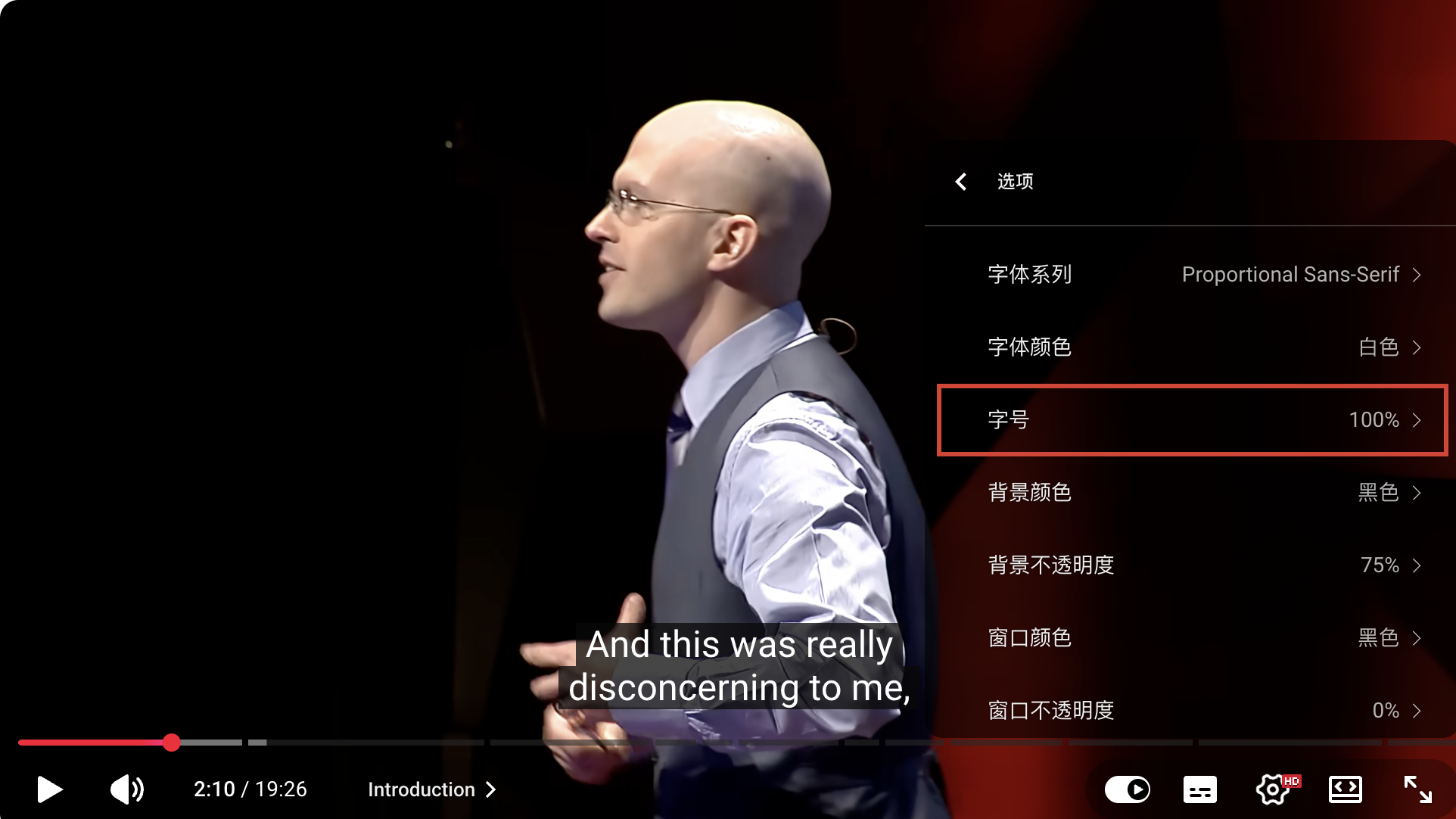
A creator should still test the default presentation and a phone-sized view. Burned-in words offer less viewer control than a selectable caption track.
4. Preserve sound labels when making reading copies
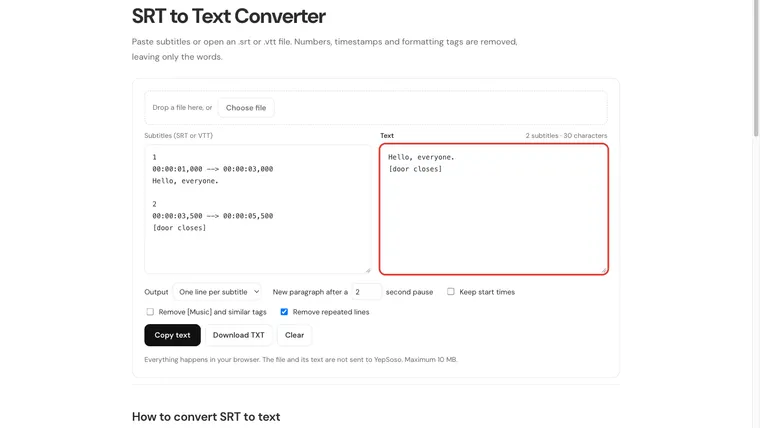
Text-cleaning tools may remove more than timestamps. For example, YepSoso’s SRT to Text Converter has Remove [Music] and similar tags. Untick it if you need to keep sound descriptions.
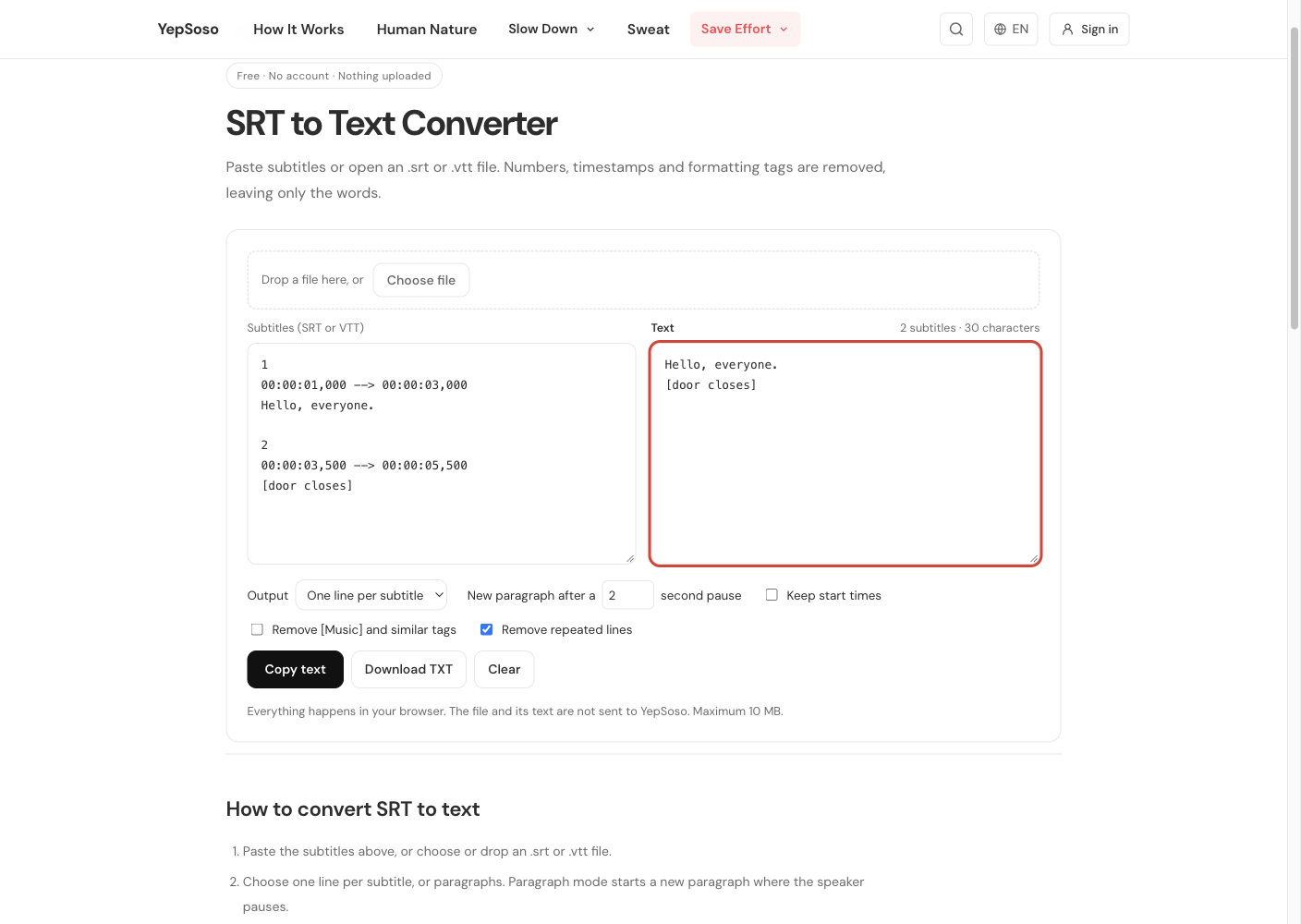
Review repeated-line removal too. A repeated phrase can be genuine emphasis, not a transcription duplicate.
⚠️ Keep the original timed file. A TXT reading copy, especially one stripped of sound cues, is not a replacement for the published caption track.
5. Check masked words and ask for useful feedback
Automatic tracks may replace flagged words with [ __ ]. Compare those marks with the audio. If a missing word matters, decide how the caption should faithfully convey it rather than leaving an unexplained gap.
YouTube documents the Don’t show potentially inappropriate words setting under Studio Settings → Channel → Advanced settings. It affects automatic captions and auto-translated subtitles, not the audio or manually edited caption text. Check the setting and the actual track before assuming a mask can be fixed by a viewer’s CC control.
Ask viewers who use captions whether a short sample is understandable. A silent viewing pass is useful, but it does not replace feedback from people with different caption needs.
Shorts and live streams have their own presentation limits. See Shorts captions and live captions for those workflows.