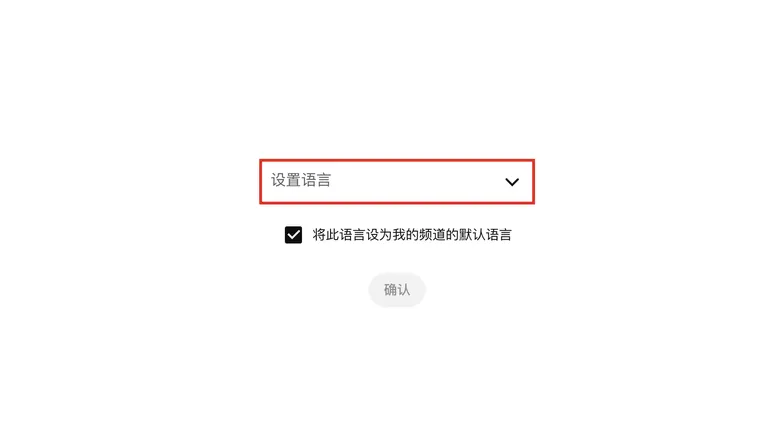
To fix captions on your own video, open YouTube Studio → Languages / 语言—called Subtitles in some layouts—select the video, and open the subtitle track for the language you need. An automatic track may offer Duplicate and edit; a track you already manage may offer Edit.
Correct the words, check their start and end times, then verify the published result in the normal player. Viewers cannot directly edit another channel’s caption track.
1. Reach the caption editor
Open YouTube Studio for the channel that owns the video. Find Languages / 语言 in the left menu and choose the video.
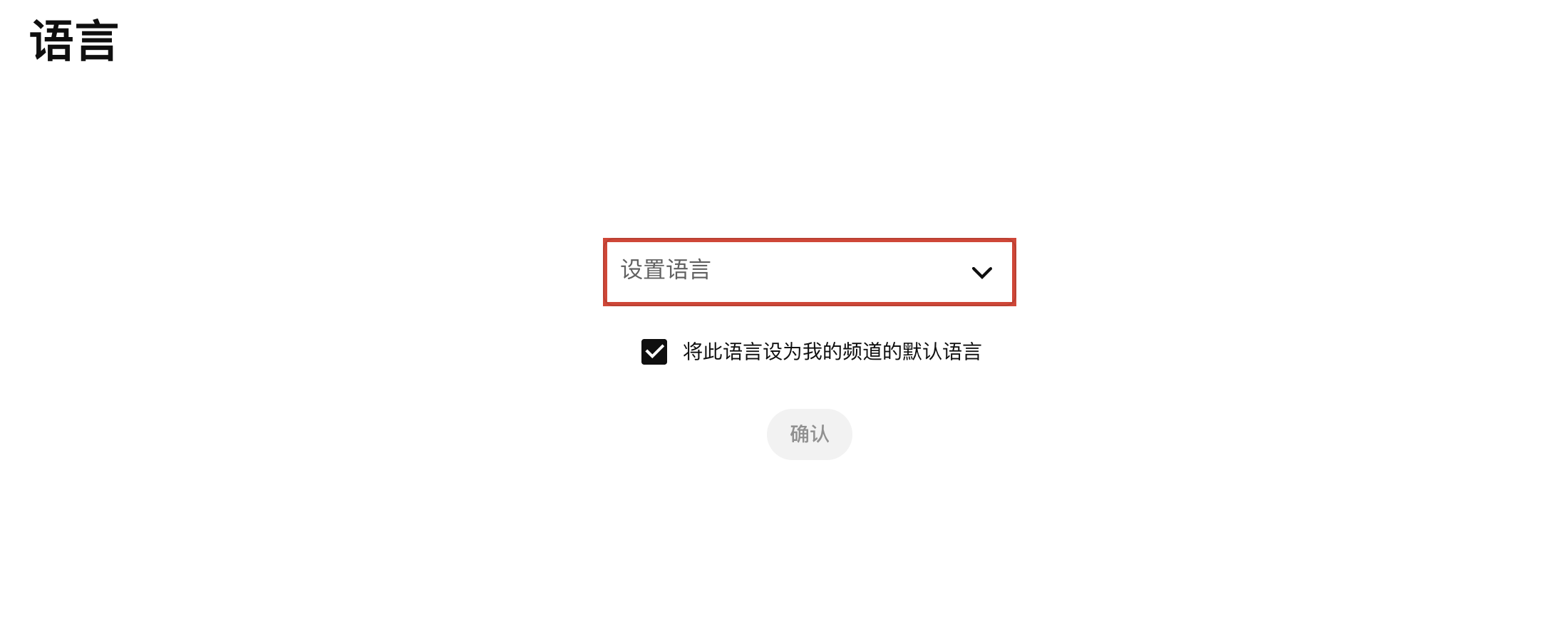
If Studio asks for the video language, select the language actually spoken. Check whether the channel-default checkbox is selected before confirming.
Find the language row and its Subtitles entry. For automatic captions, use Duplicate and edit when offered. YouTube says editing an automatic track generates a revised track; the exact starting controls are described in its caption-editing help.
If Studio offers to overwrite an existing draft, read that prompt before continuing. It is about work already saved in that draft.
2. Fix the errors that change meaning
Listen while reading, especially around names, technical terms, and fast or overlapping speech.
| Check | Why it matters |
|---|---|
| Negatives, such as can and cannot | One missing word can reverse the meaning. |
| Numbers, units, dates, and amounts | Plausible-looking errors are easy to miss. |
| People, brands, and product names | Speech recognition often guesses ordinary words instead. |
| Speaker changes | A host’s question should not become the guest’s statement. |
| Meaningful sounds | [alarm sounds] may explain what happens next. |
Do not “correct” a quote by changing what the speaker actually said. If you make a separate cleaned reading copy, keep it apart from the caption track.
💡 Finish checking the original-language track before translating it. A recognition error in the original can become a fluent error in every translation.
3. Diagnose the timing before moving lines
Open the timing controls or Edit timings in the editor. Adjust a cue’s start and end, then replay it.
There are different timing problems:
- A single line is early or late: fix that cue.
- Every line is late by roughly the same amount: an overall time offset may need correcting across the track.
- The error grows as the video plays: check for a mismatched video edit, missing section, or alignment problem. One fixed offset may not solve it.
Moving only the first few lines does not automatically move or repair the rest of the file. For a large job, a subtitle editor that can shift a selected range or re-sync the file is usually easier than editing each cue in Studio.
4. For larger edits, keep a timed file
YouTube also documents Options → Download subtitles from the caption editor. Save a copy before changing a large section.
For example, an SRT cue contains a number, a time range, and text:
12
00:01:04,200 --> 00:01:07,950
Welcome back to the workshop.
Edit the words or times while keeping valid structure. Save as plain text in UTF-8. Then use the appropriate upload or replacement control and choose With timing for a timed file. See the file-format guide and the add-caption guide if the upload choices are unclear.
5. Verify the revised track
After publishing, open the normal watch page and choose the intended caption language.
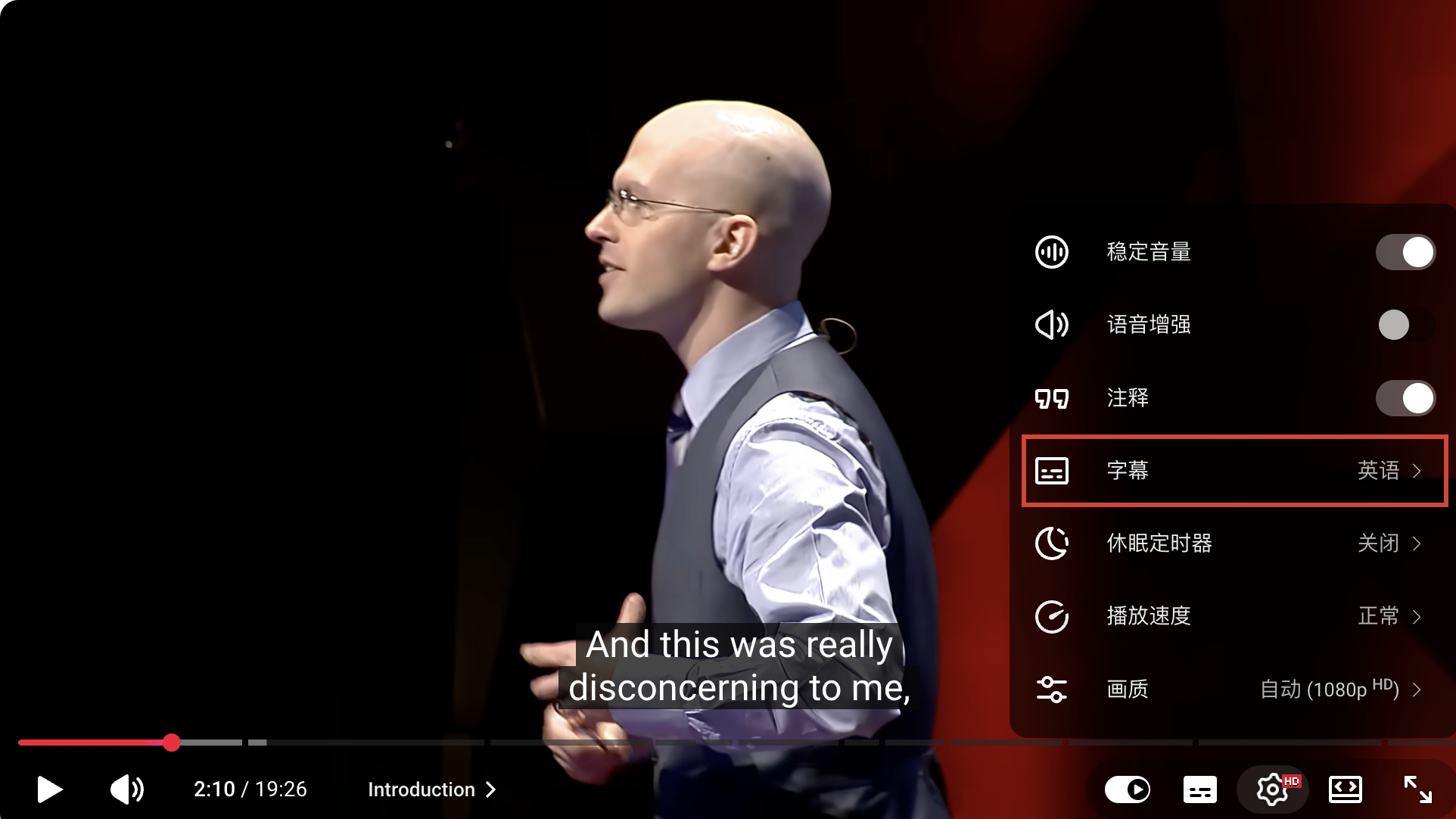
Replay the corrected passages and a spoken section near the beginning, middle, and end. Confirm that the selected track contains the new wording and follows the audio.
⚠️ Do not delete an automatic or older track simply because you made a revision. First confirm what is published and save any version you need. Removing a track is a separate decision.
For a review beyond spelling and timing, use the caption-accessibility guide.