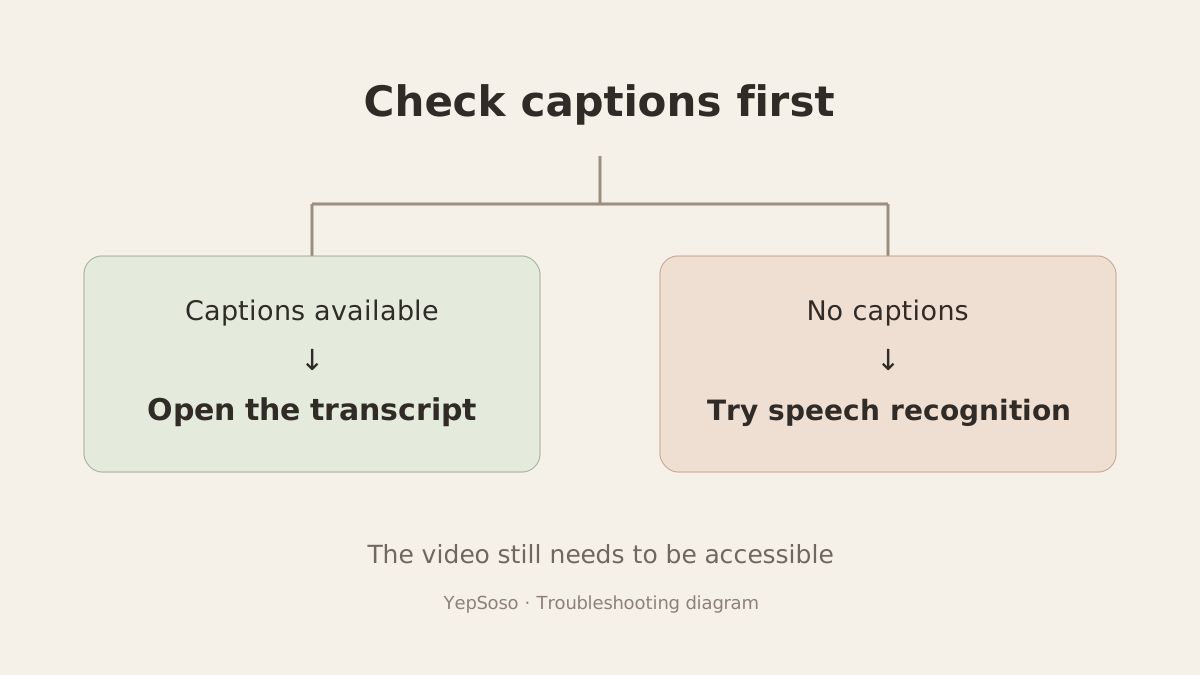
If YouTube’s Show transcript option is missing, check whether the video has captions. When captions exist, look for the transcript in the video description. When there are no captions, you need speech recognition to turn the audio into text.
Captions are available, but you cannot find Show transcript
Expand the video description and look for Show transcript. That is where YouTube’s official instructions place the option for videos with captions. The mobile app and website can have different layouts. If you cannot find it on your phone, open the same video in a desktop browser.
Words printed into the picture do not mean a separate caption track exists. Check the player’s caption options rather than the image alone.
The transcript panel is blank
Reload the page. If captions still play but the transcript stays blank, open the same video in a private browser window. If it works there, check the extensions or account session in your usual window.
You can also paste the link into the YouTube transcript tool to retrieve the captions directly. The result identifies whether the text came from platform captions or speech recognition.
For your own uploads, check the subtitle status in YouTube Studio. For someone else’s video, caption processing is up to the creator and YouTube.
The video has no captions
You need to transcribe the audio. YouTube’s automatic-caption documentation explains that captions may still be processing, or may be unavailable because of the language, recording quality or overlapping speakers. Waiting does not guarantee that captions will appear.
To get the spoken words:
- Open the YouTube transcript generator and paste one video link.
- Leave the language on Keep original, or choose Chinese or English for a translation.
- Select Get subtitles. If captions are unavailable, the tool transcribes the audio.
The video must be public and accessible. Loud music and overlapping speakers can affect recognition. Text that appears on screen without being spoken will not be transcribed.
Save the text or download subtitles
Use Copy text or download TXT to read the transcript without timestamps.
Choose SRT for a subtitle file with start and end times. Markdown keeps the transcript with the title, author and video link. JSON contains the text and timing data for further processing.
For a shorter read, select Include a summary before submitting. If you plan to quote the video, keep the original language and check names, numbers and the passage against the recording.
The video itself will not play
Go back to YouTube and check the video. A private, deleted or region-restricted video may also be inaccessible to a transcript tool. Repeatedly submitting the same link is unlikely to help.
No account is needed here. Each network or browser can submit up to 20 videos in 24 hours, one at a time, with a maximum length of 4 hours per video. Results remain available in your browser for 6 hours, so download anything you want to keep.
For other supported platforms, use the video subtitle extractor.