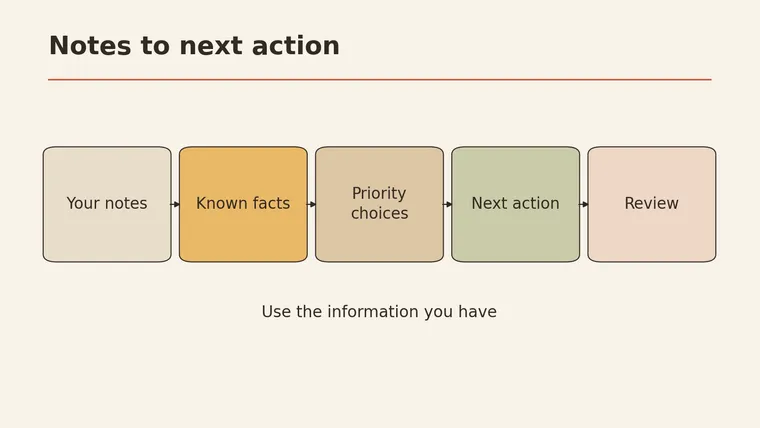
Useful productivity prompts hand an AI tool your scattered emails, tasks, and notes and ask for one thing: a short, checkable next action you can actually start. Begin with the work you need to finish. Pick the tool after that. Paste the raw items as they are, including deadlines you’ve been given and anything you’re unsure about. Tell the tool to keep your dates exactly as written, to flag conflicts instead of fixing them, and to mark unknowns rather than guess. Ask for a fixed output format so you can check it in a minute. Then you pick the next step. Deakin University’s prompt guide lists planning, time management, and breaking goals into steps among the uses of productivity prompts (Deakin University Library).
This guide uses one fictional set of five work items throughout. You’ll see a planning prompt, a two-step email prompt, a notes-to-actions prompt, a review check, and a simple way to save each prompt with the input it expects.
Start with the work you need to finish
Many productivity prompt lists start with a role (“You are a world-class productivity coach…”). The role matters less than the material. A tool can only sort what you give it.
Public prompt guides tend to group their examples by concrete jobs like planning, email, and meetings (Gmelius). That’s a good sign: the useful unit is the task in front of you. A general wish to “be more productive” gives a tool little to work with.
Here is the fictional input used in this article. It’s what a normal Tuesday inbox and notebook might look like for an office worker named Dana. None of it is real.
DANA'S ITEMS (fictional example)

1. Email from manager: "Can you send me the Q3 supplier summary
   by Thursday noon?"
2. Note to self: "Book room for team training - sometime next
   week? check with Priya"
3. Calendar: Dentist Thursday 11:00-12:30
4. Email from Sam (finance): "Need your receipts for the
   conference trip. Deadline is end of month I think?"
5. Sticky note: "Fix the broken link on the intranet page"
Notice what’s in there:
- A firm deadline: Thursday noon (item 1)
- A fixed appointment: Thursday 11:00–12:30 (item 3)
- An uncertain deadline: “end of month I think?” (item 4)
- No deadline at all: items 2 and 5
- A dependency: item 2 needs Priya
A good prompt keeps all of that visible. A weak one quietly turns “I think?” into a hard date, or moves the dentist appointment to make room.
Planning
The first job is sorting: what’s due, what clashes, what’s unclear. The tool flags problems. It doesn’t solve them by changing your times.
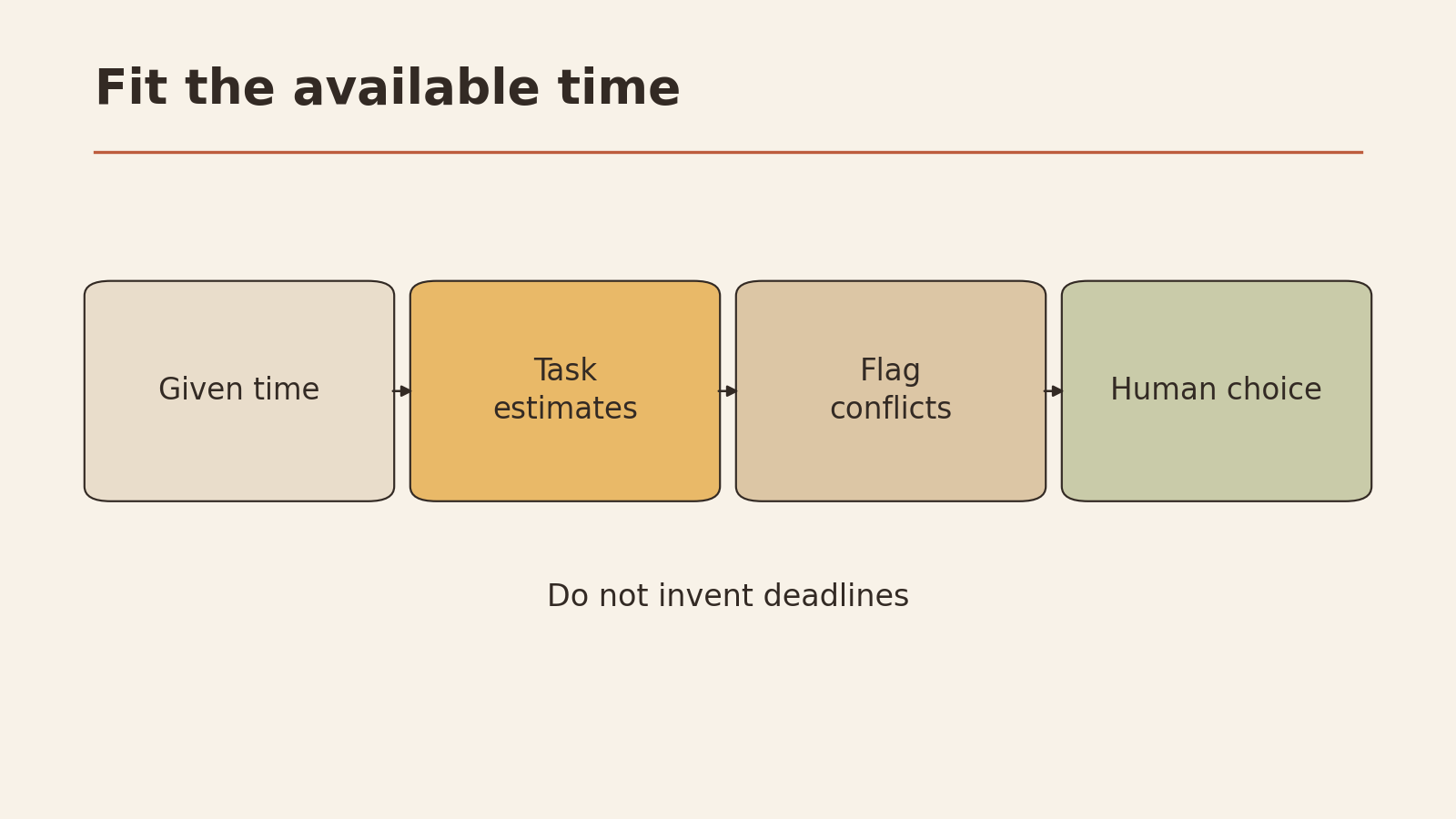
Prompt: sort items and flag conflicts
Below are my work items, copied as they are.

Rules:
- Keep every date and time exactly as I wrote it. Do not move,
  shorten, or invent any time.
- If two items clash or a deadline looks tight, list it under
  "Conflicts". Do not fix it.
- If a deadline is uncertain or missing, write "unclear" or
  "none given". Do not guess one.
- If an item depends on someone else, name the person.

Output a table with these columns:
Item | Deadline (exact words) | Certain? (yes / unclear / none) |
Depends on | Size (small / medium / large, your estimate, marked
as estimate)

Then two short lists:
Conflicts:
Questions I need to answer:

Items:
[paste]
What a sound result looks like for Dana’s items (written for this article as an illustration; no model produced it):
- Item 1: deadline “Thursday noon”, certain
- Item 3: Thursday 11:00–12:30, certain
- Conflict: the dentist appointment runs until 12:30, past the noon deadline, so the summary must be done before 11:00 Thursday or sent earlier
- Item 4: deadline “end of month I think?”, unclear
- Question: confirm the receipt deadline with Sam
Checkpoints
- Every date and time matches the input exactly
- The dentist appointment is still there, unchanged
- “End of month I think?” is marked unclear and left without a date
- The conflict is listed but not “solved” by moving anything
- Size estimates are labeled as estimates
If any of these fail, don’t edit the tool’s table by hand. Fix the prompt and run it again, so the prompt you save is the one that works.
Email is where people most often ask the tool to “deal with this.” Splitting the job into two steps keeps you in control: first understand the message, then draft a reply.
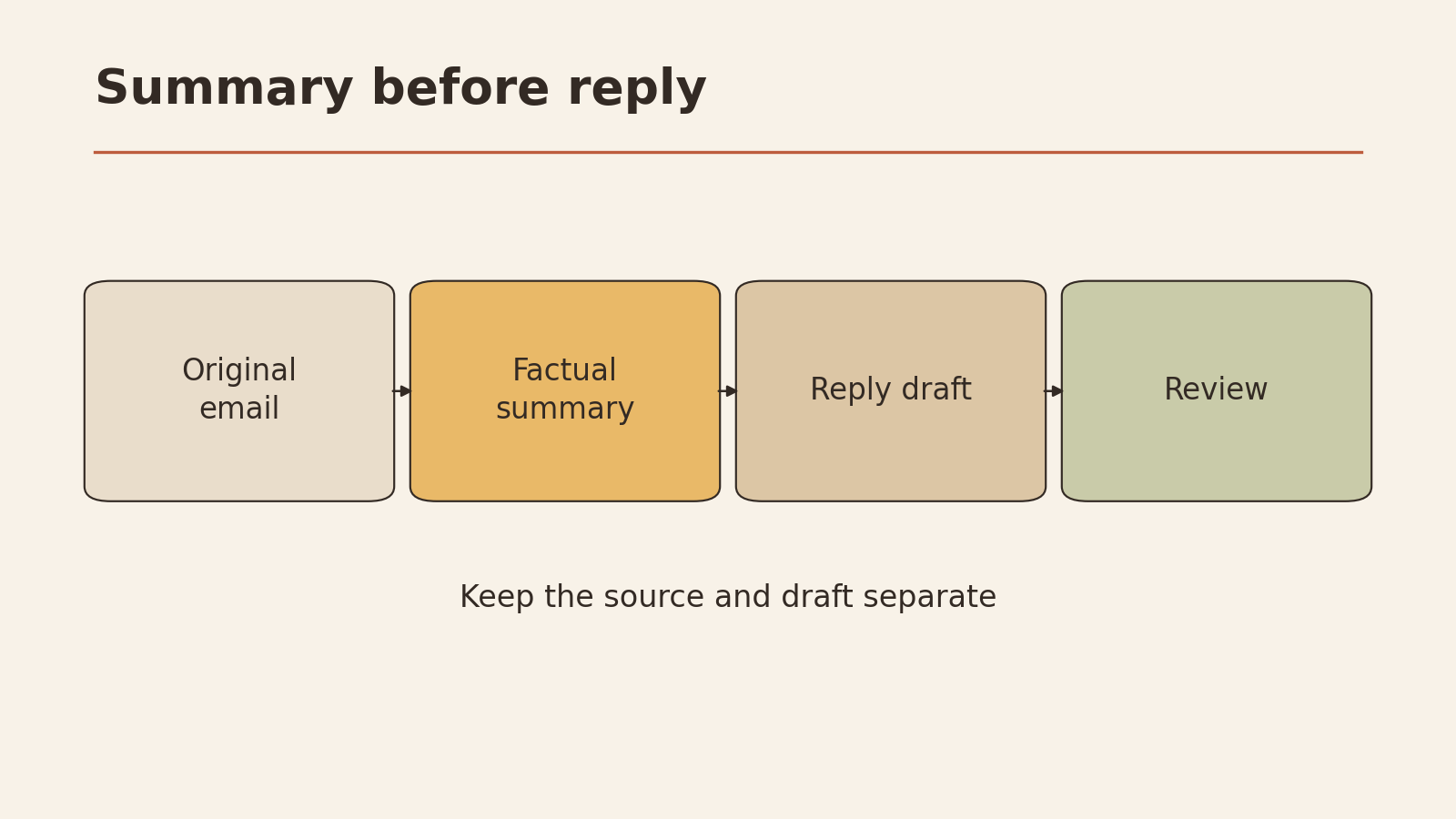
Step 1: summarize only
Summarize the email below in up to 4 bullet points:
- What is being asked of me
- Any deadline, in the sender's exact words
- Anything unclear or missing
- Who else is involved
Do not draft a reply yet. Do not add any detail not in the email.

Email:
[paste]
For Dana’s item 4, a sound summary would note: Sam needs receipts for the conference trip; deadline is “end of month I think?”; the exact date is unclear; no one else involved.
Step 2: draft the reply from your decision
Only after you’ve read the summary and decided what to say:
Draft a short reply (under 80 words) to the email summarized
below. My decision: [e.g. I'll send the receipts by Friday;
ask Sam to confirm the exact deadline].
Use a friendly, plain tone. Don't promise anything beyond my
decision. Don't add dates I didn't give.

Summary:
[paste step 1 output]
Checkpoints
- The summary has no detail that isn’t in the original email
- The reply only promises what you decided
- The only dates in the reply are ones you supplied
- You send it yourself, after reading it
The tool doesn’t send email or change your calendar here. Those steps stay with you.
Turn notes into next actions
A next action is the very next physical thing you can do on a task: “email Priya to ask about training dates,” not “sort out training.” Turning vague notes into next actions is often where a tool helps most, as long as it doesn’t invent details.
Prompt: one next action per item
For each item below, write one next action.
A next action:
- starts with a verb
- is something I can do in one sitting
- names any person I need to contact
- uses only information in the item
If an item is too vague to act on, write "Needs clarifying:" and
the question I should answer first.

Output a numbered list matching the item numbers.

Items:
[paste]
Illustrative result for Dana’s notes (written for this article; no tool was tested):
- Draft the Q3 supplier summary and send it to my manager before 11:00 Thursday.
- Email Priya to ask which days next week work for team training.
- (Appointment, no action needed.)
- Message Sam to confirm the exact receipt deadline.
- Needs clarifying: which intranet page, and which link is broken?
Checkpoints
- Each action starts with a verb and is small enough to start now
- Item 5 is flagged as unclear instead of turned into a made-up fix
- No action includes a date or detail that wasn’t given
Pick one
A list of five actions is still a list. Choose one to start now. A simple rule: the item with the firmest, nearest deadline that you can start without waiting for anyone. For Dana, that’s the supplier summary.
Review
Before you act on any output, run a short review. It takes a minute and catches the problems that matter most.
| Check | What to look for | If it fails |
|---|---|---|
| Dates | Every date and time matches your input | Rerun with the “keep dates exactly” rule |
| Unknowns | Uncertain items are marked as unclear | Add “do not guess” to the prompt |
| Conflicts | Clashes are listed, nothing was moved | Add “list conflicts, don’t fix them” |
| Invented details | No names, numbers, or tasks you didn’t give | Remove them; tighten the input rules |
| Actionable | The next action is one concrete step | Ask for “one verb-first step per item” |
For a fuller look at structuring requests to AI, see how to ask better AI questions. If your items belong to a bigger project with milestones and owners, AI prompts for project management goes into that in more depth.
Save the prompt with its input rules
A saved prompt without its input rules tends to stop working. Next month you’ll paste in something different and won’t remember why the output looks wrong.
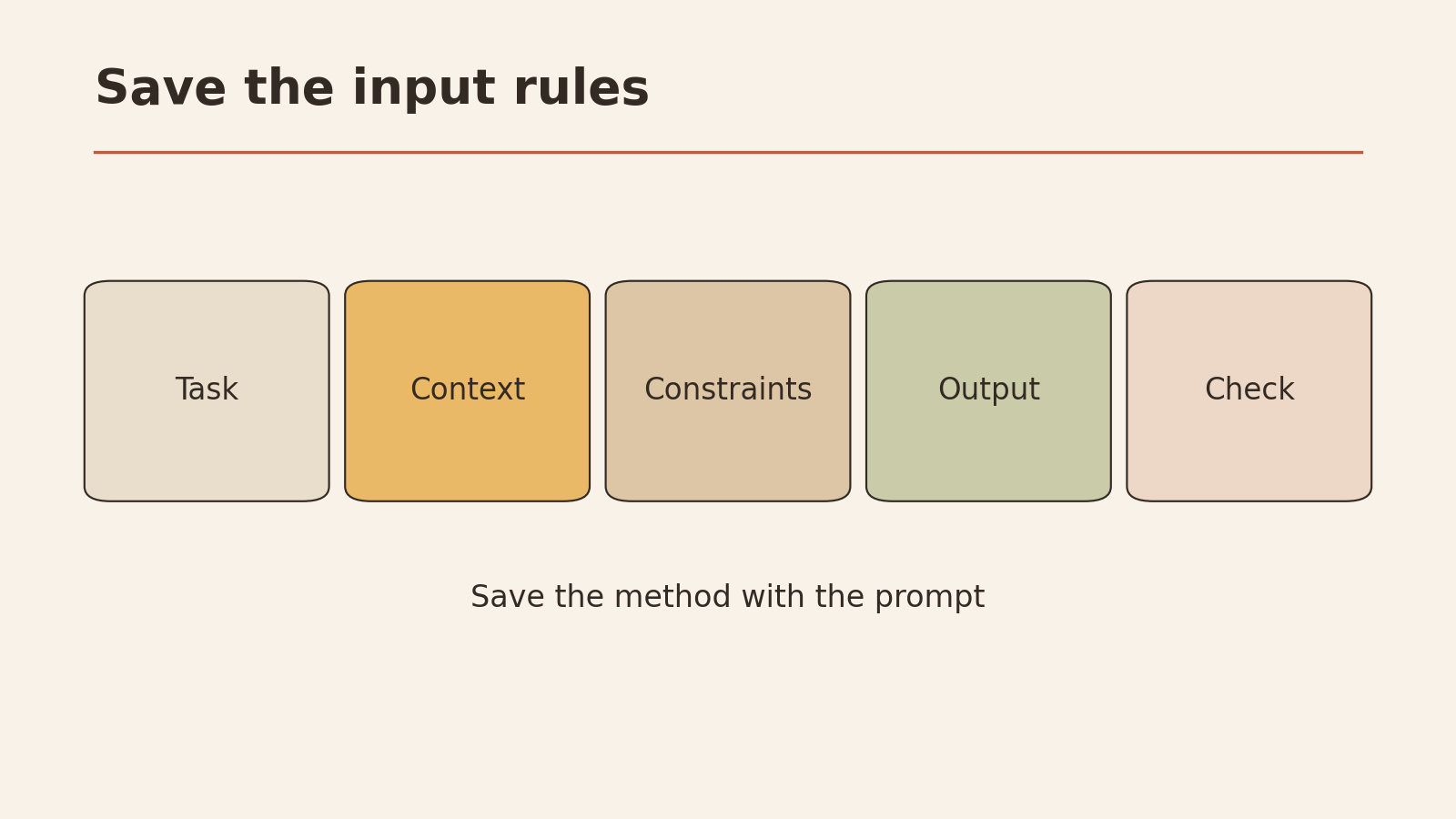
Save each prompt as a small card with four parts:
SAVED PROMPT CARD

Name: Sort items and flag conflicts
Use it for: a mixed list of emails, notes, and calendar items
Input rules:
  - Paste items as written, numbered
  - Include exact deadlines and appointment times
  - Mark your own uncertainty ("I think?") as it is
  - Leave out private details the task doesn't need
Prompt: [full text]
Output format: [table columns + lists]
Checkpoints: [the checklist for this prompt]
Last worked on: [type of input you last used it with]
Keep these cards in one place, like a note or a document. When a prompt fails, write the fix on the card too.
Your productivity prompt check card
This card was designed for this article. Fill it in the first time you use one of the prompts above.
PRODUCTIVITY PROMPT CHECK CARD

Today's items (pasted as written)?        Y / N
Private details removed?                  Y / N
Prompt used: Sort / Email step 1 / Email step 2 / Next actions

CHECK THE OUTPUT
All dates and times match my input?       Y / N
Uncertain items marked as unclear?        Y / N
Conflicts listed, nothing moved?          Y / N
Anything invented?                        Y / N -> remove it

MY DECISION
The one next action I'll do now: ____________
Who I need to ask, if anyone:   ____________
Saved this prompt with its input rules?  Y / N
Your next low-risk step
Copy five real items from today: a couple of emails, a note, and a calendar entry. Remove anything private, run the sorting prompt, and check every date against the originals. Then pick one next action and start it yourself.