Use SRT for most subtitle-editing jobs, VTT when a web player or workflow requires WebVTT, and SBV when you need YouTube’s simple SubViewer format. Each stores words and timing, but the timecode syntax differs.
A plain transcript is different: it may be easy to read, but it does not contain a complete set of caption start and end times. Renaming a file does not convert its contents.
1. Compare the three formats
| Feature | SRT | VTT / WebVTT | SBV |
|---|---|---|---|
| Usual extension | .srt | .vtt | .sbv |
| Header | No format header | WEBVTT | No format header |
| Cue numbers | Used | Cue identifiers are optional | Not used in the basic form |
| Milliseconds | Comma: 00:00:04,160 | Period: 00:00:04.160 | Period: 0:00:04.160 |
| Start/end separator | —> | —> | Comma |
| Common use | General subtitle exchange and editing | Web caption tracks | Simple YouTube caption files |
YouTube lists SRT and SBV as basic supported formats. Its WebVTT implementation supports positioning and limited styling. Do not assume every feature your subtitle editor exports will survive upload; check YouTube’s supported-file details.
2. See the same cue in each format
These are illustrative examples, not quotations from the screenshot video.
SRT
1
00:00:01,000 --> 00:00:03,000
Hello, everyone.
VTT
WEBVTT

00:00:01.000 --> 00:00:03.000
Hello, everyone.
SBV
0:00:01.000,0:00:03.000
Hello, everyone.
The comma in an SRT timecode and the comma between SBV start and end times do different jobs. Keep a blank line between cues, ensure the end comes after the start, and avoid unintended overlaps that make the result hard to read.
💡 Changing captions.srt to captions.vtt changes only the filename. A real conversion changes the header and cue syntax inside the file.
3. Keep text encoding and formatting simple
Save subtitle files as plain text in UTF-8. If accented letters or Chinese characters become garbled, check the file encoding before rewriting the words.
YouTube does not recognize styling markup in its basic SRT and SBV support. WebVTT supports positioning and a limited set of emphasis styles; TTML and broadcast formats have their own supported subsets. A feature supported by a file format in general is not automatically supported by YouTube.
If a delivery partner requires a specific format, use that requirement rather than converting everything to SRT by habit. Keep an original copy before conversion.
4. Convert timed captions into reading text
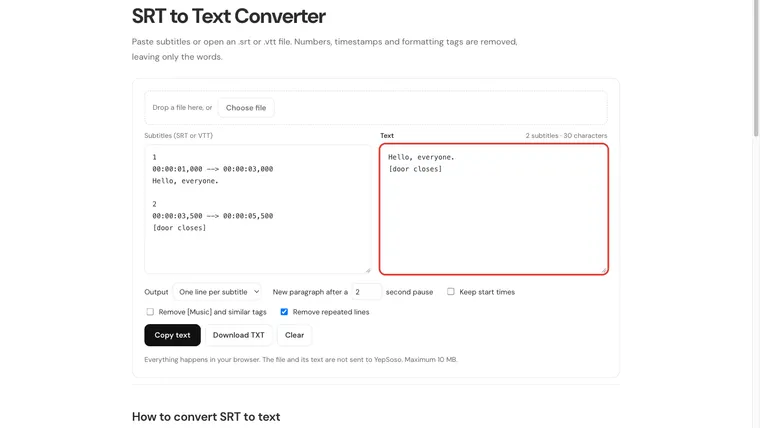
For notes, YepSoso’s SRT to Text Converter accepts SRT or VTT. Paste the file contents into Subtitles, then check the Text output. The page converts as you enter text; there is no separate “Convert” button to find.
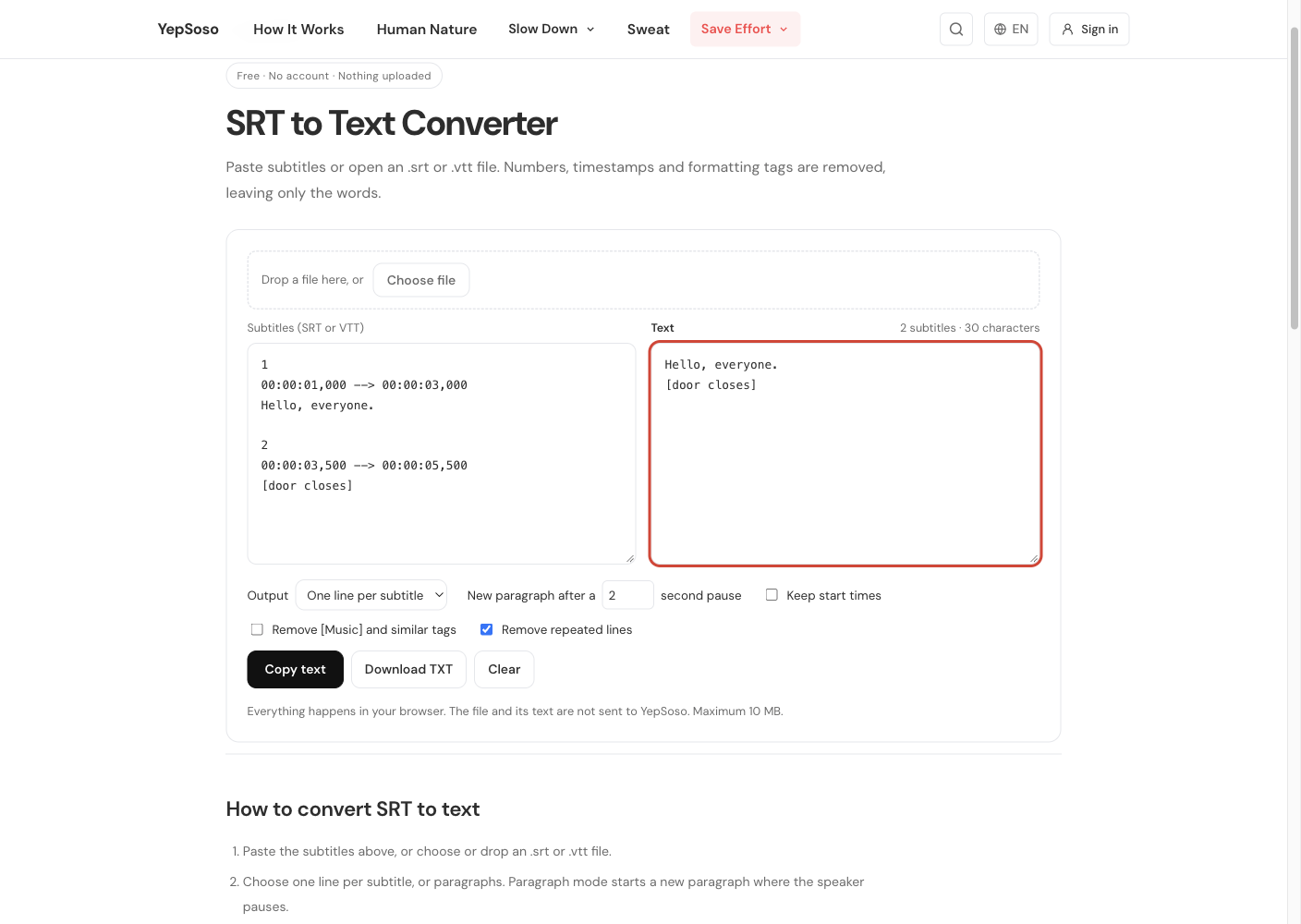
Use Copy text or Download TXT to keep the result. The tool also offers Keep start times, paragraph options, and removal of repeated lines.
If you need meaningful sound cues, untick Remove [Music] and similar tags. In the shown example, that preserves [door closes]. Check any repeated-line removal too: a repeated phrase can be genuine speech.
⚠️ A cleaned reading copy is not an accessibility caption track. Removing timestamps, sound labels, or repeated speech can remove information that caption users need.
5. Distinguish a caption file from text inside a video
An external SRT or VTT is a separate file. A selectable subtitle track can be turned on or off in a player that supports it. Burned-in text is already part of the video picture and cannot be removed with YouTube’s CC control.
When adding a timed file in Studio, use the relevant language’s Subtitles → Add → Upload file → With timing route. If the video first asks for a spoken language, follow the add-subtitles guide.
After upload, watch spoken sections at the start, middle, and end. A file that parses successfully may still have the wrong words, language, or timing. For an existing YouTube track, start with the download guide; for corrections, use the editing guide.