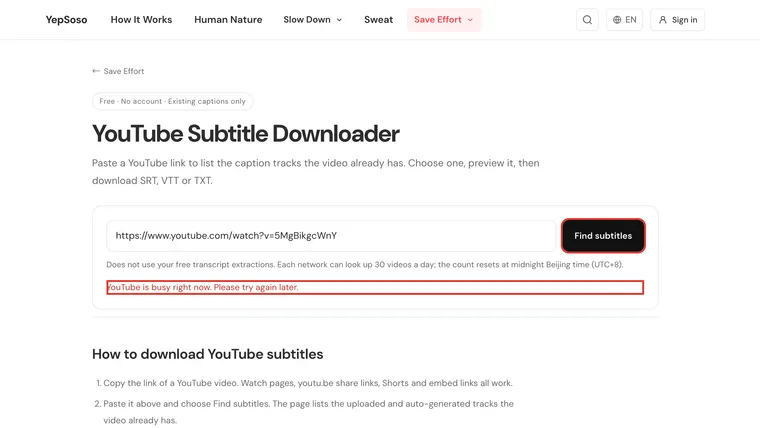
To download YouTube subtitles, first decide whether you own the video. Channel owners can use YouTube Studio. Viewers need a separate downloader, or can copy text from the transcript panel. The ordinary watch page does not provide a universal “Download SRT” button.
Choose SRT for most editing jobs, VTT when a web player requires it, or TXT for reading. Check the language and the file’s actual contents before using it.
1. Download a track from your own channel
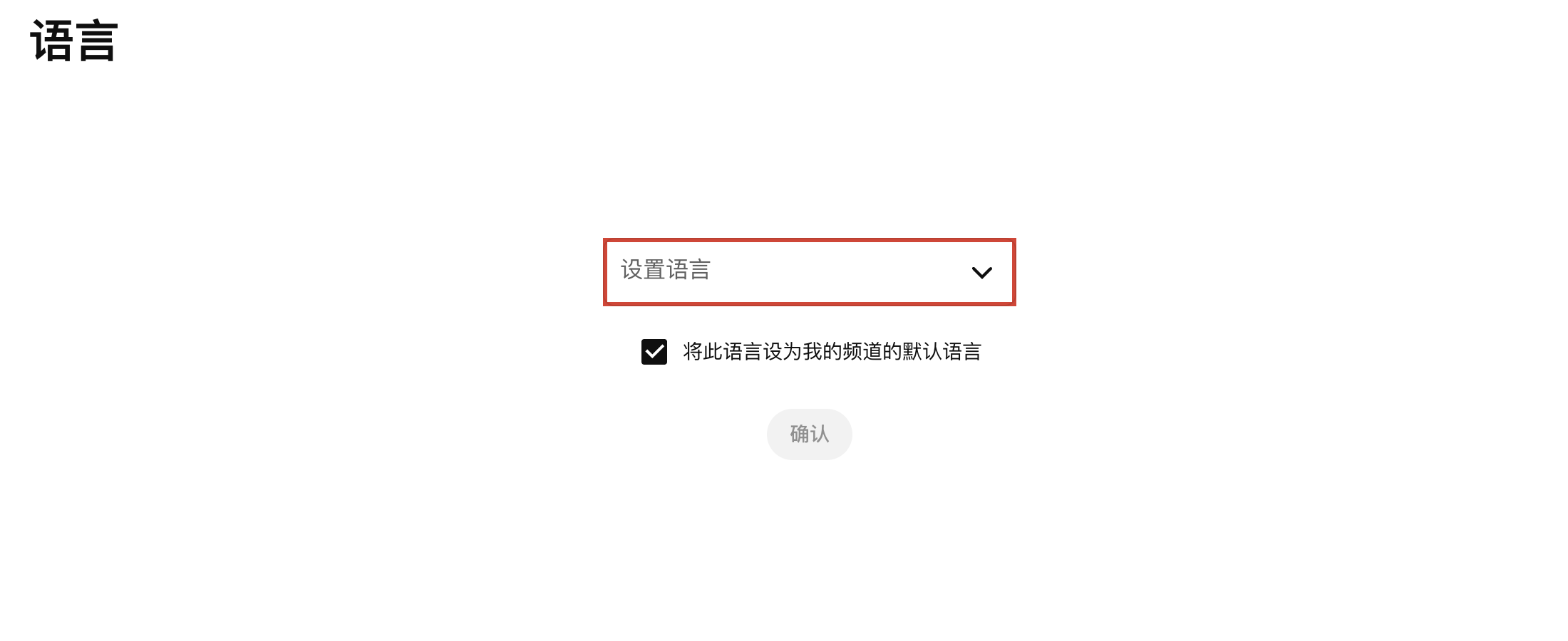
Open YouTube Studio and choose Languages / 语言 in the left menu. Some accounts and the official subtitle instructions call this section Subtitles. Open the video, then find the language and its subtitle track.
For an existing track, open its Edit action, then the editor’s Options menu and Download subtitles. This is the route documented in YouTube’s caption-editing help. The available format choices depend on the interface; check the extension of the downloaded file.
If Studio asks for a video language first, set the language actually spoken. Check whether the option to make it your channel default is selected before confirming. That setting is separate from choosing a language to download.
If there is no track, there is nothing to download yet. Add captions or wait for automatic processing. A read-only account may also lack the editor controls.
2. Download an existing track from a public video
For someone else’s public video, start by opening the player’s gear → Subtitles/CC / 字幕. Note the language you need and whether it says auto-generated.
Then open a downloader such as YepSoso’s YouTube Subtitle Downloader:
- Paste a single video URL.
- Click Find subtitles.
- If a track list loads, choose the language and check its preview.
- Choose the offered file format and save it.
- Open the file and compare it with the video.
💡 The downloader extracts captions that already exist. It does not create missing captions from audio. For that, use a transcription workflow.
The screenshot below shows the actual lookup button and a possible failure message. A busy response can happen even when the video’s own player lists captions.
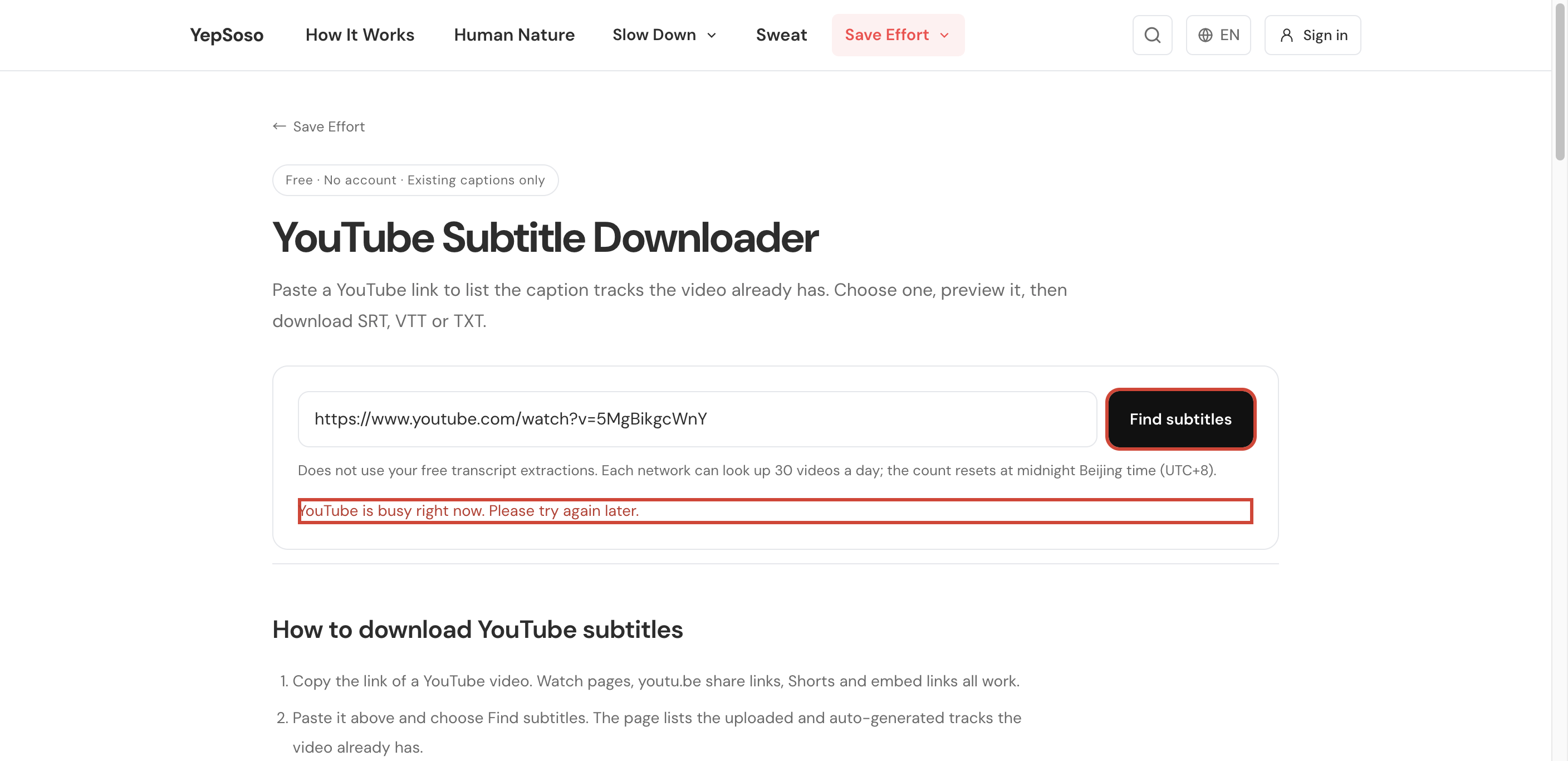
If lookup fails, use YouTube’s transcript panel for a few lines, try later, or use your own Studio download where available. A public link that plays in a browser is not a guarantee that an outside tool can retrieve its captions.
3. Pick the right format
| Format | Use it for | What to preserve |
|---|---|---|
| SRT | Subtitle editors, video editors, translation | Cue numbers, start and end times, words |
| VTT | Web players that expect WebVTT | WEBVTT header, cue timing, supported settings |
| TXT | Notes, searching, reading | Words; optionally keep start-time references |
TXT with a few time references is useful for notes, but it is not a replacement for a timed caption file. Keep the SRT or VTT if you may edit or re-upload captions later. Renaming a file does not convert its format; see SRT, VTT, and SBV.
4. Check the download before relying on it
Compare a spoken passage near the beginning, middle, and end. Confirm the language, names, and timing. An earlier final caption can be correct if the video ends with music or silence; check where the last speech occurs rather than comparing only with total video length.
A creator-provided track may be more carefully reviewed than an automatic one, but the label alone does not guarantee accuracy. Also check whether you saved a translation instead of the original.
⚠️ Being able to download a track does not establish permission to republish it. Keep the video title, URL, language, and source with your copy.
For text you only need to read, open the transcript panel. If no usable track is available, follow the no-captions transcription guide.