A YouTube Short can contain a selectable caption track, text drawn into the picture, or both. Add or edit the selectable track in YouTube Studio. Add visual text in the phone’s Shorts editor or your video-editing app before exporting.
The CC control only affects a caption track. It cannot remove words that are already part of the picture.
1. Decide which kind of text you need
| Text type | What the viewer can do | Where you manage it |
|---|---|---|
| Selectable captions | Turn them on or off; use available language and appearance options | YouTube Studio |
| Text inside the video picture | Read it as part of the image; cannot switch it off with CC | Shorts editor or the original editing project |
| Both | Use the caption track while visual text remains on screen | Review both together to avoid overlap |
A short title, an important word, and a full word-for-word caption track serve different purposes. You can use visual text for emphasis while keeping a complete caption track for the spoken content.
2. Add or correct the selectable track in Studio
Open YouTube Studio on a computer, choose Languages / 语言 or Subtitles in an older layout, then select the Short.
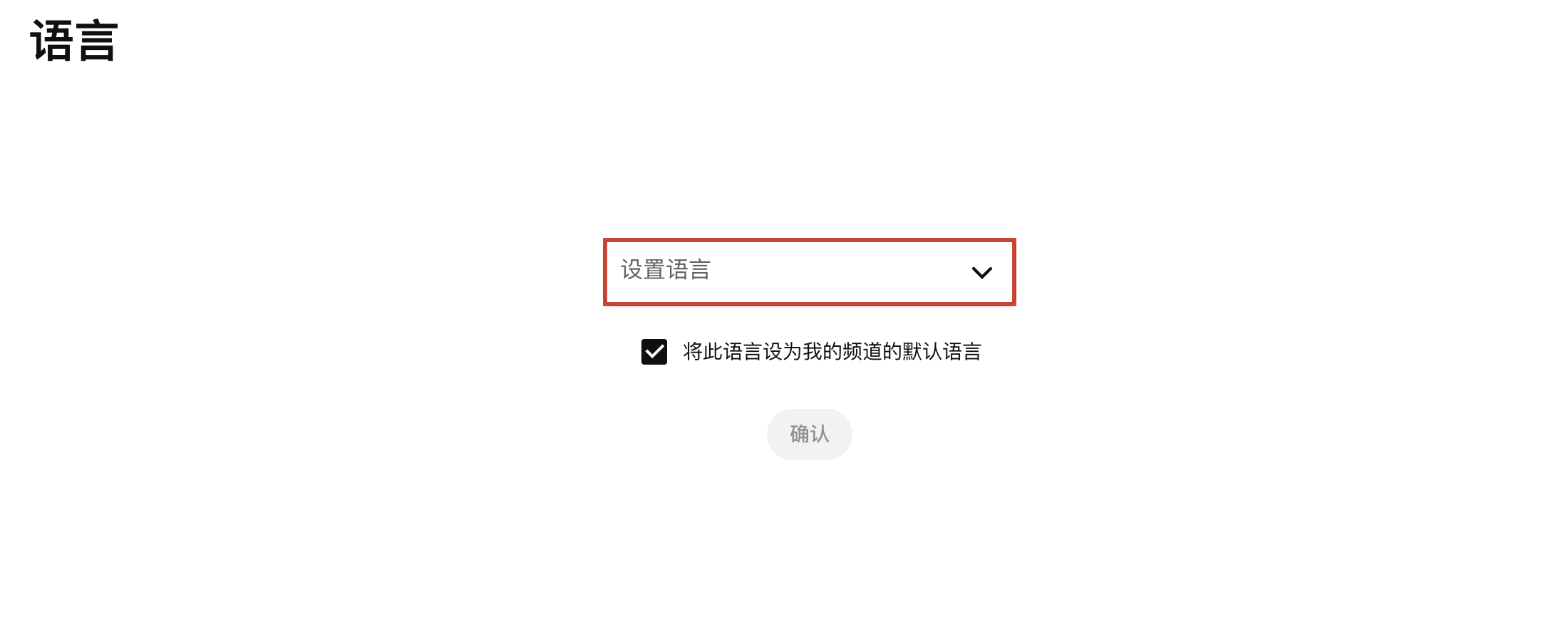
If asked to set the spoken language, choose the actual language in the audio. Untick the channel-default checkbox if you only mean to set this Short’s language.
Then find the language’s Subtitles entry. Use Add to create a track, or the appropriate edit action for an existing one. A timed file uses Upload file → With timing. See the add-subtitle guide and the editing guide for those actions.
YouTube supports automatic captions on Shorts in its supported languages, but they may take time to appear and can contain errors. The current availability rules are in YouTube’s automatic-caption help.
💡 A Short with large words already visible in the picture may still have no selectable caption track. Check the actual caption controls rather than judging from the picture.
3. Add text in the phone’s Shorts editor
The next steps concern the phone editor, which is different from the desktop Studio screenshot.
After recording or selecting your Short, open its editing screen. Use Text to add words. Where the editor offers Timeline, use it to control when each text element appears and disappears.
YouTube describes these tools in Enhance your Shorts and Shorts editing tips. Available buttons can vary by app version and account. If a separate automatic-caption tool is offered in your editor, review its output before relying on it; do not assume every account has that button.
For words rendered into the picture, fix spelling and placement in the editing project before final export. Changing the CC track later does not repair burned-in text.
4. Check the real phone layout
Shorts share the screen with navigation, reactions, comments, channel information, and descriptions. Text that fits an empty editing canvas may collide with those controls.
Use the editor’s placement guides when available. Keep important words away from covered edges, avoid faces or existing labels, and use enough contrast to read over changing footage.
Watch the result at normal speed on a phone. Check that a viewer has time to read the words and that a sentence does not disappear before its meaning is clear.
5. Review the captioned result separately
Review spoken words, names, numbers, speaker changes, and meaningful sounds. Automatic recognition is especially worth checking where music overlaps the voice.
⚠️ Visual text and a selectable caption track can overlap. Check the Short with captions both on and off; do not remove the complete accessible track merely to hide a layout collision.
If the Short is not ready for public release, use the visibility or preview options appropriate to your workflow while reviewing it. Confirm the result as a viewer instead of assuming a saved caption file will display correctly.
For sound cues and speaker labels, see the accessibility guide. For a caption or transcript that does not appear, use the troubleshooting guide.