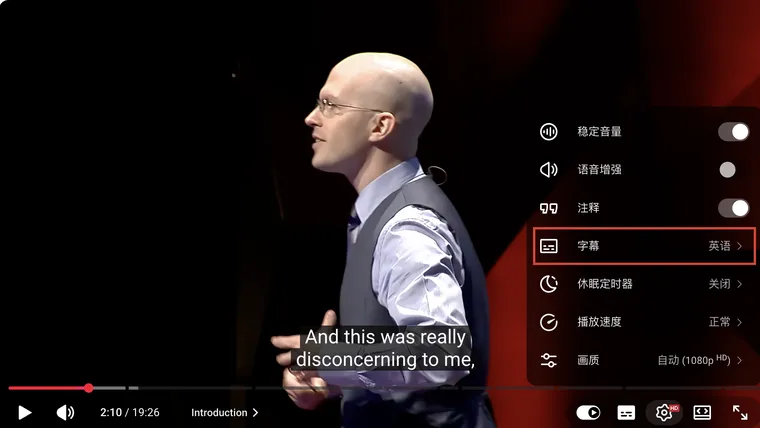
If YouTube subtitles are not working, first check one video or several. Reveal the player controls, open gear → Subtitles/CC, and select an available track. Then compare the same video on another device or in a private window. This helps narrow the cause; it does not prove which component is at fault.
A missing control, an empty transcript panel, and a failed third-party download are different problems.
1. Check the main video and its caption list
Wait until any advertisement has ended, move the pointer over the main video, and reveal the controls. The caption icon may be a small rectangle rather than the letters CC.
Open gear → Subtitles/CC. In the screenshot, the menu item is 字幕.
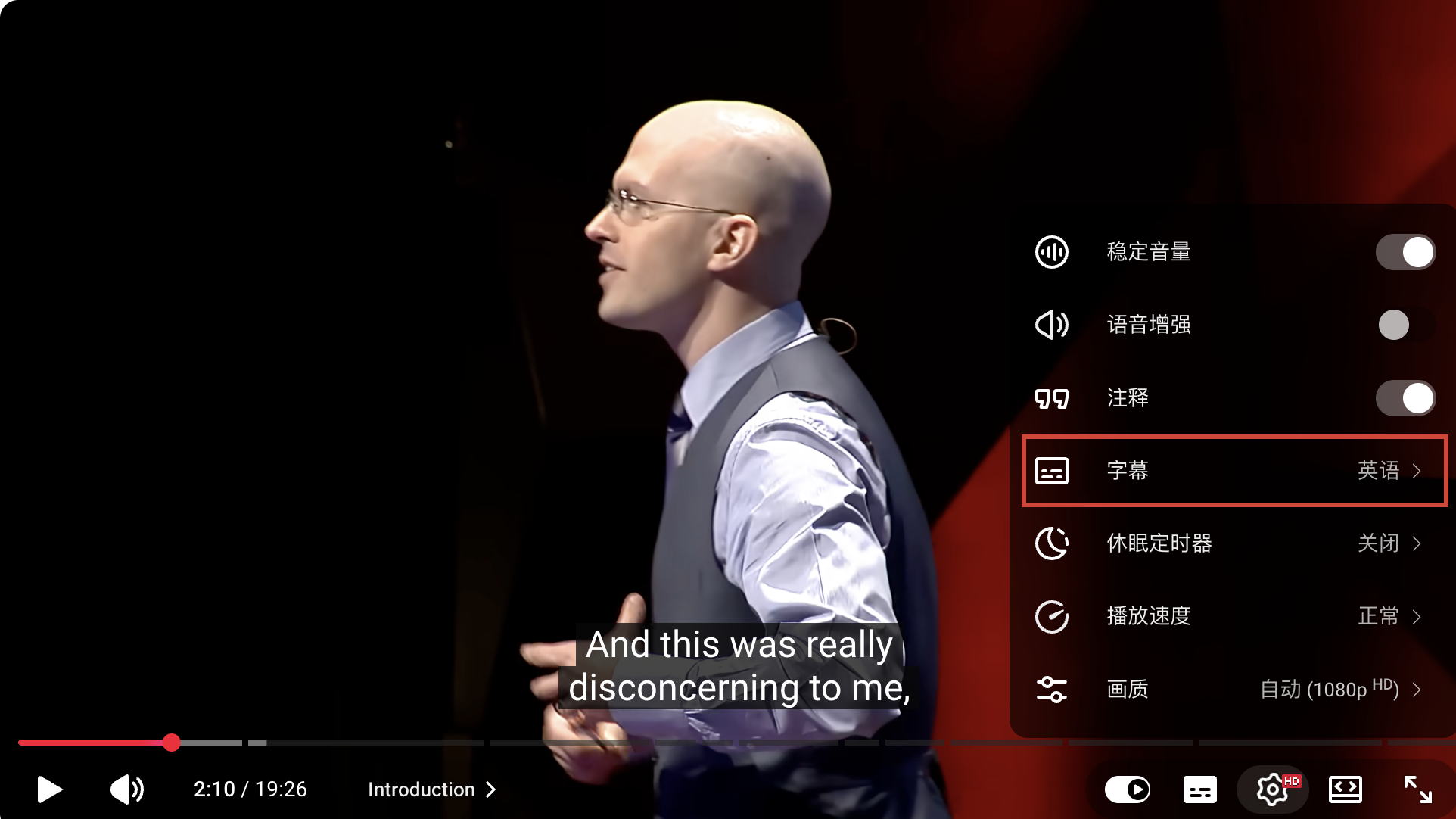
Choose a listed language and play a spoken section. Captions may be correctly absent during silence, music, or a section without dialogue.
If no usable track appears, try a video whose captions you have seen working. Automatic captions can be delayed after an upload or unavailable because of language, audio, or processing limits. YouTube lists these cases in its automatic-caption help.
2. Compare results without jumping to a conclusion
| What you observe | What it suggests | Next check |
|---|---|---|
| A second video works | The problem may be specific to the first video or track | Check its languages and a different spoken passage. |
| The same video works on a phone | Something differs in desktop playback | Compare browser settings, extensions, and selected track. |
| It works in a private window | The signed-in profile, storage, or extensions may be involved | Change one of those factors at a time. |
| It fails in several environments | The video, access conditions, connection, or service may be involved | Keep the video link and exact symptoms for a report. |
A private window changes several things at once and may still allow some extensions. It is a comparison, not a diagnosis by itself. A video playing successfully also does not guarantee its caption requests will succeed.
3. If captions are on but invisible, check their appearance
On desktop, open gear → Subtitles/CC → Options / 选项. Check font color, size, and opacity. Scroll inside that menu to find Reset / 重置 if the style is difficult to recover.
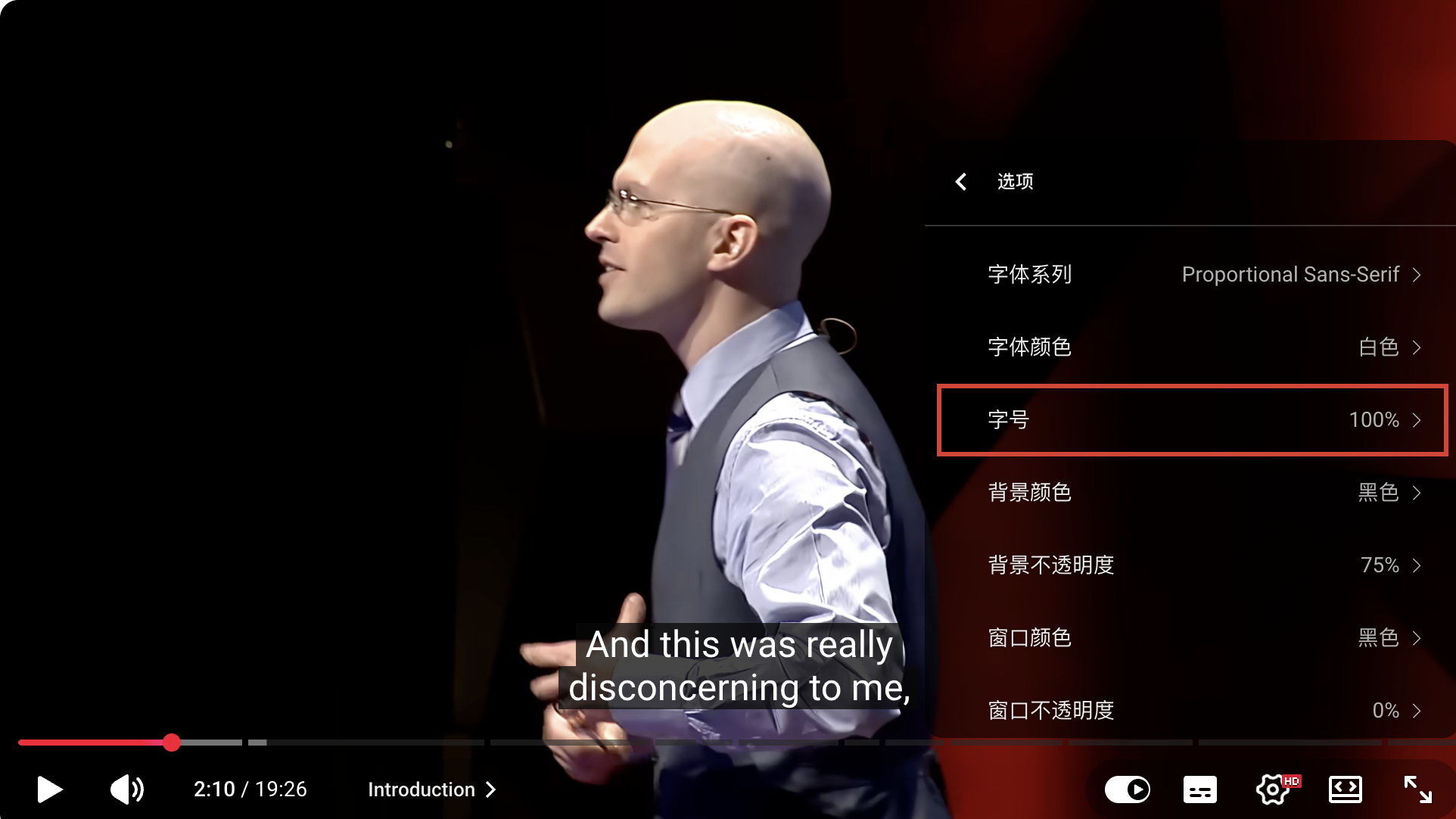
If words were burned into the video picture, these settings will not change them. On iPhone and iPad, caption styling is in the system’s Accessibility → Subtitles & Captioning settings; see YouTube’s device-specific guidance.
💡 If original-language captions work but the translation fails, troubleshoot translation separately. Check the source track and Auto-translate rather than assuming all captions are broken.
4. Separate caption playback from transcript and downloader failures
The transcript panel is opened below the description: More → Transcript → Show transcript. This Chinese layout uses 更多 → 转写文稿 → 内容转文字. Opening the panel successfully does not mean its text has finished loading.
A third-party downloader is a separate request path. For example, a “YouTube is busy” message from a downloader does not mean the video has no caption track. Check the native language menu before starting fresh speech recognition.
For those tasks, use the transcript guide or the subtitle-download guide.
5. Try small fixes before clearing stored data
- Reload the video and reselect the intended caption track.
- Compare another known-captioned video.
- Restore a readable caption style.
- Temporarily disable one relevant extension, then test again.
- Update or restart the affected app or browser.
- Consider clearing YouTube’s stored site data only after noting that it can sign you out and reset preferences.
⚠️ Do not clear all browser data repeatedly. If the same failure persists elsewhere, another cache clear is unlikely to explain it.
For a useful report, record the video URL, device, app or browser version, caption language, exact message, and whether another environment worked. Use YouTube’s Send feedback option where available. Report observations rather than calling a multi-device failure a confirmed platform-wide outage.