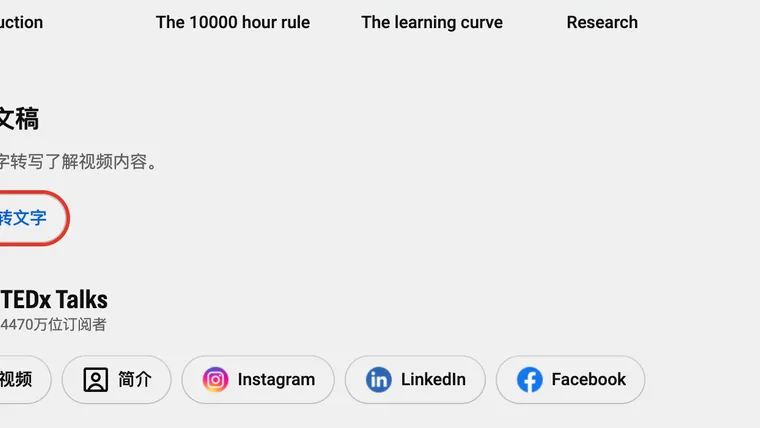
To get a YouTube transcript on a computer, open the video, expand the description below its title, then scroll down to the Transcript section and click Show transcript. The description is the box with the view count, date, and a few lines about the video. You do not need to open a separate “description page.”
The button’s wording can vary. In the Chinese desktop interface shown below, the section is called 转写文稿 and the button says 内容转文字. Looking only for “显示字幕” can send you to the wrong place.
💡 The route is: video title → description box → More → Transcript → Show transcript. The CC button inside the player switches captions on the video; it does not open the text list.
1. Expand the description below the video title
Open a regular YouTube video page in a desktop browser. If you are watching a Short, start with a regular video to follow these screenshots.
Below the title and channel name, find the box showing the view count, upload date, and a short description. Click More at the end of that description. In the screenshot, the same button is labeled 更多 and marked in red.
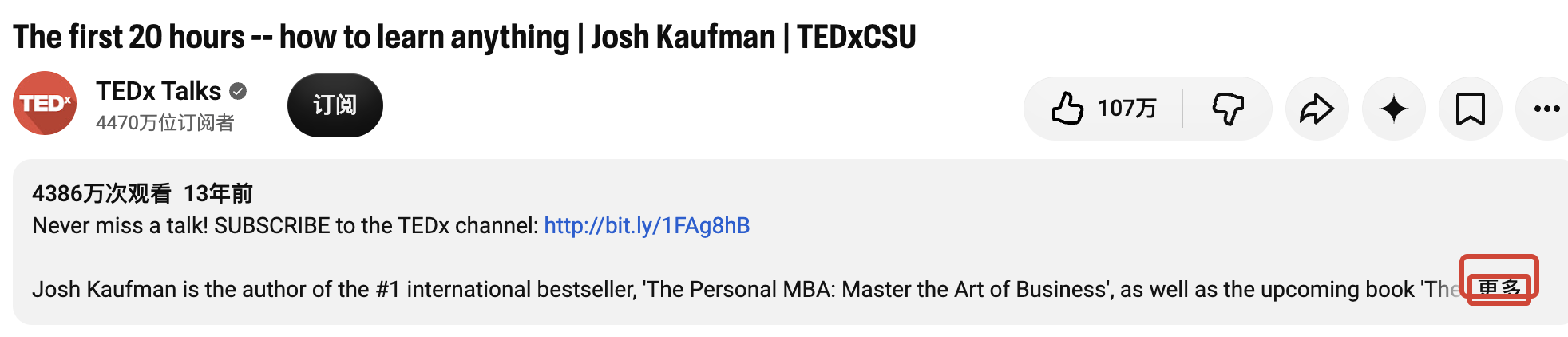
Use the More button inside the description. The three-dot menu beside the share button is a different control.
2. Scroll down to the transcript button
Once the description expands, keep scrolling within the video page. The transcript section may sit below a long description and a row of video chapters, so it may not be visible immediately.
Find the Transcript heading and click Show transcript. In the Chinese interface below, look for 转写文稿, then click the blue 内容转文字 button marked in red.
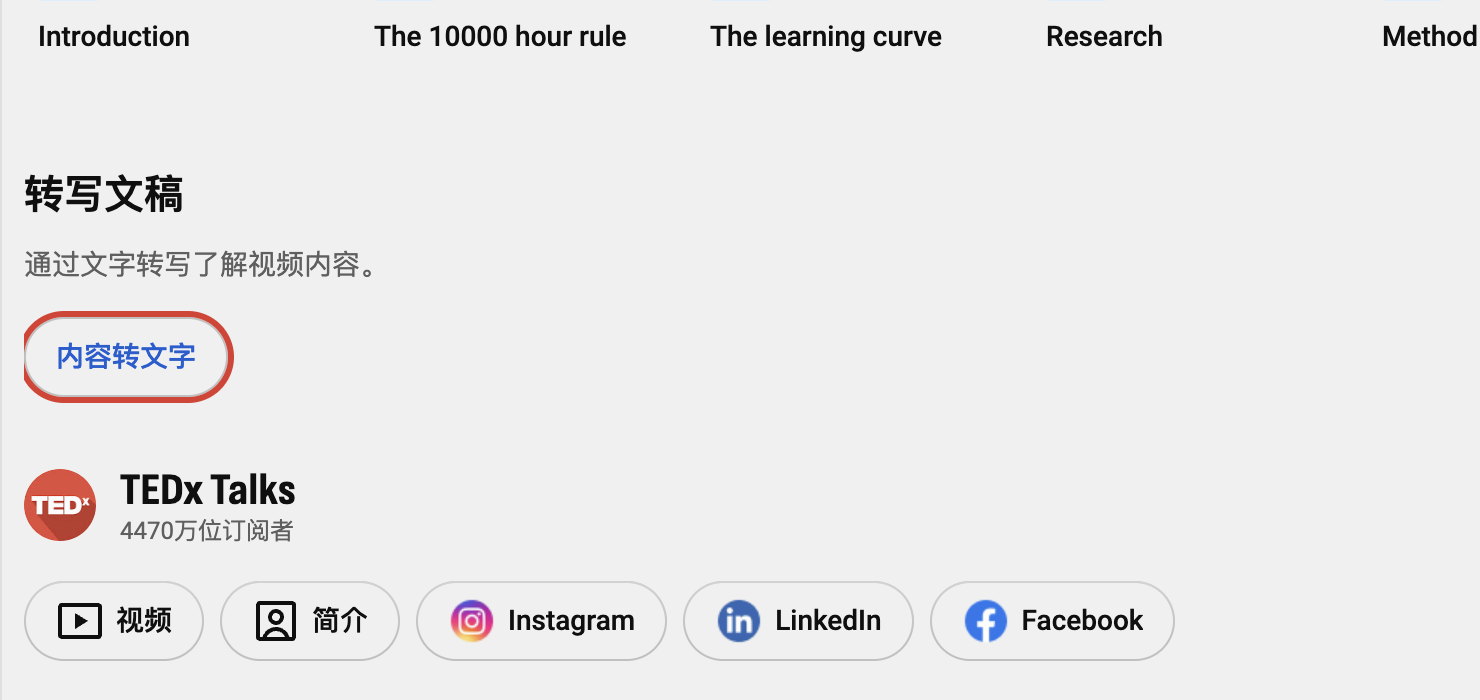
These screenshots use Josh Kaufman’s TEDx talk, “The first 20 hours — how to learn anything”. Your video’s description may be much shorter or longer.
YouTube’s official transcript instructions use the English label Show transcript. Its Chinese help page uses 显示转写文稿; the live interface captured here uses 内容转文字. Follow the section and its position if the wording differs.
3. Read the transcript and copy the lines you need
When the transcript loads, YouTube displays caption text with timestamps. On a wide screen, this usually appears in a side panel. If the panel has separate Chapters and Transcript tabs, select Transcript.
Click a line to move the video to that moment. This makes it easier to hear the words again before quoting them, as described in YouTube Help.
To save a passage, drag across the text to select it, then press Ctrl+C on Windows or Command+C on a Mac. Paste it into your notes and check the result. Timestamps may appear on separate lines.
Keep a timestamp with each quote you plan to use. If you want a cleaner reading copy, remove the timestamp lines after saving the original.
4. Save enough information to find the video again
A copied paragraph is hard to check later if you forget where it came from. Put a short source note above the text:
Title: [video title]
Channel: [channel name]
Video URL: [full video link]
Caption language: [language shown in the transcript]
Caption type: [auto-generated or creator-provided, if shown]
Passage starts at: [timestamp]
Saved on: [date]
Check names, numbers, and important quotes against the audio. Automatic captions can mishear words. If you ask AI to summarize or tidy the text, label that version as notes and keep the copied transcript separately.
5. If you cannot find the button, check what is missing
A missing button alone does not prove that the video has no captions. First expand the full description and scroll beyond any chapters. Also check whether your interface uses a different label.
| What you see | What to check next |
|---|---|
| A short description with More at the end | Expand it before looking for the transcript section. |
| A long description or chapter cards | Scroll farther down the page. |
| A transcript panel with Chapters selected | Switch to the Transcript tab. |
| A transcript panel that keeps loading | The panel opened, but its text has not loaded. Refresh the video and try again. |
| No transcript section | Check the player’s caption controls to see whether a caption track is available. |
⚠️ Words printed directly into the video picture are not necessarily a caption track. You may be able to read them on screen without having selectable transcript text.
YouTube provides transcripts for videos with captions. If a caption track exists but the panel is unavailable, see what to check when a YouTube transcript is missing. If the video has no captions, getting a transcript requires converting its audio to text; see how to transcribe a YouTube video with no captions.
For a few quotes, copying from the panel is enough. If you need an entire transcript as a TXT file or timed subtitles as an SRT file, follow the separate YouTube subtitle download guide. Opening the transcript panel is not itself a file download.