If a YouTube video has no usable captions, getting its words requires speech recognition: a tool listens to the audio and creates new text. This is different from downloading or copying a caption track.
Before starting, check the native caption language list and the transcript section. A missing button or a busy downloader alone does not prove that captions are absent.
1. Check for an existing track first
On a regular desktop watch page, reveal the controls and open gear → Subtitles/CC / 字幕. Check whether any language track is available.
Then expand the description with More / 更多 and look for Transcript / 转写文稿. The opening button in this layout says 内容转文字.
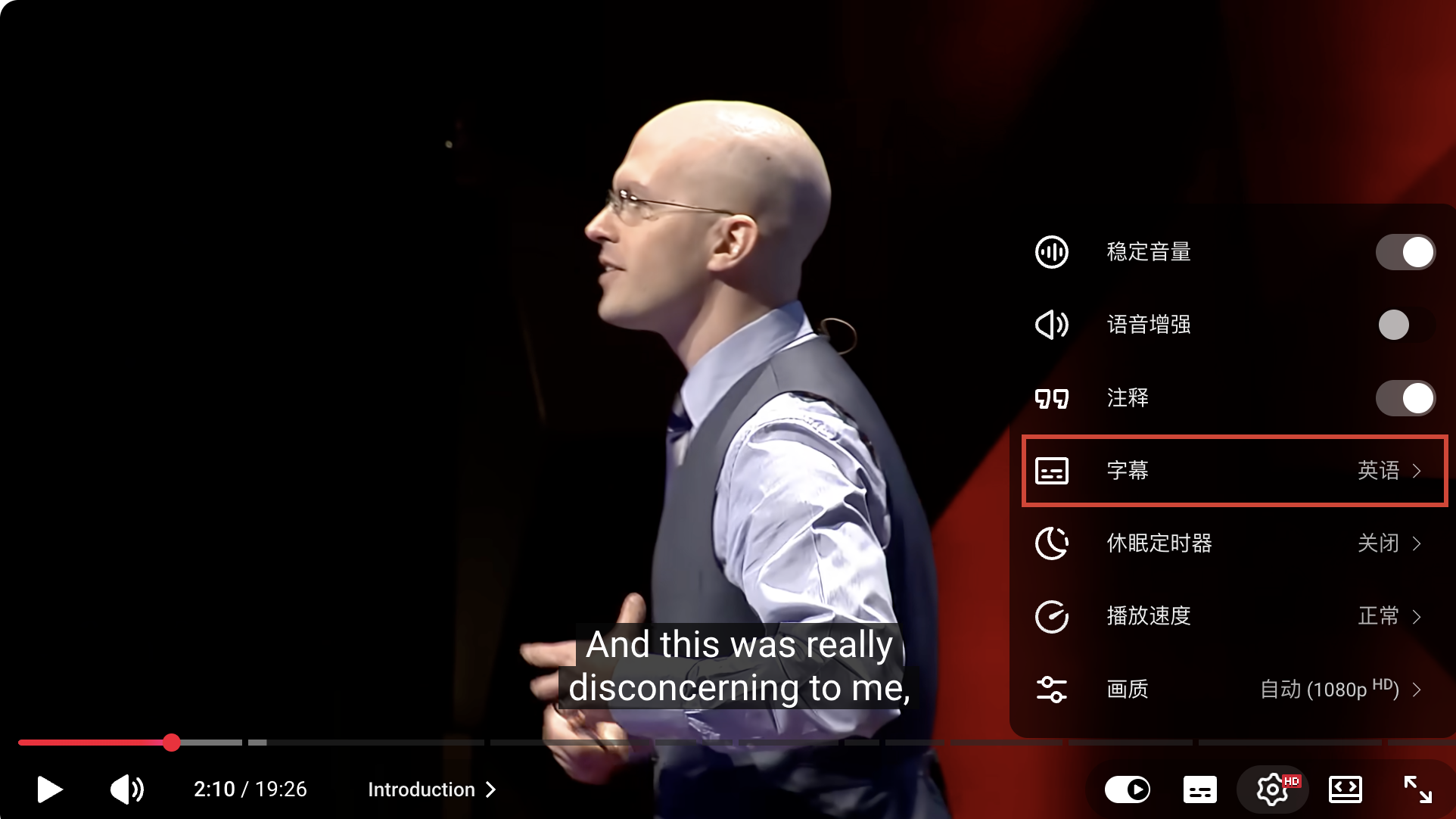
A track in another language, a hidden control, and a transcript panel that will not load are different from a video with no usable caption track. If a downloader fails, compare with YouTube’s own controls.
For a fresh upload, automatic captions may still be processing. YouTube also lists unsupported languages, poor sound, overlapping speech, and other reasons they may not appear in its automatic-caption help.
2. Decide how the audio will be processed
| Route | What you provide | What to check |
|---|---|---|
| Local speech recognition | An audio or video file you can use | Your computer’s capacity, supported languages, and whether every processing step stays local |
| Online service | A supported public video URL or an uploaded media file | Access restrictions, cost, processing terms, and result formats |
| A creator’s own caption workflow | A matching transcript or timed subtitle file | Alignment, review, and publication in Studio |
An app installed on your computer can still send audio or text to an online provider if you select a cloud engine. Check the chosen processing mode rather than relying on the word “desktop.”
For local software such as pyVideoTrans, follow its current installation instructions for your operating system. Dependencies and supported engines change; do a short test before processing an entire recording.
💡 A caption extractor copies text that already exists. A speech recognizer creates text from audio. Check which job a tool actually performs before waiting for a missing transcript.
3. Check an online tool’s actual starting action
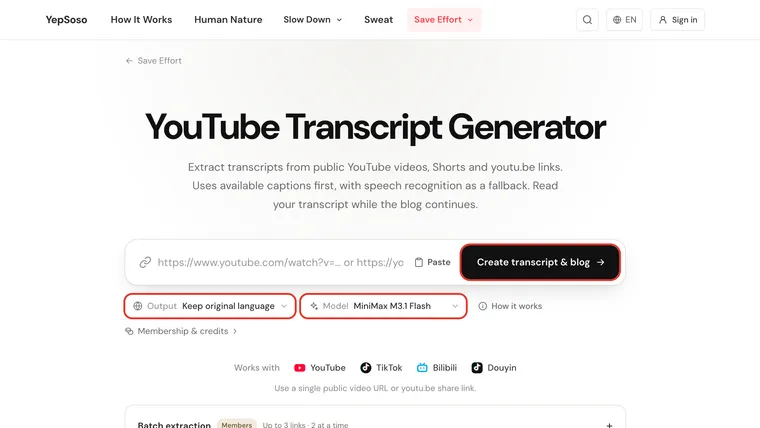
YepSoso’s YouTube Transcript Generator says it uses available captions first, with speech recognition as a fallback. The current page has Output and Model selectors, followed by Create transcript & blog.
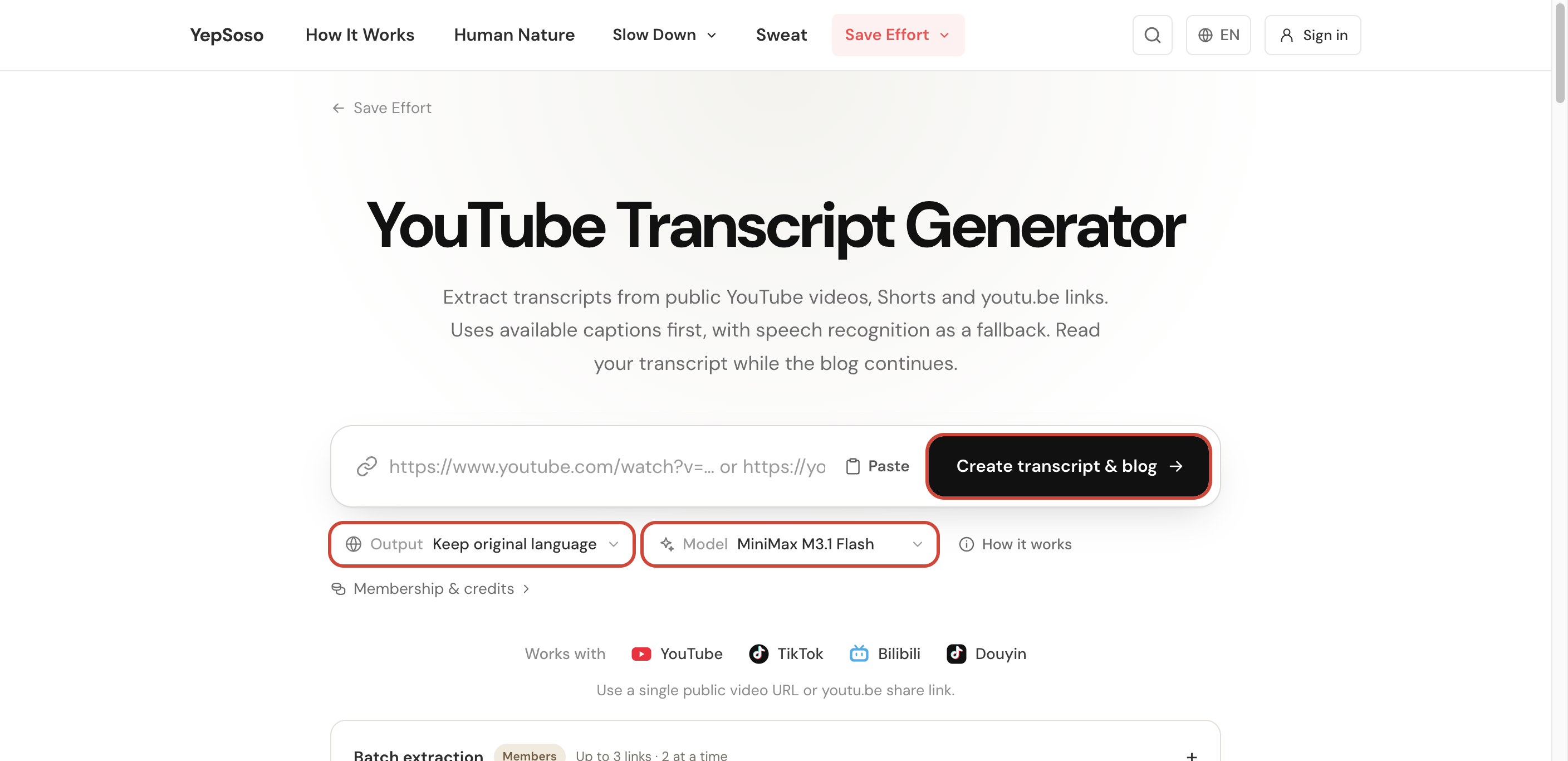
To use that route:
- Paste one supported public video URL.
- Choose the desired output language; keep the original when checking recognition accuracy.
- Review the selected model and the current membership or credit conditions.
- Start the task only when that combined transcript-and-blog workflow matches what you want.
- Check the returned transcript before relying on the generated article.
A form or a successful request is not proof that a complete transcript was produced. Private, restricted, unavailable, or partially processed media may fail in outside services even when your signed-in browser can play it.
4. Test a short spoken section
Where the tool allows it, start with a short sample. Set the actual spoken language when that choice is available.
Listen for names, technical terms, negation, and numbers. If speech overlaps or music is loud, recognition can omit words or invent plausible ones. Cleaner audio can help, but it does not guarantee a correct result.
For long recordings, confirm that processing has finished before downloading. Check whether the result covers the whole spoken portion rather than only an initial preview.
5. Check coverage and timing against the audio
Compare spoken sections near the beginning, middle, and end. Investigate gaps where people were speaking and repeated lines over silence or music.
Do not judge completeness only from the final timestamp. A video may end with a long silent or musical outro. Empty output can also be legitimate if the recording contains no speech.
Speaker labels are another estimate. Confirm who is speaking before replacing generic labels with real names.
⚠️ Speech recognition hears audio. It cannot recover a chart, a code edit, or text that was shown silently on screen. Review the video for visual information the transcript omits.
Keep an untouched result with the title, URL, language, and save date. Make corrections in a separate working copy. If you will upload the captions, check the timed file and review its text and timing before publication.