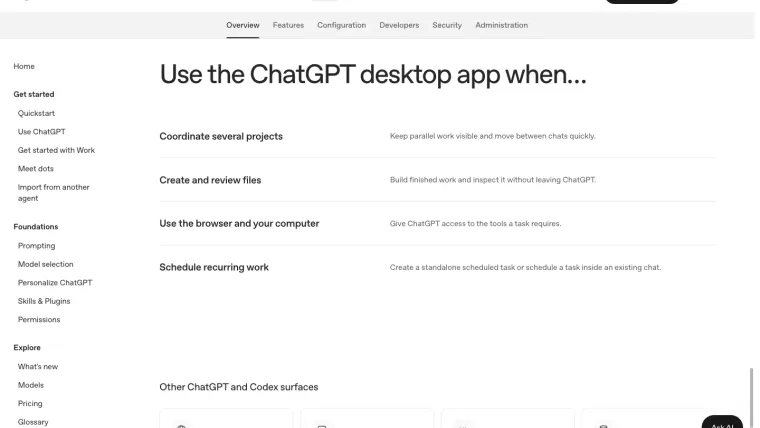
A Codex automation needs more than a prompt that says “every morning.” It needs an actual scheduled task, an available execution environment, permission to use the required files or tools, and a place where you can inspect each run. Test the prompt manually before scheduling it, then check the first results and pause the task if they are wrong. This guide follows current official scheduled-task documentation. We prepared a three-line practice input and a bounded prompt, but did not create or execute a recurring task. The example therefore explains setup and acceptance checks without claiming a successful scheduled run.
Distinguish the schedule from the work
The schedule decides when a task starts. Its prompt or attached skill decides what the task does. A Hook reacts to an agent event, while codex exec runs a non-interactive task from a command. Neither is automatically a recurring schedule.
OpenAI’s scheduled-task guide places management in Scheduled on supported web and desktop surfaces. The CLI and IDE extension do not provide that Scheduled management interface. They can still help prepare and test the underlying prompt or script.
Availability depends on the account, plan, and workspace settings. Verify the controls offered in your installation rather than treating an old screenshot as proof that the feature is enabled.
Test the prompt before creating recurrence
Our practice input contains three names: Brake tune-up, Flat tire fix, and Chain care. Its intended result is a count of three plus those exact names. The task reads one file and reports in the same chat.
Read only items.txt in this practice folder. Count nonempty lines and
report the count and names in this chat. Do not edit files, browse,
use connected apps, send messages, or start other agents. If the file
is missing, identify the missing path and stop.
Run that prompt manually in the intended environment. Check the file path, count, and names. Then test a missing-file case so the failure is recognizable. Do not schedule a prompt whose result you cannot distinguish from a plausible guess.
For a repeated multi-step workflow, a Skill can hold stable instructions. Keep the schedule itself readable: its purpose, input location, output location, timing, and failure behavior should be clear.
Choose the run location and timing
Local scheduled tasks need the computer on and the app running when they require local files. A web task cannot directly read a folder on your laptop. Supply its materials through the supported project, upload, or connected-service route instead.
For local Git projects, choose deliberately between the current project directory and a separate worktree when the interface offers that choice. A separate checkout can lack uncommitted files or dependencies. See worktrees before depending on their isolation.
Specify the timezone and cadence in plain language. For example, “weekdays at 9 a.m. America/New_York” is less ambiguous than “tomorrow morning” for a recurring task. Review the saved schedule shown by the product before activating it.
Create and inspect the saved task
Ask the supported web or desktop interface to create the scheduled task with the tested prompt, chosen project, timing, and output destination. Use Scheduled to inspect the saved task and its status. Confirm that the saved prompt and run location match the manual test.
If possible, keep the practice task paused until you are ready for a one-off check. Use the available test or run control, inspect the resulting output, and distinguish a queued run from a completed one. Control labels can vary by surface; rely on the current Scheduled view rather than an invented CLI scheduling command.
Review the first few actual runs. A task being listed as active proves that recurrence is configured, not that it produced the intended output.
Edit, pause, and stop it deliberately
When changing a task, inspect the saved prompt, project, model options, schedule, and active state together. Preserve fields you do not intend to change. Retest after changing an input path or a required tool.
Pause recurrence when the output is wrong, an account connection expires, or the input is temporarily unavailable. Confirm the paused state in Scheduled. If a run is already executing, inspect its separate status; pausing future recurrence does not by itself prove that the active run stopped.
For a temporary practice task, delete or disable it using the supported management control and verify it is no longer active. Preserve any result you need before removing the task. This article did not create a schedule that needs cleanup.
Diagnose a failed run from its output
Check whether the run started, whether its environment was available, and which step failed. Missing input, rejected tool access, an expired connection, and an incorrect answer require different repairs. Preserve the redacted error and compare the run’s context with your successful manual test.
Do not solve a narrow missing-file problem by granting unrestricted access. Supply the intended file or correct the path, then repeat the check. Use the permissions guide to understand unattended tool boundaries.
On eligible plans, OpenAI also documents supported app-event triggers on web and mobile. Those need their own connected-account authorization and differ from a time schedule. This guide did not configure event triggers or contact another service.
The completion check is concrete: the saved task has the intended timing and environment, a real run produces the expected output, failure is visible, and pause or removal leaves the task inactive. Our current evidence stops at the prepared practice case; scheduled execution remains untested.