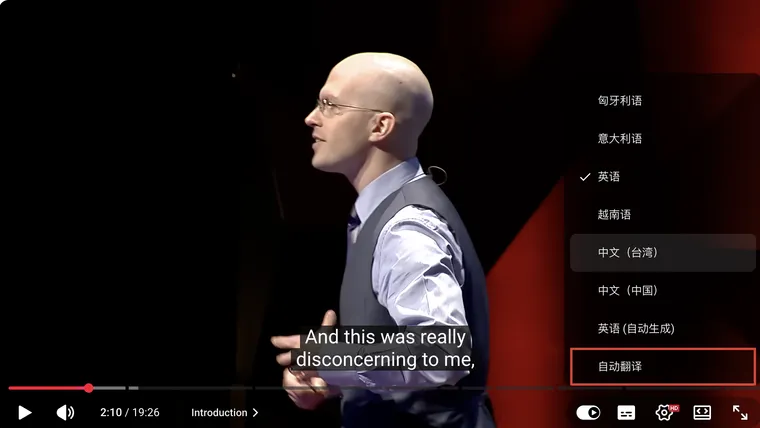
To translate YouTube subtitles on a computer, open gear → Subtitles/CC, select a usable source track, then choose Auto-translate and your target language. If the creator already supplies that language, you can select its track directly.
In the Chinese interface below, 字幕 means Subtitles/CC and 自动翻译 means Auto-translate. This changes displayed text; changing an audio language is a separate action.
1. Open the caption language menu
Reveal the player controls and click the gear icon. Choose Subtitles/CC / 字幕.
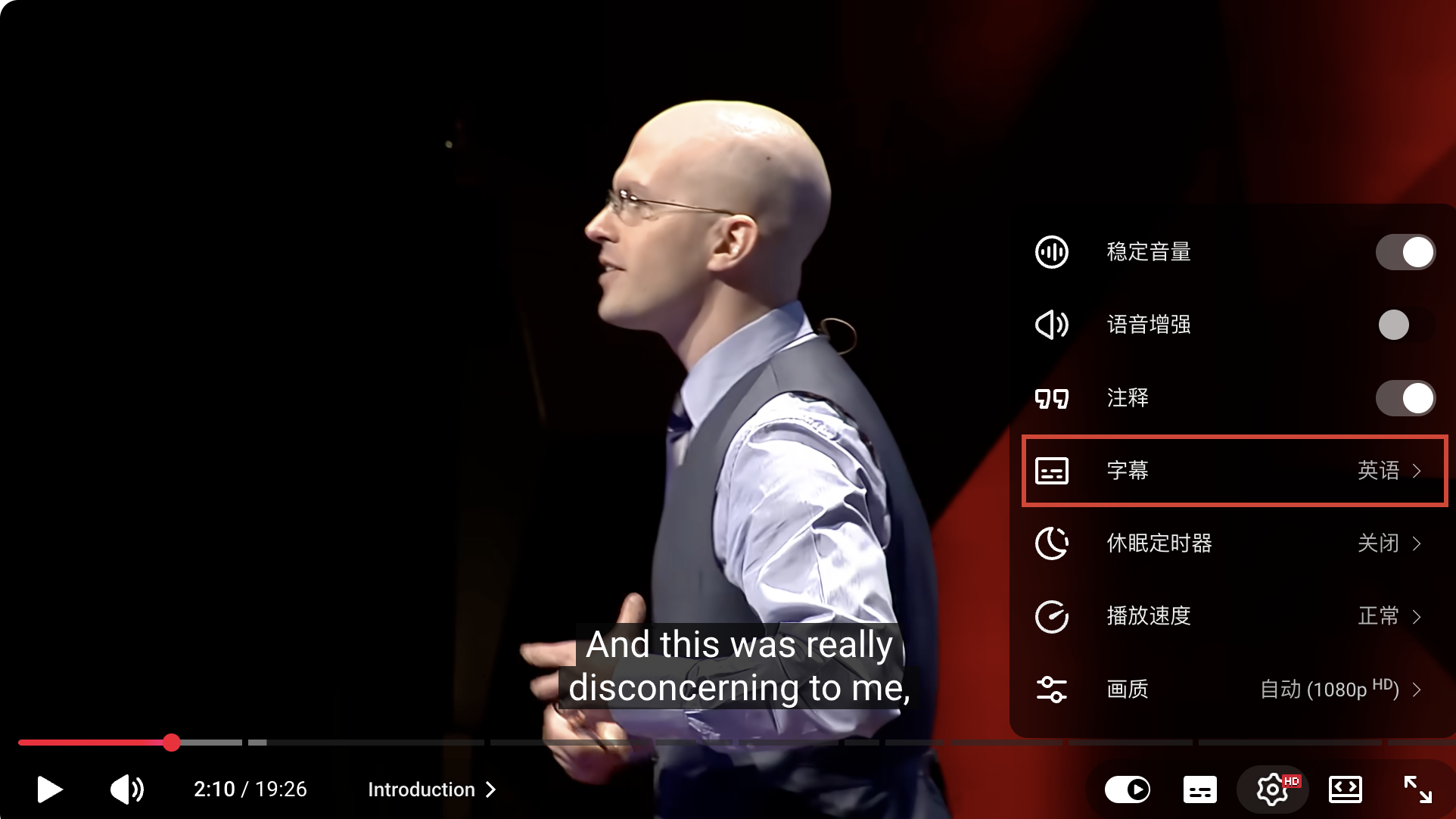
Select the original-language track you want to use. A track marked auto-generated / 自动生成 comes from speech recognition, so errors in names or numbers may also affect the translation.
2. Choose a supplied translation or Auto-translate
Look through the track list. If your language appears as its own track, select it and check a spoken passage.
If it is absent, look for Auto-translate / 自动翻译. You may need to scroll inside the caption list to reach it. Choose the target language from the next menu.
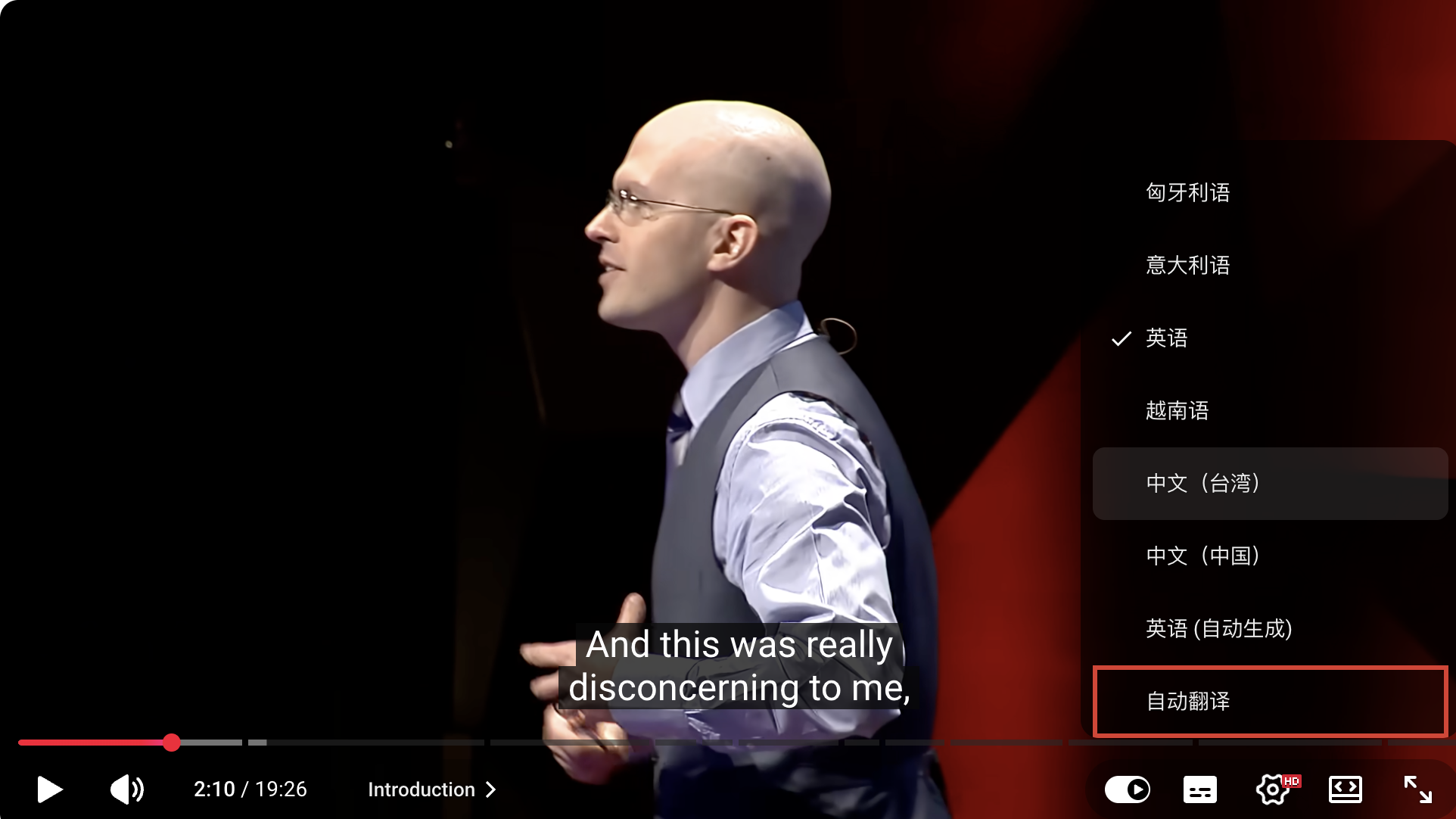
YouTube documents caption-language selection in its caption settings help. Phone apps arrange the controls differently, so use the app’s caption or settings menu instead of following the desktop screenshot literally.
💡 Auto-translate translates an existing caption track. It does not create a transcript from audio when no source captions are available.
3. Know what each translation route changes
| Route | What changes | Who controls it |
|---|---|---|
| Select a supplied translated track | The caption text viewers read | The channel manages the published track. |
| Select Auto-translate | Machine-translated caption text for playback | The viewer chooses an offered target language. |
| Select another audio track | The speech viewers hear | The channel or dubbing workflow supplies audio. |
| Translate the web page | Page text such as headings or comments | The browser’s page translator. |
A video can offer translated audio without equivalent caption tracks. Likewise, translating its description does not translate the captions.
If the translation reads strangely, check the original line and surrounding sentences. Proper names, negation, quantities, jokes, and idioms deserve another listen.
4. For your own video, upload a reviewed translation
Creators can publish a translated subtitle track that appears as its own language choice.
Open YouTube Studio → Languages / 语言, or Subtitles in a layout that uses the older name. Choose the video. If prompted, set the original spoken language first. Then add or select the target language and use its Subtitles → Add action.
For a translated SRT or other timed file, choose Upload file → With timing. This follows YouTube’s caption-creation instructions; see the add-subtitles guide for the initial language screen.
Start from a corrected original track. Keep its timing while translating, then replay long translated cues. If the text cannot be read comfortably, shorten or re-segment it and check the adjusted timing. Preserving every cue unchanged is a starting point, not a reason to leave unreadable captions.
5. Keep the subtitle file valid
Change the text without accidentally damaging the format. For example:
7
00:00:21,040 --> 00:00:24,300
Hola, me llamo Alice.
An SRT file still needs cue numbers, valid time ranges, and blank lines between cues. Save non-English text in UTF-8. A new filename extension does not convert SRT into VTT; the format guide shows the difference.
6. If the translation option is missing
First confirm that a source caption track works. Then reopen the language list and look for a supplied translation or Auto-translate. If the option is not offered, a viewer cannot force the creator’s account to publish it.
⚠️ If original captions work but the translation does not, that is a different failure from having no captions. Do not start a fresh transcription solely because an automatic translation failed to load.
For a translated text file, use a subtitle-translation workflow or a tool whose output-language setting you can verify. YepSoso’s transcript page offers an output-language selector, but its current action starts “Create transcript & blog”, not only a subtitle download. Check its current terms and output before starting.
For side-by-side study, see the bilingual-caption guide.