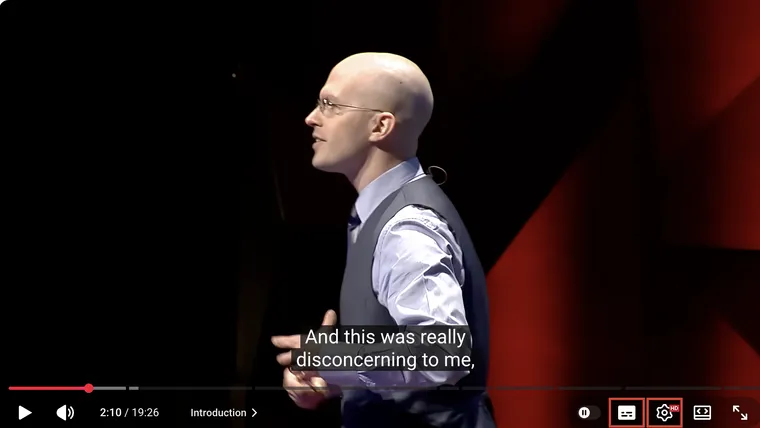
YouTube’s caption icon turns words on or off while you watch. The transcript button opens those words as a text list. YouTube Studio is where a channel manages its own caption tracks. Start with the job you need to do, because these are different controls.
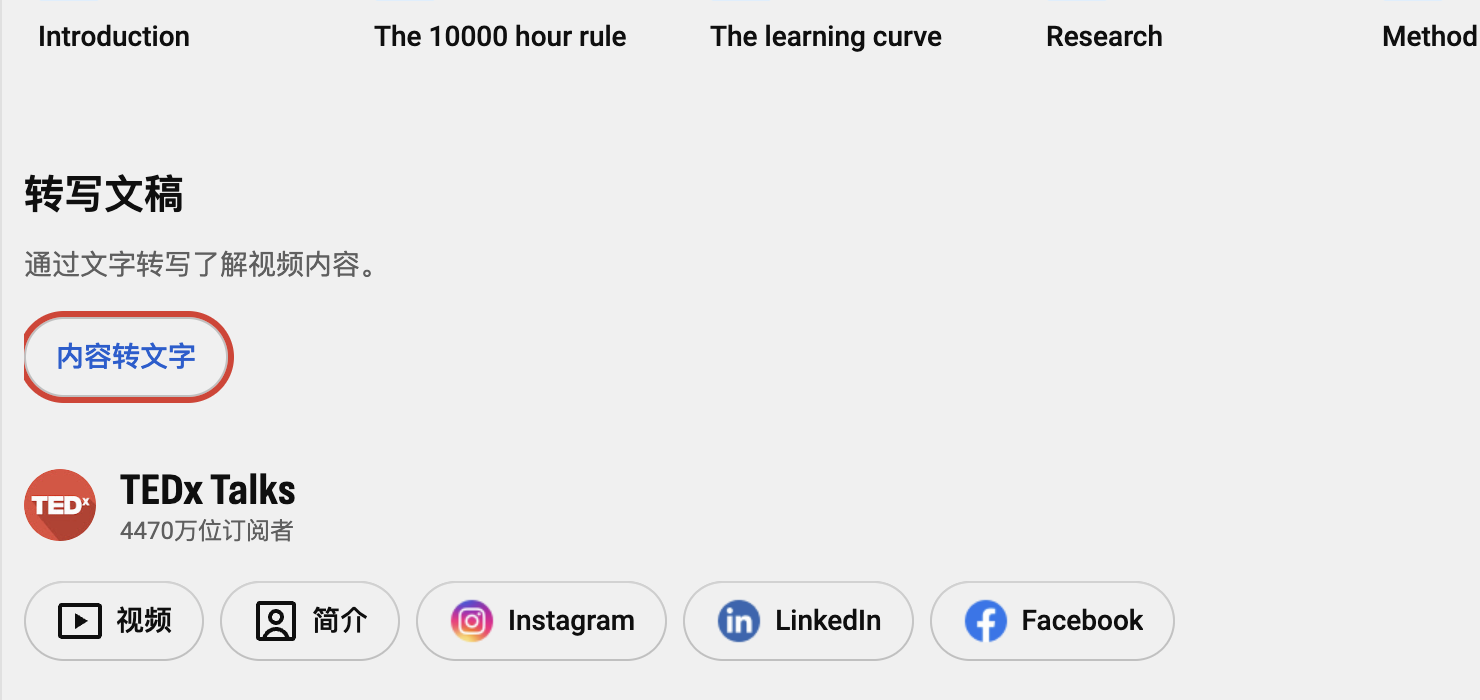
The screenshots below use YouTube’s Chinese desktop interface. 字幕 means captions, 转写文稿 means transcript, and the transcript button in this layout says 内容转文字.
If you are ready to use a tool, download an existing YouTube caption track or transcribe a public video with no usable captions. Downloading a track and recognizing speech solve different problems; choose the route that matches your video.
1. Choose the guide for your task
| I want to… | Start here |
|---|---|
| Show, hide, or resize captions | Turn captions on or off |
| Find out why captions are missing | Fix subtitles that are not working |
| Read or copy what was said | Get a YouTube transcript |
| Save an SRT, VTT, or TXT file | Download subtitles |
| Watch with translated captions | Translate subtitles |
| Study with the original and a translation | Use bilingual subtitles |
| Make notes that link back to the video | Turn transcripts into checkable notes |
| Get text when no usable caption track exists | Transcribe a video with no captions |
| Add a track to my video | Add subtitles |
| Correct words or timing | Edit captions |
| Choose a file format | Compare SRT, VTT, and SBV |
| Caption a Short | Add captions to Shorts |
| Caption a live stream or its replay | Set up live captions |
| Include sound cues and speaker changes | Make captions useful for deaf and hard-of-hearing viewers |
2. Find the viewer controls
Move the pointer over the video to reveal its controls. The caption icon near the lower-right corner is often called CC. It may look like a rectangle containing small lines rather than the letters “CC.” Click it to show or hide the selected caption track.
The gear icon opens settings. Choose Subtitles/CC—shown as 字幕 here—to see the available languages.
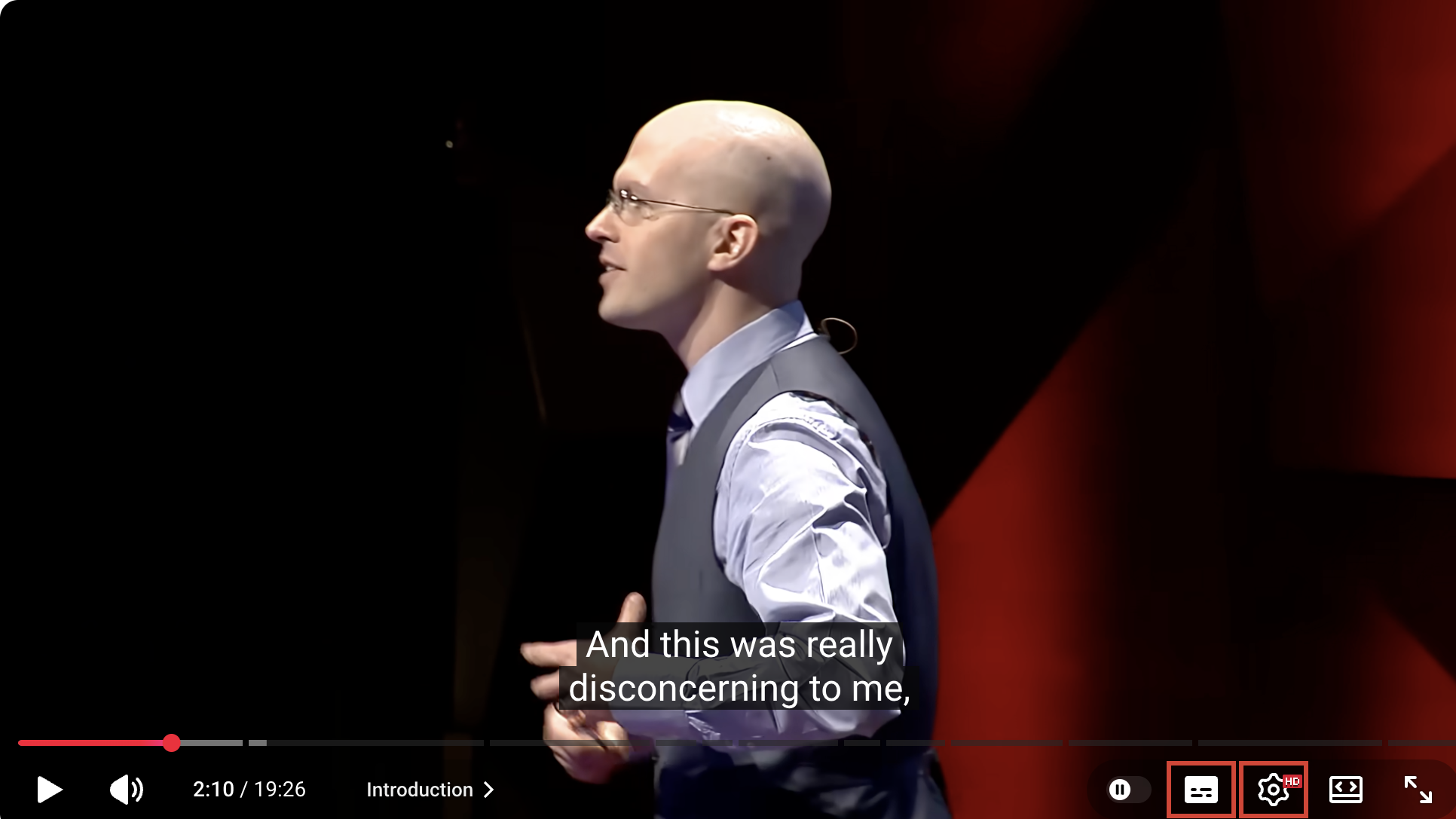
For translated captions, first choose a source track, then look for Auto-translate / 自动翻译 in that language list. A creator-provided translation and an automatic translation are different choices.
To read the words as a list, go below the video title: description box → More / 更多 → scroll down to Transcript / 转写文稿 → Show transcript / 内容转文字. Do not look for this button inside the player’s CC control.
💡 A control that is hidden, a panel that will not load, and a video with no caption track are different problems. Check the player’s language list before deciding the video has no captions.
3. Use Studio for your own videos
Viewers choose from available tracks. The channel owner or a person with the right channel permissions can add or edit them.
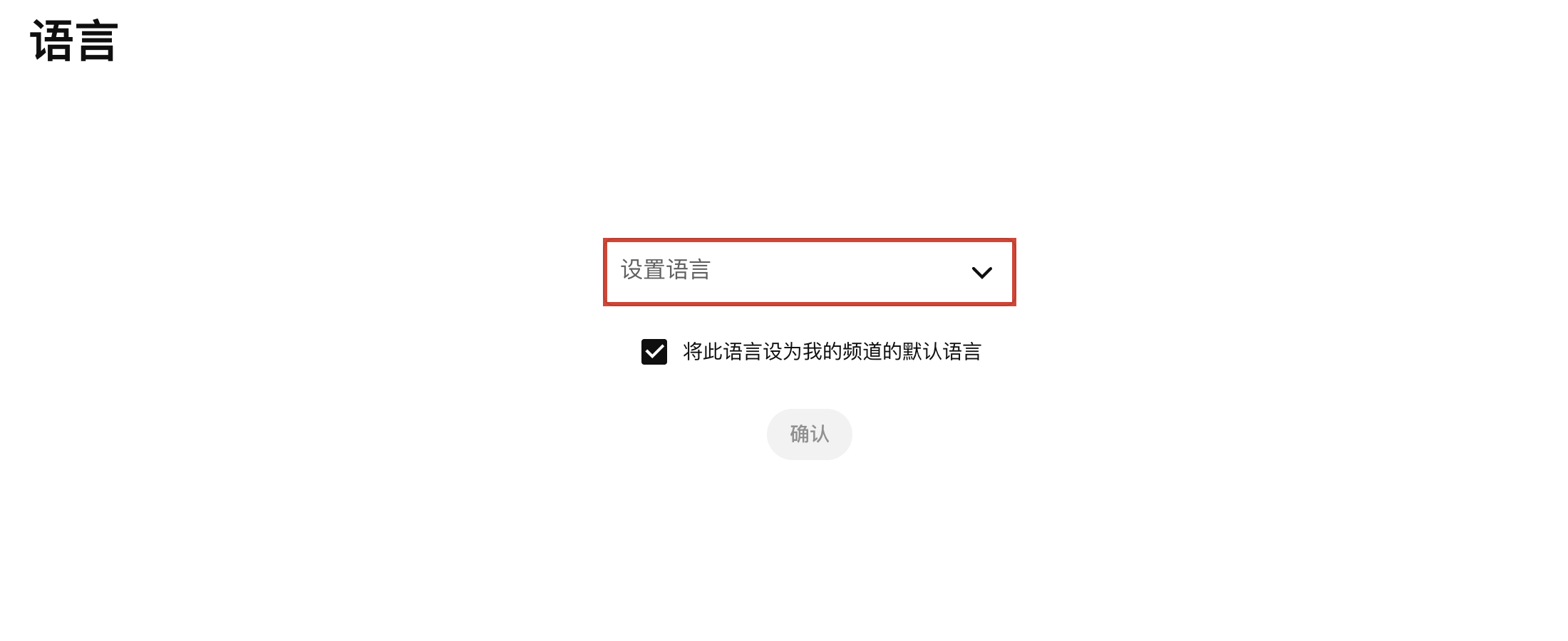
Open YouTube Studio, then look for Languages / 语言 in the left menu. Some layouts and YouTube’s subtitle help pages still call this section Subtitles. Choose the video.
If Studio first asks you to Set language / 设置语言, choose the language actually spoken in the video. Check the channel-default checkbox before confirming: leave it unchecked if you only intend to set this video’s language.
After that, work with the Subtitles entry for the appropriate language. Depending on the track, the available action may be Add, Edit, or Duplicate and edit. Follow the add-caption guide or editing guide for that job.
4. Know which kind of text you have
| What you have | What it does |
|---|---|
| A selectable caption track | Displays timed words; viewers can switch it on or off. Good captions also identify meaningful sounds and speakers. |
| Automatic captions | Speech recognition has produced the text. Names, numbers, and overlapping speech still need checking. |
| A transcript | Shows caption text as a readable list, usually with timestamps. |
| Text burned into the picture | Is part of the video image. The CC control cannot remove or translate it as a separate track. |
| A dubbed audio track | Changes what you hear. It is not a subtitle file. |
YouTube groups subtitles and closed captions together in its menus. The distinction that matters for most tasks is whether you have a separate text track, text inside the picture, or another audio track.
5. Choose extraction or transcription
If a usable caption track exists, read or download that track. If no usable track exists, speech recognition can create new text from audio. A subtitle downloader cannot do that unless it also has a transcription feature.
⚠️ “Download,” “translate,” and “transcribe” are separate jobs. A failed download does not prove the video has no captions, and selecting an audio language does not create translated text.
Automatic captions can take time to appear after an upload and can contain errors. For published captions, review the words, timing, speakers, and meaningful sounds before treating them as finished.
For YouTube’s documented workflows, see caption settings, adding captions, and automatic captioning. Screenshots show one desktop layout; phone, TV, Shorts, and live controls can differ.