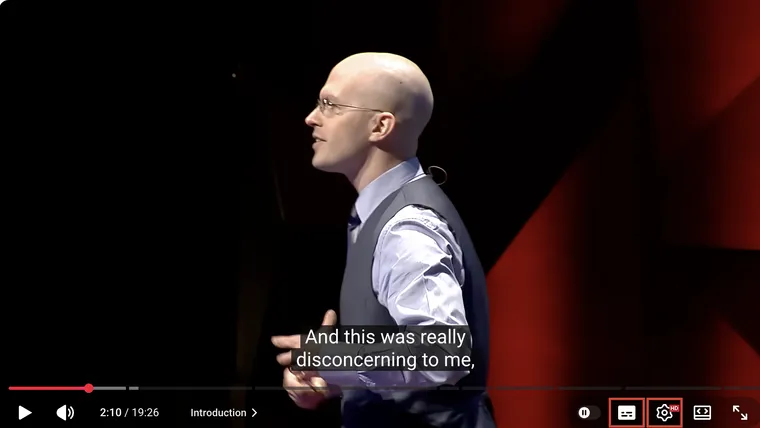
On a computer, move the pointer over the video and click the caption icon near the lower-right corner. It is often called CC, but may appear as a small rectangle with lines inside. Click again to hide captions. You can also press c when the player has keyboard focus.
The gear icon beside it opens language and appearance settings. Captions and the transcript list use different buttons.
1. Find the caption icon in the player
Open a regular YouTube watch page, then move the pointer over the video. If the controls disappear, move the pointer again.
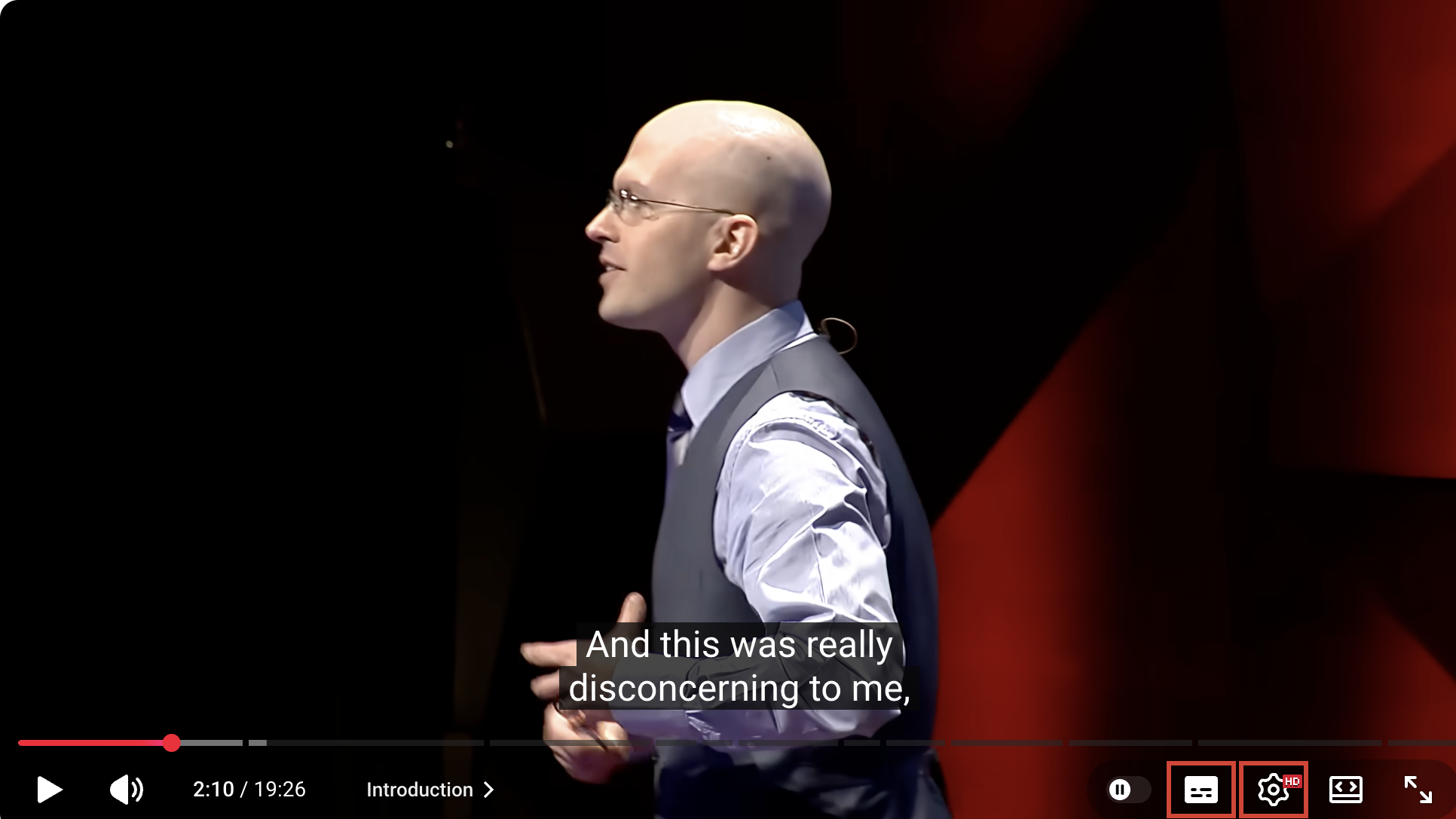
Click the caption icon once. If a caption track is available, words should appear as the video plays. Click again to turn them off.
For the keyboard shortcut, click the player first, then press c. If you are typing in search or comments, the key will go into that text field instead. See YouTube’s keyboard shortcuts.
2. Choose a caption language
Click gear → Subtitles/CC. In this Chinese interface, the menu item is 字幕. Select one of the listed language tracks.
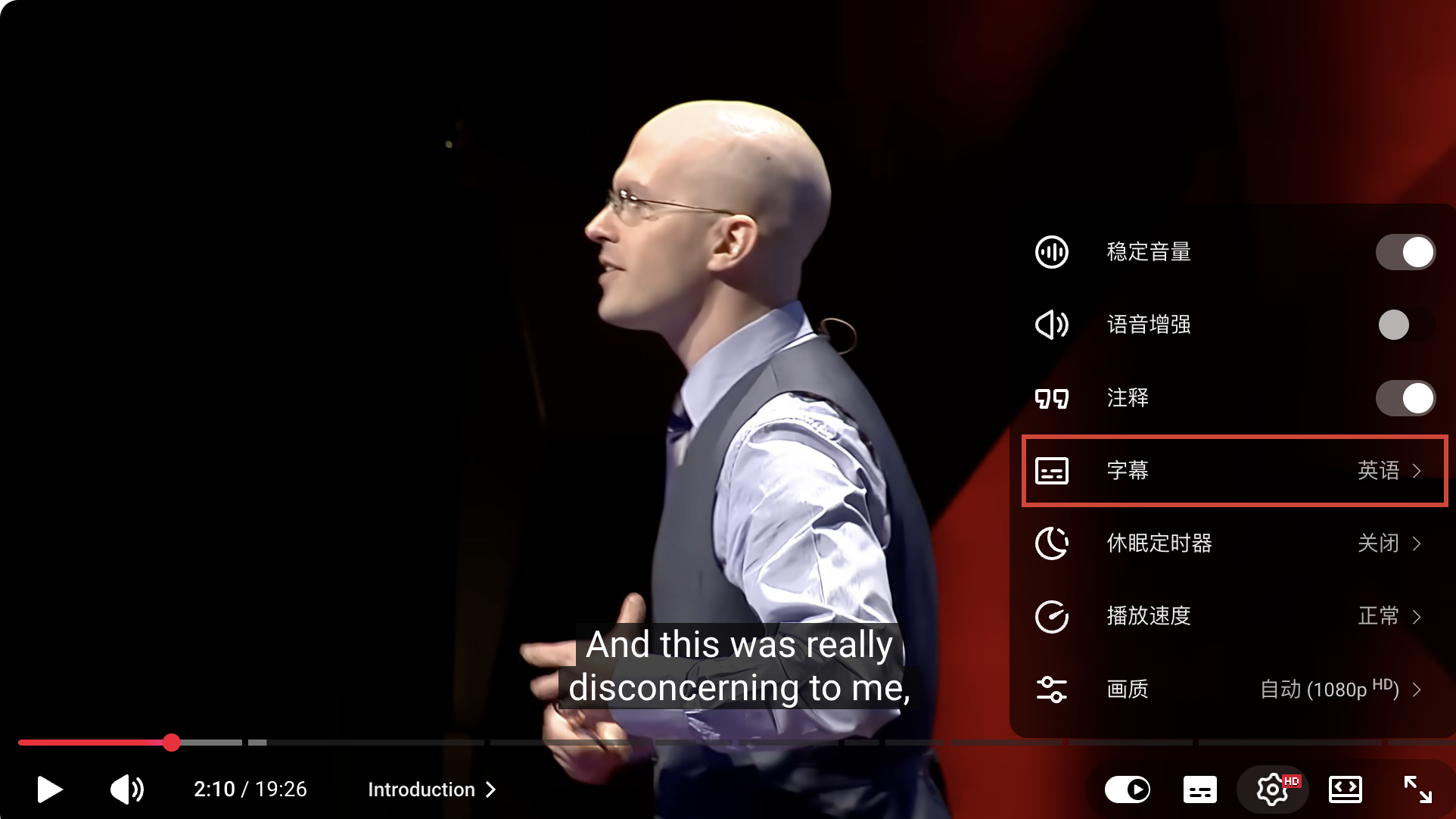
A track labeled auto-generated / 自动生成 comes from speech recognition. Other tracks may have been supplied or edited by the channel. Check the words rather than assuming either label guarantees quality.
If your preferred language is absent, look for Auto-translate / 自动翻译 inside the caption list. That translates a source track; it does not recognize audio from scratch. The translation guide covers that route.
3. Make captions easier to read
On desktop, open gear → Subtitles/CC → Options. In Chinese, Options is 选项, and Font size is 字号.
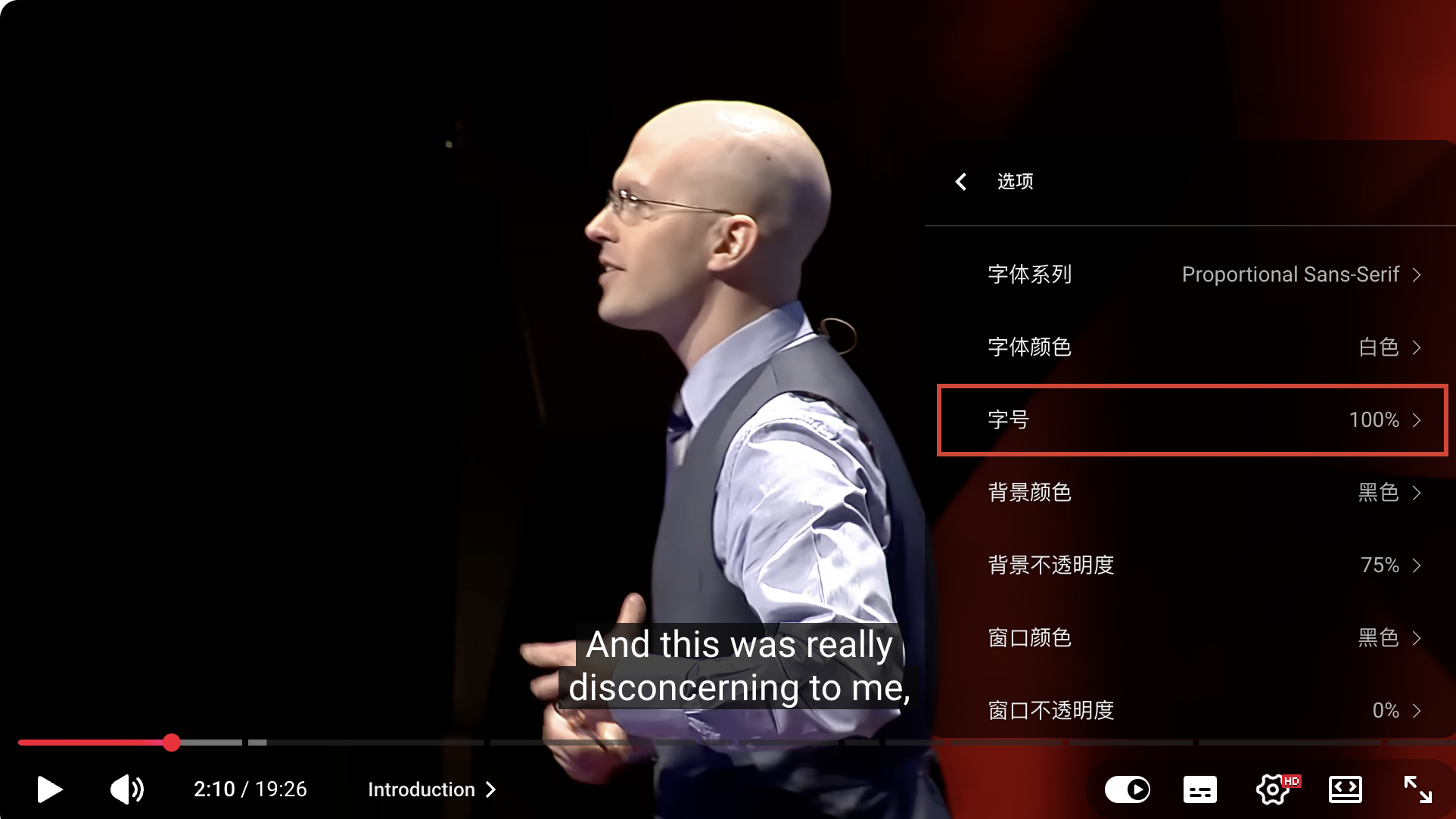
Adjust font size, contrast, background, or opacity as needed. Scroll inside this settings menu to find Reset / 重置 if you want to restore the caption appearance. A nearly transparent font can make captions seem absent even when they are switched on.
💡 Changing caption size changes a selectable caption track. It cannot resize words that were already drawn into the video picture.
4. On a phone or TV, reveal the controls first
In the YouTube phone app, tap the video to show its controls and look for the caption icon. Open the player’s settings or caption menu for the languages offered by that version.
YouTube documents separate Android and iPhone/iPad instructions. On iPhone and iPad, caption styling is managed in Settings app → Accessibility → Subtitles & Captioning → Style. The desktop screenshots here do not show the phone app.
TV and streaming-device layouts vary. Reveal the player controls and look for captions or accessibility settings rather than expecting the desktop gear menu in the same place.
5. If you cannot find captions
First reveal the controls and inspect the caption language list. A genuinely unavailable caption control can mean that the video has no usable track, but do not make that diagnosis from a hidden control alone.
⚠️ Check the main video after any advertisement, and distinguish “no caption track” from “a track is selected but its text will not load.” Repeatedly pressing CC cannot create a missing track.
Try a second video with known captions to separate a video-specific problem from a playback problem. If captions still fail, follow the troubleshooting guide.
If you want a copyable text list, open the transcript below the video description instead.