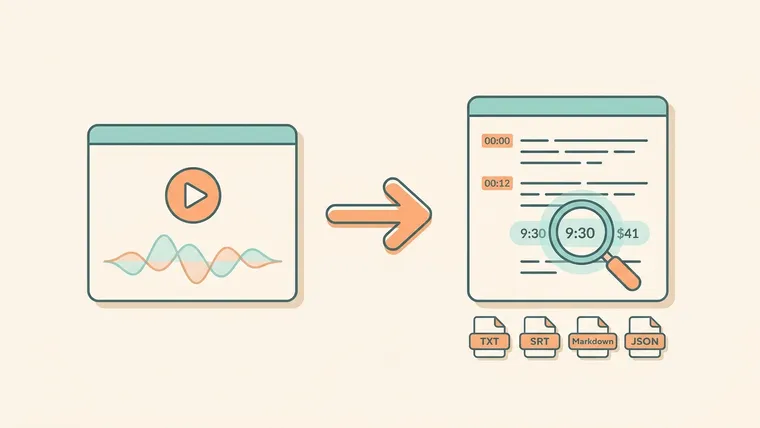
A video to text converter turns the speech in a video into text you can edit, search and reuse. Which one fits depends mostly on where the video is: a public link, a file on your own computer, or a video that already has captions. Choose by input first. Then check the names, numbers and export format you actually need.
Start with where your video lives
Most people compare converters by accuracy claims. The faster filter is simpler: what do you have in hand, and what do you need at the end?
| Your situation | Best fit | Watch out for |
|---|---|---|
| A public YouTube video that already has captions, and you only want them | YouTube’s own Show transcript panel, or the YouTube Subtitle Downloader for SRT, VTT or TXT | Auto-generated captions often have little punctuation and no paragraphs |
| A public video link, and you want clean, punctuated text or a translation | A link-based AI transcript tool such as the YepSoso transcript generator | Private, deleted and region-restricted videos can’t be read; playlist links need the list= part removed |
| A video on TikTok, Bilibili or Douyin | The platform pages for those sites | Use a single public video link, not a profile or collection |
| An SRT file you already have | SRT to Text, which strips numbers and timestamps in your browser | Nothing is re-transcribed, so caption errors stay |
| A recording that only exists on your computer (meeting, interview, phone video) | An upload-based transcription service, or an offline speech model you run yourself | Read the privacy terms before uploading; link-based tools can’t open a local file |
| You want an article, not just a transcript | Video to Blog, which writes the article with the transcript alongside | Check that every point in the article was actually said in the video |
If the transcript panel is missing on YouTube, read YouTube transcript not available? Check captions first before paying for anything. Sometimes the captions are there and just hidden.
Three kinds of converter, side by side
Under the different brand names, almost every converter works in one of three ways.
| Caption downloader | Link-based AI transcript | Upload-based speech recognition | |
|---|---|---|---|
| Where the words come from | Captions the platform already has | Existing captions first; speech recognition when there are none | Speech recognition on the file you upload |
| Works when a video has no captions | No | Yes, if the video is public | Yes |
| Punctuation and paragraphs | Usually as rough as the original captions | Added and lightly corrected | Depends on the service |
| Timestamps | Original platform timing | Kept, so you can check against the video | Usually available |
| Works for private or local files | No | No | Yes |
| Main risk | Missing or poor captions | Speech recognition errors in names and numbers | Privacy of the uploaded file |
The YepSoso transcript generator sits in the middle column. It reads available captions first and only falls back to speech recognition (Whisper) when a video has none. The transcript is then formatted and lightly corrected by the model you choose, and you can keep the original language or translate it. Videos can be up to 4 hours long.
Check the transcript against an answer key
No converter gets everything right, and the errors that hurt are small ones: a name spelled wrong, a time that moved, an amount that changed. Before you trust a converter with real work, test it on one short clip where you already know the exact words.
Here is a script that works well for this test. Record or find something similar, then compare the output line by line.
Project Maple starts on Tuesday. Please send the revised plan to Alex Chen before nine thirty in the morning. The trial budget is forty one dollars. Keep the original invoice and mark the delivery date as unconfirmed.In a test of two tools with this clip, one wrote the time as “9.30” and the other as “9:30.” Both turned “forty one dollars” into “$41.” Neither mistake changed the meaning, but a dot in “9.30” can confuse readers in some countries. That is the level of detail worth checking.
| Check | In the script | What can go wrong | What to do |
|---|---|---|---|
| Names | Project Maple, Alex Chen | Misspelled or split into common words | Search the transcript for every name you know is in the video |
| Times | nine thirty in the morning | Written as 9.30, 9:30 or 930 | Standardize the format for your readers |
| Amounts | forty one dollars | Wrong number or missing currency | Check every figure against the audio |
| Uncertainty | delivery date as unconfirmed | “Unconfirmed” dropped or softened | Keep hedges exactly as spoken |
| Sentence breaks | Four separate instructions | Merged with semicolons or commas | Split lines where an instruction starts |
Timestamps make this check quick. Click a line, jump to that second in the video, and listen once.
Pick the export by what happens next
A transcript on screen is only a preview. What you need is a file that works in the next step, so decide where the text is going before you download.
| Format | What it contains | Use it for |
|---|---|---|
| TXT | Plain text, no timestamps | Notes, quoting, pasting into a document or an AI chat |
| SRT | Timed subtitles | Subtitle editors and re-uploading captions |
| Markdown | Transcript with title, author and source link | Notion, Obsidian and other note apps |
| JSON | Text plus timing data | Scripts and further processing |
Some converters show a full preview and ask you to sign up only when you click export. Try the download once before you plan a whole workflow around a tool. Open the file and look at the beginning and the end, where extra branding or notices sometimes appear.
When any converter will let you down
Some problems no tool can fix, because the information isn’t in the audio.
- Private or restricted videos. A link-based tool sees what a logged-out visitor sees. If you can’t open the video in a private browser window, the tool can’t either.
- Overlapping speakers and loud music. Speech recognition guesses when voices collide. Expect gaps and misattributed lines.
- Jargon and unusual names. Product names, people’s names and technical terms are the most common errors. Keep a list and search for each one.
- Things that are shown but not said. Text on slides, code on screen and gestures are not in the audio, so they won’t be in the transcript.
- Auto captions treated as fact. If a tool uses the platform’s auto-generated captions, it inherits their mistakes. Corrections help, but they can’t recover a word that was never recognized.
After you have clean text, the common next step is turning it into tasks. The AI prompts for project management guide shows how to turn notes into a task list. If AI rewrites the transcript for you, keep a few checks of your own; how to use AI without losing critical thinking explains which ones matter.
Try it on one video in five minutes
Pick one public video you have the right to use, ideally one with names and numbers in it.
- Paste the link into the YepSoso transcript generator and choose an output language. You can start without an account; a sign-in option appears only when it’s needed.
- While it runs, write down three names and two numbers you hear in the first minute.
- When the transcript appears, search for each of them. Click any line that looks wrong and listen to that second.
- Download the format you need, then open the file once to make sure it’s what you expected.
Temporary task files are removed after 6 hours, so download anything you want to keep. If the transcript passes your five checks, you can trust it for that kind of video. If it doesn’t, you’ve learned that in five minutes instead of after sharing the text.