The Codex IDE extension is one way to use Codex in an editor, but not every editor uses the same integration. VS Code and compatible editors use the OpenAI extension. JetBrains exposes Codex through AI Assistant. Zed supports external agents through its Agent Client Protocol route. The account, configuration, and permissions therefore need to be checked for the route you actually choose. This guide verifies official support information and an installed extension package. It does not claim that we completed a signed-in coding task in every editor; package presence alone is not proof of a working conversation.
Match the editor to the correct integration
OpenAI’s IDE guide lists VS Code, Cursor, Windsurf, and VS Code Insiders alongside separate Xcode and JetBrains integrations. For compatible editors, the official marketplace identifier is openai.chatgpt; the product display name can say Codex despite that older identifier.
| Editor | Documented route | Starting reference |
|---|---|---|
| VS Code and VS Code Insiders | OpenAI Codex extension | Official extension listing |
| Cursor | Codex extension in the compatible editor | OpenAI IDE setup |
| Windsurf | Codex extension in the compatible editor | OpenAI IDE setup |
| JetBrains IDEs | Codex in AI Assistant | JetBrains Codex guide |
| Zed | External agent through ACP | Zed external-agent guide |
| Xcode | Its coding-assistant integration | Apple setup documentation |
The table records documented entry points as checked on October 25, 2026. It is not an assurance that every combination of editor build, operating system, account, and organization policy will work. Follow the reference for your installed version before changing settings.
Use the focused VS Code guide or Cursor integration guide for those setup paths. Keep three questions separate: which editor hosts the interface, which agent is selected, and which account supplies model access.
What the local package check proves
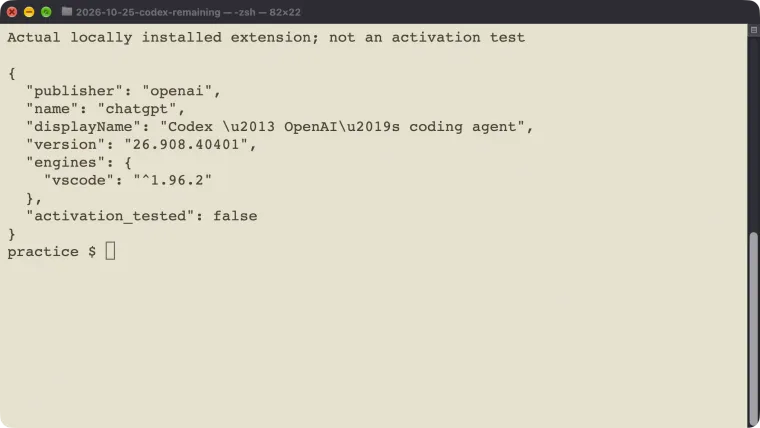
We inspected the OpenAI extension already present in a local VS Code installation. Its manifest reported publisher openai, package name chatgpt, version 26.908.40401, and a VS Code engine requirement of ^1.96.2. These are observed values from that package, not a claim that this was the newest available extension.
A package manifest tells you what was installed and which editor range it declares. It does not prove that the extension activated, the account authenticated, or a request reached a model. After the computer was unlocked, we opened the practice folder and Codex onboarding in VS Code. The native UI interaction did not complete a signed-in conversation, so we did not record a successful editor model turn.
This separation is useful when diagnosing your own setup. If the package is absent, investigate installation. If it exists but does not open, investigate activation and editor compatibility. If it opens but a request fails, inspect the account and actual error. Reinstalling everything before identifying the failed step loses useful evidence.
JetBrains: check AI Assistant’s own controls
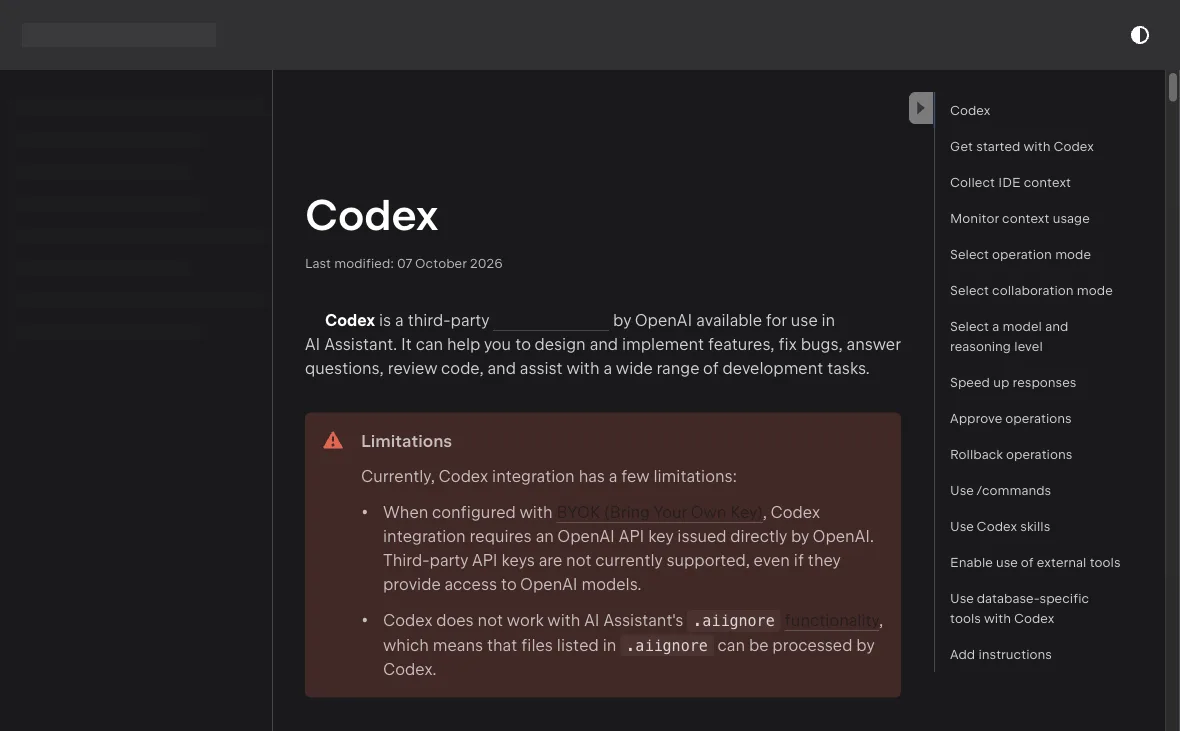
The JetBrains guide describes Codex as an agent in AI Assistant. It lists JetBrains AI, an OpenAI API key, and a ChatGPT account as supported authentication routes. After setup, select Codex in AI Chat. Confirm that selected agent before sending a task.
Two documented limits matter: the bring-your-own-key route requires a key issued directly by OpenAI, and AI Assistant’s .aiignore behavior does not exclude files from Codex. Do not assume a third-party gateway key or an ignored-file list carries across integrations.
JetBrains also documents controls for automatic editor context, approvals, and inspecting changes. Use those controls to verify what you are about to submit and what the agent changed. This article checked the documentation; it did not perform a live JetBrains session.
For a first local trial, use a small practice project and ask for an explanation before an edit. Compare the answer with the actual file. Then request one bounded change, inspect the diff, and run its test. That sequence establishes more than merely seeing “Codex” in an agent selector.
Zed: the external agent keeps its provider relationship
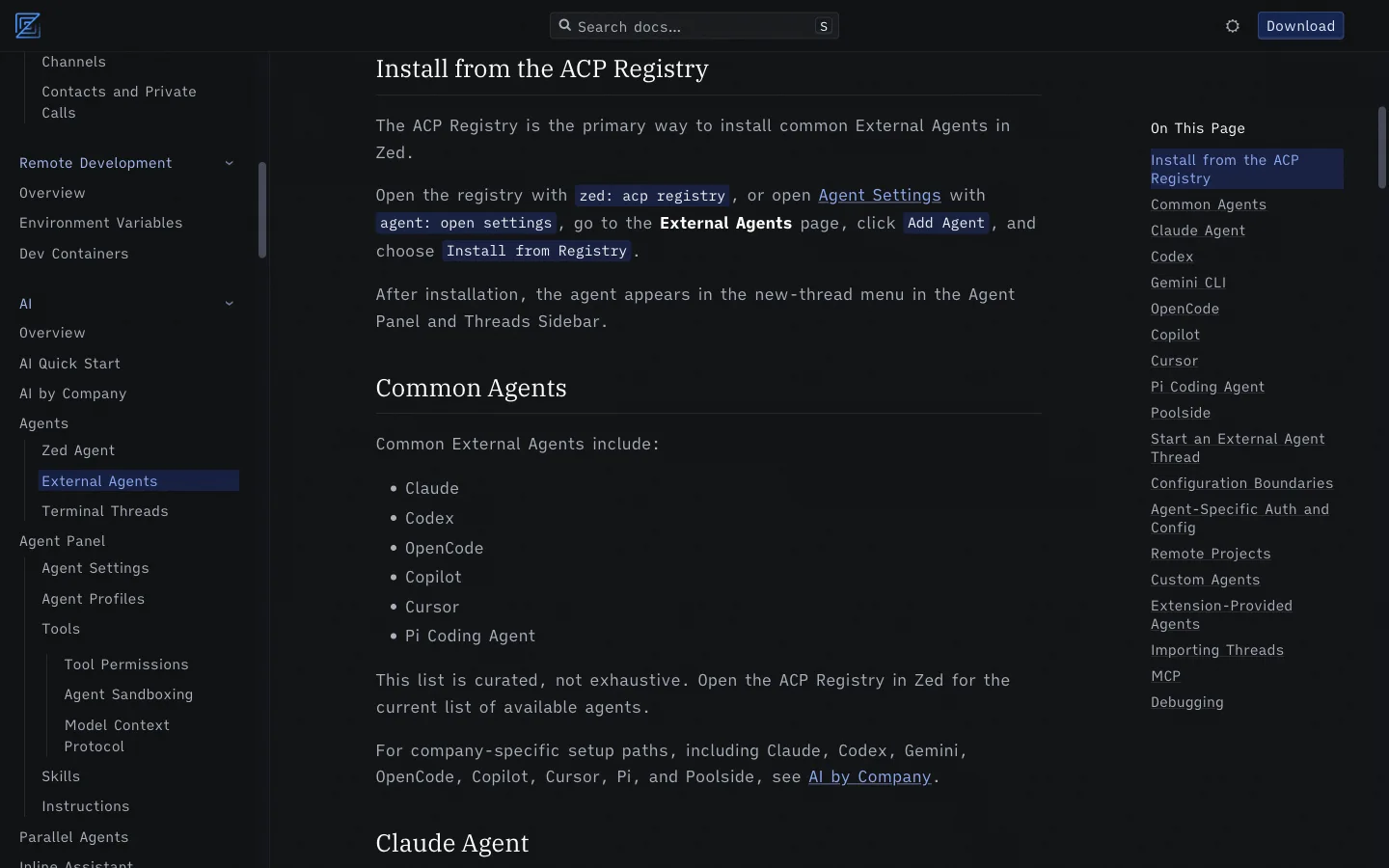
Zed’s external-agent guide uses the ACP Registry as the primary installation route for common external agents. Open the Agent Panel, install the desired registry entry, and start a thread with that agent. The agent generally owns its runtime, authentication, model selection, and native configuration.
Zed says it does not charge for external agents; provider charges and terms remain separate. That is not a promise of free model usage. Zed’s own agent profiles and skills also should not be assumed to apply unchanged to an external agent.
Verify the installed registry entry, provider account, and native configuration before testing. If you need an ordinary terminal-based CLI instead, Zed documents Terminal Threads as a separate route. This is a documentation check, not a claimed completed Zed installation or model turn.
Use the same practice repository if you later compare Zed with another editor. Check whether the agent receives the intended files, whether permission prompts are understandable, and whether the final change passes the same test. Those observations describe your actual setup more usefully than a generic support badge.
Verify context before asking for a change
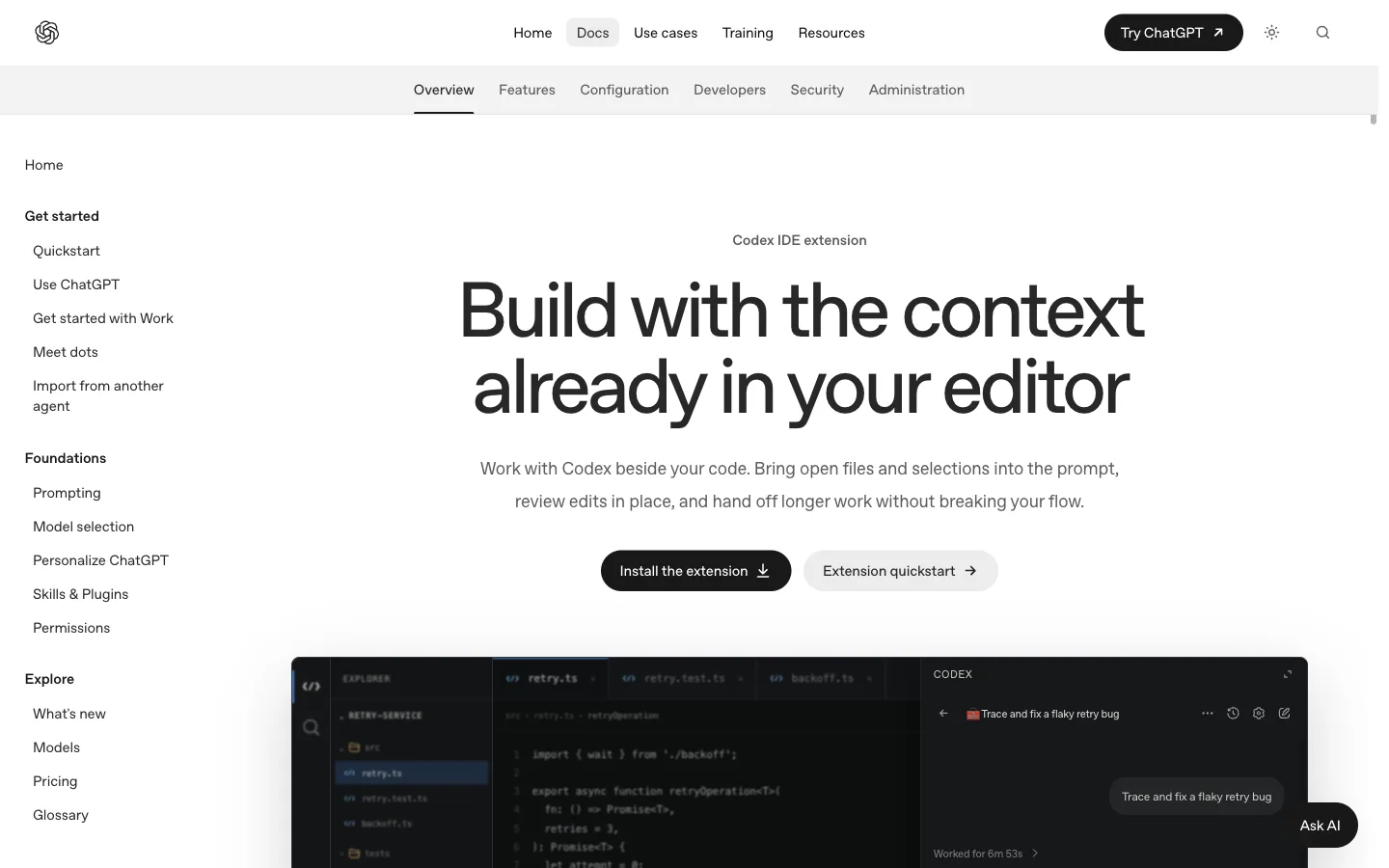
An editor integration can make it easier to supply an open file or selection, but you still need to verify the task’s scope. For a first request, select a short function and ask the agent to explain its inputs and output without editing it. Check that the response refers to that function rather than a similarly named file elsewhere.
Then ask for a small change with a concrete acceptance condition. For example: “Reject a name containing only whitespace, keep the dialog open, and focus the name field. Preserve the existing layout.” The website exercise shows why that condition matters and how it was checked in a browser.
Inspect the diff before accepting the work. Run the relevant test or interact with the changed feature. If an editor has an approval control, read which operation it covers; a session-wide permission is broader than allowing one command. Use the permissions guide to understand those distinctions.
Project instructions also need to be checked at the agent layer. The AGENTS.md guide explains the Codex mechanism. Do not copy another tool’s instruction filename into the folder and assume Codex automatically discovers it.
Diagnose the route you are actually using
A Codex conversation inside Cursor is different from Cursor’s own agent. A Zed external-agent thread is different from a Zed-managed model conversation. A terminal running codex inside an editor is different from that editor’s native integration. Identify the route before changing its model, account, or configuration.
When something fails, record the editor version, integration version, selected agent, project path, authentication method, and the exact redacted error. Do not include keys or session tokens. A missing sidebar, an authentication failure, and an unexpected file edit require different investigations.
If the interface is the obstacle, try the same small project through the CLI workflow to help isolate the layer that failed. A successful CLI run does not prove the editor integration works, but it can narrow the question. For choosing a daily entry point, compare the app and CLI workflows.
Keep the final acceptance test about the work: the intended context was used, the permitted files changed, the result was reviewed, and the relevant behavior passed. Installation is the beginning of that check, not its conclusion.