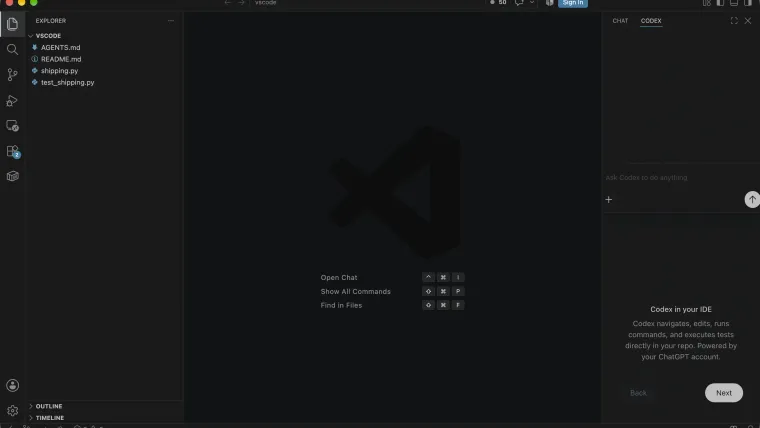
For a VSCode Codex workflow, install OpenAI’s extension, open the intended project folder, and use the Codex sidebar to supply context and review work. Check each step separately: an installed package is not a successful sign-in, and a visible sidebar is not a completed coding task. We verified VS Code 1.138.0, an installed OpenAI extension, the practice project, and the onboarding panel on October 25, 2026. We did not complete a signed-in model turn in that editor session. The setup steps below follow current official documentation; the stated test boundary keeps that distinction visible.
Install the official extension
Open VS Code’s Extensions view and find the official OpenAI listing. Confirm the publisher and identifier openai.chatgpt. The display name says Codex even though the package identifier retains chatgpt.
Install it in the editor instance where you intend to work. Profiles and remote workspaces can have different extension installations. If the editor asks to reload after installation, finish that before troubleshooting a missing sidebar.
Our installed package was version 26.908.40401. Its manifest declared VS Code engine ^1.96.2. These identify the observed package; they are not a claim about the newest extension available to your account. Check your own installed version rather than copying a release number as a requirement.
Open the project and the Codex sidebar
Use VS Code’s folder-opening control to open the actual repository. Check the Explorer’s file names against the project you intended. A folder containing a second checkout can look similar while representing a different branch or starting state.
Choose the Codex icon. If it is absent, open the Command Palette and run Codex: Open Codex Sidebar, as described in OpenAI’s IDE quickstart. The initial onboarding can appear before the normal conversation controls.
Sign in through the extension’s offered account route. Keep this separate from a GitHub or editor account button elsewhere in the window. A VS Code account does not, by itself, establish the Codex model entitlement you need. Use the authentication guide for stuck sign-ins and account selection.
Start with a context check
Open one short source file and select the relevant function. Add the file or selection through the extension’s context control, then ask:
Explain the selected function's inputs and output. Identify the file you
are using. Do not edit files or run commands yet.
Compare the response with the actual source. This first step checks whether you supplied the correct context before allowing a change. If the response describes another file, correct the attachment and working folder immediately.
For lasting project requirements, use AGENTS.md. For one-off work, include the desired behavior, allowed files, and acceptance check in the task. Do not attach an entire repository when one file and one test explain the issue.
Ask for one change you can test
Our editor practice fixture contains a shipping function with a boundary error: orders of exactly $50 should receive free shipping, but the initial comparison excludes them. The fixture has a test for the exact threshold plus cases below and above it.
Use a request such as:
Read README.md and test_shipping.py. Fix the shipping threshold in
shipping.py with the smallest change. Run python3 -m unittest -v
before and after. Do not change the tests, use the network, or commit.
The expected result is a small, inspectable correction and passing tests. We prepared this fixture but did not complete that model-driven repair through the VS Code UI. For a fully tested local task, use the first-task exercise; do not infer an editor success from that separate CLI evidence.
Review the diff and the actual result
Read which files changed and inspect the affected lines in VS Code. Keep the requested scope in view. A one-line boundary fix should not require a new dependency, a rewritten test suite, or unrelated formatting changes.
Run the relevant test yourself or inspect its recorded command and outcome. For a web change, interact with the page as well. Our website exercise found a real form defect after the first version passed a syntax check.
If the result needs revision, point to the observed behavior and expected behavior. Preserve the existing working changes unless you intend to replace them. Starting a fresh chat does not revert files. The code review guide explains how to verify a finding before applying a separate correction.
Diagnose the failed stage
If the extension is missing, check the current profile and extension installation. If its sidebar does not open, check the installed editor and extension versions and use the documented command. If it opens but a request fails, inspect the sign-in state and the specific redacted error.
If the wrong files appear, confirm the folder, branch, and attached context. If an operation needs approval, inspect its scope before allowing it; see permissions. For an integration that still fails, compare a small CLI task to identify whether the fault belongs to the editor layer or the underlying account and client.
Success means the right project was used, the intended files changed, you reviewed the diff, and the relevant behavior passed. This guide’s native test reached project opening and onboarding; a signed-in editor repair remains unverified.