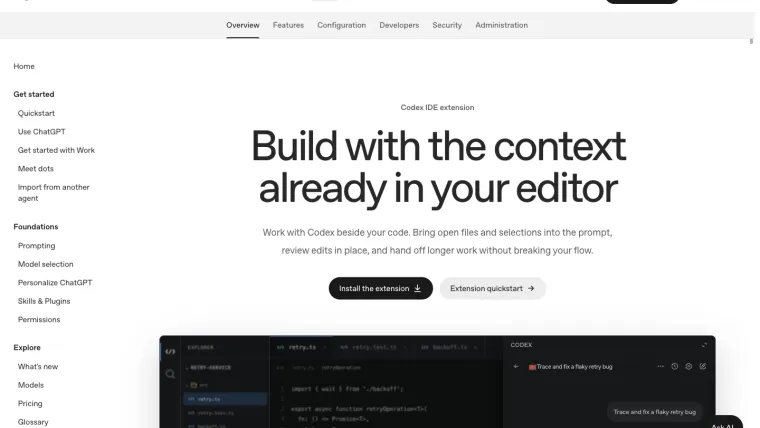
To learn how to use Codex in Cursor, begin with OpenAI’s Codex extension rather than assuming Cursor’s own agent is the same product. Open the correct project, install or enable the extension, open the Codex sidebar, and sign in through its offered route. Then verify file context with a small request before asking for an edit. OpenAI documents Cursor as a supported compatible editor. We checked that documentation and the Cursor 3.27.12 installer, but did not complete a signed-in Codex task inside Cursor. This guide distinguishes those setup checks from an end-to-end integration test.
Identify the agent before signing in
Cursor can host its own agent features and a Codex extension. The selected panel determines which workflow receives your request. A conversation with one does not establish access to the other, and the subscriptions should not be assumed interchangeable.
The official OpenAI IDE guide supplies a Cursor installation entry for openai.chatgpt. Confirm the publisher and identifier rather than installing a similarly named third-party extension. For comparing the products themselves, see Codex vs Cursor.
Install and open Codex
Open your practice project in Cursor. Use its extension installation route for the OpenAI package. If a compatibility or installation error occurs, record the editor build and the exact error before changing multiple settings.
Choose the Codex icon, or use the Command Palette command Codex: Open Codex Sidebar documented by OpenAI for compatible editors. Finish any onboarding and sign in using the route shown by that extension. Avoid confusing Cursor account controls with the Codex account flow.
For authentication help, use the Codex login guide. For other editors, consult the support matrix. Installing a package alone does not verify its activation or model access.
Verify project context with a read-only request
Open the relevant file and attach it or its selected code through the Codex composer. Start with a question that you can check immediately:
Explain the selected function and identify the file you are reading.
Do not edit files or use the network. Tell me what input controls
the shipping threshold.
Read the answer against the source. If it refers to the wrong file, check the folder and attachment before proceeding. A terminal in another checkout and an editor showing the expected filename can still point to different files.
Keep project instructions in the Codex mechanism described in AGENTS.md. Cursor-specific rule features should not automatically be treated as Codex instructions. Confirm what the selected agent actually reads.
Make a small change and review it
Give the task an observable finish line and a file boundary. In a fictional shipping fixture, ask for the exact $50 threshold to qualify for free shipping. Limit edits to the function file, preserve the tests, and request the test command before and after the repair.
Read the diff in the editor. Run the test and check the boundary case yourself. If Codex reports a limitation, retain it in your assessment instead of turning a plausible summary into a passing result. Our separate first-task tutorial shows a completed practice workflow.
For a browser feature, test its interaction rather than relying on the editor preview alone. The website exercise follows a real whitespace-input defect through a focused repair and retest.
Keep concurrent edits understandable
Avoid having Cursor’s own agent and Codex edit the same working copy at the same time without ownership boundaries. One agent’s diff can incorporate another agent’s changes, making it hard to attribute a result or revert only the intended part.
Use one agent for the initial practice task. If independent work justifies separate copies, use deliberate Git worktrees and record which checkout each agent uses. Separate conversations do not automatically create separate files.
Troubleshoot in order
A missing extension, a missing sidebar, a failed login, and an incorrect edit are different failures. Check installation first, activation next, then account access, context, permissions, and task behavior. Preserve a redacted error and the relevant versions.
If the extension works but a command is rejected, inspect its permission boundary. If the wrong repository is used, correct the working folder. If the integration fails before a model turn, try a small CLI request as a diagnostic comparison, while keeping its result separate from editor verification.
The native Cursor model turn remains untested in this guide. The documented integration route is established; your own acceptance check should confirm sign-in, correct context, a reviewed edit, and passing behavior in the installed editor.