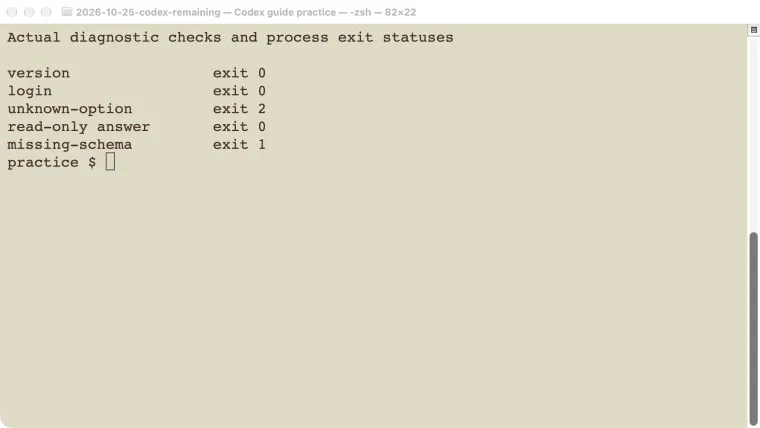
When Codex is not working, start with the last step that actually succeeded. Did the command launch, did the account sign in, did the model respond, or did the project’s test fail afterward? Those are different problems. Keep the exact error and the final result before changing settings. In our CLI 0.146.0 checks, an unsupported option failed locally, a missing output-schema file failed locally, and another run returned its answer despite connection warnings. This guide uses those results to build a short diagnostic path, then points to the dedicated setup, login, configuration, and tool-connection guides when the cause is clearer.
Start with the last completed step
Use the symptom to choose the next check. Avoid changing several settings at once: if the next run succeeds, you will not know which change mattered.
| What you can observe | Check next | Detailed guide |
|---|---|---|
Your shell cannot find codex | Whether this terminal can see the installed command | Installation |
| The program opens, but sign-in is rejected | Account, sign-in method, and the exact authentication error | Login |
| The response explicitly reports a usage limit | The affected allowance and its reset information | Usage limits |
| A setting appears to be ignored | Loaded file, launch mode, and command override | Configuration |
| A tool is missing or cannot connect | Whether the tool is configured, authenticated, and available in this session | MCP connections |
| The agent cannot write a file or run an action | The current permission boundary and any approval request | Permissions |
| The agent finishes, but the project test fails | The changed code and the project’s expected behavior | Code review |
A project test failure is useful evidence. It may identify a mistake in the proposed change rather than a broken Codex installation. Preserve that failure, especially if it shows the exact input that produces the wrong result.
For an apparently widespread service problem, check OpenAI’s status page. A reported incident can explain some failures, but a normal status page does not prove that your local network, account, or request is healthy.
Collect a small useful diagnostic record
Run these in the terminal you normally use for Codex:
codex --version
codex login status
pwd
git status --short
On macOS or Linux, command -v codex shows which executable the shell finds. On PowerShell, use Get-Command codex. If you have several installations, this can explain why a feature works in one terminal and is missing in another.
The login-status check reports the stored sign-in state. It does not independently prove that every model request will succeed. In our test it said Logged in using ChatGPT; later checks still needed to verify their own outcome.
The folder matters just as much as the version. pwd shows where the shell is operating. In a Git project, git status --short records whether there were already edits before another attempt. If Git says the folder is not a repository, first decide whether you opened the intended project. Do not initialize a new repository merely to silence a diagnostic message.
For the desktop app or an editor extension, record that product’s version as well. A recent extension can use a different runtime from the codex executable in your terminal. The CLI version alone cannot explain every editor problem.
Recognize errors that happen before a model call
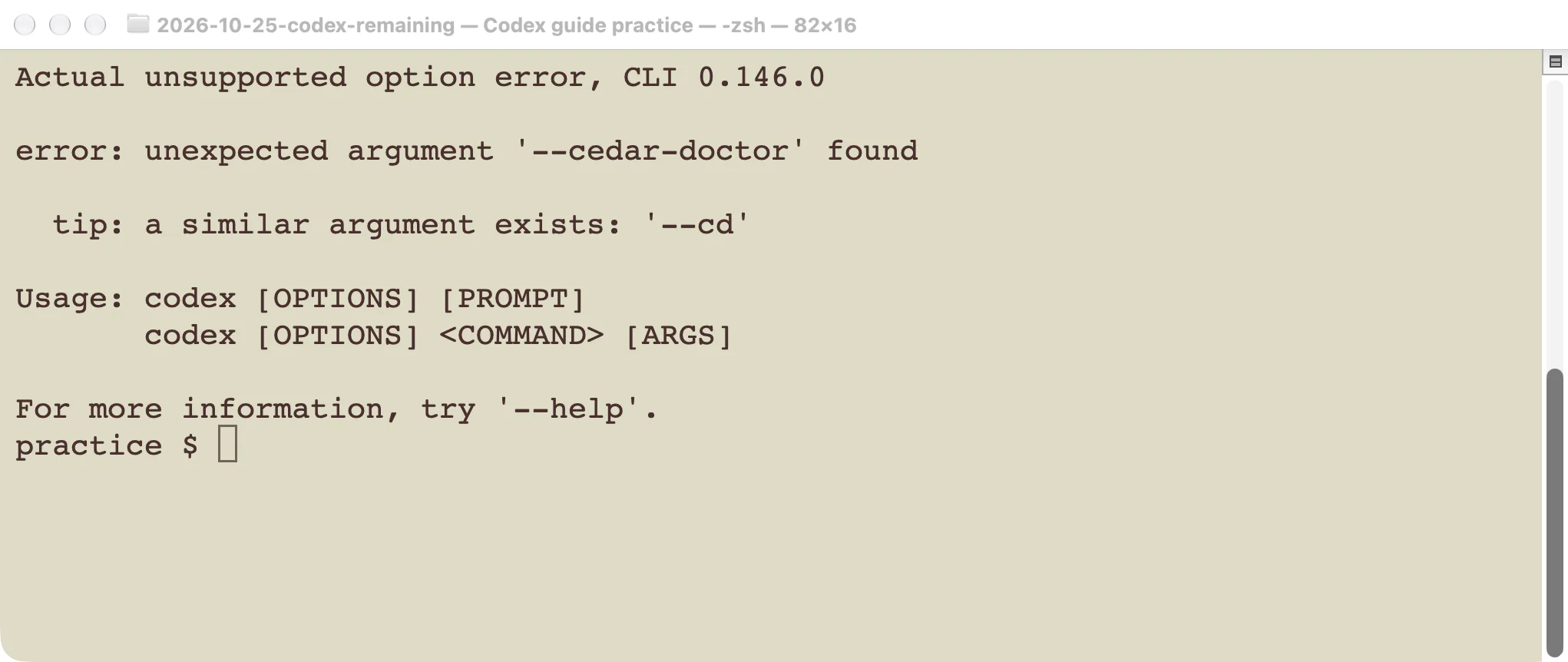
We passed an intentionally invalid option:
codex --cedar-doctorThe process exited with status 2 and reported unexpected argument '--cedar-doctor' found. This is a command-parsing failure. It does not establish a problem with model access, subscription limits, or the contents of a repository.
The error also suggested a similarly spelled option. Treat that as a spelling hint, not as a recommendation to run a different action. Check codex --help, then the help for the specific command you intended to use. Our command reference explains the difference between terminal arguments and commands entered inside a Codex conversation.
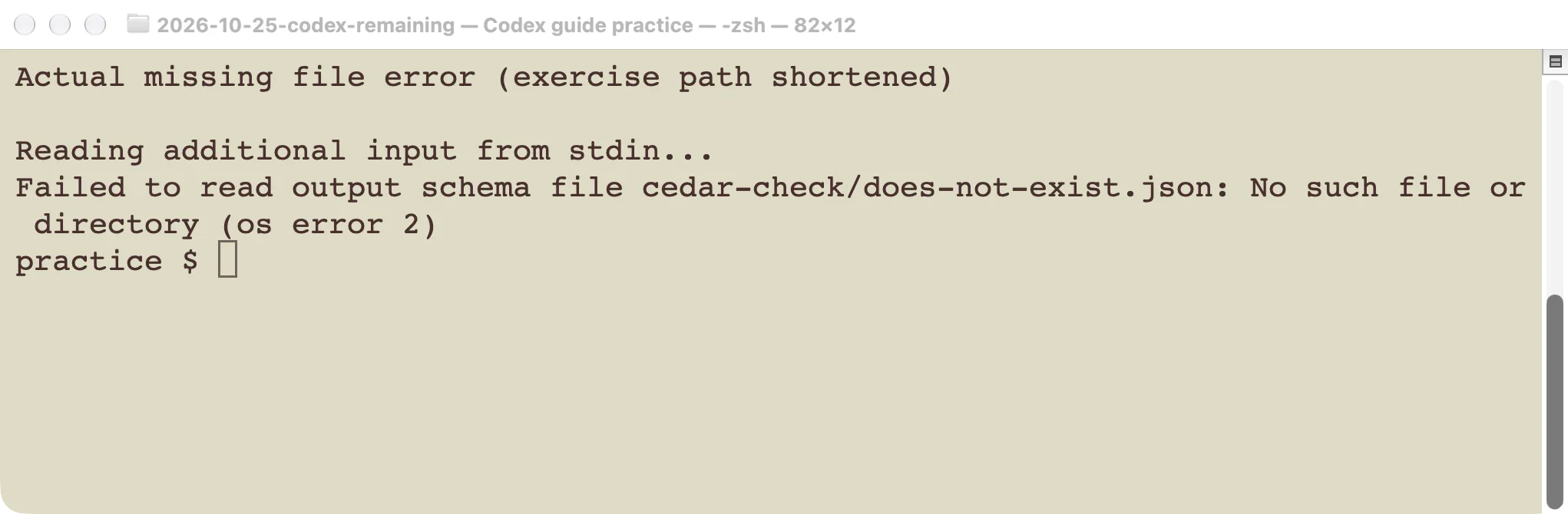
A second test asked codex exec to read an output-schema file that did not exist. A schema describes the shape of a structured answer. The process exited with status 1 and said it could not read the file.
The next check was the path on disk. Switching models or signing in again would not create that file. For your own case, verify the spelling, current folder, and whether the file exists where the command expects it. If the filename contains spaces, quote the path.
This distinction also applies to configuration errors. If the installed version rejects a field before the task starts, use the configuration diagnostic steps to identify the field and version. Do not remove the whole configuration file just to make the first error disappear.
Check the final result when warnings appear
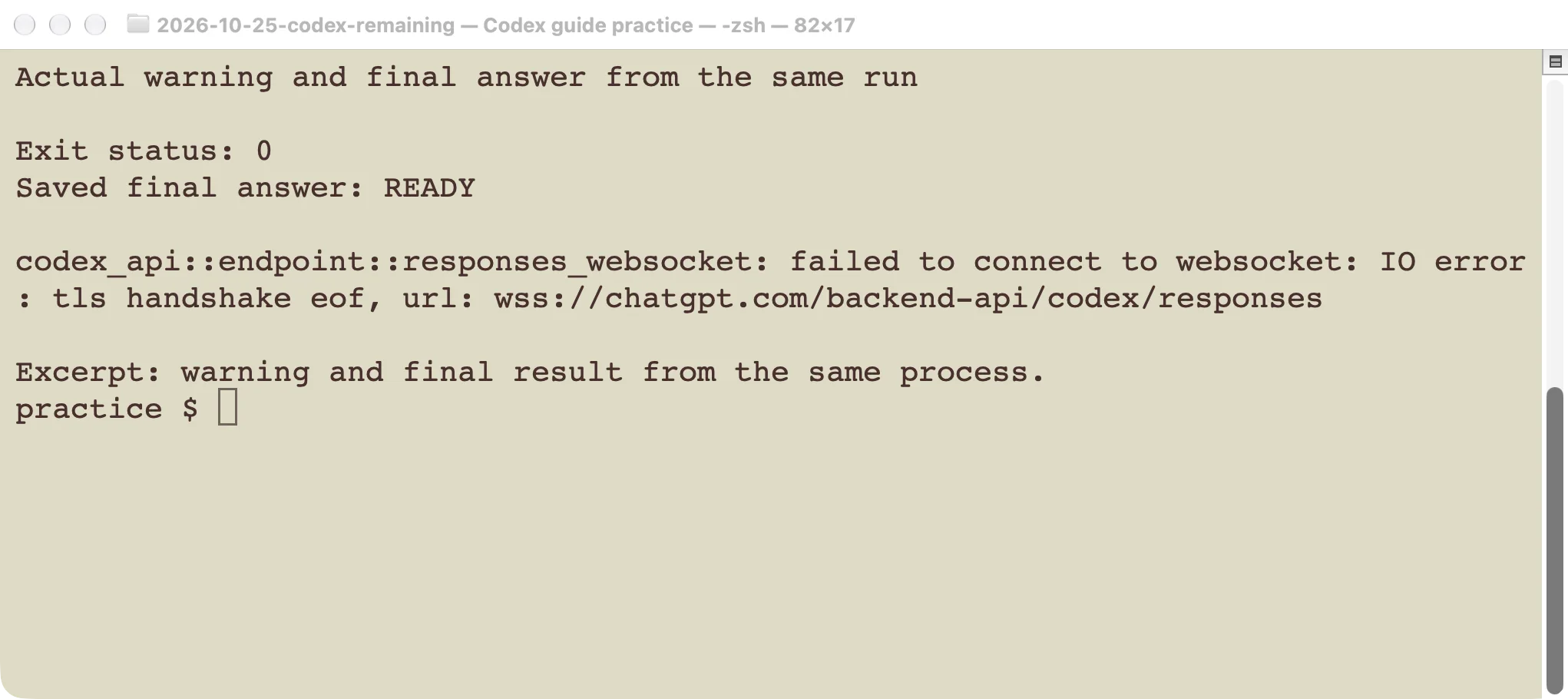
Our small read-only prompt asked for READY. The same process logged a WebSocket TLS connection failure, then returned READY and exited with status 0. The screenshot shows a saved excerpt from that one run. It does not combine a failed run with a later successful retry.
The supported conclusion is narrow: that warning did not prevent this task from completing. We did not identify the network component responsible or prove that every future request would recover. Repeated warnings combined with failed turns still deserve investigation.
For a scripted task, check three things together:
- The process exit status.
- The final answer or required output file.
- The task’s independent acceptance check, such as a test or a file comparison.
Exit 0 means the command completed successfully according to its own rules. It does not guarantee that generated code meets your requirements. Conversely, an alarming log line does not by itself prove that the final task failed.
If you use codex exec --json, stdout contains events. If you also use --output-last-message, the final response goes to the selected file. Looking only at one stream can make output appear missing. The non-interactive tutorial shows those destinations with an actual structured-output test.
Handle a slow or apparently stuck task
First locate what is waiting. A visible approval request needs a decision. A running build needs its own output checked. A tool connection may be waiting for authentication. These situations call for different actions, even if the conversation has not produced a new sentence.
For a command you started in a terminal, note the last visible event and check whether it changes. If you decide to stop it, interrupt that task once, then inspect the working tree before retrying. Cancellation is not a guarantee that earlier file edits were undone.
Make the next attempt smaller. Ask for one read-only check in the intended folder, with a clear final result. If that works, add the failing tool or action back. Do not repeatedly retry a broad task that may create duplicate files, commits, or external actions.
If the problem appears only in a worktree, compare its setup with the main checkout. Dependencies and ignored local files may differ. OpenAI’s troubleshooting documentation covers this case; the worktree guide explains how to inspect and clean up the separate checkout.
Avoid a blanket network or permission reset as a first response. A useful diagnosis identifies the failing boundary and changes the smallest relevant thing. An operation that needs one project folder does not automatically need unrestricted access to the computer.
Share enough evidence to reproduce the problem
Use a short report that another person can follow:
Interface and version:
Operating system:
Working folder or small sample project:
Command or exact action:
Expected result:
Actual result and exit status:
First relevant error:
Last completed event:
Does the same small example fail again?
Include the command’s structure, but remove keys and tokens. Replace personal paths consistently, and say that you shortened them. If logs contain project content, share only the portion needed to demonstrate the failure.
Before reporting a fix, repeat the original failing case. Then verify the user-visible result: the expected file exists, the correct test passes, or the requested tool actually returns data. “The setting saved” and “the task worked” are different checks. Keep the evidence that connects the change to the result.